EventBlender Overview
EventBlender Overview
EventBlender puts your events on your Joomla or WordPress site as calendars and timelines. It reads them from wherever you already keep them: a text file, an Excel sheet, a database or a Google Calendar. It can also blend several of those sources into one calendar. This page explains what it does, how the pieces fit together, and why new users are better off starting with Tabulizer 7.
What EventBlender is
EventBlender is an extension for Joomla 3, 4, 5 and 6 and a plugin for WordPress. You give it a list of events, one per row, each with at least a date and a title. It draws them in the layout you choose.
Calendars
Month, week and day grids, an agenda list and a year overview. Visitors can open any event, filter by category, search and copy events into their own calendar.
Timelines
Vertical and horizontal timelines for a history, a project plan, a festival programme or a season.
Many sources
Events can come from a text file, an Excel sheet, a database table, a Google Calendar, a feed and more. You don't need to copy them by hand.
One blended calendar
Several sources can feed one calendar. That is the "blender" in EventBlender.
Three building blocks
Everything in EventBlender is built from three pieces. Once you know them, the rest of the documentation is easy to follow.
| Piece | What it is | Example |
|---|---|---|
| Ruleset | The design: the layout, the colours, the views and the options. One ruleset can be used by any number of calendars. | A Combined Calendar in your club colours, opening on the month view. |
| Data source | Where the events come from, plus the ruleset that draws them. It is saved once on your site and has a short tag. | The Google Calendar of your team, drawn with that ruleset. |
| Tag | The short code you place in an article, a module, a post or a page. When the page is shown, EventBlender replaces it with the calendar. | {eventblender:data_source[cMj6FbzKWDmjg3j6jeF2DwNF]} |
You never have to type a tag yourself. On Joomla, CMS Content › EventBlender in the article editor inserts it. On WordPress, the EventBlender Calendar / Timeline block does.
Where the events can come from
Every data source has a Source Type. Pick the one that matches where your events already are:
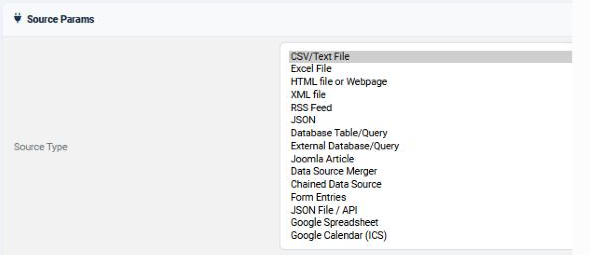
| You keep your events in… | Source Type |
|---|---|
| A text file or a CSV export from another program | CSV/Text File |
| An Excel workbook | Excel File, choosing the sheet and the cells to read |
| Google Calendar, Outlook, Apple Calendar or any calendar with an ICS address | Google Calendar (ICS). Recurring events are expanded into their dates, and you can limit the calendar to a date range. |
| A shared Google Sheet | Google Spreadsheet |
| One or more database tables, on your site or on another server | Database Table/Query, External Database/Query |
| A booking system, ticket shop or other service with a feed | JSON, JSON File / API, XML file, RSS Feed |
| Entries visitors submit through a form on your site | Form Entries |
| Several of the above at once | Data Source Merger. See the next section. |
The calendar finds each piece of an event by its column name: date, title, start_time, end_time, end_date, category, location, description, url and a few more. If your source names its columns differently, the data source can map them, so you don't have to change the source.
Blending: several sources, one calendar
Most organisations don't keep all their events in one place. Games are planned in a shared Google Calendar, the secretary keeps club events in a text file, and the coaches keep the training plan in Excel. A Data Source Merger takes the events of several data sources and shows them together in one calendar. Each source stays where it is and is still updated by whoever owns it.
Here is a real example, made on our Joomla 5 demo site. First, a data source for each place the events live:
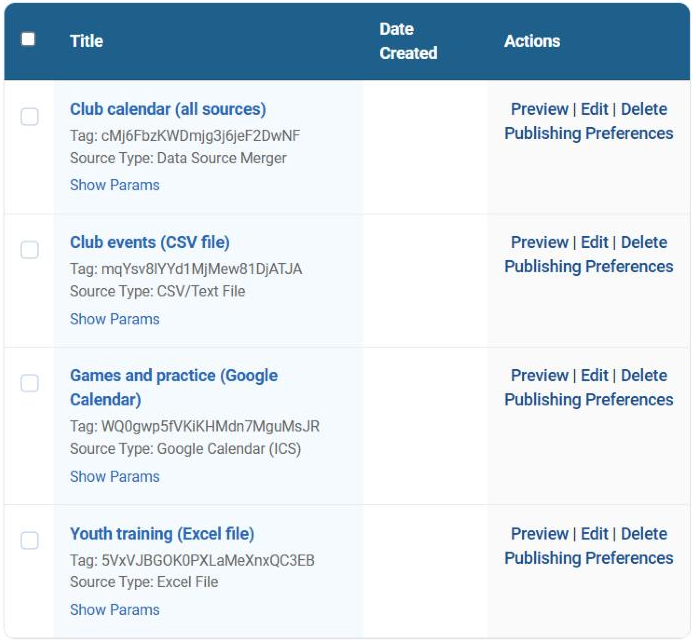
Then a fourth data source of type Data Source Merger. Drag the three sources from Available Data Sources into the Merging Tree, and keep the group set to Vertical — append rows so the events of each source follow the events of the one before:
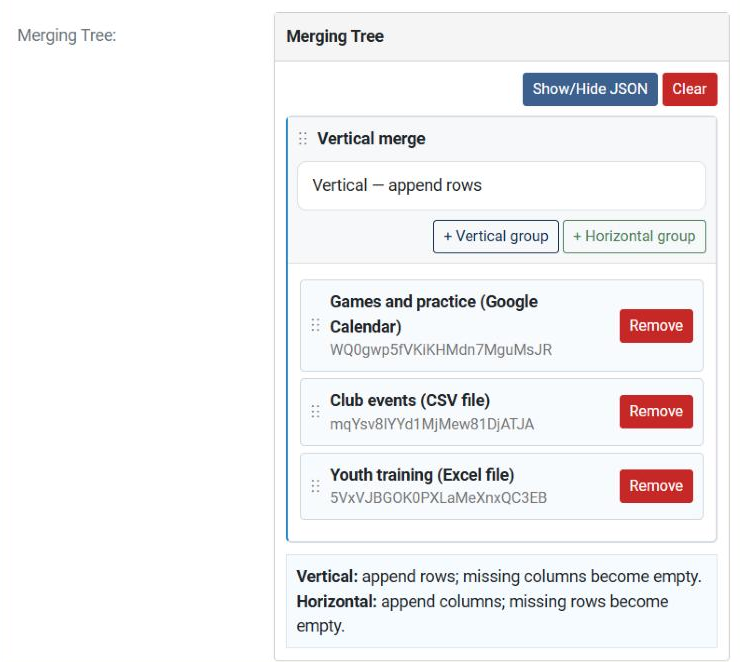
Choose a calendar ruleset for the merger (this one uses EventBlender: Combined Calendar), save it, and insert the merger's tag in an article. The result is one calendar fed by three sources:
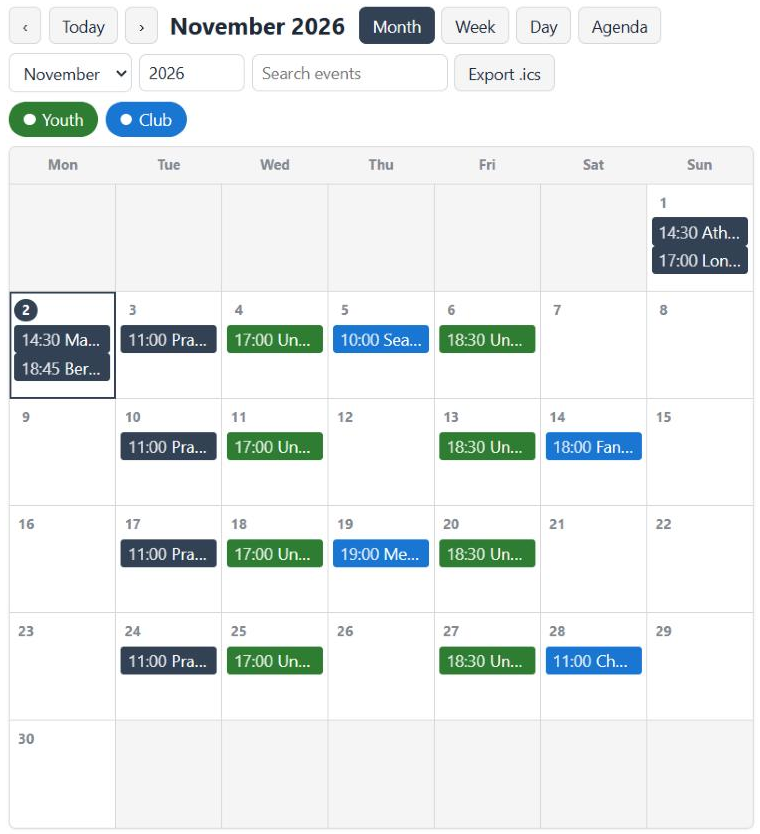
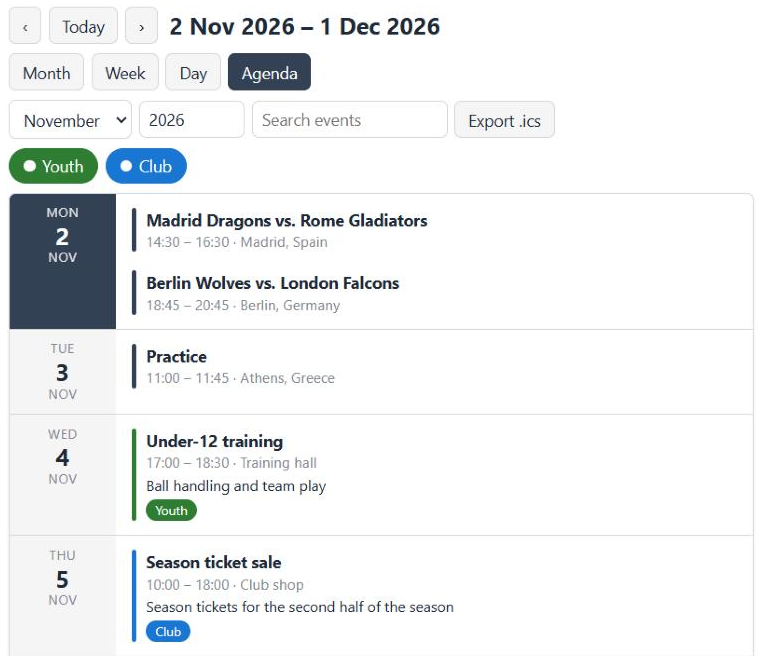
Visitors can switch to the agenda to see every event in full, whichever source it came from:
Four things to get right
| Rule | Why |
|---|---|
| Put the columns in the same order in every source. | A vertical merge lines up the columns by position, not by name. In the example every source lists title, location, date, start time, end date, end time, description and category, in that order. |
| Put the source with the heading row first. | The calendar reads the column names from the first row of the merged events. A Google Calendar data source always adds its own heading row, so put it first and leave the heading line out of the files that follow. A heading row further down does no harm, because the calendar skips any row whose date is not a date, but the files are easier to check without it. |
| Give each source a category. | Events of one category share a colour and a filter button. Here the CSV rows are Club and the Excel rows are Youth. Google Calendar does not export categories, so its events take the calendar's main colour. |
| Preview each source on its own first. | A merger of two sources that were never checked is two problems at once. Every data source has a Preview link. |
Your own design, made once and used many times
The twelve rulesets that come with EventBlender are a good start, but sooner or later you will want your own colours, heading and options. The Calendar & Timeline Wizard on tabulizer.com makes rulesets without any code.
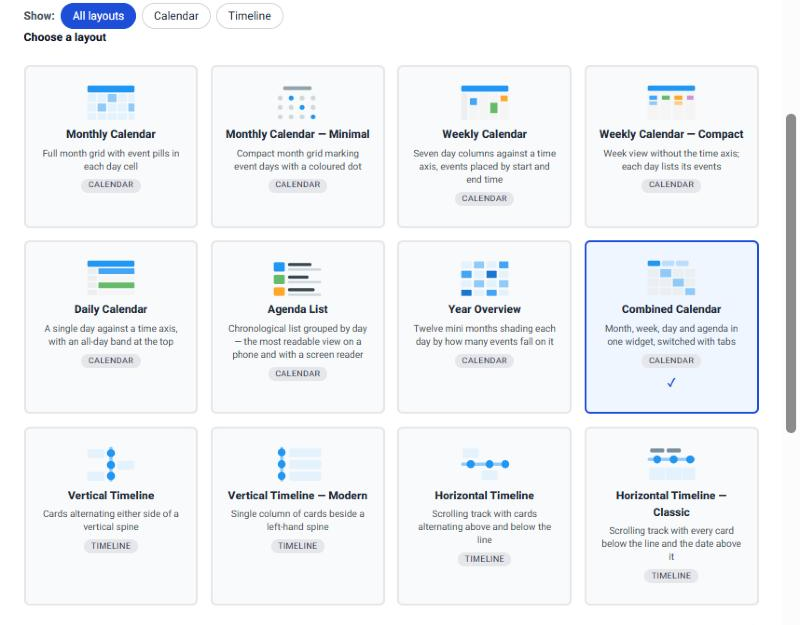
Layout
Pick one of the twelve layouts.
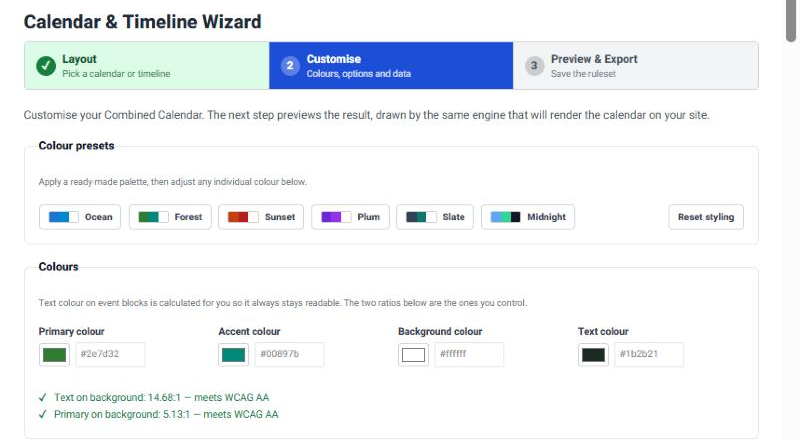
Customise
Choose a colour preset or your own colours, set the heading, the first day of the week, the time format, the category filters, the search box and the calendar export, and paste a few events to try it with.
Preview & save
Check the live preview, give the ruleset a title and save it. Download it from the Ruleset Manager and import it under Components › EventBlender (Joomla) or EventBlender › Ruleset Archives (WordPress).
A ruleset holds only the design, not the events, so you can use it again and again: the club calendar, the youth calendar and the home-page timeline can all share it. When you change the ruleset and import it again, every calendar that uses it changes with it.
Calendars that update themselves
You could paste your events straight into an article. That works, but the calendar is then a snapshot, and every change means editing the article again. A data source works the other way around: it reads the events from their source each time the calendar is shown.
Files
Replace the CSV or Excel file, or edit it inline in the admin, and the calendar shows the new events.
Database tables
Rows another extension or system adds to the table appear in the calendar without anyone touching it.
Google Calendar
Add, move or cancel an event in Google Calendar and the website follows.
In the example above, the coach updates the Excel sheet, the secretary updates the CSV file and the team manager uses Google Calendar. Nobody edits the website, and the blended calendar is always current.
EventBlender and Tabulizer 7
EventBlender and Tabulizer share the same engine. Since Tabulizer 7, the full functionality of EventBlender is part of Tabulizer: the calendar and timeline layouts, the Calendar & Timeline Wizard rulesets, the Google Calendar source and the Data Source Merger. Everything on this page works the same way in Tabulizer 7, which is built for much more than events:
Tables
Responsive tables with sorting, filtering, pagination and export, from your data or from the HTML tables already in your articles.
Eight online wizards
Tables, charts, pricing tables, galleries, forms, calculators, D3 visualisations, and calendars and timelines.
Data modifications
Add, remove, replace, format and merge rows and columns before they are shown, without touching the source.
Documentation
This knowledge base, the tutorials and the AI Assistant are written for Tabulizer 7.
EventBlender is still available for sites that already use it. Both are included in the same membership plan: a Tabulizer 7 membership gives you the downloads of Tabulizer and EventBlender for Joomla and WordPress, so you never pay twice.
Common questions
Do I need a Google account to show a Google Calendar?
Only the calendar's owner does. Make the calendar public, or copy its secret ICS address, and paste the address into a Google Calendar (ICS) data source. Your visitors need nothing.
Can one calendar show events from two Google Calendars?
Yes. Create one data source per Google Calendar, with the same Fields to Include in each, and merge them. The second calendar's heading row is skipped, so its events simply join the first one's.
I changed the ruleset, but the page still shows the old calendar.
Joomla's own page or article cache may still hold the old page. Clear it under System › Maintenance › Clear Cache, or wait until it expires.
The merged calendar shows events with jumbled details.
The sources do not agree on column order. Preview each one and make column 1 the same thing everywhere, column 2 the same thing everywhere, and so on.
Can I show the same events as a calendar and a timeline?
Yes. Create a second data source with the same source and a timeline ruleset, and place each tag where you want it.
Read more
To build your first calendar step by step, follow the Getting Started tutorials How to Create Your First Calendar on Joomla and on WordPress. More about the sources: The Database Table/Query Data Source and The Google Spreadsheet Data Source. To install Tabulizer 7: on Joomla or on WordPress.
Start with Tabulizer 7
One membership covers Tabulizer 7 and EventBlender on Joomla and WordPress, with every calendar, timeline and wizard on this page.
See the membership plans