Open Table Images in a Modal Gallery
Open Table Images in a Modal Gallery
Keep your table compact, then let visitors open a larger picture without leaving the page. The image_modal function turns image addresses or existing image tags into clickable thumbnails, with captions, descriptions and gallery navigation taken from your table data.
What image_modal does
It looks at the cells you choose. A cell containing one image address or one standalone <img> tag becomes a clickable thumbnail. Clicking it opens the image in a modal window above the page. You can control the thumbnail size, the larger image's maximum size, and the frame's light or dark theme.
Other columns on the same row can supply a caption, a description and a category. Images with the same category share Previous and Next buttons, so visitors can browse a group without reopening the table.
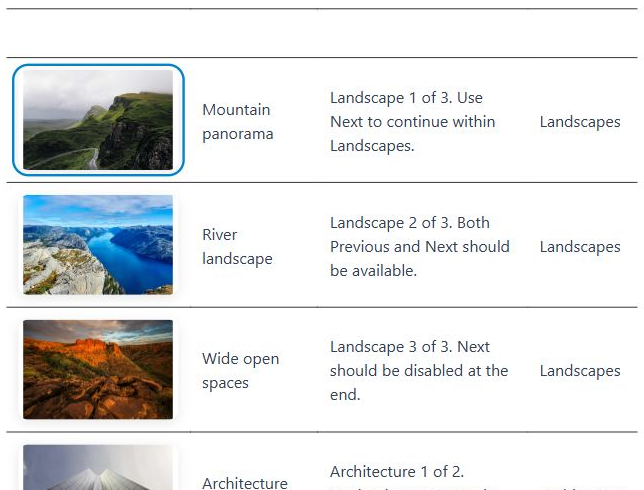
img2src when you only need pictures inside the table. Use image_modal when those pictures should also open in a larger viewer. You do not need to run both functions on the same image column.Prepare the table
Keep the image address and its descriptive information in separate columns. Here, column 1 holds the image, column 2 the caption, column 3 the description and column 4 the category:
| Image (column 1) | Caption (column 2) | Description (column 3) | Category (column 4) |
|---|---|---|---|
| /images/photos/mountains.jpg | Mountain panorama | A wide view from the mountain trail. | Landscapes |
| /images/photos/river.jpg | River landscape | The river seen from above. | Landscapes |
| /images/photos/courtyard.jpg | Quiet courtyard | Stone arches around an open courtyard. | Architecture |
| /images/photos/dog.jpg | Animal portrait | A closer look at our four-legged friend. | Animals |
| /images/photos/detail.jpg | A closer look | An image that opens on its own. | (empty) |
With category:4, the first two images form a Landscapes gallery. Architecture and Animals each have one image in this example, and the empty-category image opens individually. The caption, description and category cells stay in the table; the function does not hide or remove them.
Setting it up
- In step 1 (Data) of the Table Wizard, load or type the sample table, including its header row.
- In step 5 (Modifications), click Add new Data Modification.
- Leave Table Element at Table and Element Range at all.
- Set Function Type to Built-in/Existing one and choose image_modal as the Function Name.
- Enter the following in Function Args, then continue to step 6 (Preview) and click a thumbnail.
columns:1^caption:2^description:3^category:4^thumbnail_width:160px^thumbnail_height:100px^max_height:75%^max_width:90%^theme:light
This creates 160 × 100 pixel thumbnail boxes and a light modal frame. The larger image is limited to 75% of the viewport height and 90% of its width, with room left for the viewer controls and text.
image_modal.php is installed in templates/tabulizer/modify/ on Joomla, or wp-content/plugins/tabulizer/templates/tabulizer/modify/ on WordPress. The installed version must include the thumbnail and theme arguments. An existing installed function can run in the wizard preview; new custom code entered in the wizard does not run there.The arguments
Every argument is optional. Write name:value pairs separated by a caret (^), in any order. With no arguments, recognised images become clickable thumbnails using the default dark viewer, without category navigation.
columns:[columnIDs]^rows:[rowIDs]^caption:[columnID]^description:[columnID]^category:[columnID]^thumbnail_width:[size]^thumbnail_height:[size]^max_height:[size]^max_width:[size]^theme:[dark or light]
| Argument | Meaning and default | Example |
|---|---|---|
columns |
Image columns to process, as comma-separated IDs counted from 1. Default: all columns except those used for caption, description or category. | columns:1 or columns:1,5 |
rows |
Rows to process, as comma-separated IDs counted from 1. Default: all rows, including the header if it contains an image. | rows:2,3,4 |
caption |
One column ID containing the caption on the same row. If omitted, the existing image's alternative text is used; a plain URL has no caption by default. | caption:2 |
description |
One column ID containing longer text below the caption. Default: no description. HTML in this text is reduced to plain text. | description:3 |
category |
One column ID containing the gallery group name. Default: each image opens individually. Blank category values also open individually. | category:4 |
thumbnail_width |
Width of the small image in the table. Default: unset, leaving existing thumbnail styling in control. | thumbnail_width:160px |
thumbnail_height |
Height of the small image in the table. Default: unset. With only one thumbnail dimension supplied, the other becomes automatic. | thumbnail_height:100px |
max_height |
Maximum height of the larger modal image. Default: 85% of viewport height. Available screen space may reduce it further. |
max_height:36rem |
max_width |
Maximum width of the larger modal image. Default: 90% of viewport width. The image stays within the available screen space. |
max_width:900px |
theme |
Modal frame, text and button colors: dark (default) or light. This does not change the table's colors. |
theme:light |
^, not semicolons. Row and column selectors accept positive numeric IDs, not ranges such as 2-5 or last-relative IDs such as L1. An unknown or repeated argument, invalid size, unsupported theme, or out-of-range ID leaves the entire table unchanged.Thumbnail size and modal size are different
The thumbnail arguments control the image inside the table. The maximum-size arguments control the image after a visitor opens it. Changing one does not change the other.
| What you want | Arguments | Result |
|---|---|---|
| Thumbnails with a consistent width | thumbnail_width:160px |
The height adjusts to preserve each image's proportions. |
| Thumbnails in equal-sized boxes | thumbnail_width:160px^thumbnail_height:100px |
The whole image fits inside the box without stretching or cropping. Different proportions can leave spare space. |
| A larger viewer with a pixel limit | max_height:600px^max_width:900px |
The modal image keeps its proportions and respects both limits and the available screen space. |
| A viewer that adapts to the screen | max_height:75%^max_width:90% |
The limits follow the viewport height and width. |
All four size arguments accept a positive number followed by px, em, rem or %. A bare number means pixels: thumbnail_width:160 and thumbnail_width:160px mean the same thing.
For modal limits, percentages refer to the viewport and em uses the viewer's 16-pixel font. For thumbnails, percentages refer to the containing cell and em uses the thumbnail's font size. rem always follows the page's root font size. A percentage thumbnail height needs a container with a definite height; pixels are usually simpler for equal-sized thumbnail boxes.
max-width:100% styling can shrink a thumbnail in a narrow cell. If a 160-pixel thumbnail appears smaller, widen that column or allow horizontal table scrolling. Explicit thumbnail sizes override ordinary width and height rules, but responsive maximum widths can still apply.Choose a dark or light frame
The default dark frame keeps the focus on the picture. Set theme:dark explicitly, or leave the theme argument out.
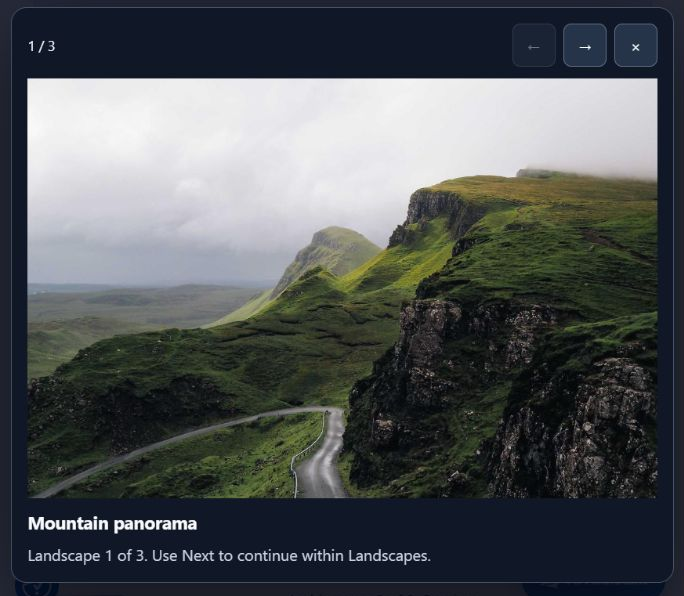
Use theme:light for a white frame with dark text and matching controls. The same image, grouping and size settings work with either theme.
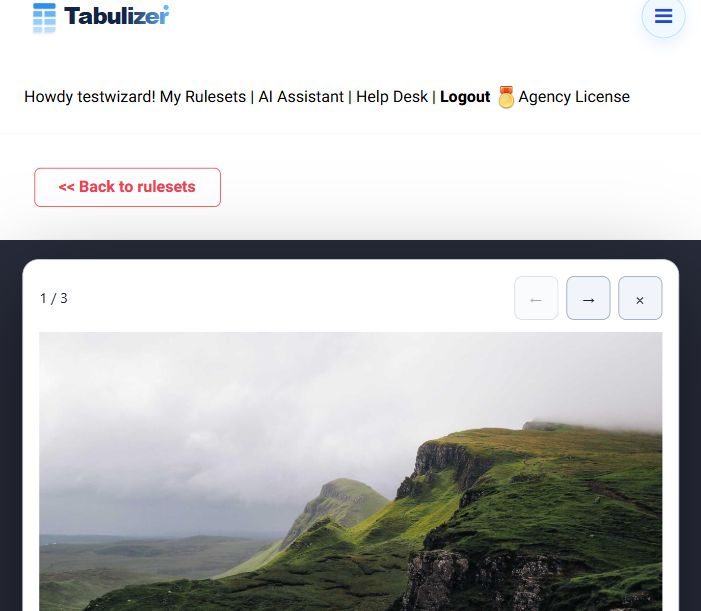
How categories and navigation work
- The category value comes from the chosen column on the same row as the image.
- Matching is case-sensitive:
Landscapesandlandscapesare different groups. Leading and trailing spaces are ignored. - Images in a group follow their original row and column order. The buttons stop at the first and last image rather than wrapping around.
- Groups belong to this table modification, so two separate tables with the same category names do not become one gallery.
- A category containing one image has no navigation arrows. A blank category also opens on its own.
- The gallery includes all converted source images, even if table search or pagination currently hides some rows. Sorting the displayed table does not change the gallery's original order.
Visitors can use the Previous and Next buttons or the Left and Right arrow keys. Escape, the Close button, or a click outside the frame closes the viewer. Keyboard focus returns to the thumbnail that opened it.
Things to know
Which image addresses are recognised?
A plain cell must contain one image path or URL ending in png, jpg, jpeg, gif, webp, svg, avif, bmp, ico, apng, tif or tiff. Extensions are case-insensitive; query strings and fragments are allowed. The function also accepts one standalone <img src="/..."> tag, whose source may be an address without a file extension.
Can I use relative paths?
Yes. Relative paths, protocol-relative addresses and HTTP/HTTPS URLs are supported. Paths are resolved against the page address; there is no baseurl argument. Use a site-root path such as /images/photos/mountains.jpg, or a full URL, when the same ruleset appears on pages at different depths. Encode spaces as %20.
What happens to existing images and links?
A standalone image tag becomes a thumbnail link. Its alternative text, numeric width and height attributes, and CSS class are retained; explicit thumbnail arguments can override its size. Other attributes are not copied. Existing links, multiple image tags in one cell, mixed HTML, and thumbnails already produced by this function are left unchanged.
Why did my image tag disappear from the sample data?
The wizard can remove raw HTML entered in the sample CSV box. Use plain image URLs there, as in the demonstration table. Support for standalone image tags is useful when your table's source data already contains those tags.
Does the header row change?
Ordinary text headings stay as they are. By default all rows are inspected, so an actual image in row 1 can also become clickable. Use rows if you need to restrict processing. The function adds or removes no rows or columns, and leaves the caption, description and category source cells untouched.
Can captions and descriptions contain HTML?
The viewer shows them as plain text, with HTML tags removed. A caption argument names a column; it is not a fixed caption string. Existing alternative text is retained, and the larger image uses the caption as its alternative text when the source has none.
Does it need a gallery library?
No external JavaScript library is loaded. The viewer uses the browser's native dialog support. If JavaScript or dialog support is unavailable, the thumbnail remains a link to the image. If images appear but the viewer does not open, check for script errors or a site content-security policy that blocks the generated script or styles.
Try it on your own data
Start with an image column and a caption column, then add descriptions, categories and thumbnail sizes as you need them. Leave theme out for the dark frame, or use theme:light for the light variation.