Static or Dynamic
Paste a Table Once, or Keep It Linked to Live Data
Some tables are written once and never change. Others follow a price list, a spreadsheet or a database that changes every week. Tabulizer handles both. Choose per table when you insert it.
What's inside: static HTML tables, dynamic data source tags, automatic updates, cache time, server-side processing, one data source reused on many pages.
Static or dynamic: you choose per table
Static content
- 1 You paste or import the data in the editor.
- 2 Tabulizer converts it into the finished HTML once.
- 3 The article stores the result. Edit it like any other content.
Best for small tables that rarely change.
Dynamic content
- 1 You create a data source: a file, spreadsheet, feed, API or database.
- 2 The article holds only a short tag:
{tabulizer:data_source[TAG]} - 3 Visitors always see the current data. Update the source, not the article.
Best for data that changes, large tables and shared sources.
Static: Finished HTML in Your Article
Paste or type your data in the Tabulizer editor window, pick a ruleset, and Tabulizer writes the finished table into the article. From then on it is ordinary content: you can change a cell right in the editor, and nothing depends on an outside file.
- Best for small tables that rarely change: opening hours, a spec sheet, a one-off comparison.
- Nothing to configure and no data source to maintain.
- Works with every ruleset: styling, sorting, filtering, pagination, responsive patterns.
Dynamic: A Tag That Always Shows Current Data
Create a data source once, then insert its tag. The article holds only this line:
{tabulizer:data_source[TAG]}When a visitor opens the page, Tabulizer reads the source, applies the ruleset and shows the result. Replace the Excel file, update the Google spreadsheet or add rows to the database, and the page shows the new data without anyone editing the article. WordPress sites can also use the shortcode [data-source tag="TAG"].
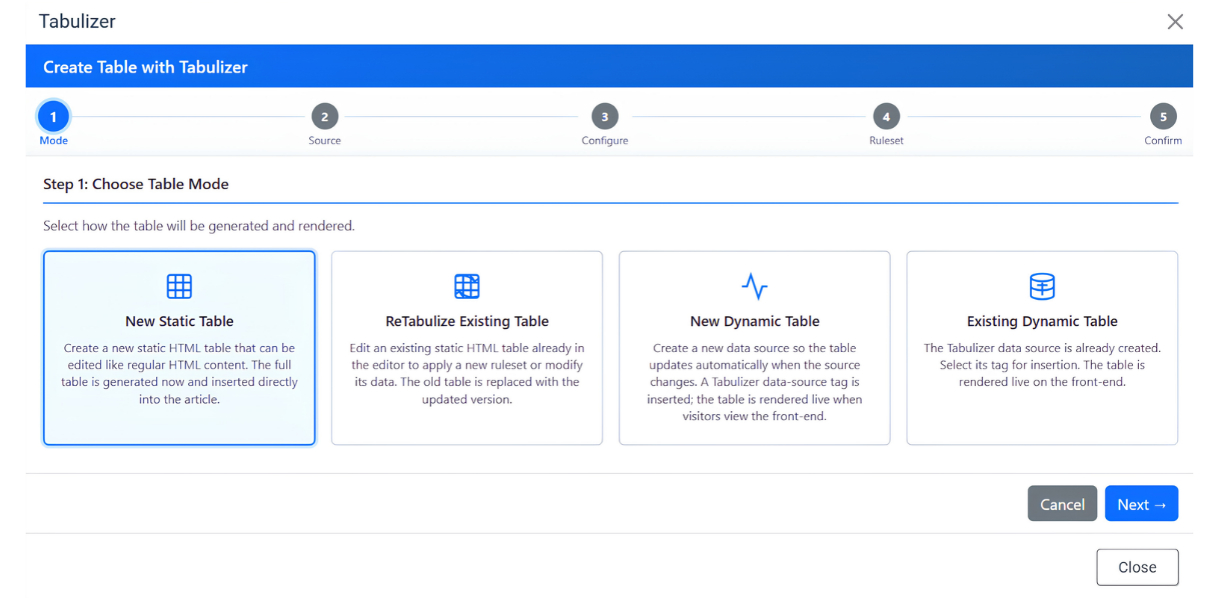
What Dynamic Content Adds
One Source, Many Pages
Use the same data source tag in several articles. Update the source once and every page follows.
Live Files and Feeds
CSV, Excel, Google Sheets, JSON APIs, RSS feeds, databases and Google Calendar ICS feeds. See data sources.
Cache With a Refresh Time
Slow remote sources are read once and kept for as many minutes as you set. Clear the cache whenever you need an instant update.
Server-Side Processing
Only a dynamic table can page, sort and search on the server, which is how Tabulizer shows 50,000 rows without a slow page.
Which One Should I Use?
- Static if the data is small, changes rarely, and you want to edit it inside the article.
- Dynamic if the data lives in a file, spreadsheet, feed or database that someone else updates.
- Dynamic if the same data appears on more than one page.
- Dynamic if the table has thousands of rows.
Questions
Can I edit a dynamic table in the article editor?
Yes. Put the data in a file or spreadsheet, create a data source with the same ruleset, and replace the static table with the tag.
Can I switch a table from static to dynamic later?
Yes. Put the data in a file or spreadsheet, create a data source with the same ruleset, and replace the static table with the tag.
Do dynamic tables slow my site down?
Turn on the cache and the source is read once per refresh period, not on every page view.
Build Your First Table
Design the look in the Table Wizard, then use it for static or dynamic tables.