Pricing Tables Wizard
What the Pricing Table Wizard does
The Pricing Table Wizard turns a plain table of plans into a styled, responsive, accessible pricing table for your website. You describe your plans once — names, prices, feature lists, which one is the popular choice — pick a layout, adjust the styling, and the wizard produces a Tabulizer ruleset that you import into your own site.
It is the right tool when you need:
- a subscription or product pricing table with two to six plans;
- a monthly / annual price switch;
- a feature comparison across plans;
- pricing that a search engine can read as structured data;
- a table that stays readable on a phone and works with a screen reader.
You do not need to write any HTML or CSS. Everything is driven from a small table of data plus a set of options.
How the pieces fit together
- You build the table in the online wizard on the Tabulizer website.
- The wizard gives you a ruleset archive (a
.zipfile). - You import that archive into Tabulizer on your own site.
- You apply the ruleset to a table in one of your articles. Tabulizer combines your real data with the ruleset and renders the finished pricing table.
The wizard never sees your live data. It works from sample rows so that you can design the table. The ruleset describes how to render a pricing table; the actual plans and prices come from the table in your article at render time. That means you can update your prices later by editing your article, without returning to the wizard.
Before you start
- An account on the Tabulizer website, so you can save and download the ruleset.
- Tabulizer installed on the site where the pricing table will appear.
- Your plan details to hand: name, price, and the features of each plan.
The wizard has three steps, shown in the progress bar at the top of every page. A step with a green tick is finished; the blue step is the one you are on. You can click back to a finished step at any time — nothing is lost.

Step 1 — Choose a template
The first step asks only one question: which layout suits your pricing structure? Pick a card and click Next step.
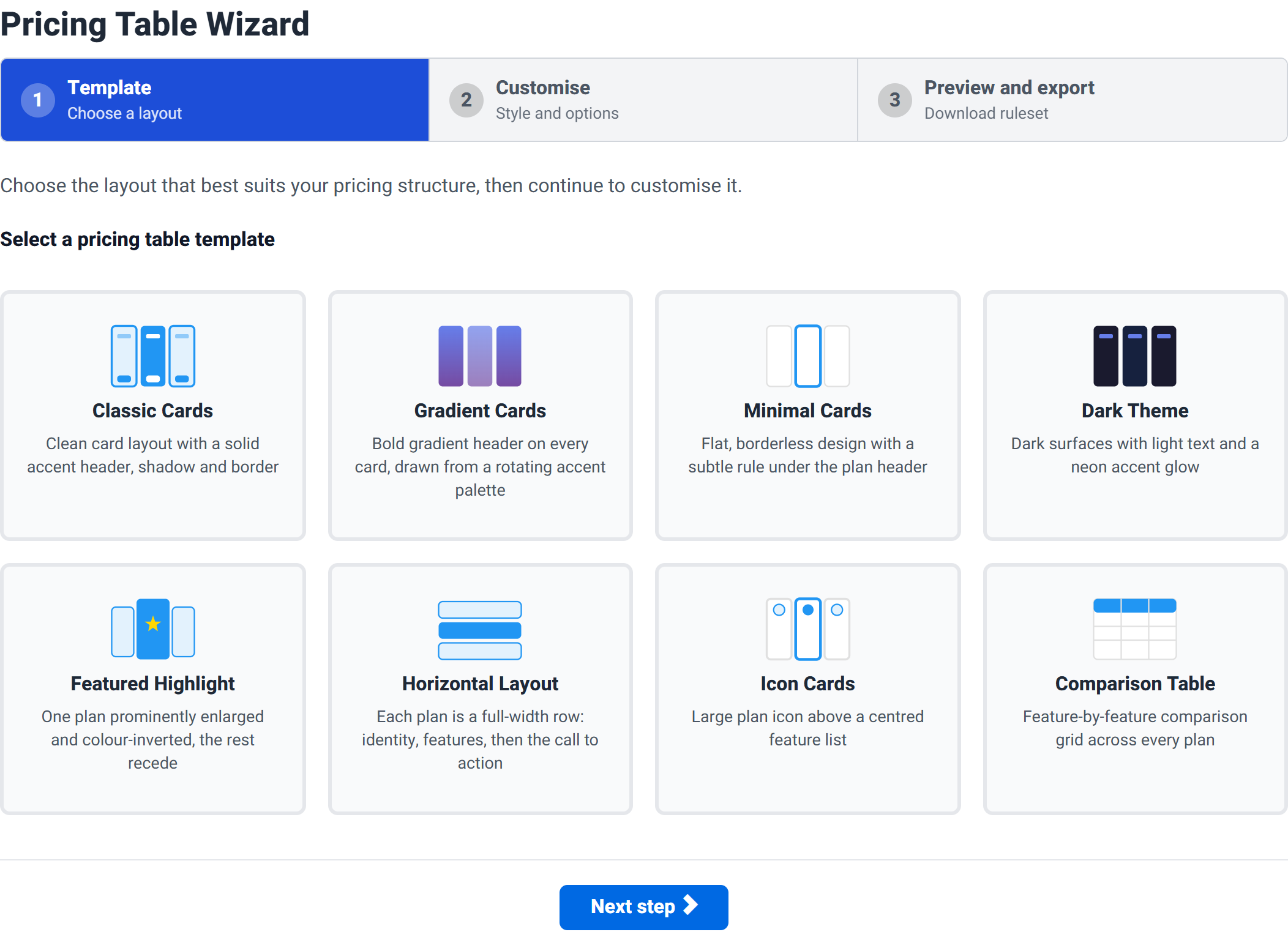
The template decides the shape of the table, not its colours — you can recolour any template in Step 2. Choose based on how many plans you have and how much detail each one carries.
| Template | What it looks like | Best for |
|---|---|---|
| Classic Cards | Clean cards with a solid accent header, shadow and border | The safe default. Two to four plans. |
| Gradient Cards | Bold gradient header on every card, from a rotating accent palette | A more colourful, marketing-led page. |
| Minimal Cards | Flat and borderless, with a subtle rule under the plan header | Understated designs, or a page that already has a lot going on. |
| Dark Theme | Dark surfaces, light text, neon accent glow | Dark websites. This template brings its own colour palette. |
| Featured Highlight | One plan enlarged and colour-inverted, the others recede | Steering visitors firmly towards one plan. |
| Horizontal Layout | Each plan is a full-width row: identity, features, then the call to action | Long feature lists, or a narrow column where cards would be cramped. |
| Icon Cards | Large plan icon above a centred feature list | Plans with a strong visual identity. Uses the icon column. |
| Comparison Table | A feature-by-feature grid across every plan | Five or more plans, or when visitors need to compare like for like. |
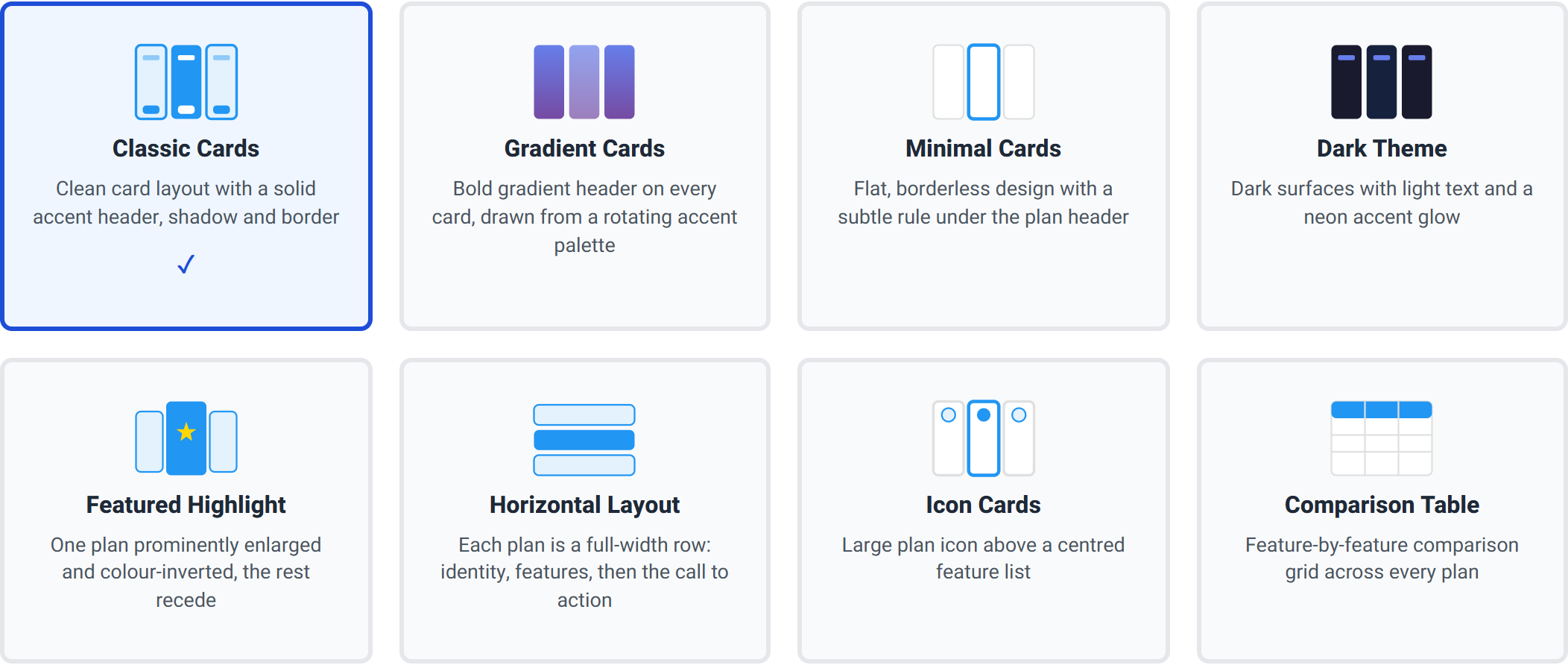
You are not locked in. If you return to Step 1 later and pick a different template, your plans and your settings are kept. Only the layout changes.
Step 2 — Customise
This is the long step, and the only one that needs real decisions. It is a single form divided into labelled groups. You can safely leave every group at its default except Pricing data, which is where your plans go.
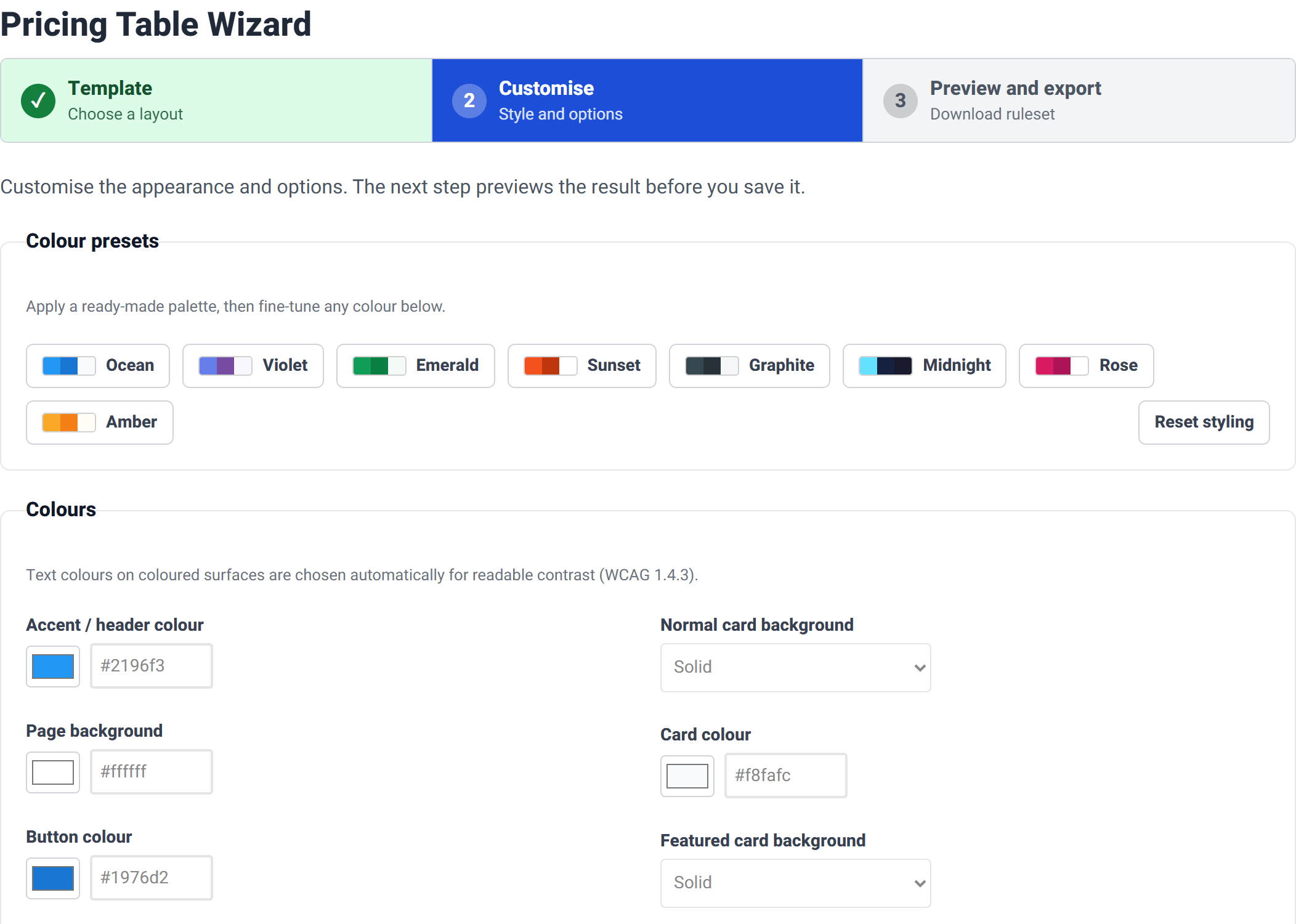
Colour presets
Eight ready-made palettes. Clicking one fills in the accent, button, background, card and text colours in a single move — a much faster starting point than picking six colours by hand. Reset styling puts every appearance setting back to the template's own defaults; it does not touch your plans.

Colours
Every colour has a swatch and a hex field; edit whichever you prefer and the other follows. The card and featured-card backgrounds can each be a solid colour or a gradient between two colours, in one of four directions. Choosing Gradient reveals the second colour and the direction control.
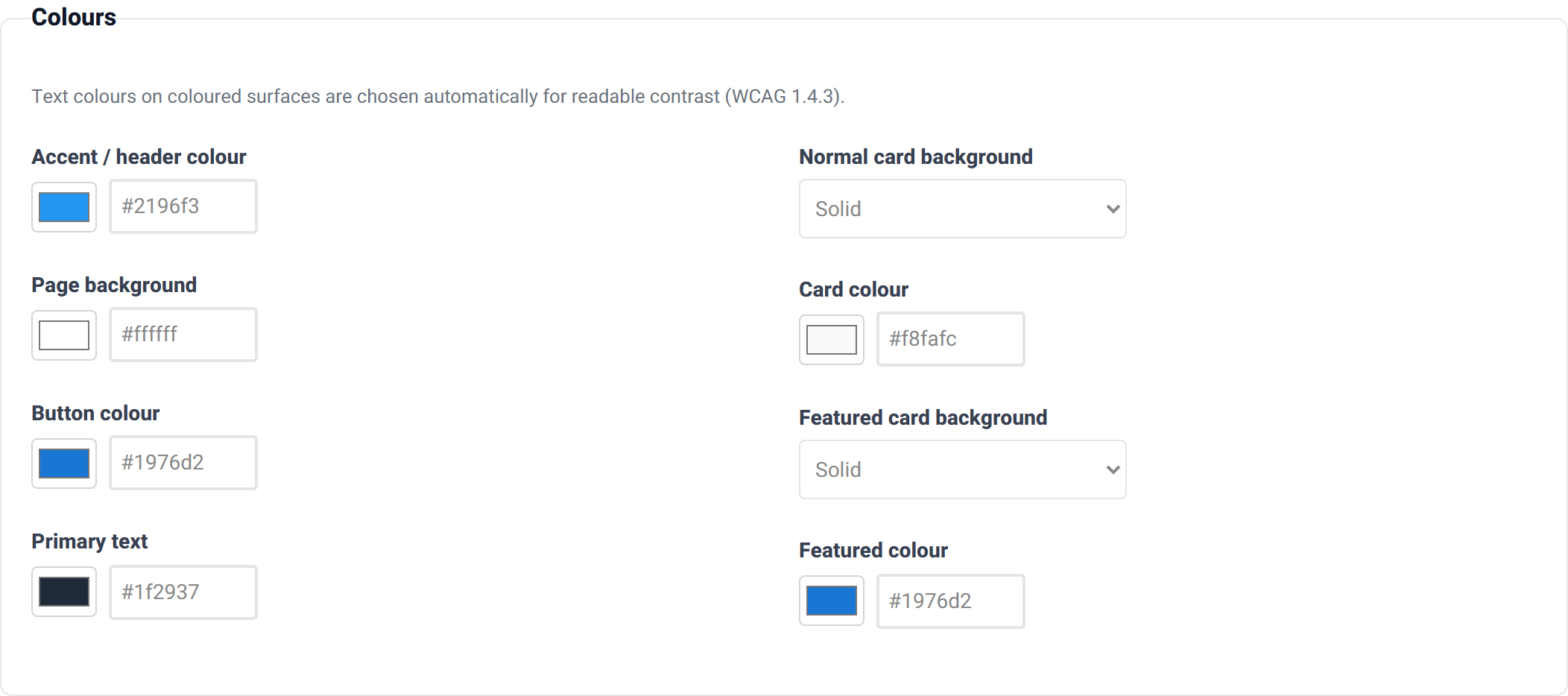
You cannot accidentally make the text unreadable. Text drawn on top of a colour you choose — the plan name on the accent header, the label on a button — is set automatically to black or white, whichever meets the WCAG 1.4.3 contrast requirement against your colour. Pick any accent you like; the wizard keeps it legible.
Typography
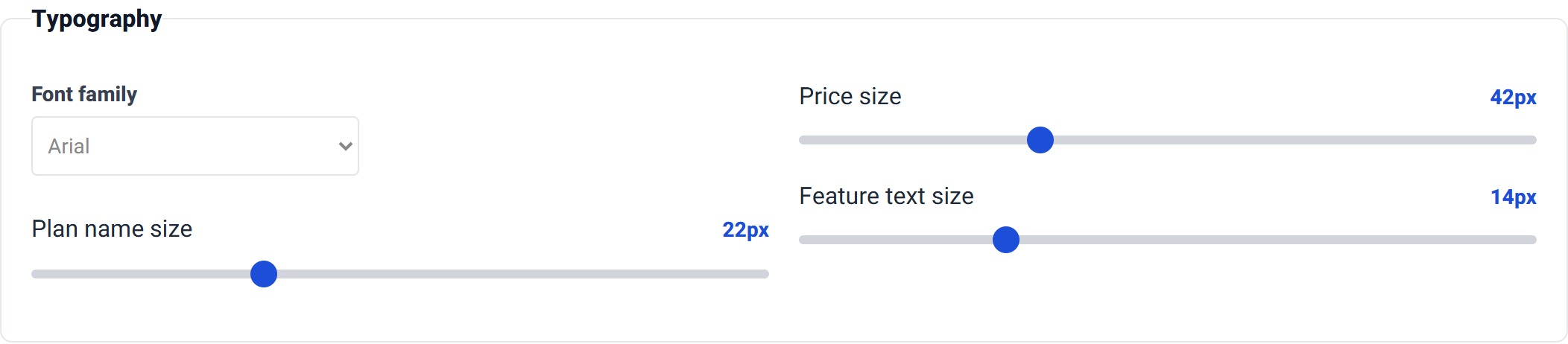
A font stack for the whole table, plus three sizes: the plan name, the price, and the feature list. The price is deliberately the largest by default (42px against 22px for the plan name) because it is the thing visitors are scanning for.
Layout and style
| Setting | Options | What it does |
|---|---|---|
| Corner radius | 0–32px (default 8) | How rounded the card corners are. 0 gives hard square corners. |
| Card shadow | None, Light, Medium, Heavy | How far the cards lift off the page. |
| Card spacing | Compact, Normal, Relaxed, Spacious | The gap between cards and the padding inside them. |
| Hover effect | None, Lift, Glow, Scale | What happens when a visitor points at a card. |
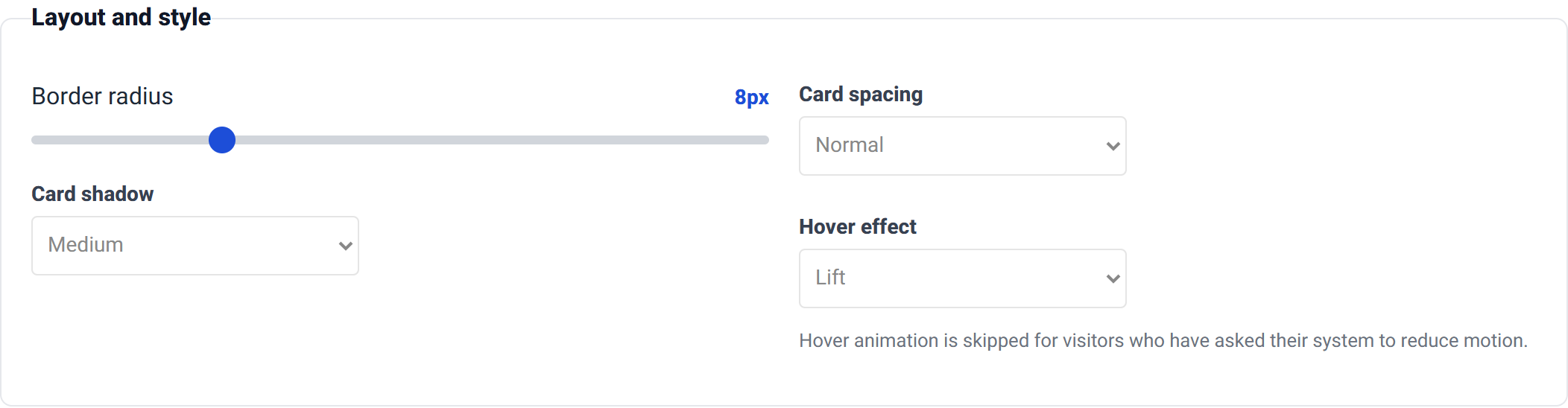
Hover animation is skipped automatically for visitors who have asked their operating system to reduce motion, so you can use Lift or Scale without worrying about anyone who finds movement uncomfortable.
Accessibility and semantics
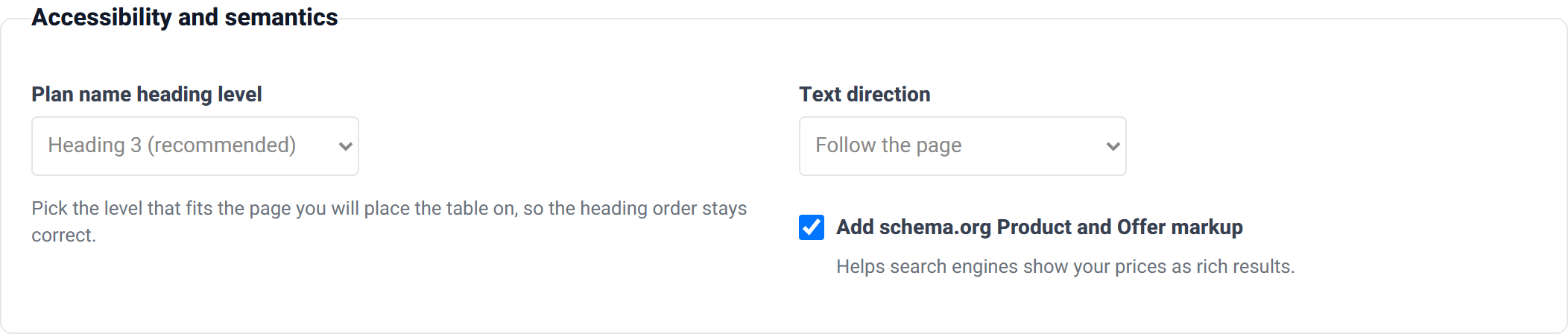
- Plan name heading level (Heading 2, 3 or 4 — default 3)
- Each plan name is a real heading. Choose the level that keeps your page's heading order correct. If your pricing table sits under an
<h2>section title, leave this at Heading 3. - Text direction (Follow the page, Left to right, Right to left)
- Leave it on Follow the page unless you are embedding a table in a language that runs the other way from the rest of the site.
- Add schema.org product data (on by default)
- Embeds machine-readable price data so search engines can show your prices as rich results. Harmless to leave on; turn it off if the table is illustrative rather than a real offer — a feature comparison with no prices, for instance.
Call to action
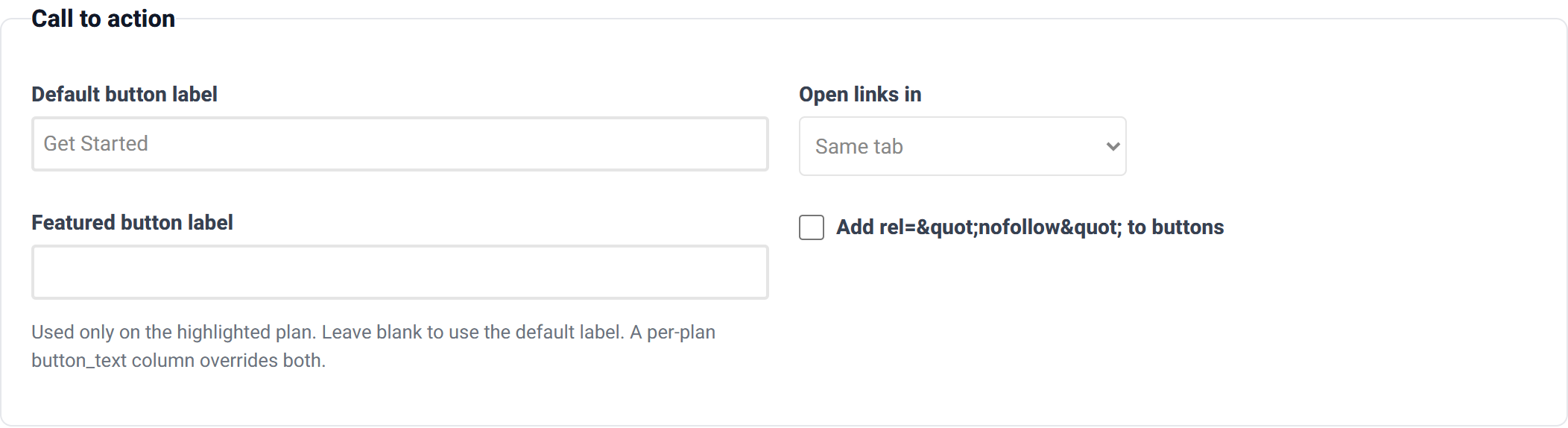
The button at the bottom of each card. There are three levels of control, most specific first:
- a
button_textvalue on an individual plan row; - the Featured plan button label, used only on the highlighted plan;
- the Button label, used for everything else.
Open in chooses same tab or new tab, and Add rel="nofollow" is there for affiliate or sponsored links.
Responsive grid
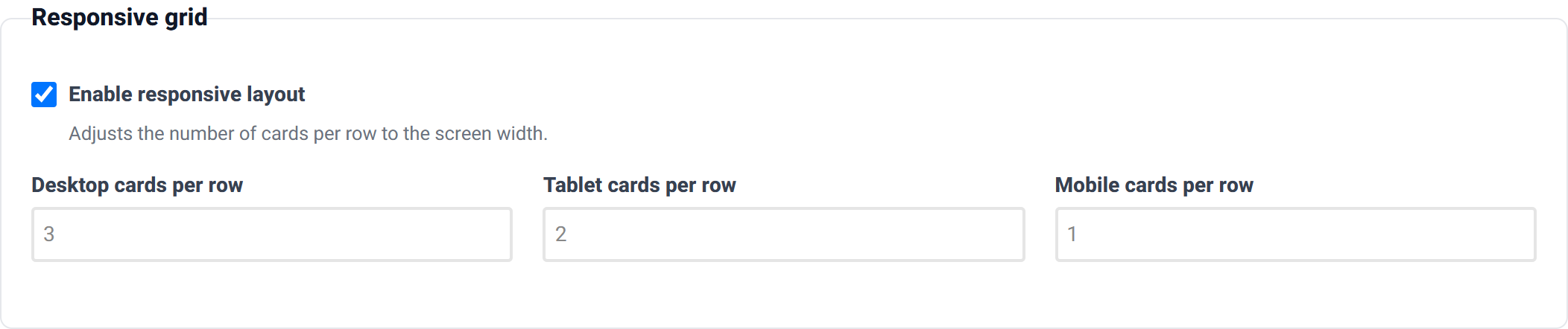
How many cards sit side by side at each screen size. The defaults — 3 on desktop, 2 on tablet, 1 on mobile — suit a three-plan table. If you have four plans, set desktop to 4; if you have two, set it to 2 so they do not stretch.
Price presentation
How a raw number in your data becomes the price a visitor reads. Your data holds 29; these settings turn it into $29, 29 €, from $29/mo or whatever you need.
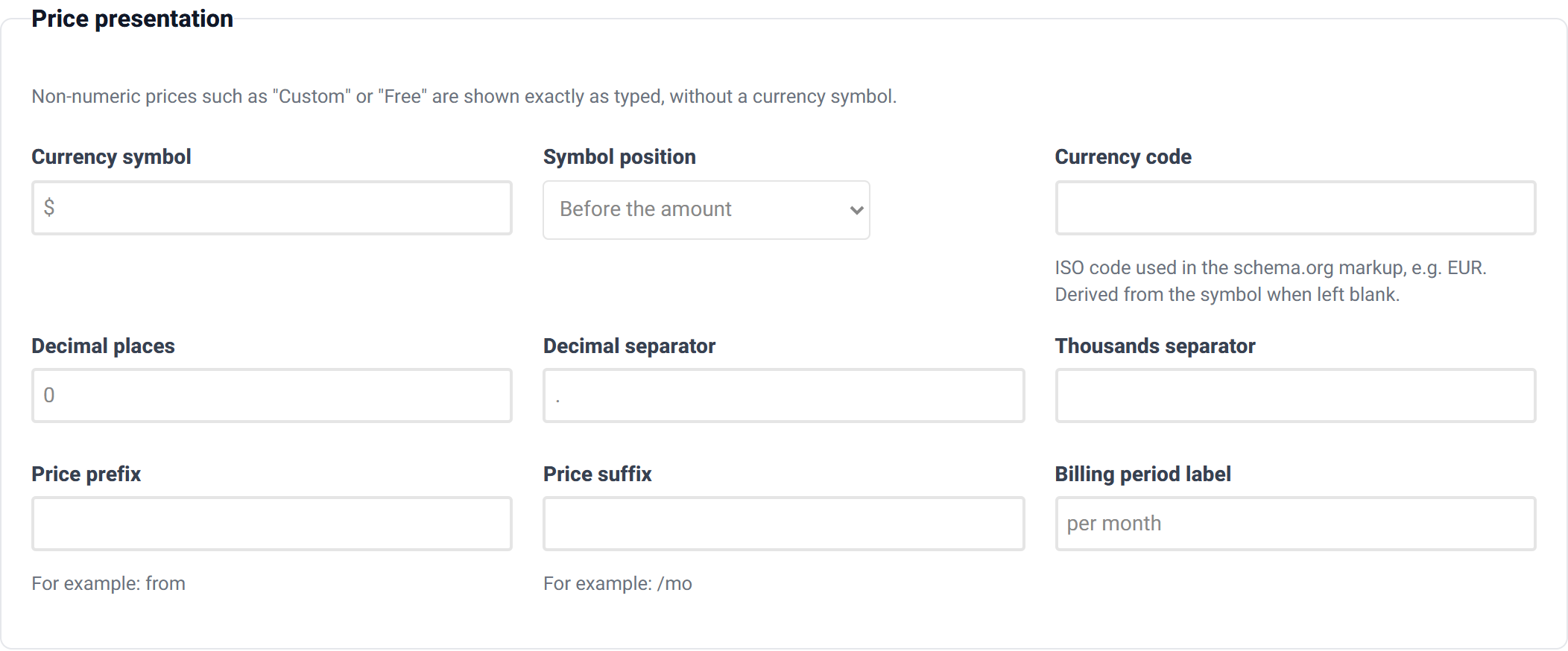
| Setting | Default | Notes |
|---|---|---|
| Currency symbol | $ |
Any symbol, up to six characters. |
| Symbol position | Before the amount | Put it after for most European conventions. |
| Currency code | — | ISO code (e.g. EUR) used in the schema.org markup. Worked out from the symbol if you leave it blank. |
| Decimal places | 0 |
Use 2 for prices like 19.99. |
| Decimal separator | . |
Set to , for most European locales. |
| Thousands separator | — | Empty by default. Set to , or . for large numbers. |
| Price prefix | — | Printed before the price, e.g. from. |
| Price suffix | — | Printed after the price, e.g. /mo. |
| Billing period | per month |
The line under the price. |
Non-numeric prices are printed exactly as you type them. A price of Custom, Free or POA is shown verbatim, with no currency symbol and no decimal formatting. This is what lets a "contact us" tier sit alongside numeric plans.
Monthly / annual toggle
Switching this on adds a control above the table that flips every price between the monthly and annual figures.
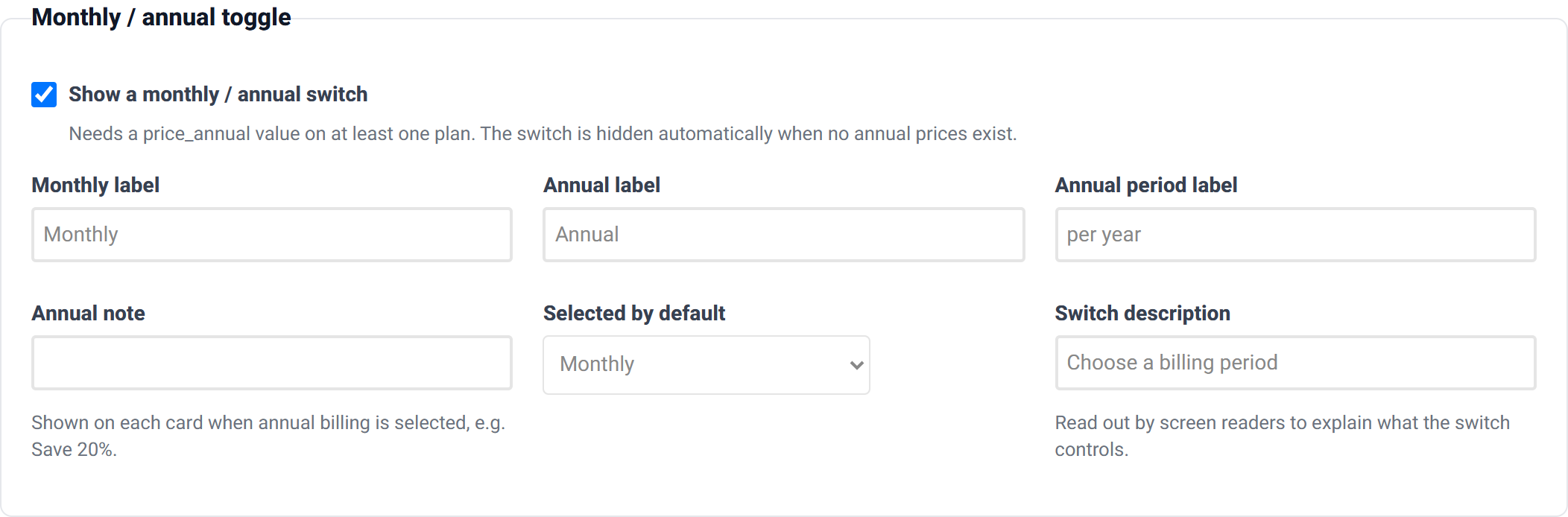
| Setting | Default | Notes |
|---|---|---|
| Monthly / Annual label | Monthly / Annual |
The two sides of the switch. |
| Annual billing period | per year |
Replaces the billing period line when annual is selected. |
| Annual note | — | Shown on each card in annual mode, e.g. Save 20%. |
| Selected by default | Monthly | Start on annual if that is the deal you want to lead with. |
| Accessible legend | Choose a billing period |
Read aloud by screen readers to explain what the switch controls. |
The toggle needs annual prices to switch to. It appears only if at least one plan has a price_annual value, and any plan without one shows no price at all while annual is selected. Give every plan a price_annual, or leave the toggle off.
Badges and feature marks
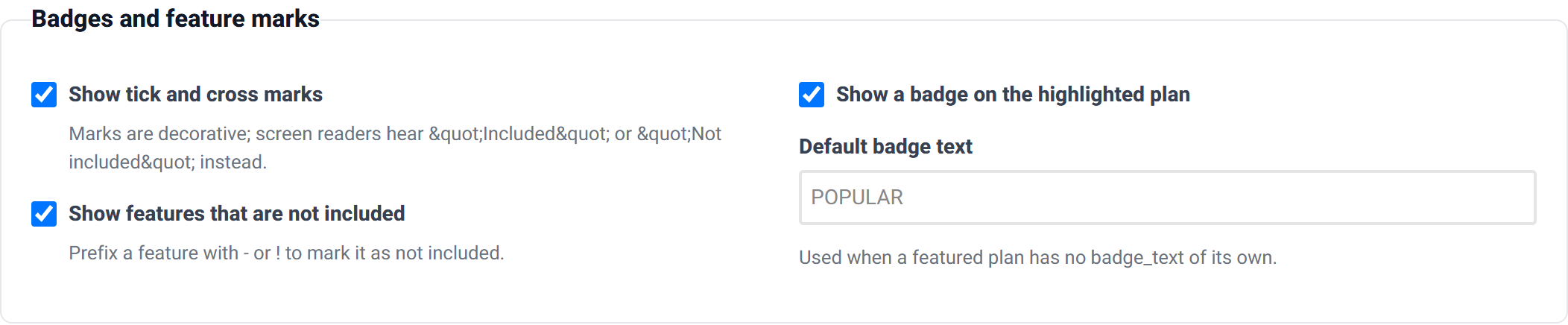
- Show tick / cross marks — the ✓ and ✗ beside each feature. The marks are decorative: a screen reader hears "Included" or "Not included" instead, so availability is never conveyed by a symbol alone.
- Show unavailable features — whether features marked as not included appear at all. Prefix a feature with
-or!in your data to mark it unavailable. Turning this off hides them entirely. - Show the popular badge — the ribbon on the highlighted plan.
- Default badge text (
POPULAR) — used when a featured plan has nobadge_textof its own.
Pricing data — where your plans go
This is the heart of the wizard. Each row is one plan. You can edit it as a table or as raw CSV, and the two stay in sync — switch tabs freely.
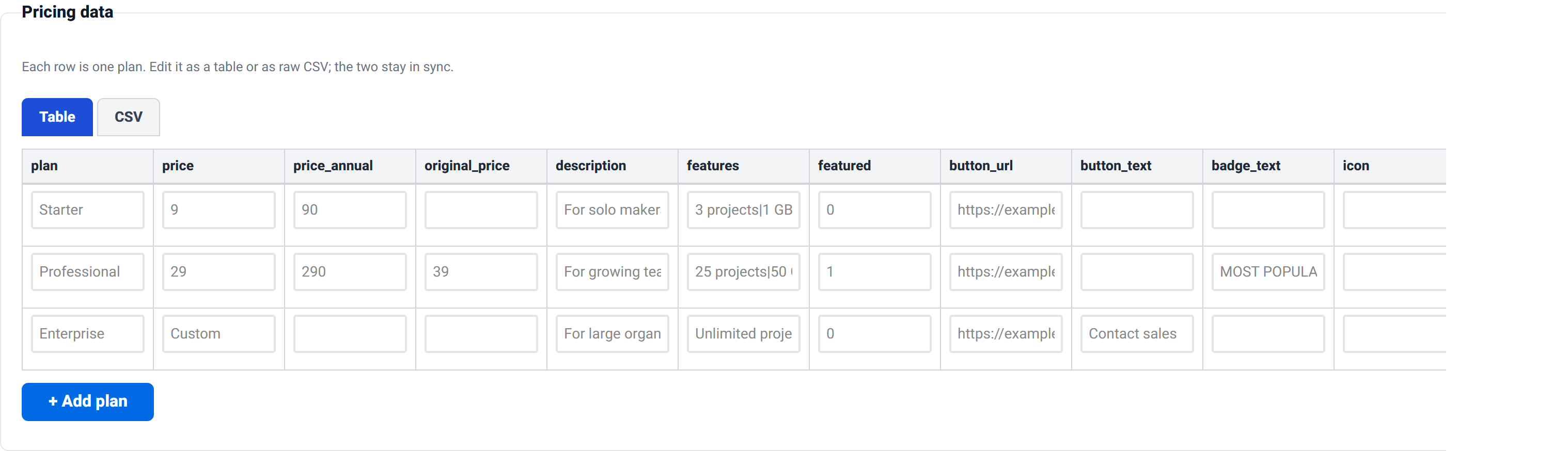
The CSV tab is faster if you already have the data somewhere, and it accepts a file upload. A header row is added automatically if you leave it out.
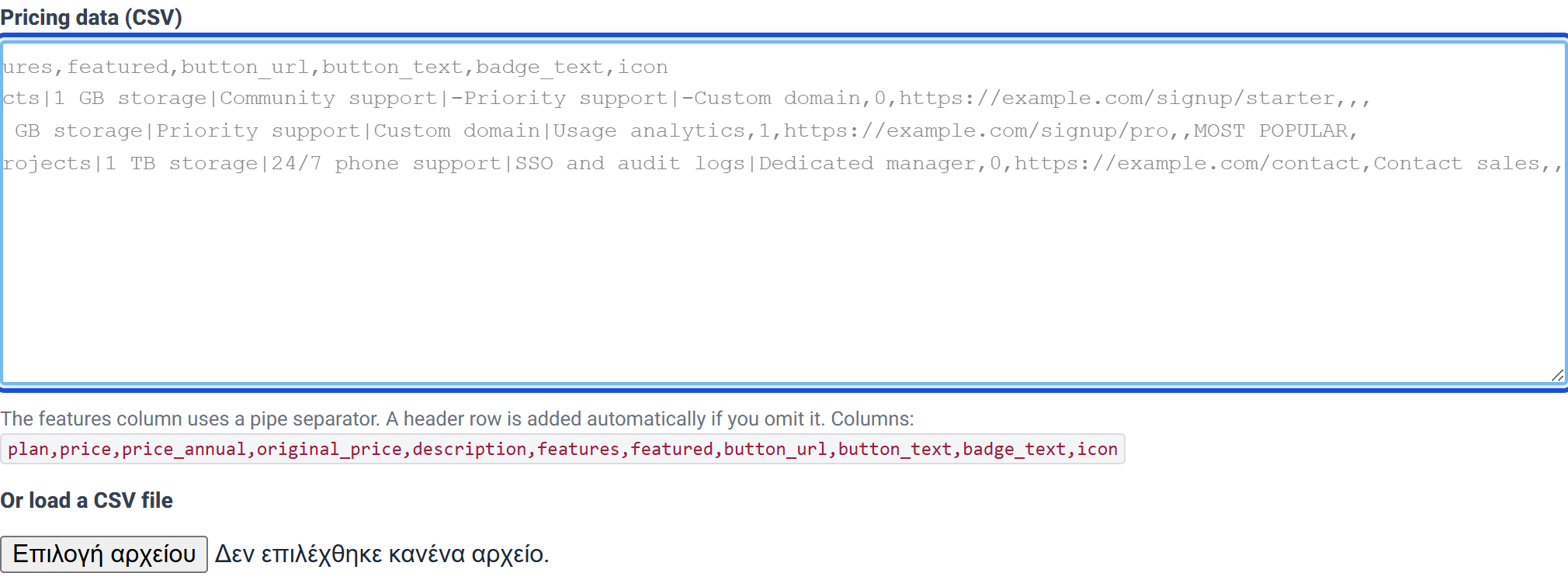
The columns
Only plan and price are required. Everything else is optional and simply does not render when empty. Column names are matched case-insensitively and common alternatives are accepted, so a spreadsheet with a Name column instead of plan will still work.
| Column | Required | What it does | Also accepted as |
|---|---|---|---|
plan |
Yes | Plan name, shown as the card heading. | name, title, plan name, package, tier |
price |
Yes | The price. Non-numeric values such as Custom print verbatim, with no currency symbol. |
amount, cost, price_monthly, monthly price |
price_annual |
No | Annual price, used by the monthly / annual toggle. | annual price, annual, yearly, price_yearly |
original_price |
No | Pre-discount price, rendered struck through beside the price. | was, list price, rrp, old price |
description |
No | Short subtitle under the plan name. | subtitle, tagline, desc |
features |
No | Feature list, separated by the pipe character |. Prefix an item with - or ! to show it as not included. |
feature list, feature_list, items |
featured |
No | Set to 1 (or yes / true) to highlight this plan. |
popular, highlight, recommended |
button_url |
No | Where the call-to-action button goes. Leave blank to render the label without a link. | url, link, cta_url, cta url |
button_text |
No | A button label for this plan only, overriding the global one. | button label, cta, cta_text |
badge_text |
No | Badge label for this plan. Featured plans fall back to the default badge text. | badge text, badge, label |
icon |
No | Emoji or CSS icon class (e.g. fa fa-rocket), used by the Icon Cards template. |
icon_class, icon class, emoji |
A worked example
Here is the data used throughout this tutorial — a three-tier SaaS plan table. Paste it into the CSV tab to follow along.
plan,price,price_annual,original_price,description,features,featured,button_url,button_text,badge_text,icon
Starter,9,90,,For solo makers and side projects,3 projects|1 GB storage|Community support|-Priority support|-Custom domain,0,https://example.com/signup/starter,,,
Professional,29,290,39,For growing teams,25 projects|50 GB storage|Priority support|Custom domain|Usage analytics,1,https://example.com/signup/pro,,MOST POPULAR,
Enterprise,Custom,,,For large organisations,Unlimited projects|1 TB storage|24/7 phone support|SSO and audit logs|Dedicated manager,0,https://example.com/contact,Contact sales,,
Read across the rows and you can see each feature of the wizard being used:
- Starter lists two features prefixed with
-, so they render as "not included" — a common way to show what a visitor is missing out on. - Professional has
featured=1and its ownbadge_textofMOST POPULAR, plus anoriginal_priceof 39 that will render struck through. - Enterprise has a non-numeric price of
Customand its ownbutton_textofContact sales, because "Get Started" makes no sense for a quote-based tier.
Custom CSS
Optional, and only useful if you know CSS. Whatever you put here is appended to the generated stylesheet. Use the ptw- class names visible in the preview — .ptw-card, .ptw-price, .ptw-features and so on.
When you are done, click Next step.
Step 3 — Preview and export
The last step shows you exactly what you have built, tells you what your real data needs to look like, and saves the ruleset.
Live preview
This is the real renderer, not a mock-up — what you see here is what your visitors will see.
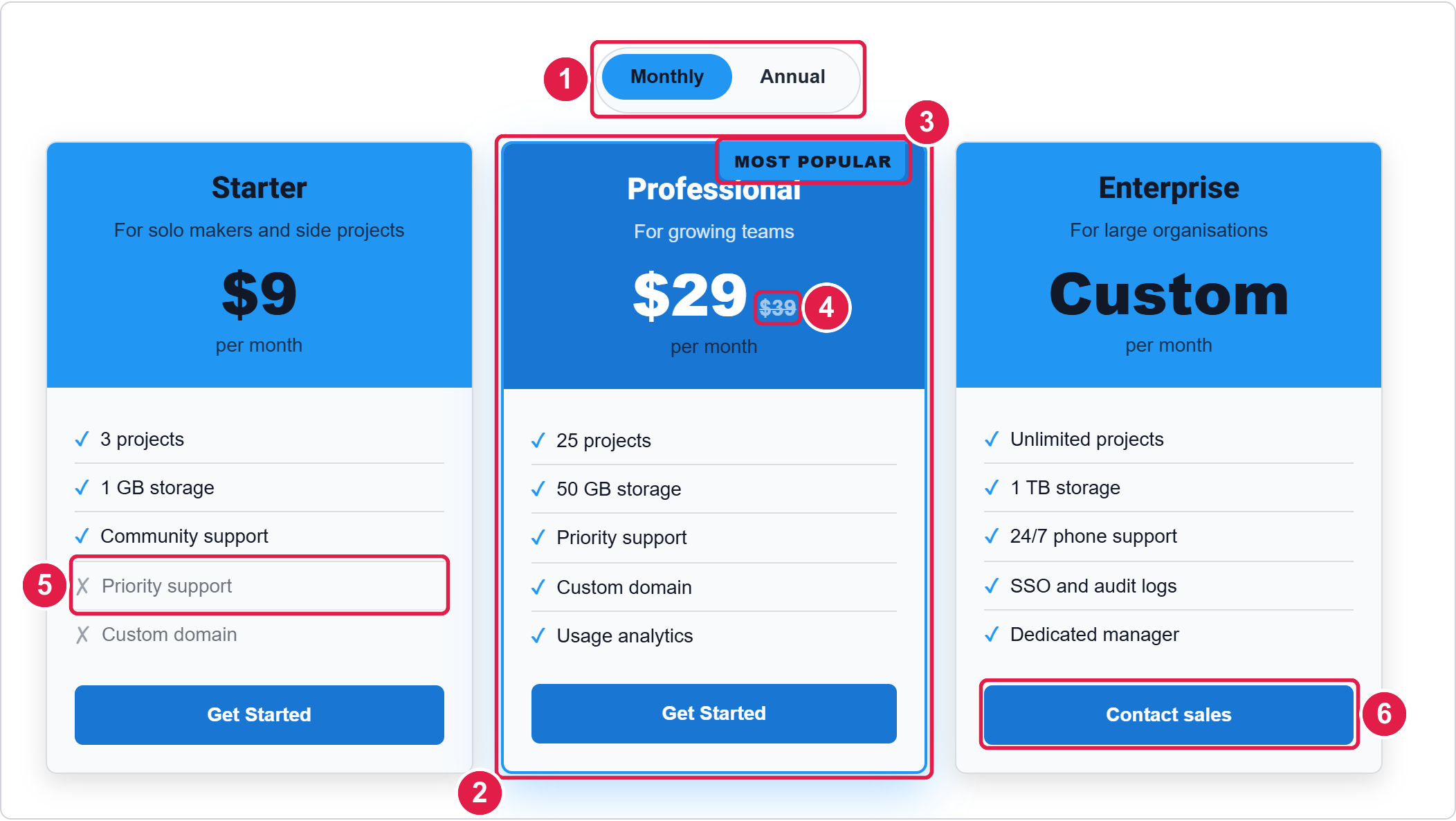
- The billing toggle — from Monthly / annual toggle, shown because at least one plan has a
price_annual. - The featured card — the plan with
featured=1, drawn larger and in the featured background colour. - The badge — this plan's
badge_text, overriding the defaultPOPULAR. - The struck-through price — the
original_pricecolumn. - A "not included" feature — written as
-Priority supportin the data. - A per-plan button label — this plan's
button_textofContact sales, while the others use the global "Get Started".
Click Annual to see the switch in action:
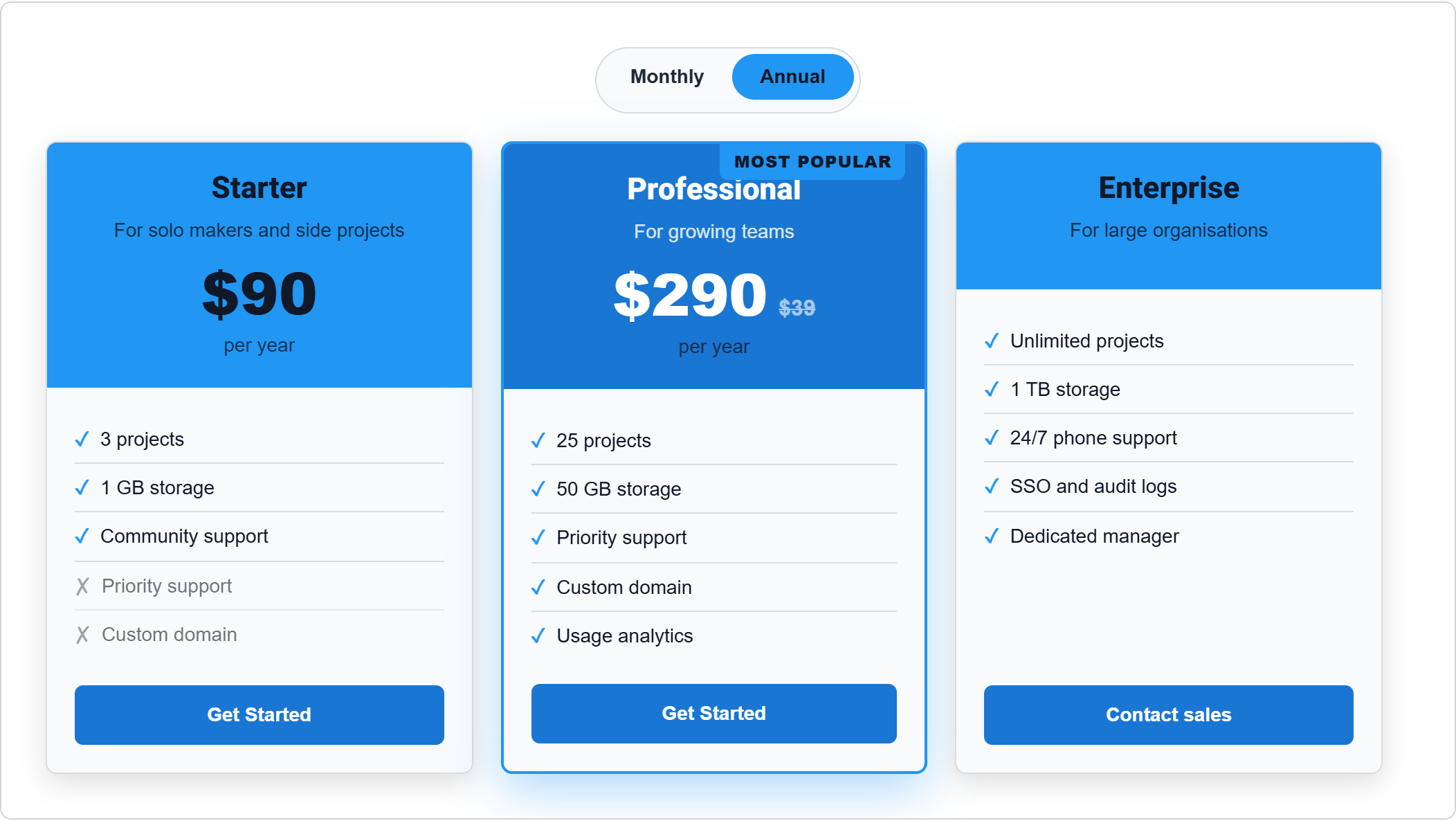
price_annual value.Expected input structure
This section is the bridge between the wizard and your own site. It shows the columns your table in Tabulizer needs to have, along with sample rows.
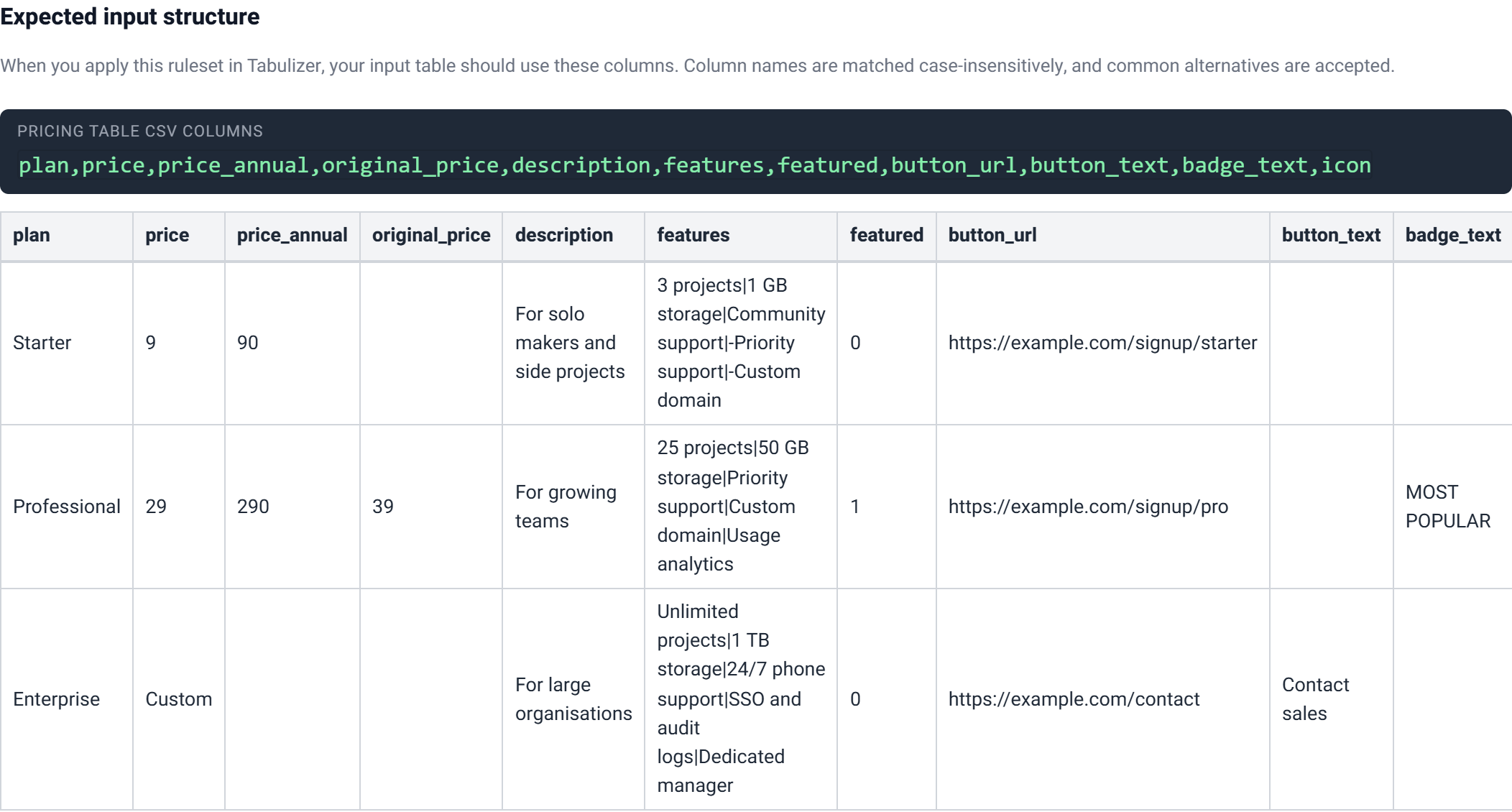
Column annotations
A colour-coded reference explaining what each column is for. Worth a glance before you build the table on your own site.
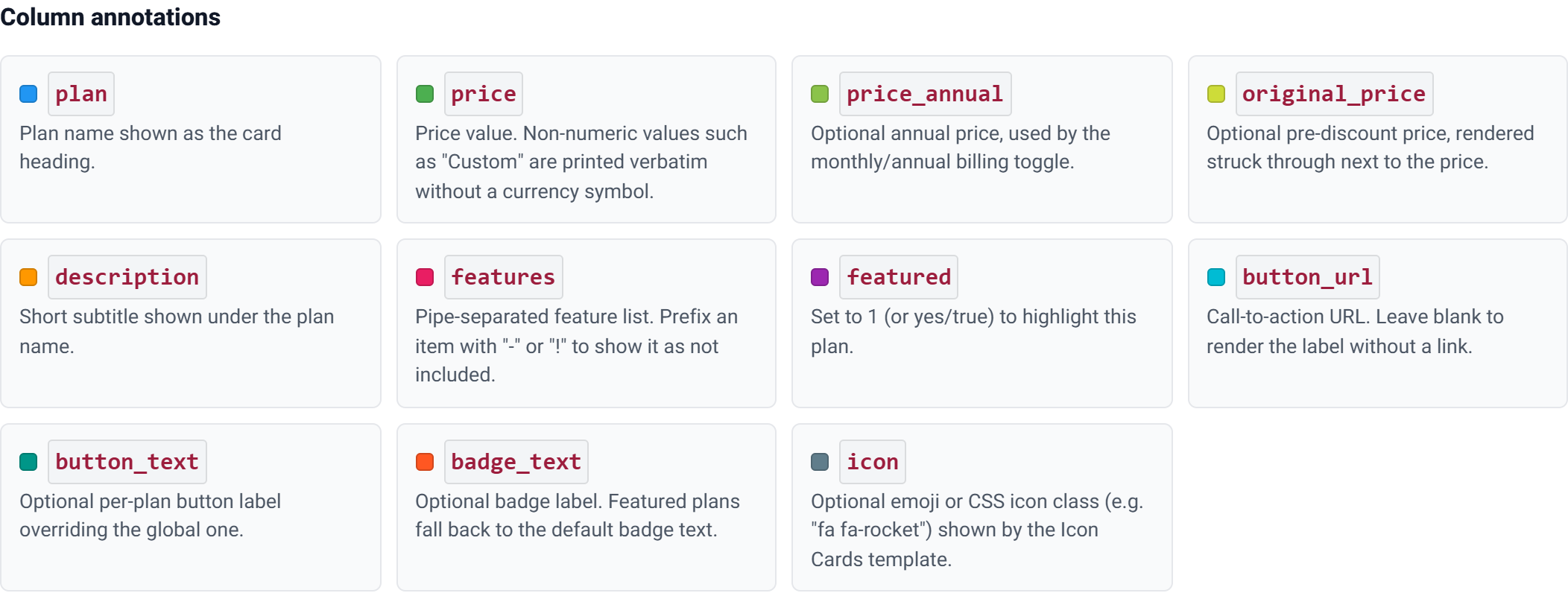
Save the ruleset
Give the ruleset a title and a description, then click Save and download.
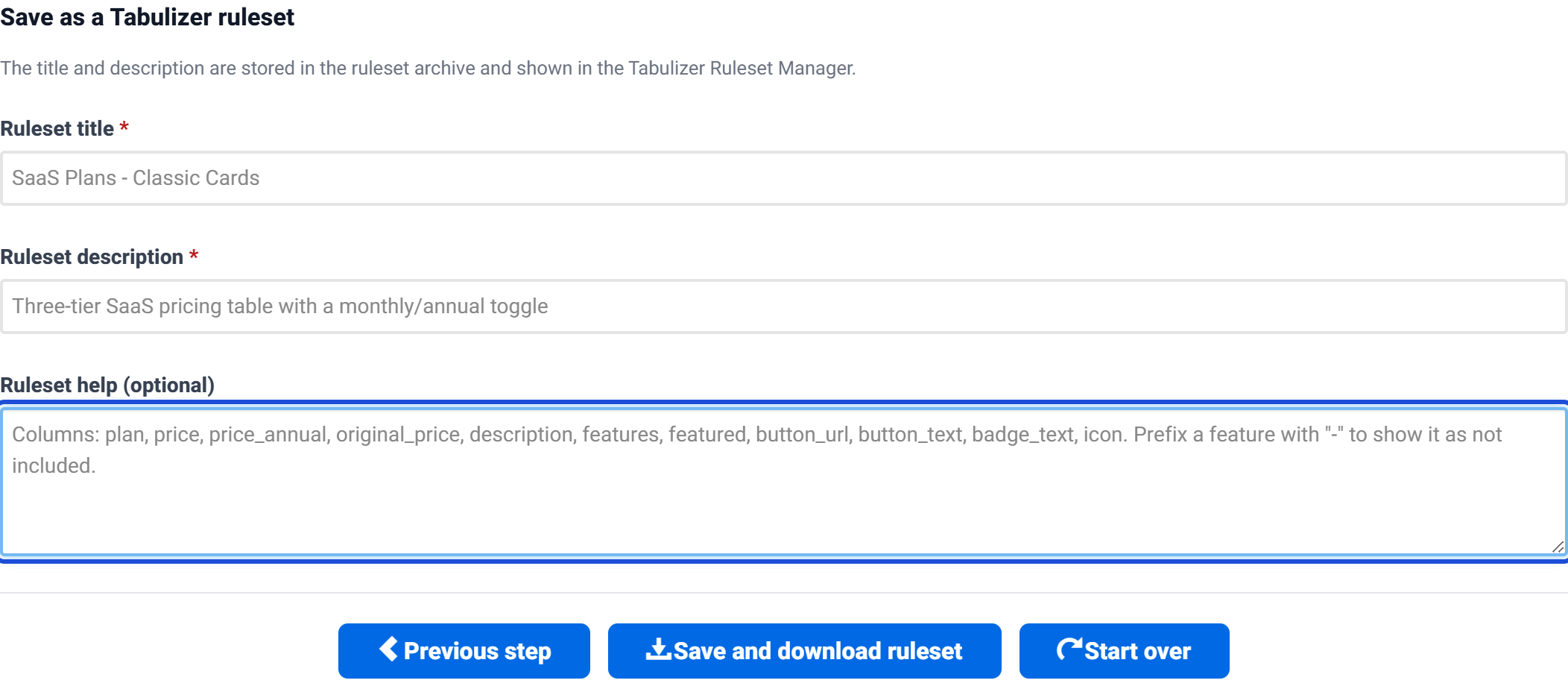
| Field | Required | Notes |
|---|---|---|
| Ruleset title | Yes | How the ruleset is listed in the Tabulizer Ruleset Manager. Make it descriptive — "SaaS Plans – Classic Cards" beats "Pricing table 2". |
| Ruleset description | Yes | A one-line reminder of what this ruleset produces. |
| Ruleset help | No | Notes to your future self, stored inside the archive. A good place to record the column list. |
Your browser downloads a file named something like rs_d4580a1d.zip. Inside it:
| File | What it is |
|---|---|
rules/rs_XXXXXXXX.xml |
The ruleset itself — your template choice, every setting, and the sample data. |
css/rs_XXXXXXXX.css |
A small stylesheet of theme variables, so a site template can re-theme the table without editing the ruleset. |
docs/help-rs_XXXXXXXX.html |
Whatever you typed in the Ruleset help field. |
Saving twice updates rather than duplicates. Each wizard session keeps a stable ruleset identifier, so going back, changing something and saving again produces the same ruleset rather than a second copy. Use Start over when you genuinely want a fresh, separate ruleset.
Using the ruleset on your own site
- In your site's administrator, open Tabulizer → Ruleset Manager and import the
.zipfile you downloaded. - Create or edit the article that will hold the pricing table.
- Insert a table whose first row is the header, using the column names from the Expected input structure section — at minimum
planandprice. - Apply the imported ruleset to that table.
From then on, your prices live in the article. Change a number in the table and the rendered pricing table follows — no need to return to the wizard.
Everything the ruleset needs to render ships with Tabulizer itself, so an imported pricing table keeps working regardless of what happens to the online wizard.
Tips and troubleshooting
The monthly / annual switch is missing
It only appears when at least one plan has a price_annual value. Check that the column is present and populated.
A plan loses its price when I switch to Annual
That plan has no price_annual. Give every plan an annual figure, or turn the toggle off. This is the single most common surprise with this wizard.
The struck-through price does not change with the toggle
original_price is a single value with no annual counterpart, so it stays the same on both sides of the switch. If that reads oddly for your pricing, leave original_price empty when you are using the toggle.
My "Custom" plan still says "per month"
The billing period line is a global setting applied to every card, including ones with a non-numeric price. If a quote-based tier makes this look wrong, clear the Billing period field and put the period into the Price suffix instead, or add it to each plan's description.
My feature list appears as one long line
Features are separated by the pipe character |, not by commas. Commas separate columns in CSV, so a comma inside a feature list will break the row apart.
A feature I marked with "-" is not showing
That is Show unavailable features switched off, in the Badges and feature marks group. Turn it on to show unavailable features struck through, or leave it off to hide them.
My cards are too wide or too narrow
Set Cards per row (desktop) in Responsive grid to match your number of plans. The default of 3 stretches two plans and wraps four.
I want a different layout but not to lose my work
Click back to Step 1 in the progress bar and choose another template. Your plans and settings carry over.
Related articles
- Chart Wizard
- D3 Visualizations Wizard
- Gallery Wizard
- Calendars and Timelines Wizard
- Contact Form Wizard
- Calculator Wizard
- Importing a ruleset into Tabulizer