Adjust Data Formats (text, numbers, curreency and dates)
Adjust Date, Number and Text Formats
Your data arrives as 2026-09-02, 1234.5 and "desk lamp"; your readers expect 02/09/2026, 1.234,50€ and "Desk Lamp". A Data Format rule converts values of one data type into the format you choose, without editing the source.
Where to find it
Open the Table Wizard and go to step 5 (Modifications). Under Data Manipulation › Data Format, click Add new Data Format and choose the part of the table with Select Element & Range, usually a column. Then pick the Data Type of the values; the Transformation options for that type appear next to it.
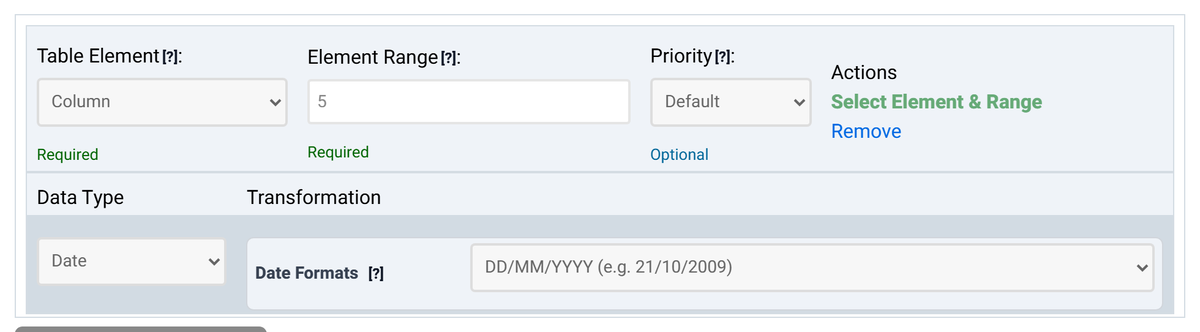
On the product list from Tutorial 1, the rule above turns the Last order column into day/month/year:
| Product | Last order before | Last order after |
|---|---|---|
| Desk lamp | 2026-09-02 | 02/09/2026 |
| Office chair | 2026-08-28 | 28/08/2026 |
| Monitor stand | 2026-07-30 | 30/07/2026 |
The header cell "Last order" is not a date, so it stays as it is. Values that cannot be read as the chosen type are always left unchanged, and empty cells stay empty.
Dates
Choose Date as the Data Type and one of the Date Formats. Using 2 September 2026 as the example:
| Date format | Result |
|---|---|
| DD-MM-YY / DD/MM/YY / DD.MM.YY | 02-09-26 / 02/09/26 / 02.09.26 |
| MM-DD-YY / MM/DD/YY | 09-02-26 / 09/02/26 |
| DD-MM-YYYY / DD/MM/YYYY / DD.MM.YYYY | 02-09-2026 / 02/09/2026 / 02.09.2026 |
| DD/Month/YYYY | 02/Sep/2026 |
| MM-DD-YYYY / MM/DD/YYYY | 09-02-2026 / 09/02/2026 |
| Month Day, Year | Sep 2, 2026 |
| Weekday, DD-Month-YYYY | Wednesday, 02-Sep-2026 |
| Weekday, DD/Month/Year | Wednesday, 02/Sep/2026 |
| Weekday, Month Day, Year | Wednesday, Sep 2, 2026 |
| Weekday, Day Month | Wednesday, 2 September |
| Weekday, Month Day | Wednesday, September 2 |
Which dates can be read
The format you choose is the output. The input can be any common way of writing a date:
| Cell | Read as |
|---|---|
| 2026-09-02 or 20260902 | 2 September 2026 |
| 02-09-2026 or 02.09.2026 | 2 September 2026 (day first) |
| 2 September 2026 or Sep 2, 2026 | 2 September 2026 |
| 09/02/2026 | 2 September 2026 (month first) |
| 02/09/2026 | 9 February 2026 (month first) |
^(\d{2})/(\d{2})/(\d{4})$ and Replace With \1.\2.\3. Dates with dots are read day first.Month and weekday names are always in English.
Numbers
Choose Number and set:
- Decimals: 0 to 10. The number is rounded to that many decimals.
- Decimal point: Comma (,) or Period (.).
- Thousands separator: Comma (,) or Period (.).
| Cell | 2 decimals, comma, period | 0 decimals, period, comma |
|---|---|---|
| 24.50 | 24,50 | 25 |
| 1,234.5 | 1.234,50 | 1,235 |
| 1.234,5 | 1.234,50 | 1,235 |
| 1234567 | 1.234.567,00 | 1,234,567 |
| 12,50 | unchanged | unchanged |
Numbers with both a thousands separator and decimals are recognised either way round. A comma alone, as in 12,50, is ambiguous and the cell is left unchanged. If a column uses the comma only for decimals, turn it into a period with a replacement rule (Find Text ,, Replace With .) and the number format can do the rest. Replacements run before formats, so both rules can sit in the same ruleset.
Currency
Currency has the same three options as Number, plus the Currency symbol (€ by default) and the Currency symbol position: Before amount, After amount, or Do not display symbol. A symbol that is already in the cell is recognised and not doubled.
| Cell | Result: 2 decimals, comma, period, € after amount |
|---|---|
| 24.50 | 24,50€ |
| € 24.50 | 24,50€ |
| 1234.5 | 1.234,50€ |
Text
Choose Text and one of the Text Transformations:
| Transformation | "standing desk, oak" |
|---|---|
| Uppercase | STANDING DESK, OAK |
| Lowercase | standing desk, oak |
| Capitalize first letter | Standing desk, oak |
| Capitalized first letter of each word | Standing Desk, Oak |
The transformations work with accented and non-Latin letters too.
Things to know
How do I leave the header row out?
Values that cannot be read are skipped, so a header such as "Price" is usually safe. For a Text transformation, which changes every cell, set Element Section to 2-L1 on the column rule to start at row 2.
What happens to HTML in the cell?
A number or currency format replaces the cell with the formatted value, so formatting such as <b> around the number is dropped; style the column with a styling rule instead. A date inside HTML is not recognised and the cell stays as it is.
Format your data
Open the Table Wizard and add a Data Format rule in step 5.
Open the Table Wizard