The Ruleset Manager Dashboard
The Ruleset Manager Dashboard
Everything Tabulizer knows about your site starts on one page: Components › Tabulizer. It lists the ruleset archives installed on the site and gives you the three things you do with them - bring one in, send one out, and look at what is inside.
What a ruleset archive is
A ruleset archive is a zip file holding one ruleset: the XML that describes how a table should look and behave, the stylesheet that goes with it, and any images, scripts or sample data it needs. Install it on a site and that ruleset becomes available to every table on it.
Most archives come from tabulizer.com, from the ruleset manager of your account - the ones you build in the online wizards, and the ready-made ones from the catalog. The other common source is a site of your own: a ruleset you built on a staging site and want on the live one.
The page
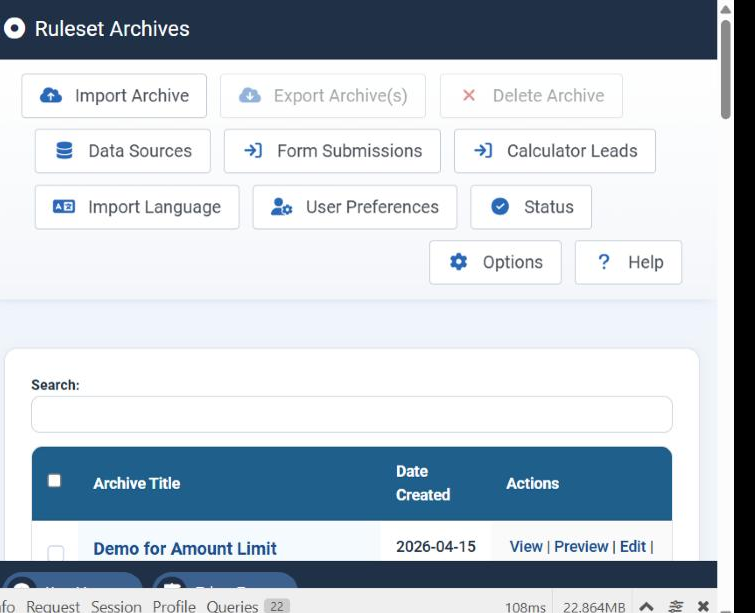
| Toolbar button | What it does |
|---|---|
| Import Archive | Brings a zip file in - a ruleset archive or a data source archive. The same button takes both. |
| Export Archive(s) | Sends the archives you have selected out as a zip. Disabled until you select at least one. |
| Delete Archive | Removes the selected archives from the site. Disabled until you select at least one. |
| Data Sources | The data sources defined on this site - the queries, files and feeds your tables read. |
| Form Submissions | What visitors have sent through forms built with the Form Builder. |
| Calculator Leads | The contact details collected by calculators that ask for them. |
| Import Language | Installs a Tabulizer language pack. See the Import Language tutorial. |
| User Preferences | Defaults for the component. See the User Preferences tutorial. |
| Status | Versions, PHP settings, libraries and folder permissions. See the Status tutorial. |
| Options | Joomla's own component options, including who may use Tabulizer. |
| Help | Opens the documentation. |
The list
| Column | What it shows |
|---|---|
| Select | A tick box per archive, and one in the heading that takes all of them at once. |
| Archive Title | The name of the ruleset, with its Archive Filename (the XML) and Archive Style (the stylesheet) underneath - the two files you will see quoted in a tag or an error message. |
| Date Created | When the archive was installed on this site. |
| Actions | View, Preview, Edit and Delete - described below. |
The Search box above the list filters it by title as you type, which is the quickest way to find one archive among a hundred.
Importing an archive
Import Archive opens a page with two fields.
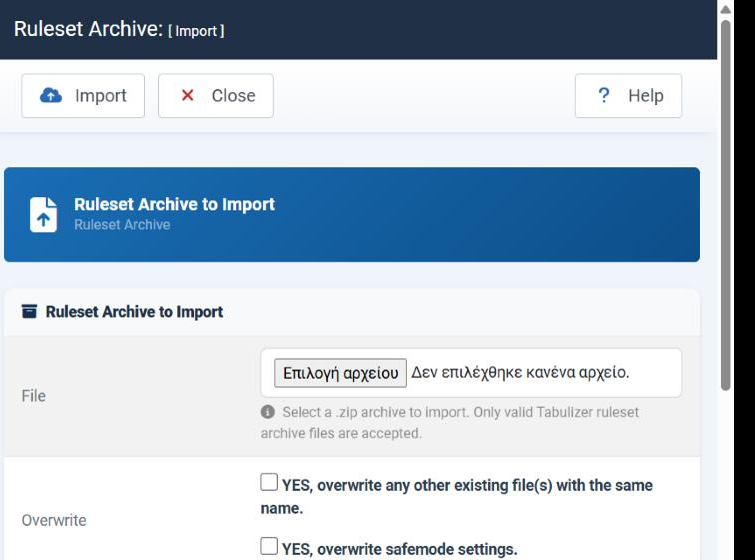
| Field | What it does |
|---|---|
| File | The zip to import. Only valid Tabulizer archives are accepted - the component checks what is inside before unpacking it. |
| Overwrite · existing files | YES, overwrite any other existing file(s) with the same name. Leave it unticked the first time; tick it when you are deliberately replacing a ruleset you already have, for instance installing a newer version of one you built. |
| Overwrite · safemode settings | YES, overwrite safemode settings. Lets the archive bring its own Safe Mode setting with it. See the User Preferences tutorial for what Safe Mode does. |
Choose the file, set the tick boxes, press Import. The archive is unpacked into the site and the ruleset appears in the list.
Data source archives go through the same button
A data source archive - the definition of a query, a file or a feed, rather than a table design - is imported with the very same Import Archive button. Tabulizer looks inside the zip and files it where it belongs: a ruleset archive lands in the ruleset list, a data source archive in Data Sources. You do not have to tell it which kind you are giving it.
Exporting archives
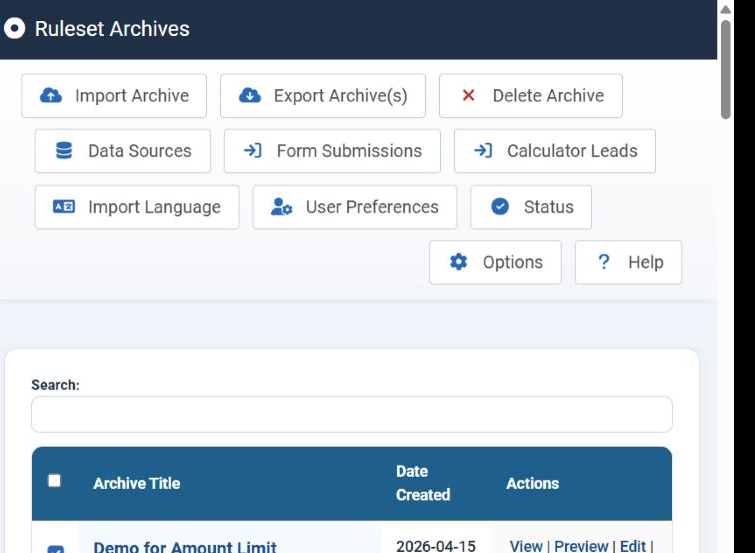
Select one archive, or several, and Export Archive(s) wakes up. The selected archives come back as a single zip.
Select
Tick the archives you want. The box in the table heading selects every archive on the page, which is how you take a whole site's worth in one go.
Export
Press Export Archive(s). Your browser downloads a zip holding all of them.
Import on the other site
Take the zip to the other site - Joomla or WordPress - and use its Import Archive button.
Exporting several at once is worth the habit: one file, one import, and no chance of forgetting the stylesheet that went with the third ruleset.
The four actions on a row
| Action | What it does | Use it when |
|---|---|---|
| View | Shows what is in the archive: the rulesets it contains, the files that came with it and the details of the rules. | You want to know what an archive actually does before using it. |
| Preview | Renders a sample table through the ruleset, so you can see the result rather than read the rules. | You are choosing between two designs. |
| Edit | Opens the ruleset for editing - its rules, its stylesheet and its metadata. | You need a change this site only, without going back to the wizard. |
| Delete | Removes the archive from the site. | The ruleset is finished with. |
Moving a design between sites
The common case, step by step:
| From | To | How |
|---|---|---|
| tabulizer.com | your Joomla site | Download the archive from your ruleset manager on tabulizer.com, then Import Archive here. |
| a Joomla site | another Joomla site | Select and export on the first, import on the second. |
| a Joomla site | a WordPress site | The same - the archive format does not change between platforms. |
| a WordPress site | a Joomla site | Also the same, in the other direction. |
Common questions
Export Archive(s) is greyed out.
Nothing is selected. Tick at least one row and it becomes available, along with Delete Archive.
Do I need a different button for a data source archive?
No. Import Archive takes both kinds and files each where it belongs.
My import says the file is not valid.
The zip is not a Tabulizer archive, or it was repacked by hand. Download it again, and do not open and rezip an archive - a zip of a folder containing the archive is not the same thing as the archive.
I imported a ruleset I already had and lost my changes.
The overwrite box was ticked. Without it, existing files of the same name are left alone; with it, they are replaced.
Can I really move rulesets between Joomla and WordPress?
Yes, and it is the recommended way to keep two sites looking alike. Export on one, import on the other.
Where do these files actually live?
Under the site's Tabulizer template folders - rules, css, images, js and the rest. The Status page lists them and tells you whether each is writable, which is the first thing to check when an import fails.
Open the ruleset manager
In your Joomla administrator, go to Components › Tabulizer.
Back to the Knowledge Base