Managing Data Sources
Managing Data Sources
A data source is a saved instruction: where the rows come from, and which ruleset turns them into a table. Build it once, drop a short tag into a page, and the table is there - and stays current, because the data is read when the page is served rather than pasted in by hand.
What a data source is
A ruleset describes how a table should look. A data source describes where the rows come from and pairs them with that ruleset. Together they are a complete table that nobody has to maintain by hand: change the spreadsheet, the query or the feed, and the page follows.
Every data source has a tag - twenty-four random characters generated when you create it. That tag is how you put the table on a page:
| Where | What you write |
|---|---|
| In an article, or in a module such as a Custom module | {tabulizer:data_source[your-tag-here]} |
| In the article editor | The Tabulizer Wizard editor button can insert it for you, so you never have to copy the tag. |
When the page is displayed, Tabulizer replaces that code with the finished table. The Preview screen of any data source shows the exact code to paste, so you never have to assemble it yourself.
The page and its toolbar
Components › Tabulizer opens the ruleset archives. Data Sources in that toolbar opens this page.
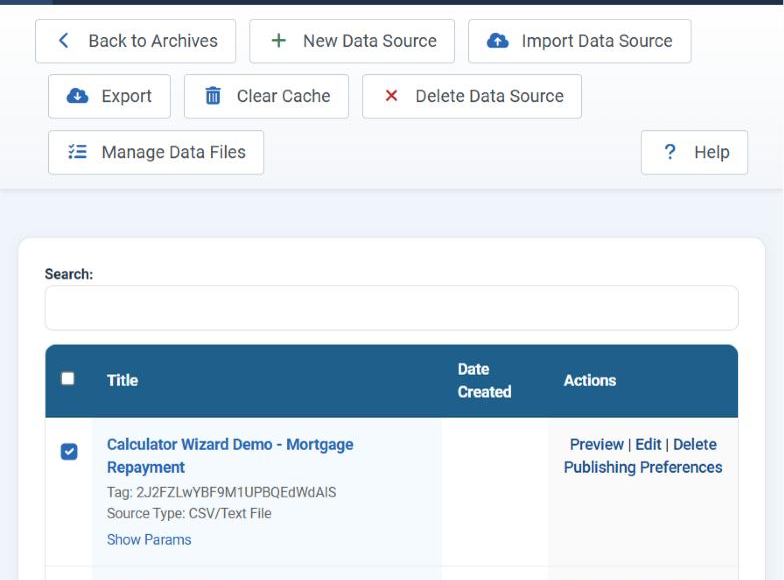
| Toolbar button | What it does |
|---|---|
| Back to Archives | Returns to the ruleset archive list. |
| New Data Source | Opens the empty create form. |
| Import Data Source | Brings in a data source archive exported from another site. |
| Export | Sends the selected data sources out as a zip. Disabled until you select at least one. |
| Clear Cache | Throws away the stored rows of the selected data sources so the next visitor causes a fresh read. Disabled until you select at least one. |
| Delete Data Source | Removes the selected data sources. Disabled until you select at least one. |
| Manage Data Files | The uploaded files that file-based data sources read. |
| Help | Opens the documentation. |
The list
| Column | What it shows |
|---|---|
| Select | A tick box per data source, and one in the heading that takes every row on the page. Export, Clear Cache and Delete all work from this selection. |
| Title | The name you gave it, with its Tag and Source Type underneath, and a Show Params link that unfolds every stored parameter without opening the editor. That list is the quickest way to see which file or query a data source actually uses. |
| Date Created | The list's date column. |
| Actions | Preview, Edit, Delete, and Publishing Preferences underneath. |
The Search box above the list filters it as you type, which is how you find one data source among two hundred.
| Action | What it does | Use it when |
|---|---|---|
| Preview | Reads the source for real and renders the table through its ruleset, with the code to insert shown above it. | Always, after creating or changing one. It is the only way to know the file is readable and the query returns what you expect. |
| Edit | Reopens the form with the stored values. | Changing a path, a query or the ruleset. |
| Delete | Removes the data source after a confirmation. | It is finished with - but see the warning below. |
| Publishing Preferences | Makes this data source readable from outside the site, as JSON or HTML, guarded by keyphrases. | Another site or application needs the same rows. |
Creating one
New Data Source
The tag is generated and shown read-only. Give it a Title you will recognise in a list of fifty.
Pick the Source Type
The fields below change to the ones that type needs. Each type has its own tutorial in this series.
Choose the ruleset
Ruleset Archive first, then Ruleset Name - the second list is refilled from the archive you chose. Both are required: rows without a ruleset are not a table.
Fill in the source
The file, the query, the article or the feed, plus whatever that type needs to make sense of it.
Save, then Preview
Save & Close returns to the list. Then press Preview on the new row and look at the table before you put the tag anywhere.
The toolbar of the form offers Save & Close, Save & New (save this one and start another empty form), Save as Copy (store the current values as a second data source with a new tag - the fastest way to make a variant) and Cancel.
The fields every data source has
Whatever type you pick, these are always present.
| Field | What it does |
|---|---|
| Tag | The twenty-four-character identifier, generated for you and read-only. It is what goes inside {tabulizer:data_source[...]}, and it travels with the data source when you export it - so the same tag works on the site you import it into. |
| Title | The name in the administration. Visitors never see it. |
| Source Type | Which reader is used. Changing it changes every field below. |
| Ruleset Archive | The archive holding the ruleset. Required. |
| Ruleset Name | The ruleset within it. Required. The list is refilled when you change the archive. |
| Table Caption (optional) | A caption rendered with the table. One of the two accessibility parameters - it gives the table a visible, programmatic name. |
| Table Summary (optional) | A longer description of the table's structure, for people using a screen reader. Both exist so the produced table can satisfy the Web Content Accessibility Guidelines. |
| Server Side (beta) | Fetches rows page by page over AJAX instead of sending them all at once. See below. |
| Empty results message | What to show when the source is readable but returns no rows. Leave blank for the generic message. Useful for a query that is legitimately empty some days: No events are scheduled this week reads better than an error. |
The cache
Without a cache, every visitor causes the whole chain to run again: read the file or the query, apply the ruleset, build the table. With it, the finished rows are stored in the database and re-used until they go stale.
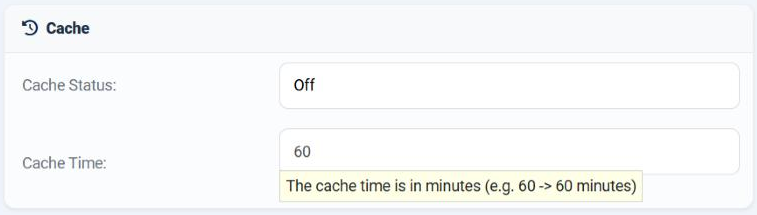
| Field | What it does |
|---|---|
| Cache Status | On or Off. Off is the default. On stores the produced table in a database table so the source is not read again on every page view. |
| Cache Time | How long the stored copy stays good, in minutes - 60 means one hour, 1440 means a day. The field is disabled while the status is Off. |
It matters most for a remote source. Reading a spreadsheet over the network on every page view is slow for the visitor and rude to whoever is hosting the file; reading it once an hour is neither.
| Situation | Suggested cache time |
|---|---|
| A remote file or feed | Long - an hour or more. The data rarely changes faster than that, and every read costs a round trip. |
| A large spreadsheet on your own server | Long. Parsing a workbook is the expensive part, not fetching it. |
| A database query against your own site | Short, or none. The query is cheap and the data is yours; staleness is the bigger risk. |
| Anything with Server Side turned on | Required. Server side reads its rows from the cache. |
| While you are building the table | Off, or you will spend an hour wondering why your edits do nothing. |
Clearing it
Tick the data sources and press Clear Cache. The stored rows are discarded and the next visitor causes a fresh read. Do this after changing the file behind a cached source, or whenever a table shows data you know is old.
The same thing can be done from outside the administration, which is how you refresh on a schedule instead of on a timer: set a Refresh Keyphrase in User Preferences and call the refresh URL shown on that page from a cron job. Without a keyphrase set, the call is refused.
Server side
Normally the whole table is sent to the browser and the paging, searching and sorting happen there. With Server Side ticked, the browser asks for one page of rows at a time and the work happens on the server. For a table of eighty rows that is pointless. For one of eighty thousand it is the difference between a page that loads and one that does not.
It is marked beta. Build the table the ordinary way first, confirm it is correct, and only then turn server side on - if it changes what you see, the fault is in the combination, not in your data.
Importing a data source
Import Data Source takes the zip that an export produced.
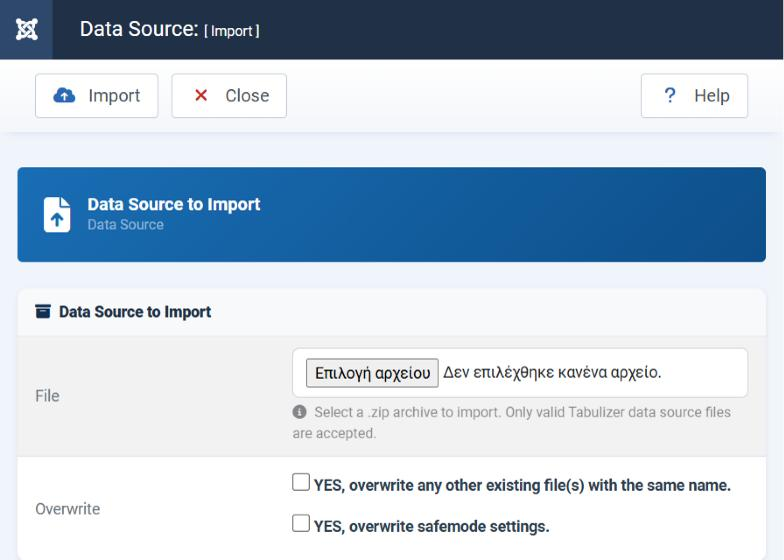
| Field | What it does |
|---|---|
| File | A .zip archive. The page checks what is inside before unpacking it: only valid Tabulizer data source files are accepted. |
| Overwrite · existing files | YES, overwrite any other existing file(s) with the same name. Leave it unticked the first time. Tick it when you are deliberately replacing something you already have - for instance re-importing a data file that came with the archive. |
| Overwrite · safemode settings | YES, overwrite safemode settings. Lets the archive bring its own Safe Mode setting with it. The box appears only for administrators allowed to change that setting. |
Choose the file and press Import. The definitions are read, any data files packed alongside them are unpacked into the data folder, and the new data sources appear in the list.
A data source whose tag already exists is skipped rather than silently duplicated, and the message says so. That is normally a sign you have already imported it - delete the existing one first if you really want it replaced.
Exporting
Select
Tick one data source or several. The box in the table heading takes every row on the page. Export, Clear Cache and Delete wake up as soon as something is ticked.
Export
Your browser downloads a single zip holding the definitions and the data files they use.
Import on the other site
Use Import Data Source there, and hand it that same zip.
Two things happen for you during an export. Any data file a selected source reads is packed alongside the definition, so the table works on the other site without hunting for the spreadsheet. And a Data Source Merger drags in the data sources it merges, however deeply they are nested - exporting the merger alone would otherwise produce something that refers to sources the other site has never heard of.
Data files
Manage Data Files is the folder that file-based data sources read from. Put a spreadsheet there and a data source can refer to it by name alone, with no path at all - which is what makes a data source portable between sites.
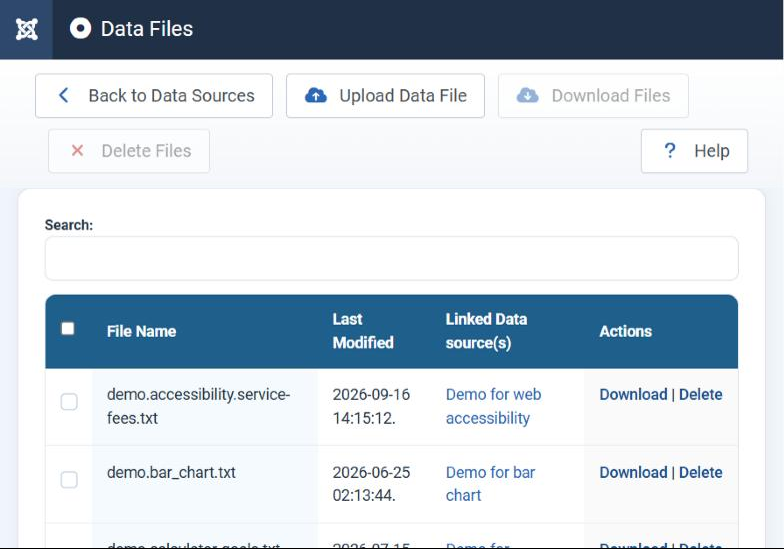
| Column | What it shows |
|---|---|
| File Name | The file as stored. This is the name you type into a data source's File path/URL field. |
| Last Modified | When it was last written - the quickest way to confirm that the file you just uploaded is the file being read. |
| Linked Data source(s) | Which data sources use it, as links straight to them. Check this before deleting anything. |
| Actions | Download to retrieve the current copy, Delete to remove it. |
The toolbar holds Back to Data Sources, Upload Data File, Download Files, Delete Files and Help; download and delete need a selection first, and a search box above the list filters it by name.
Uploading one
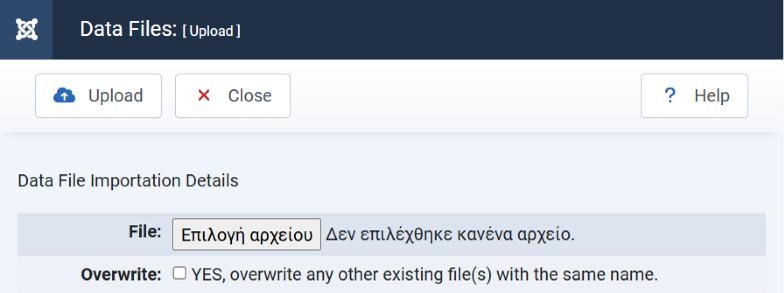
| Field | What it does |
|---|---|
| File | The file to upload. The accepted types are xls, xlsx, ods, csv and txt. You may also upload a zip holding several of them at once, which is unpacked into the same folder. |
| Overwrite | YES, overwrite any other existing file(s) with the same name. Tick it when you are replacing a file that is already there - which is exactly what you do when the spreadsheet is updated. The name must stay the same, or the data sources pointing at it will not follow. |
The page itself notes where the files land and adds one piece of advice worth taking: for a genuinely large file, use an FTP client to put it in that folder rather than fighting the browser and the upload limits.
Common questions
Export is greyed out.
Nothing is selected. Tick at least one row; Clear Cache and Delete need a selection too.
My import says the file is not valid.
The zip is not a Tabulizer archive, or it was repacked by hand. Export it again, and do not unzip and rezip an archive - a zip of a folder containing the archive is not the same thing as the archive.
I imported a data source and nothing appeared.
Either Safe Mode blocked it - the message says so - or a data source with that tag already exists, in which case it is skipped deliberately.
I changed the spreadsheet but the table is unchanged.
The data source is caching. Select it and press Clear Cache, or wait out the cache time.
Can I move data sources between Joomla and WordPress?
Yes. The archive format does not change between platforms. Export here, import there - and remember to take the ruleset archive across as well.
Preview works but the page shows nothing.
Check the tag in the page against the tag in the list - all twenty-four characters, inside {tabulizer:data_source[...]}, with no stray spaces. An editor that has "helpfully" wrapped the code in its own markup is the other usual cause.
Where do uploaded data files actually live?
In the Tabulizer data folder under the site's template folders; the upload page prints the full path. The Status page lists it and says whether it is writable - the first thing to check when an upload does nothing.
How many data sources can one page have?
As many as you like. Each tag is replaced independently.
Open the data sources
In your Joomla administrator: Components › Tabulizer › Data Sources.
Back to the Knowledge Base