How to re-Tabulize an existing table
ReTabulizing an Existing Table
Take a table that is already in the post - whether Tabulizer built it or not - and rebuild it with a different ruleset.
What it is for
ReTabulize answers two quite different complaints with one mechanism.
A Tabulizer table you want to restyle
You built a static table last month in Elemental 2 Blue and the page has been redesigned around orange. Rather than deleting it and starting again, point ReTabulize at it: the cells are read back, a new ruleset is applied, and the table is replaced where it stands.
A table Tabulizer never touched
An old post has a plain HTML table someone pasted in years ago. ReTabulize will adopt it - read its cells, apply a ruleset, and hand back a styled table with whatever sorting, filtering and paging the ruleset provides. This is the quickest way to bring legacy content up to standard.
{tabulizer:data_source[…]} tag rather than a table, there is nothing here to reTabulize - change the data source itself instead.Getting there
Open the post, click into the Tabulizer Table block that holds the table, and press Open Tabulizer Wizard - the button stays above the block's contents for exactly this purpose. On step 1 choose ReTabulize Existing Table. Tutorial 1 covers finding the block and the mode cards in more detail.
Step 2 - pick the table
The wizard scans that block and lists what it finds, each entry numbered and labelled with the table's id.
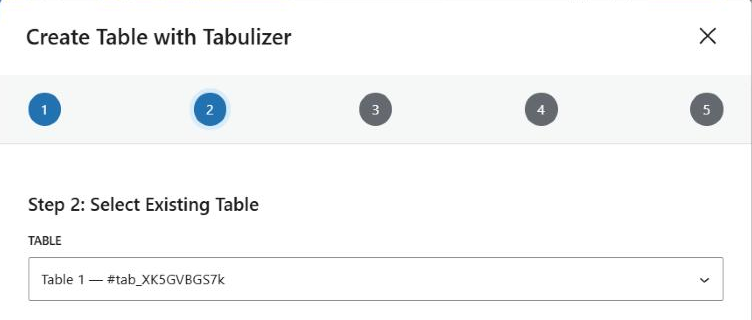
A block built by the wizard holds one table, so usually the choice makes itself. More than one appears only if you pasted extra tables into the block by hand; then the id is what tells them apart, and an id generated by Tabulizer is unique.
Step 3 - nothing to do
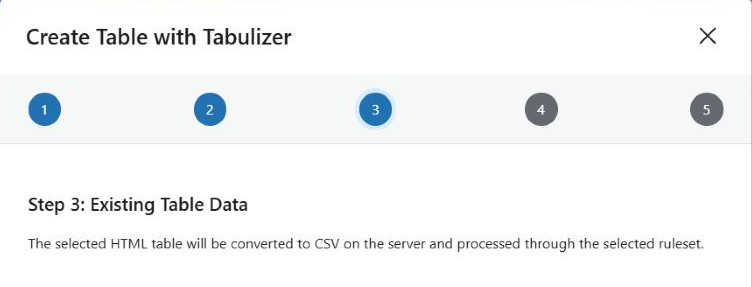
This step has no fields. It tells you what is about to happen: the table you chose is converted to CSV on the server and run through the ruleset you are about to pick.
Only the text of each cell survives the round trip. Formatting inside a cell - a bolded word, a link, an image - is not carried across, because the cells are being rebuilt from their text.
Step 4 - the new ruleset
Exactly the same step as for a new static table: choose a Ruleset archive, then a Ruleset from inside it. This is where the restyling actually happens, and nothing stops you from picking the same ruleset the table already had - that is the normal choice when you are only refreshing a table after editing its cells.
Step 5 - confirm, and press Replace
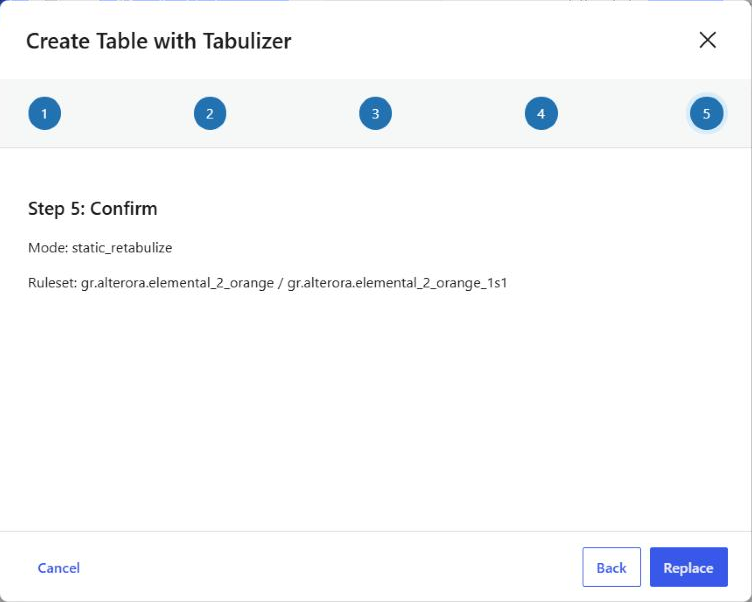
The button on this step is Replace, not Insert - the one visible difference in the wizard's footer, and a fair warning of what is about to happen. The old table and its stylesheet marker go; the new table and a fresh marker take their place.
Common questions
Can I reTabulize a table that Tabulizer did not create?
Yes, and it is one of the best uses for this mode. Any HTML table in the post can be adopted.
Does it change the data source?
There is no data source involved. This mode works on HTML in the post and creates nothing under Tabulizer › Data Sources.
Can I reTabulize a dynamic table?
No. A dynamic table is a tag, not a table, and there are no cells in the editor to read. To restyle one, edit the data source and change its ruleset - that updates every post using it.
I lost the bold text in a cell.
Expected - cells are rebuilt from their text. Apply the formatting again in the block afterwards, or avoid reTabulizing tables you have hand-formatted.
Can I edit the figures at the same time?
Not inside the wizard on WordPress. Edit the cells in the block first, then reTabulize to restyle - the wizard reads whatever the cells currently say.
I picked the wrong table.
Use Back before replacing. If you have already replaced, the editor's own undo steps it back, and WordPress keeps revisions of the post.
Bring an old table up to date
Open the post, click Open Tabulizer Wizard on the block, and choose ReTabulize Existing Table.
Back to the Knowledge Base