Table Filtering
One box, searches whole rows. Good for "find me anything about Berlin".
A control of its own for each column: a text box for a name, a drop-down of the values that are actually in the column, a from/to range for a price or a date. Put them in a row of the table or in a panel above it, and make one depend on another.
One box, searches whole rows. Good for "find me anything about Berlin".
One control per column, each searching only its own column. Good for "country is Jamaica and price is between 20 and 50".
They are separate features and can be switched on at the same time. The filters combine: a row has to satisfy all of them to stay.
Column filtering lives in the same panel as table filtering, in step 4 (Features), under the heading Column Filters. Tick Enable Column Filtering: Yes, then build the list of columns you want a filter for.
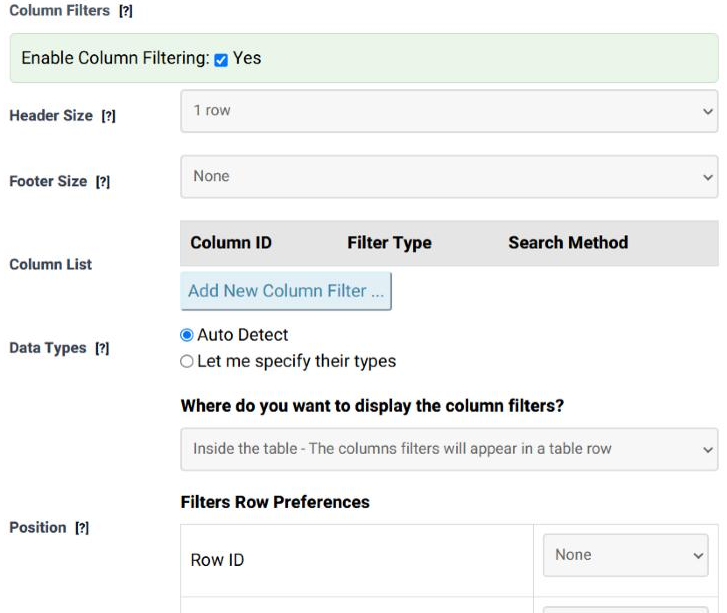
| Field | What it does | Options | Default |
|---|---|---|---|
| Enable Column Filtering | Switches the per-column controls on. | Yes / no | Not ticked |
| Header Size | How many rows at the top of the table are headers, and are therefore never filtered away. | 1 row … 5 rows | 1 row |
| Footer Size | How many rows at the bottom are footers, and are left alone in the same way. | None, 1 row … 5 rows | None |
| Column List | The filters themselves, one line each. Add New Column Filter … adds a line; Remove takes one away. The fields of a line are described below. | — | Empty |
| Data Types | How the values of each column should be read when they are compared. Auto Detect lets Tabulizer work it out; Let me specify their types opens a type list per column. | Auto Detect, Let me specify their types | Auto Detect |
| Position | Where the filters appear: in a row of the table itself, or in a panel above or below it. Each choice has its own settings, described further down. | Inside the table, Above the table, Below the table | Inside the table |
| Column Dependencies | Makes one filter depend on another, so choosing a country narrows the city drop-down to the cities of that country. | One parent column per filter, or None | None |
| Hide Initially | Starts the filter panel collapsed, so the table is not buried under its own controls. The visitor opens it when they need it. | No, Yes | No |
Each line of the list is one filter. A line always has a column, a type and a search method; the type decides which extra fields appear after it.
| Field | What it does | Options | Default |
|---|---|---|---|
| Column ID | Which column this filter searches. Columns are numbered from 1, left to right. | 1st Column … 10th Column (as many as the table has) | Select …. |
| Filter Type | The control the visitor gets. | Input/Text, Select/Drop-Down, Range/From-To Values | Input/Text |
| Search Method | How what the visitor typed is matched against the column. Applies to Input/Text and Select/Drop-Down. | Smart (partial or full match), Exact (only full match), Starts with | Smart |
| Field | What it does | Options | Default |
|---|---|---|---|
| Values | Where the entries of the drop-down come from. Automatic detection reads the column and lists the values it actually contains, so the list can never offer a value that returns nothing. | Automatically detect values from column, Manually specify values | Automatically detect |
| The value list | Only when you specify them yourself: the entries, separated by semicolons. Example: Small;Medium;Large. Use this when you want a fixed order, or a shorter list than the data holds. |
Free text | Empty |
| Field | What it does | Options | Default |
|---|---|---|---|
| Range type | How the column's values are read before they are compared, which is what makes 9.58 smaller than 10.2 rather than larger. | Numeric/Integer, Numeric/Decimal (dot), Numeric/Decimal (comma), Date/Auto detection, Date/Year Month Day, Date/Day Month Year, Date/Month Day Year | Numeric/Integer |
| Range mode | What the interval values below mean. | Absolute values, Percentage of min/max, Relative time values | Absolute values |
| Range Intervals | Optional ready-made steps, separated by semicolons, offered to the visitor instead of free typing. The form depends on the mode: 20;50;100 for absolute, 10%;50%;90% for percentages, 1d;2w;3m for relative time (days, weeks, months). |
Free text, semicolon separated | Empty |
The Position question - "Where do you want to display the column filters?" - has three answers, and each opens a different set of fields.
The filters sit in a row of the table, under the heading of each column. The fields are grouped as Filters Row Preferences:
| Field | What it does | Options | Default |
|---|---|---|---|
| Row ID | Which row of the table holds the controls. Counting from the end (Last, 2nd to Last …) keeps working when the number of rows changes. | None, 1st … 5th, 5th to Last … Last | None |
| Add filters rows as a new one? | Yes inserts a new row for the filters. No puts them into the row you chose, which is what you want when that row is a header row you have set aside for them. | No, Yes | No |
| Filter Prompts | The placeholder text inside each control, one box per column. Leave a box empty for no prompt. | Free text per column | Empty |
The filters are drawn as a panel of their own, outside the table, with labels and two buttons. This is the layout to choose when there are more filters than fit comfortably in a table row, or when the table is narrow.
| Field | What it does | Options | Default |
|---|---|---|---|
| Legend | A title for the panel, such as "Find a product". | Free text | Empty |
| Order of Appearance | The position of each filter in the panel, which does not have to follow the column order. Do not show leaves that filter out of the panel. | 1 … 10, Do not show | Select order … |
| Filter Labels | The label beside each control. Without one the control is unlabelled, which also makes it harder to use with a screen reader. | Free text per column | Empty |
| Filter Prompts | The placeholder text inside each control. | Free text per column | Empty |
| Filter Buttons | The labels of the two buttons: the one that applies the filters and the one that empties them. | Free text | Filter, Clear |
| Columns (desktop / tablet / mobile) | How many filters sit side by side at each screen size. Three separate settings, so a panel that is four across on a desktop can be one across on a phone. | 1, 2, 3, 4, 6 | 1 |
| Label position | Where each label sits in relation to its control. | Left of the control, Above the control, Right of the control, Hidden (no label) | Left of the control |
| Panel styling | The appearance of the panel itself: text alignment, vertical alignment, padding, font family, size, style and colour, an optional text shadow, a transparent, solid or gradient background, and an optional border. | As in the rest of the wizard's style controls | Default (the site's own styling) |
Column Dependencies links a filter to a parent column. When the visitor chooses a value in the parent, the dependent drop-down is rebuilt from the rows that are still showing, so it only ever offers combinations that exist.
A country filter as the parent of a city filter is the usual example: choose Jamaica and the city list holds Jamaican cities only. Leave the setting at None for filters that stand on their own.
A column filter compares what the visitor typed against the values in the column. Those values are text on the page, so Tabulizer has to know how to read them: 1.500,34 is one and a half thousand in one country and 1.5 in another, and 08/24/2020 is a date only if you know which number is the month.
Auto Detect handles the ordinary cases. Choose Let me specify their types when a column is being read wrongly, and set the type per column:
| Group | Types |
|---|---|
| Text | Text - Alphabetic; Text - Alphabetic (Non Latin), for alphabets that do not sort the Latin way |
| Numbers | Number - Integer; Number - Decimal (dot separator), e.g. 10.34 or 1,500.34; Number - Decimal (comma separator), e.g. 10,34 or 1.500,34; Number - Auto Detection |
| Dates | Year Month Day (2020-08-24); Month Day Year (08/24/2020); Day Month Year (24/08/2020); Year Month (2020-08); Month Year (08/2020); Day Month (24/08); Month Day (08/24); Date - Auto Detection |
One per column. The list offers as many columns as your table has, which is set by the table dimensions in step 1 of the wizard. Add a column there and it appears in the list.
The list is built from the table dimensions declared in step 1. If the table has more columns than that, raise the number there first.
No - the wizard refuses a duplicate column id. Remove the first line if you want to change it.
Together. A row has to satisfy every filter the visitor has set, plus the table search box if that is switched on too.
Yes. A column filter can be given a value to start with, so the table arrives showing one country, one category or one year, and the visitor changes it from there.
That happens when the values were typed in by hand. Switch Values back to Automatically detect values from column and the list comes from the data.
Open the Table Wizard, tick Column Filtering in step 2, and build the list in step 4.
Open the Table Wizard