Gallery Wizard
What the Gallery Wizard does
The Gallery Wizard turns a plain list of image addresses into a styled, responsive, accessible image gallery. You list your images once — file, caption, description, category — choose a layout, adjust the styling, and the wizard produces a Tabulizer ruleset that you import into your own site.
It is the right tool when you need:
- a photo grid, portfolio or product gallery;
- a slideshow or carousel with thumbnails;
- images grouped into categories that visitors can filter;
- a click-to-enlarge lightbox that also works from the keyboard;
- a gallery that search engines and screen readers can both make sense of.
You do not need to write any HTML or CSS, and you do not upload anything to the wizard — you point it at images that already live somewhere on the web, usually on your own site.
How the pieces fit together
- You build the gallery in the online wizard on the Tabulizer website.
- The wizard gives you a ruleset archive (a
.zipfile). - You import that archive into Tabulizer on your own site.
- You apply the ruleset to a table in one of your articles. Tabulizer combines your real image list with the ruleset and renders the finished gallery.
The wizard is a design tool, not an image host. It works from sample rows so you can lay the gallery out. The ruleset describes how to render a gallery; the actual images come from the table in your article at render time. Add or replace a photo later by editing that table — there is no need to return to the wizard.
Before you start
- An account on the Tabulizer website, so you can save and download the ruleset.
- Tabulizer installed on the site where the gallery will appear.
- Your images already uploaded somewhere reachable — typically your own
/images/folder — so you have an address for each one.
The wizard has three steps, shown in the progress bar at the top of every page. A step with a green tick is finished; the blue step is the one you are on. You can click back to a finished step at any time.

Step 1 — Choose a layout
Pick the gallery type that suits your images and click Next step.
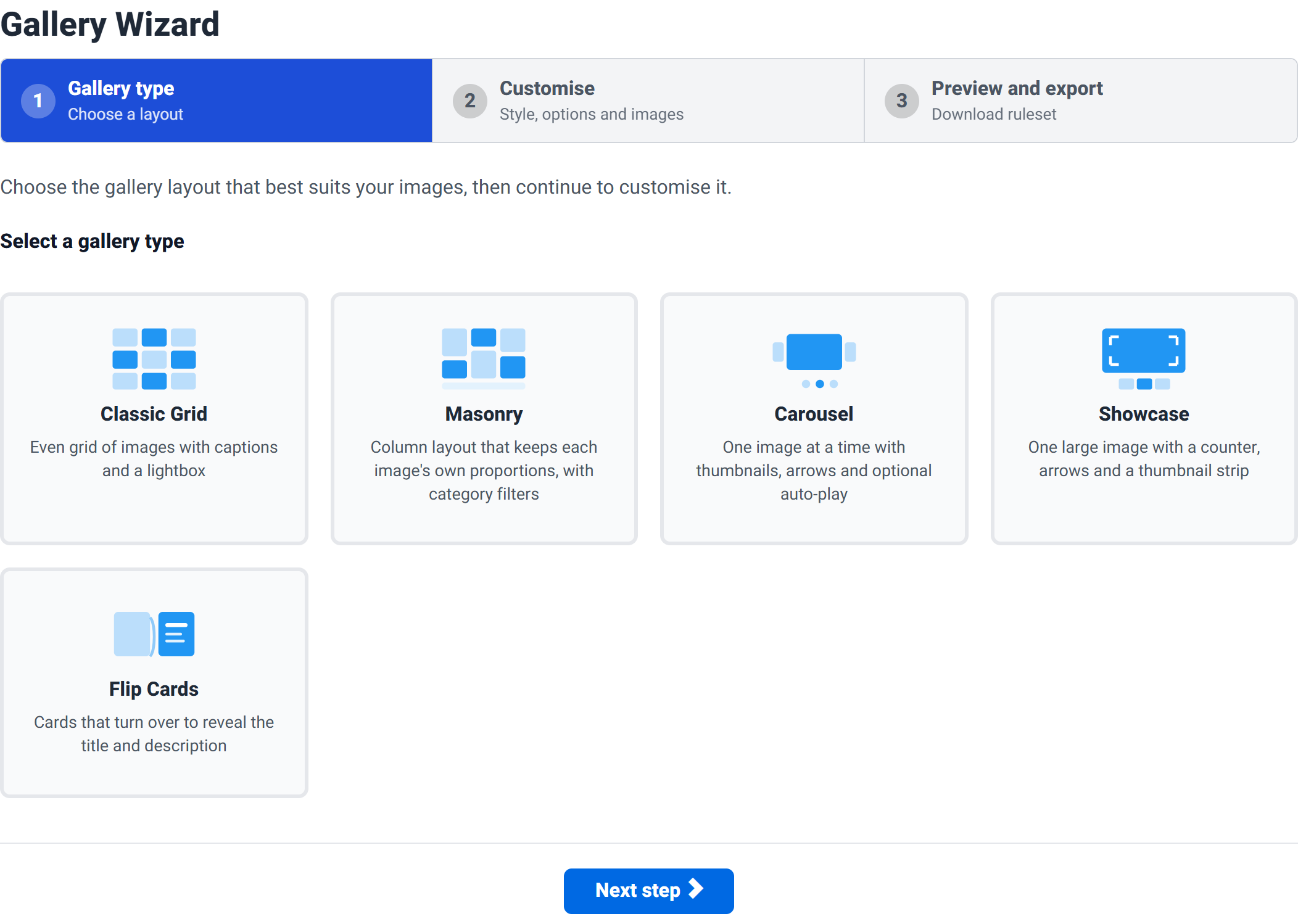
| Layout | What it looks like | Best for |
|---|---|---|
| Classic Grid | Even grid of images with captions and a lightbox | The safe default. Images of mixed proportions all cropped to a consistent height. |
| Masonry | Column layout that keeps each image's own proportions, with category filters | Mixed portrait and landscape shots, and galleries visitors should be able to filter. |
| Carousel | One image at a time with thumbnails, arrows and optional auto-play | A small, curated set where each image deserves the full width. |
| Showcase | One large image with a counter, arrows and a thumbnail strip | Portfolio or product photography presented one piece at a time. |
| Flip Cards | Cards that turn over to reveal the title and description | Galleries where the text matters as much as the picture — team members, projects. |
Which layout supports what
This is the most important thing to know before choosing, because Step 2 only shows the options your chosen layout can actually use. Pick the layout that offers the features you need.
| Feature | Classic Grid | Masonry | Carousel | Showcase | Flip Cards |
|---|---|---|---|---|---|
| Captions | ✓ | ✓ | ✓ | ✓ | — |
| Caption position | ✓ | ✓ | — | — | — |
| Lightbox | ✓ | ✓ | ✓ | ✓ | ✓ |
| Columns | ✓ | ✓ | — | — | ✓ |
| Image height | ✓ | — | ✓ | ✓ | ✓ |
| Category filters | — | ✓ | — | — | — |
| Thumbnail strip | — | — | ✓ | ✓ | — |
| Auto-play | — | — | ✓ | — | — |
Two entries are worth calling out. Category filters are Masonry only — if you want visitors to filter by category, that is the layout to choose. And Masonry has no image height, because keeping each image's own proportions is the whole point of it.
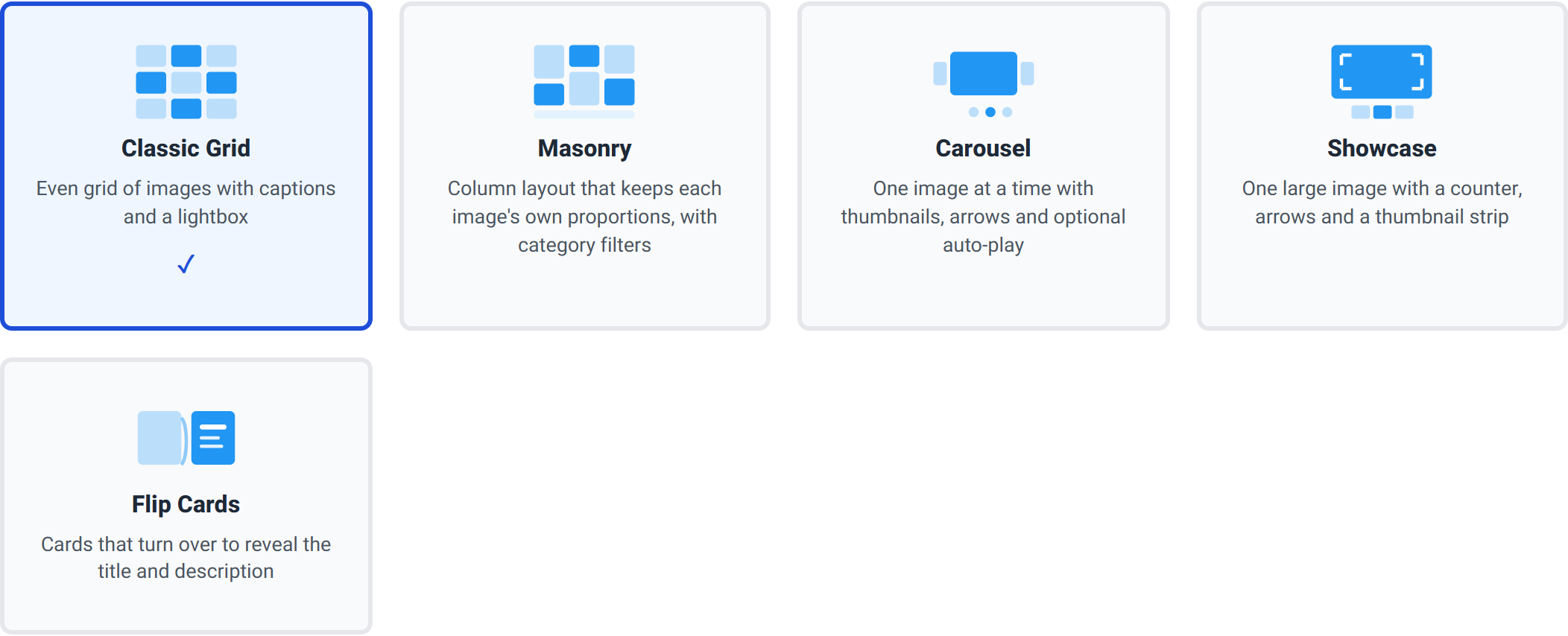
Choose your layout before you fine-tune Step 2. Moving to a layout that does not offer an option can switch that option off. For example, going to Classic Grid and then on to Masonry leaves Show category filters unticked, because Classic Grid never showed you that control. The checkbox is visible on the Masonry settings page, so just tick it again — but it is easy to miss if you are not expecting it.
Step 2 — Customise
A single form divided into labelled groups. Every group can safely stay at its defaults except Images, which is where your gallery goes.
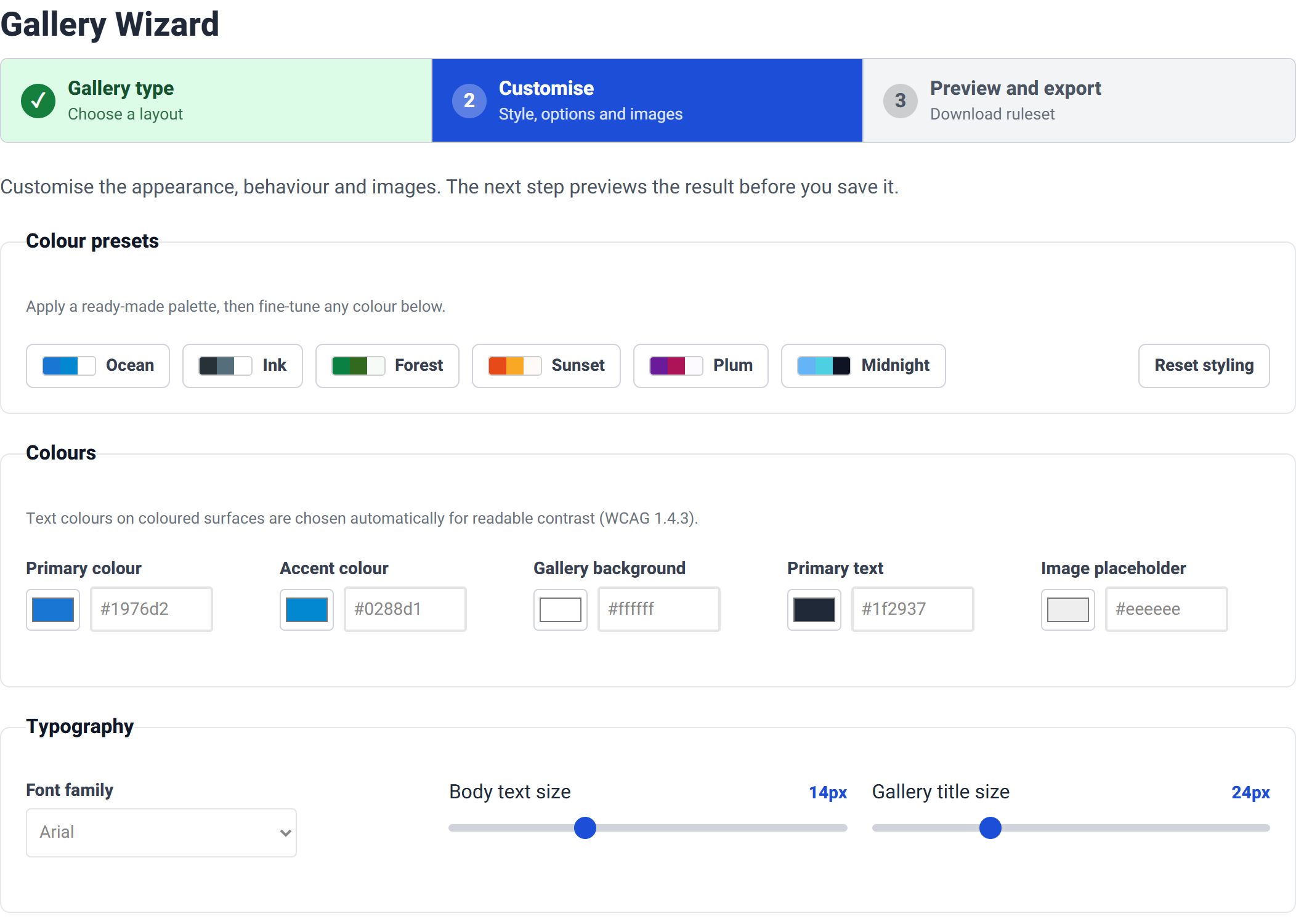
Colour presets
Six ready-made palettes — Ocean, Ink, Forest, Sunset, Plum and Midnight. Clicking one fills in every colour at once. Reset styling returns the appearance settings to the layout's defaults without touching your images.

Colours
Five colours: the primary and accent colours used for captions, links and focus rings; the gallery background; the text colour; and the item background, which is the colour visible behind an image while it loads or in the letterboxed area around it.

Text drawn on a colour you choose is set automatically to black or white, whichever meets the WCAG 1.4.3 contrast requirement. You cannot accidentally make a caption unreadable against its own background.
Typography
A font stack for the gallery, a body text size (10–22px, default 14) used for captions and descriptions, and a gallery title size (16–44px, default 24) used for the optional heading above the gallery.

Layout and style
| Setting | Options | What it does |
|---|---|---|
| Corner radius | 0–32px (default 8) | How rounded the image corners are. |
| Spacing | Small, Medium, Large, Extra large | The gap between images. |
| Shadow | None, Light, Medium, Heavy | How far each image lifts off the page. |
| Hover effect | None, Lift, Zoom the image, Glow (accent ring) | What happens when a visitor points at an image. |
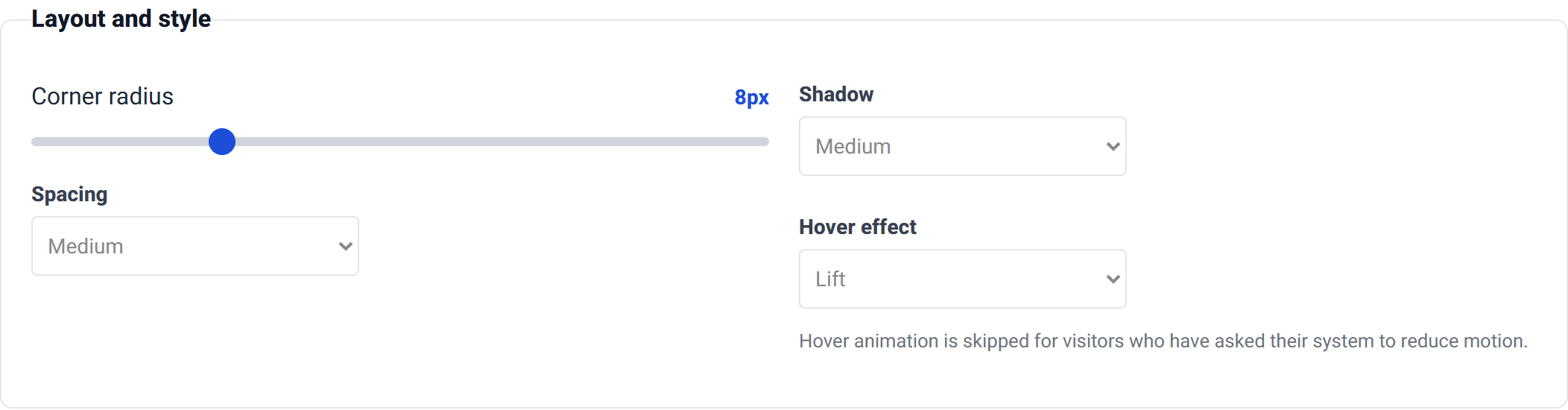
Hover animation is skipped automatically for visitors who have asked their system to reduce motion, so Zoom and Lift are safe choices.
Accessibility and semantics
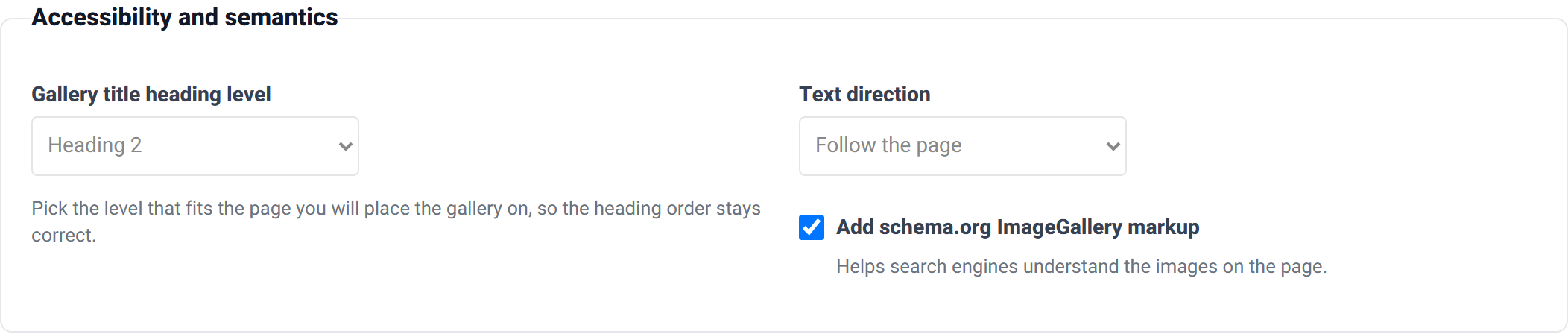
- Gallery title heading level (Heading 2, 3 or 4 — default 2)
- Applies to the optional gallery title. Choose the level that keeps your page's heading order correct.
- Text direction (Follow the page, Left to right, Right to left)
- Leave on Follow the page unless the captions run the other way from the rest of the site.
- Add schema.org ImageGallery markup (on by default)
- Helps search engines understand that the page contains a gallery. Safe to leave on.
Content
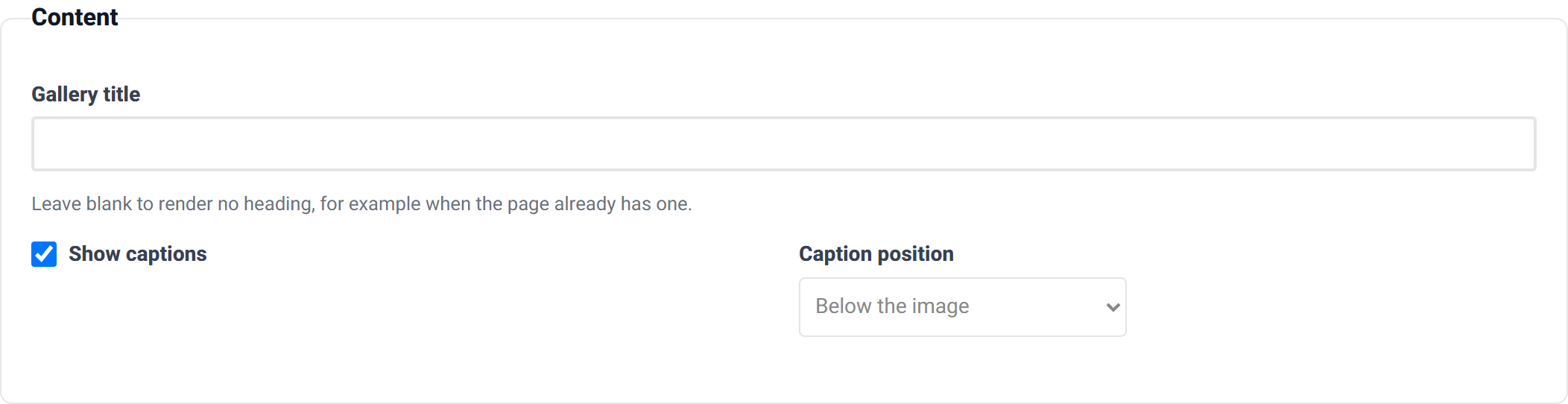
The gallery title is an optional heading rendered above the images. Leave it blank when the page already has a heading of its own — which is usually the case.
Show captions controls whether the title and description appear at all, and caption position puts them either below the image or over the image.
Behaviour — this group changes with your layout
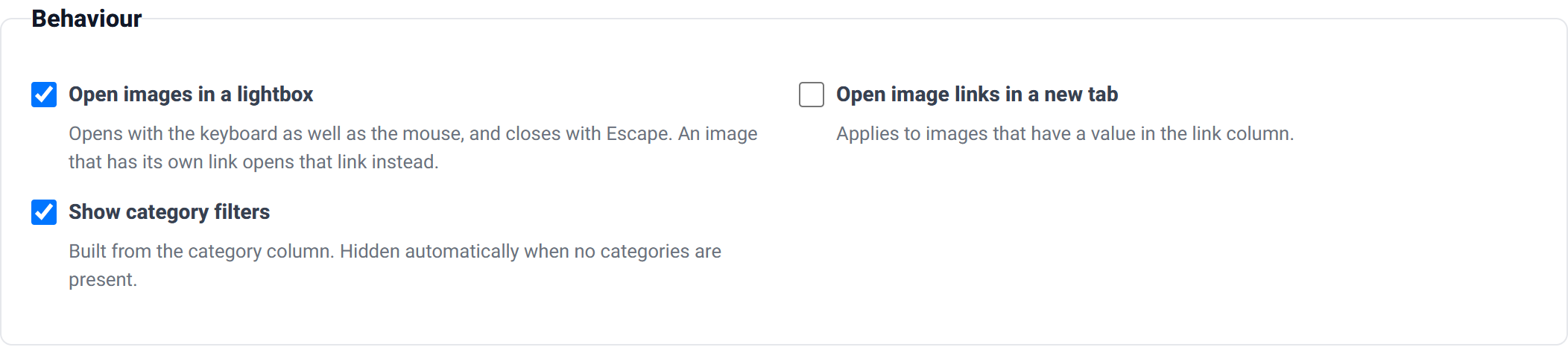
Only the controls your chosen layout can use are shown. Classic Grid offers the lightbox and link handling:

Masonry adds the category filters:
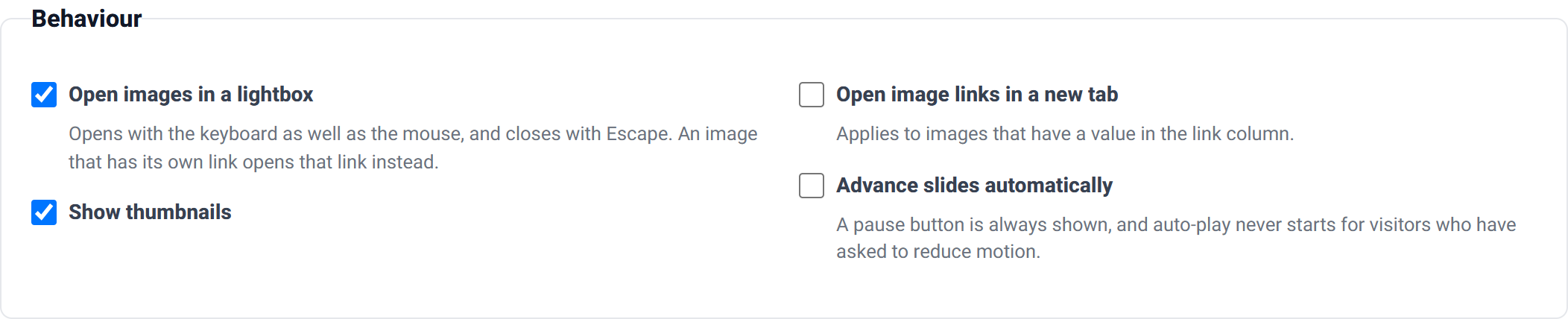
Carousel adds the thumbnail strip, auto-play and the time on each slide:
| Setting | Default | Notes |
|---|---|---|
| Enable lightbox | On | Click-to-enlarge. Opens with the keyboard as well as the mouse and closes with Escape. An image that has its own link value opens that link instead. |
| Show category filters | On (Masonry) | Built from the category column, and hidden automatically when no categories are present. |
| Show thumbnails | On (Carousel, Showcase) | The strip of small images below the main one. |
| Advance slides automatically | Off | A pause button is always shown, and auto-play never starts for visitors who have asked to reduce motion. |
| Time on each slide | 4000ms | 1000–15000 milliseconds. Only used when auto-play is on. |
| Open image links in a new tab | Off | Applies only to images that have a value in the link column. |
Layout grid
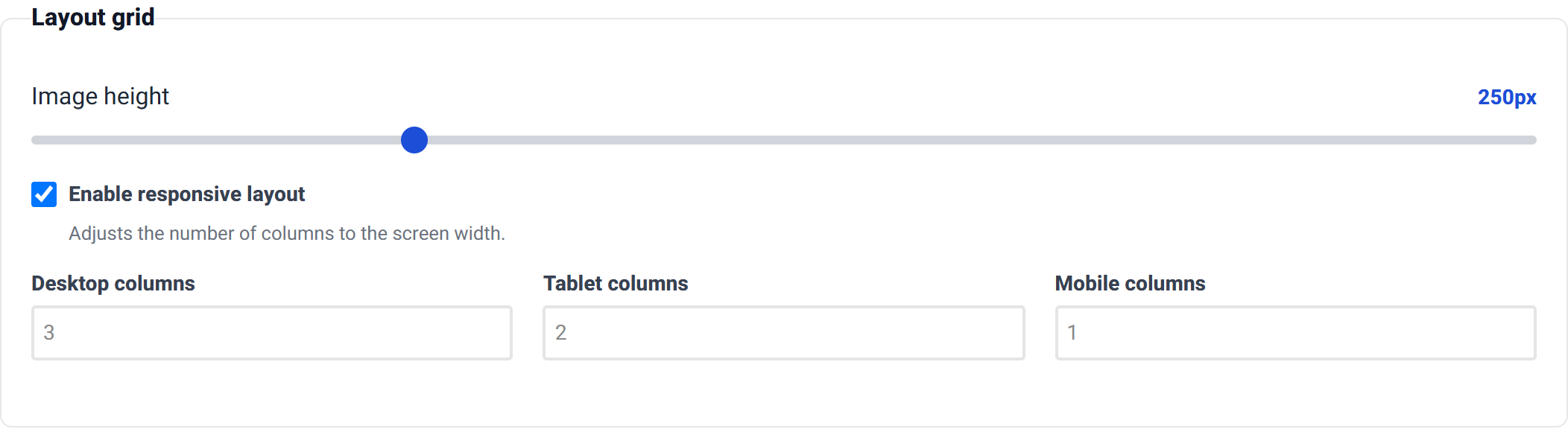
The image height (100–700px, default 250) is the height every image is cropped to in the grid and slideshow layouts. The column counts — 3 on desktop, 2 on tablet, 1 on mobile by default — decide how many images sit side by side at each screen size.
Images — where your gallery goes
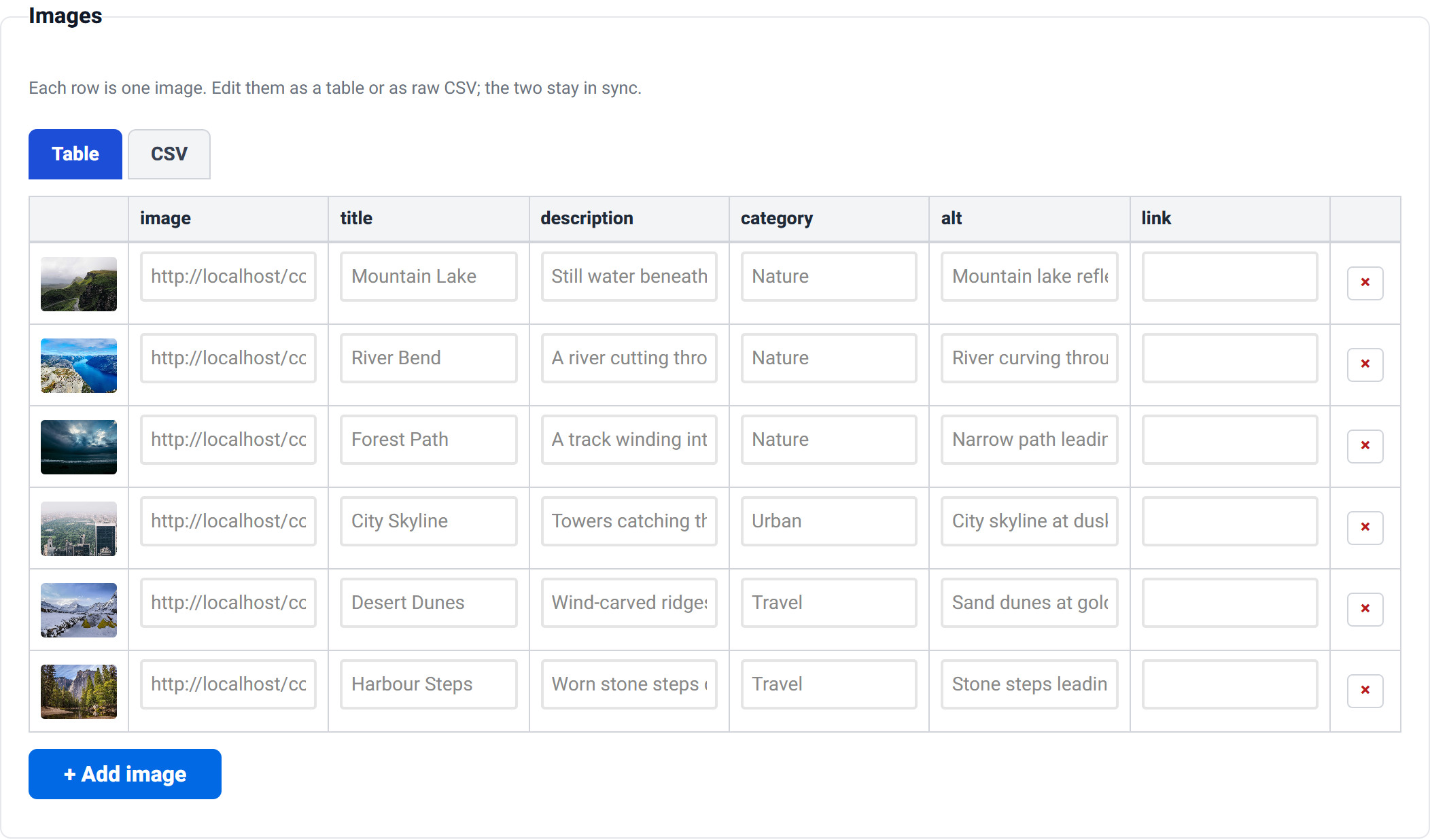
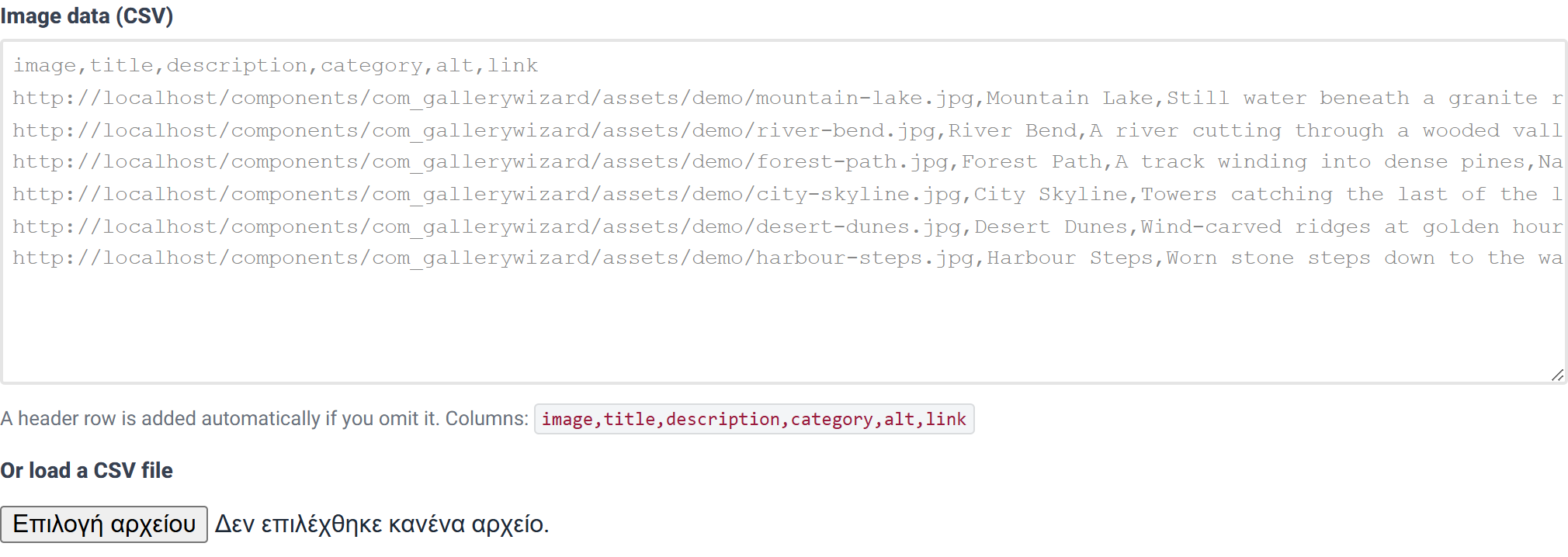
Each row is one image. Edit them as a table or as raw CSV; the two stay in sync. The table view shows a live thumbnail of each image, which is the quickest way to spot an address you have typed wrongly.
The columns
Only image is required. Column names are matched case-insensitively and common alternatives are accepted, so a spreadsheet with a photo or src column will still work.
| Column | Required | What it does | Also accepted as |
|---|---|---|---|
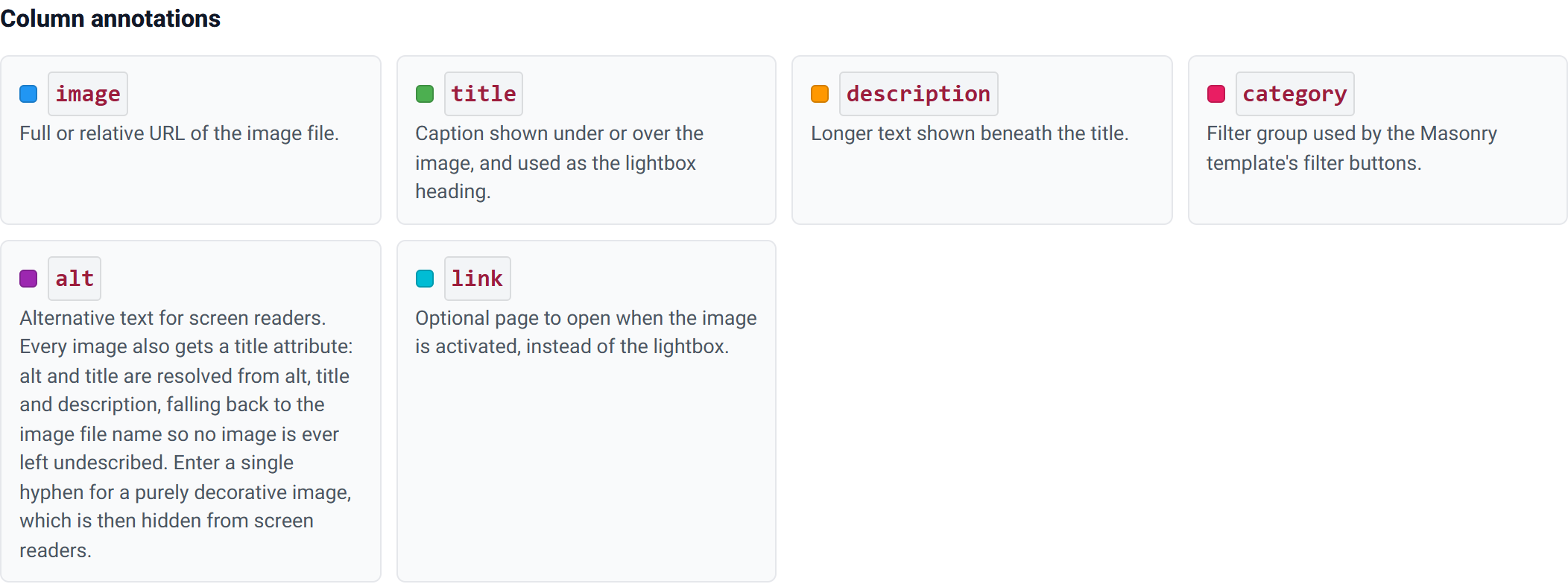
image |
Yes | Full or relative address of the image file. | imageurl, image url, image_url, src, url, photo, picture, file |
title |
No | Caption shown under or over the image, and used as the lightbox heading. | name, label, caption, heading |
description |
No | Longer text shown beneath the title. | desc, text, details, summary |
category |
No | Filter group used by the Masonry layout's filter buttons. | cat, group, tag, type |
alt |
No | Alternative text for screen readers. See below. | alttext, alt text, alt_text, accessibility |
link |
No | A page to open when the image is activated, instead of the lightbox. | href, target_url, page, link_url |
No image is ever left undescribed. The alternative text is resolved from alt, then title, then description, and finally from the image file name, so a screen reader always has something to announce. Enter a single hyphen (-) in the alt column for a purely decorative image, and it is hidden from screen readers instead.
A worked example
The wizard starts with six sample photographs already loaded, which is what this tutorial uses. Swap the addresses for your own and the rest of the structure still applies:
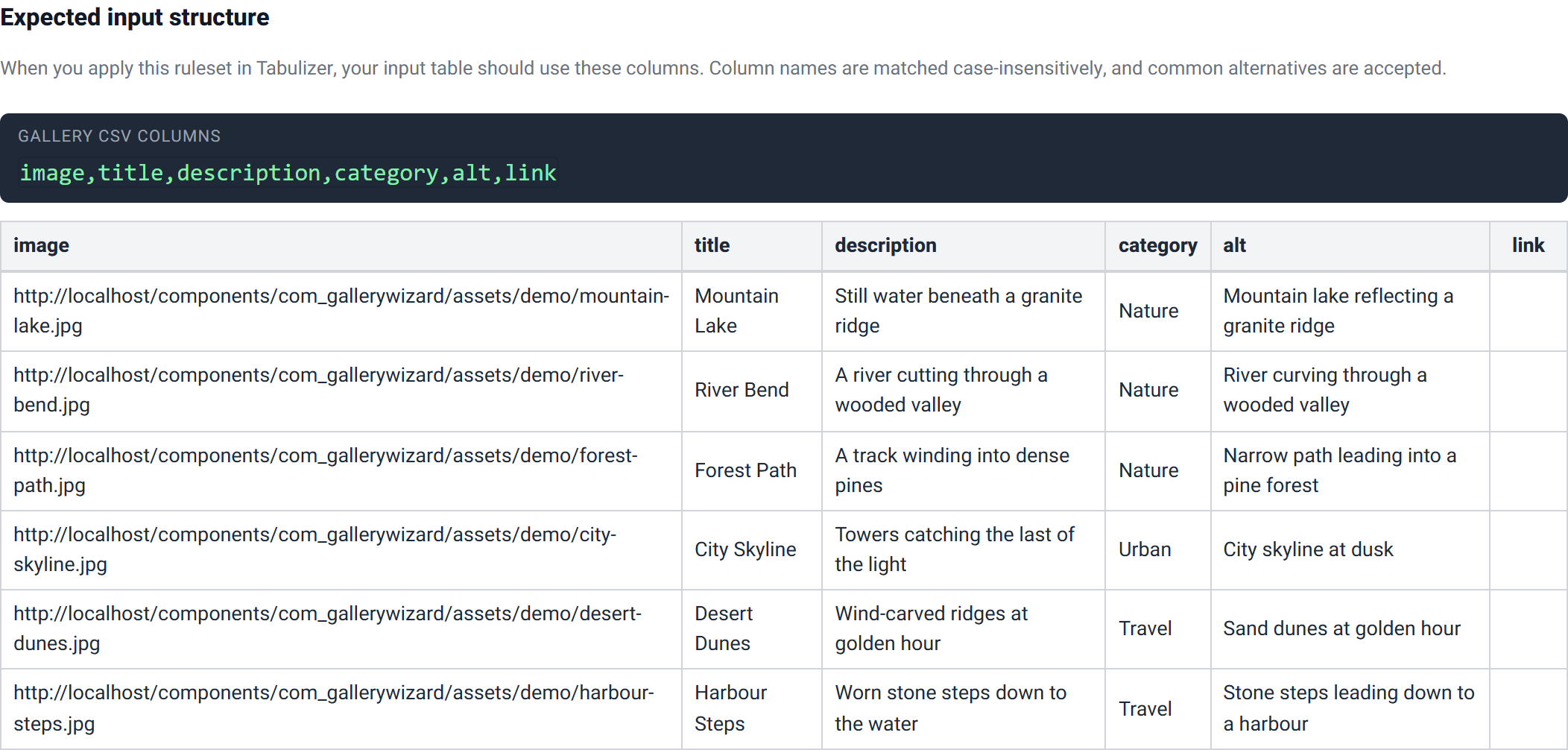
image,title,description,category,alt,link
/images/gallery/mountain-lake.jpg,Mountain Lake,Still water beneath a granite ridge,Nature,Mountain lake reflecting a granite ridge,
/images/gallery/river-bend.jpg,River Bend,A river cutting through a wooded valley,Nature,River curving through a wooded valley,
/images/gallery/forest-path.jpg,Forest Path,A track winding into dense pines,Nature,Narrow path leading into a pine forest,
/images/gallery/city-skyline.jpg,City Skyline,Towers catching the last of the light,Urban,City skyline at dusk,
/images/gallery/desert-dunes.jpg,Desert Dunes,Wind-carved ridges at golden hour,Travel,Sand dunes at golden hour,
/images/gallery/harbour-steps.jpg,Harbour Steps,Worn stone steps down to the water,Travel,Stone steps leading down to a harbour,
Three categories — Nature, Urban and Travel — become the three filter buttons in the Masonry layout, alongside an All button the wizard adds for you.
Custom CSS
Optional. Whatever you put here is appended to the generated stylesheet; use the gw- class names visible in the preview, such as .gw-item, .gw-media and .gw-caption.
Step 3 — Preview and export
Live preview
The real renderer, not a mock-up. Here is the Masonry layout, which shows the most moving parts at once:
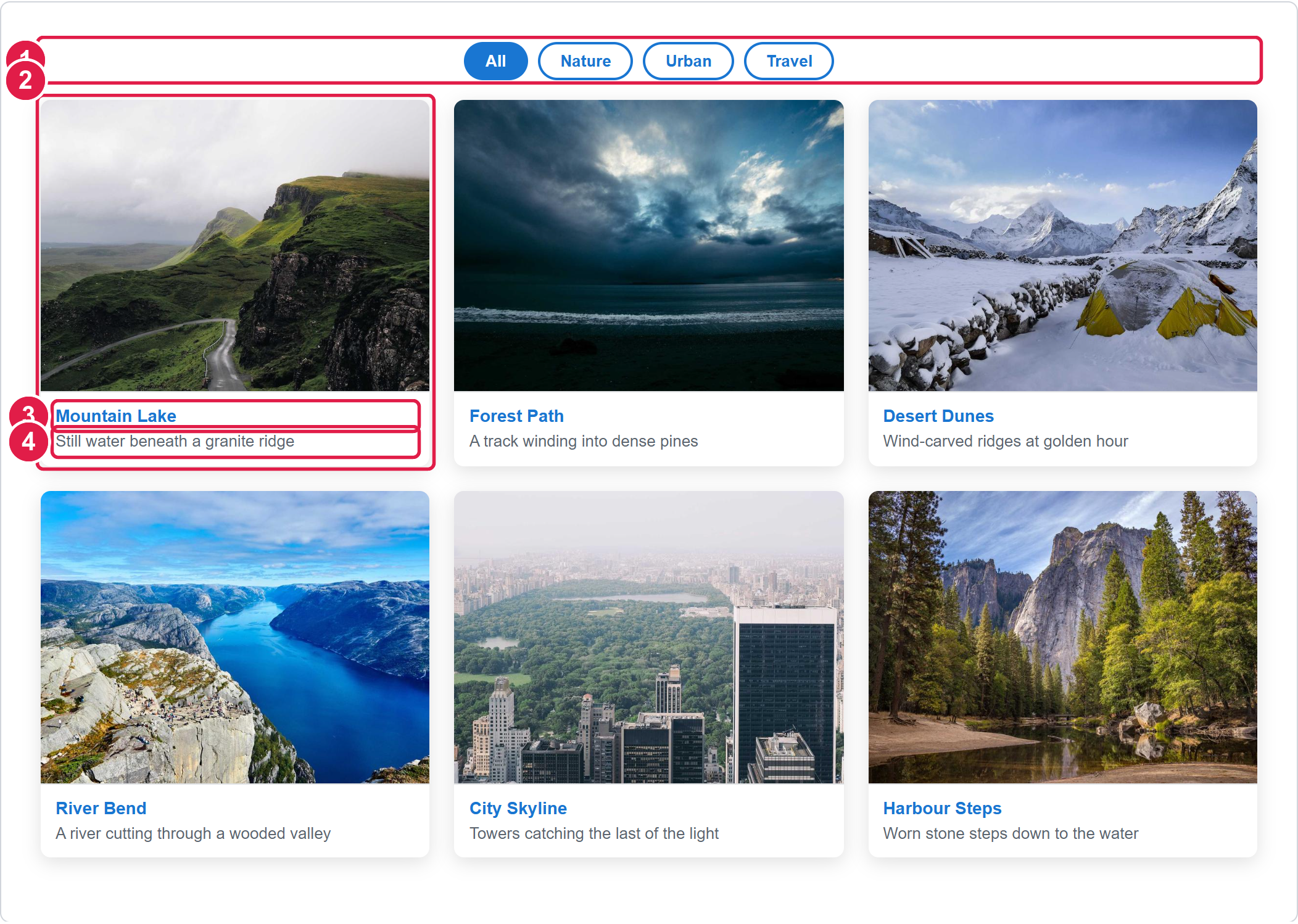
- The category filter bar — built from the
categorycolumn, with an All button added automatically. - One gallery item — one row of your table.
- The title — the
titlecolumn. - The description — the
descriptioncolumn.
The other layouts
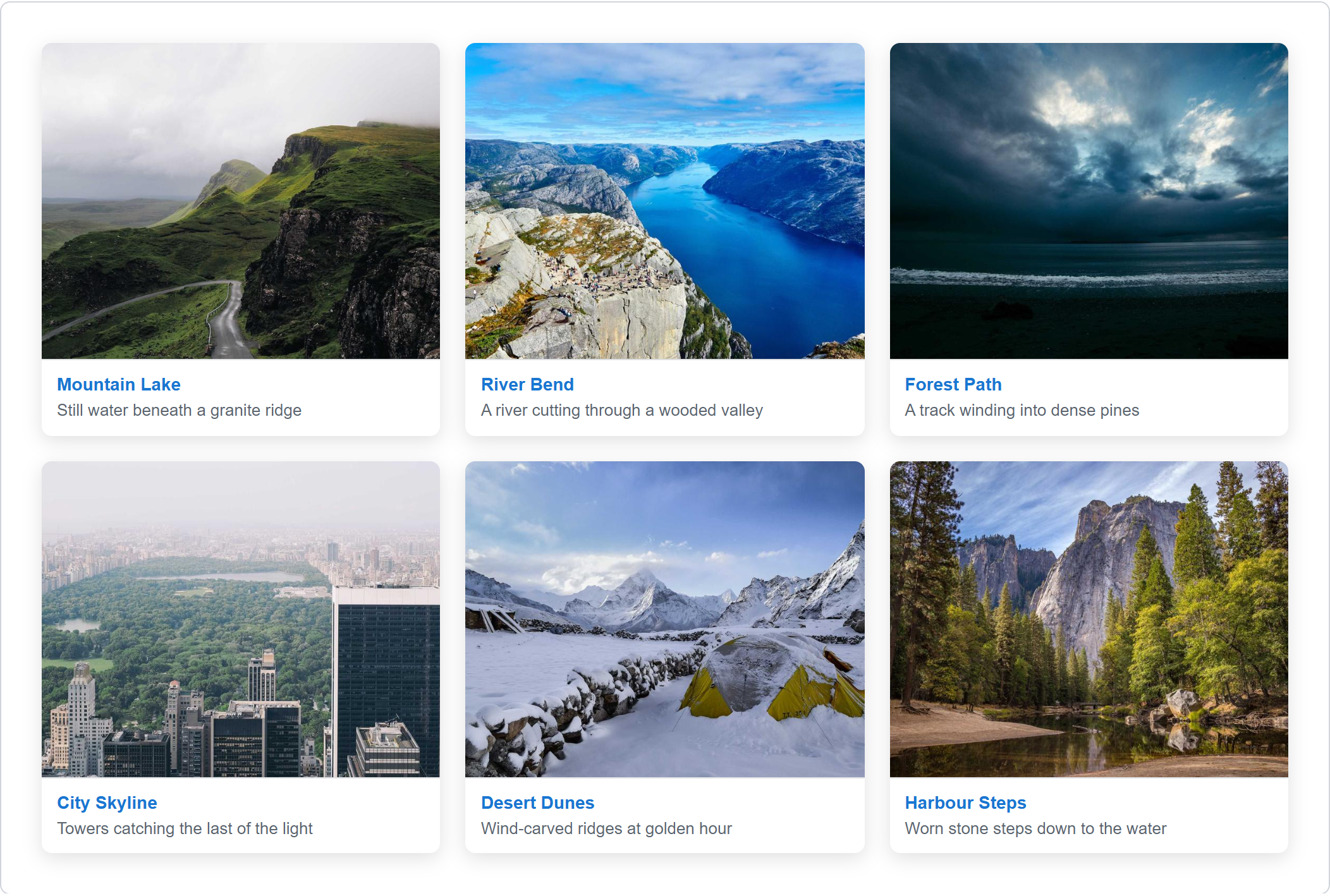
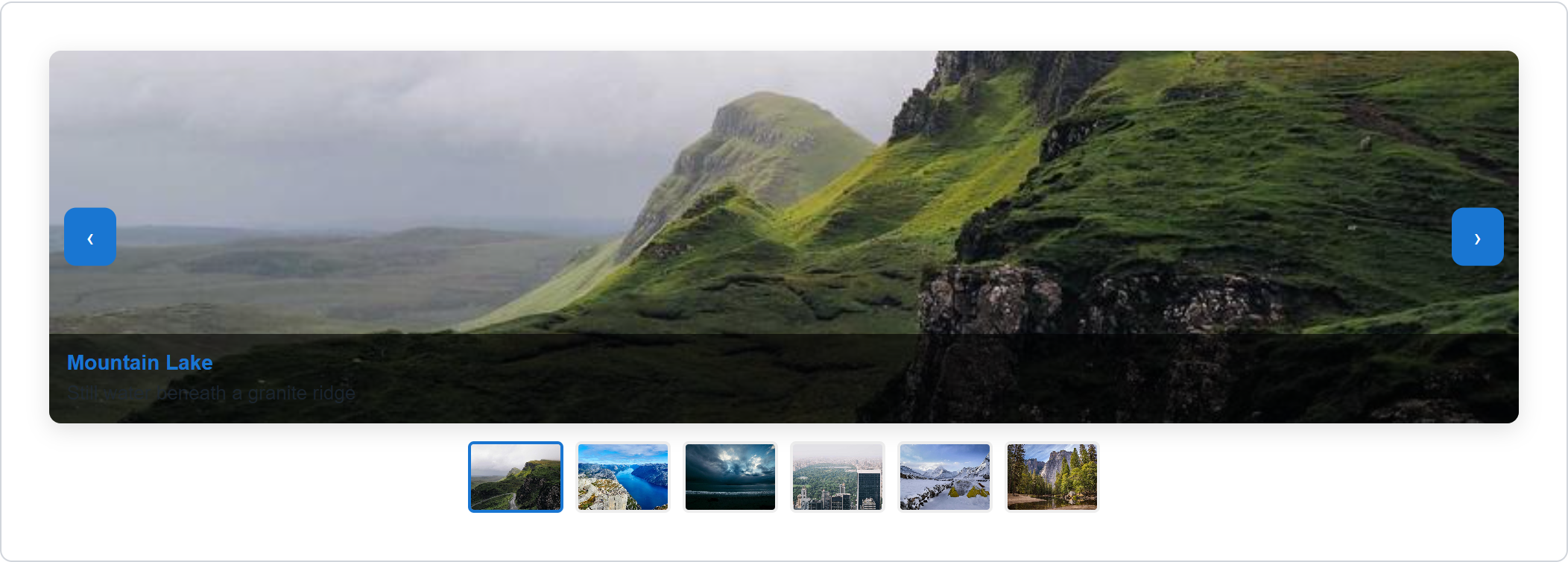
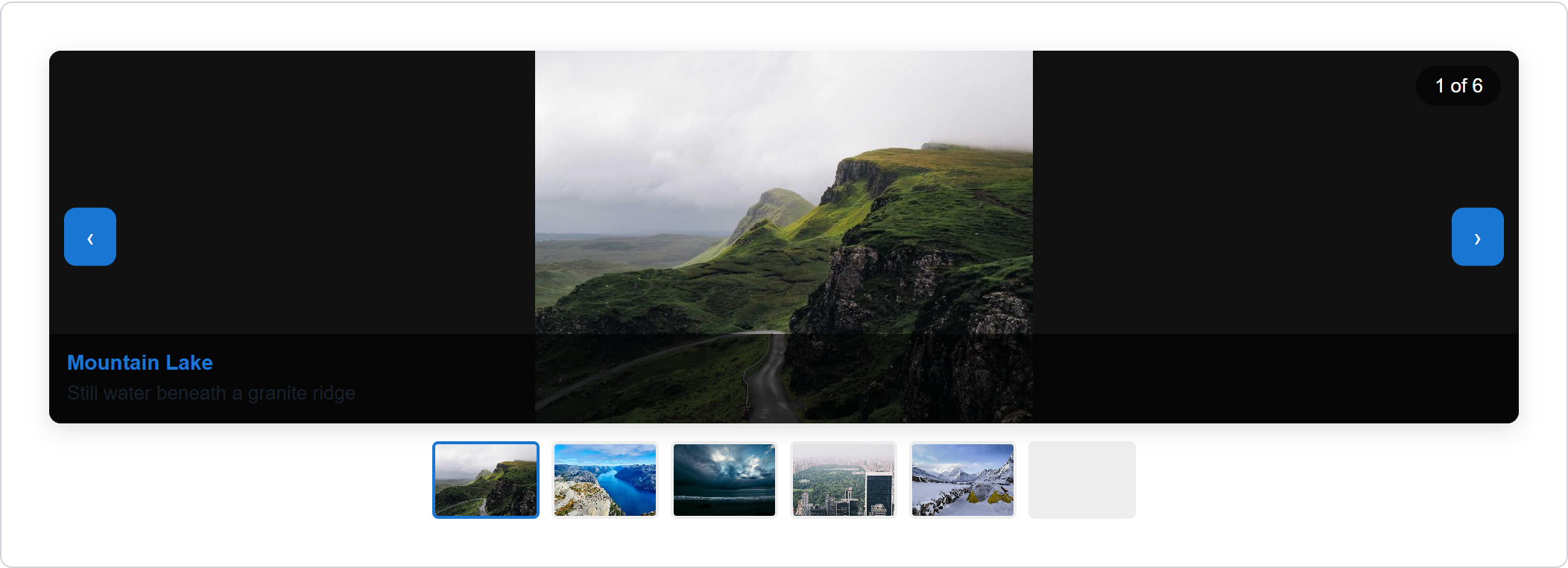
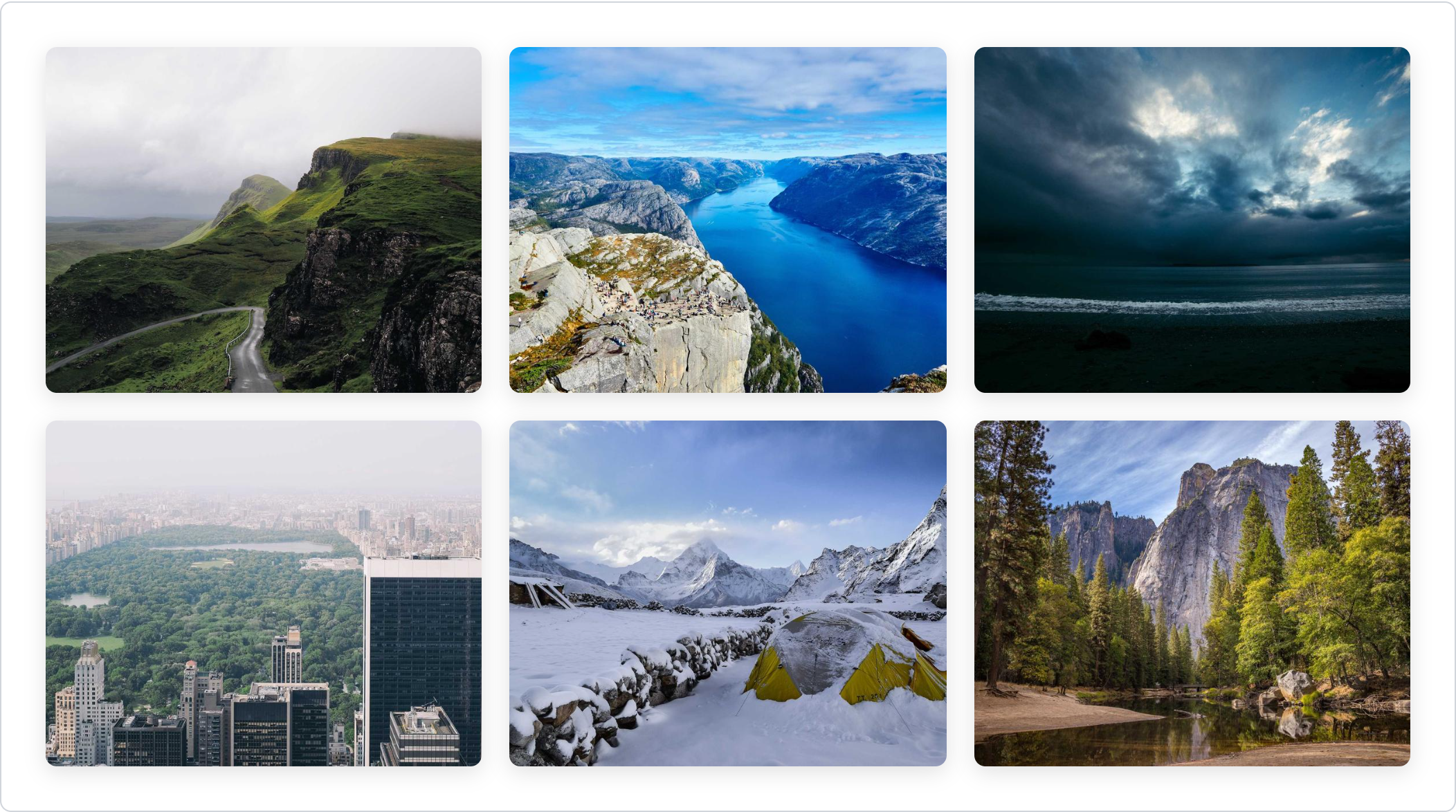
The lightbox
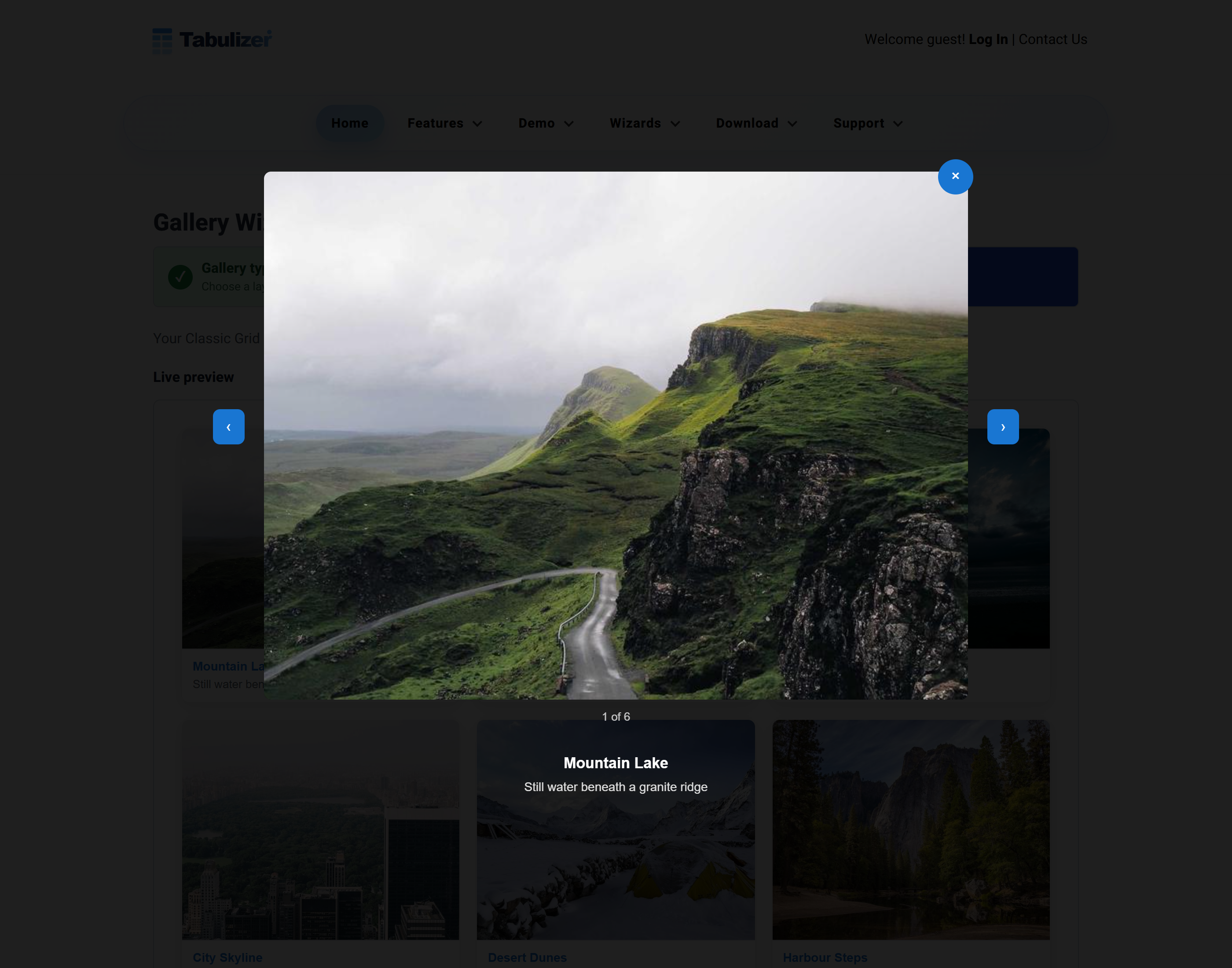
Every layout offers the lightbox. Clicking — or tabbing to and pressing Enter on — an image opens it full size, with the title and description, a position counter, and arrows to move through the gallery. Escape closes it.
An image with a value in the link column opens that link instead of the lightbox. That is how you mix a gallery with a set of clickable product or project pages.
Expected input structure
The bridge between the wizard and your own site: the columns your table in Tabulizer needs, with sample rows.
Save the ruleset
| Field | Required | Notes |
|---|---|---|
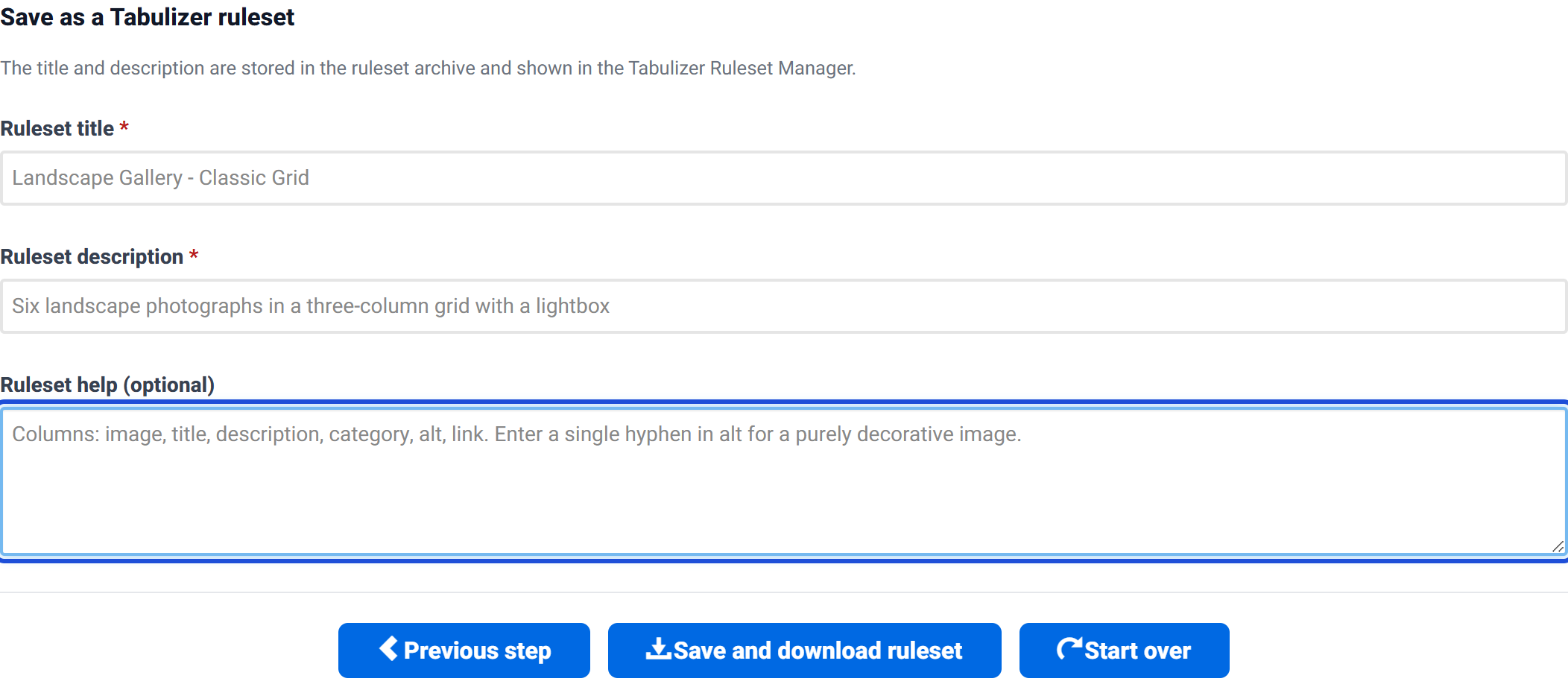
| Ruleset title | Yes | How the ruleset is listed in the Tabulizer Ruleset Manager. Be descriptive. |
| Ruleset description | Yes | A one-line reminder of what this ruleset produces. |
| Ruleset help | No | Notes stored inside the archive — a good place to record the column list. |
Your browser downloads a .zip containing the ruleset XML, a small stylesheet of theme variables, and your help notes.
Saving twice updates rather than duplicates. Each wizard session keeps a stable ruleset identifier, so going back, changing something and saving again updates the same ruleset. Use Start over when you want a genuinely separate one.
Using the ruleset on your own site
- In your site's administrator, open Tabulizer → Ruleset Manager and import the
.zipyou downloaded. - Upload your images to your site if you have not already.
- Create or edit the article that will hold the gallery.
- Insert a table whose first row is the header, using the column names from the Expected input structure section — at minimum
image. - Apply the imported ruleset to that table.
To add a photo later, add a row to that table. To reorder the gallery, reorder the rows.
Everything the ruleset needs to render ships with Tabulizer itself, so an imported gallery keeps working regardless of what happens to the online wizard.
Tips and troubleshooting
The category filters are missing
Three things to check, in order. Filters are Masonry only. They need values in the category column — they hide themselves when no categories exist. And if you arrived at Masonry from another layout, Show category filters may have been switched off along the way; tick it again in the Behaviour group.
An image is not showing
Check the thumbnail column in the Images table — a blank thumbnail means the address is wrong. Relative addresses are resolved against your site root, so /images/photo.jpg is usually what you want rather than images/photo.jpg.
My Masonry gallery looks like a plain grid
Masonry preserves each image's own proportions, so if all your photographs have the same shape it will look much like Classic Grid. The difference shows with a mix of portrait and landscape images.
Clicking an image goes to a page instead of enlarging it
That image has a value in the link column, which takes priority over the lightbox. Clear the cell to get the lightbox back.
Captions are hard to read over the image
Set caption position to Below the image in the Content group. Overlaid captions sit on whatever happens to be in that corner of the photograph.
The gallery has too many or too few columns
Set Desktop columns in the Layout grid group. Note that the Carousel and Showcase layouts do not use columns at all.
I want a heading above the gallery
Fill in Gallery title in the Content group, and set the heading level in Accessibility and semantics so it fits your page's heading order.
Auto-play is not running
Auto-play is Carousel only, is off by default, and never starts for visitors whose system is set to reduce motion. A pause control is always shown when it is running.
Related articles
- Pricing Tables Wizard
- Chart Wizard
- D3 Visualizations Wizard
- Calendars and Timelines Wizard
- Contact Form Wizard
- Calculator Wizard
- Importing a ruleset into Tabulizer