Table Export
Table Export
Buttons under the table that hand the visitor the data: a CSV for a spreadsheet, an Excel file, or the table laid out for paper. They export what the visitor is looking at, filters and sorting included.
What table export does
Table export adds a row of buttons beside the table. Each one takes the rows currently on display - after any filtering and in the order the visitor sorted them - and turns them into a file or a print layout. Nothing is sent to the server: the file is built in the browser from the table already on the page.
Switching it on
Tick Table Export in the feature list in step 2 (Format), then open Table/Export in step 4 (Features) and tick Enable Table Export: Yes.
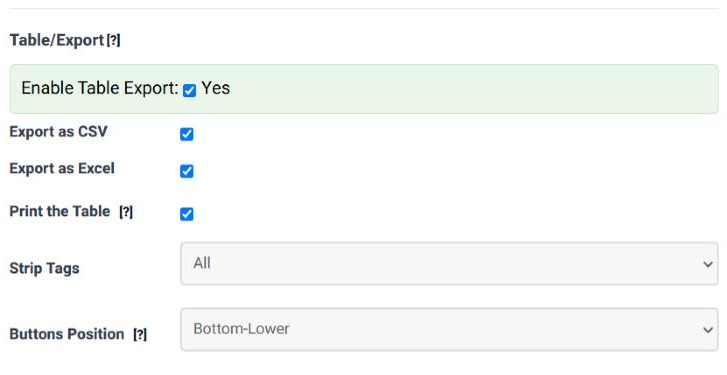
Every field in the panel
| Field | What it does | Options | Default |
|---|---|---|---|
| Enable Table Export | Switches the buttons on. | Yes / no | Not ticked |
| Export as CSV | A CSV button. Comma separated text, which every spreadsheet and database can read. | Yes / no | Ticked |
| Export as Excel | An Excel button, producing an .xlsx file. | Yes / no | Ticked |
| Print the Table | A Print button. It opens the table on its own, laid out for paper, and leaves the rest of the page behind. | Yes / no | Ticked |
| Strip Tags | What to do with HTML inside the cells. All exports the text only, so a link becomes its words and an image becomes nothing. None leaves the markup in, which a spreadsheet will show as raw tags. | None, All | All |
| Buttons Position | Where the row of buttons sits. The Upper and Lower positions are second rows, which keeps the buttons clear of the paging controls and the search box. | Default; Top-Left; Top-Right; Top-Middle; Top-Upper; Bottom-Left; Bottom-Right; Bottom-Middle; Bottom-Lower | Bottom-Lower |
About PDF export
There is a fourth option, Export as PDF, which is currently hidden. The PDF button is built on a separate library that the Tabulizer component and plugin do not ship, so a PDF button would be a button that does nothing. The option is hidden rather than removed: the setting still exists, rulesets that already ask for PDF keep it, and the row comes back as soon as PDF export is supported.
Until then, Print the Table is the way to get a table onto paper: the visitor's own browser can save that print view as a PDF.
What gets exported
| Question | Answer |
|---|---|
| Filtered rows or all rows? | What the visitor can see. If they have searched or set column filters, the export holds the rows that survived. |
| This page or every page? | Every page. Pagination affects what is on screen, not what is exported. |
| Which order? | The order on screen, so a sorted table exports sorted. |
| Hidden columns? | The visible ones. A column hidden by a responsive pattern or by the column chooser is left out. |
| Headers and totals? | Yes - the header and footer rows are part of the exported table. |
Common questions
The buttons are not there.
Check that Enable Table Export is ticked and that at least one button is ticked under it. If the panel itself is missing from step 4, the feature was not ticked in step 2.
My export is full of <a href…> and <img…>.
Strip Tags is set to None. Set it to All and the cells export as plain text.
Can I change the name of the file?
Not from the wizard. The file is named after the table.
Can I change the button labels?
Not from the wizard; they read CSV, Excel and Print.
Where did the PDF button go?
It is hidden on purpose - see above. Nothing in your ruleset was changed, and a ruleset that was saved asking for PDF still asks for it.
The buttons overlap the paging controls.
Move them. Bottom-Lower and Top-Upper put the buttons on a line of their own, below or above the other controls.
Try it on your own data
Open the Table Wizard, tick Table Export in step 2 and choose your buttons in step 4.
Open the Table Wizard