Web Accessibility Standards and Compliance for Tables
Web Accessibility Compliance
An interactive table is a hard thing to use without a mouse or without sight: rows appear and disappear, the order changes, and nothing says so out loud. The Web Accessibility section gives the table a name, a description, keyboard control and a voice.
What this section does
Tabulizer's accessibility options address the parts of WCAG that an interactive table touches: a table needs a name and a purpose (2.4.6), it must be usable from the keyboard, focus must not be lost when the table redraws (2.4.3), and a change the visitor caused - a search, a sort, a new page - should be announced rather than happening silently.
These settings produce real markup: a <caption>, aria-label, aria-describedby, per-column labels, and a live region the table speaks through. They do not replace good content: a caption that says "Table 1" helps nobody.
Where to find it
Web Accessibility is in step 3 (Style) of the Table Wizard, not among the features in step 4. Set Accessibility Status to Enabled and the rest of the section appears.
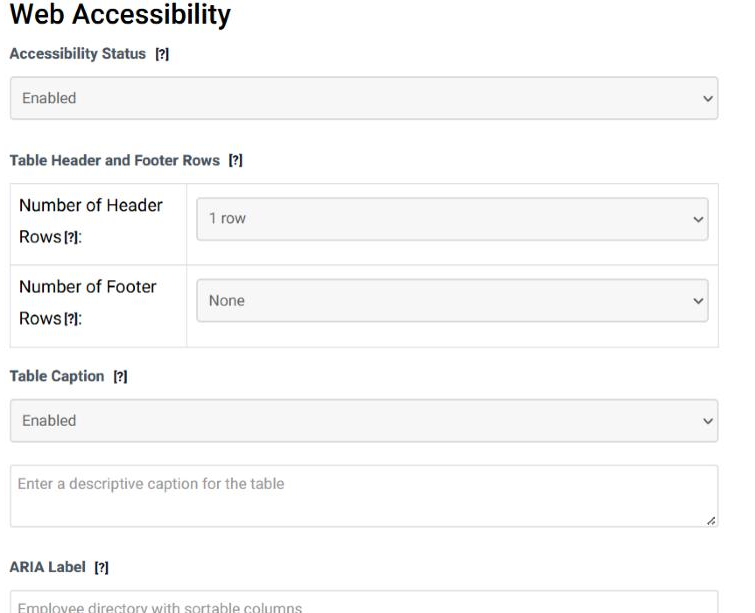
Every field in the section
The table itself
| Field | What it does | Options | Default |
|---|---|---|---|
| Accessibility Status | Switches the whole section on. Everything below is ignored while it is disabled. | Disabled, Enabled | Disabled |
| Number of Header Rows | How many rows at the beginning of the table are header rows. This is what lets Tabulizer write them as real table headers, which is how a screen reader knows what each cell means. | 1 row … 5 rows | 1 row |
| Number of Footer Rows | How many rows at the end are footer rows. | None, 1 row … 5 rows | None |
Naming and describing the table
| Field | What it does | Options | Default |
|---|---|---|---|
| Table Caption | Adds a real caption above the table, which describes its purpose to everybody - it is visible, not hidden. WCAG 2.4.6. | Disabled, Enabled | Disabled |
| Caption text | The caption itself. Write what the table is: "Men's 100 metres, ten fastest legal times". | Free text | Empty |
| ARIA Label | An accessible name for the table, used when the table is marked up as an interactive grid. A screen reader reads it when the visitor reaches the table. Example: Employee directory with sortable columns. | Free text | Empty |
| ARIA Described By | Points the table at a longer description elsewhere on the page, for instructions that do not belong in a caption. | Disabled, Enabled | Disabled |
| Element ID | The id of the element holding that description. Example: tableDescription. |
Free text | Empty |
| Description Text | The description itself, when you want Tabulizer to write it for you. Example: Use the search box to filter results, or navigate through pages using pagination controls. | Free text | Empty |
| Column ARIA Titles | Switches on a custom accessible label per column, so a heading that reads well on screen can be read differently aloud - "Qty" written out as "Quantity ordered". | Disabled, Enabled | Disabled |
| Column 1 … 10 | The label for each column, when the above is enabled. | Free text per column | Empty |
Keyboard and focus
| Field | What it does | Options | Default |
|---|---|---|---|
| Keyboard Navigation | Turns on keyboard support for the table, so it can be used without a mouse. | Disabled, Enabled | Enabled |
| Enable KeyTable extension | Adds cell-by-cell movement with the arrow keys, on top of the ordinary keyboard support. | Yes / no | Not ticked |
| Focus Management | Keeps the keyboard focus somewhere sensible after the table redraws - after a sort, a search or a page change - instead of dropping it back to the top of the document. WCAG 2.4.3. | Disabled, Enabled | Enabled |
| Focus Target After Redraw | Where the focus goes. Triggering Element leaves it on the control the visitor just used, which is usually right; the other two are for cases where that control disappears. | Triggering Element; Table Caption; First Cell | Triggering Element |
Screen reader announcements
| Field | What it does | Options | Default |
|---|---|---|---|
| Screen Reader Announcements | Gives the table a live region, so changes are spoken instead of happening in silence. | Disabled, Enabled | Enabled |
| Politeness | How the announcement interrupts. polite waits for a pause; assertive cuts in. Polite is recommended - a table that interrupts everything is worse than one that waits. | polite (recommended); assertive (interrupts) | polite |
| Atomic | Reads the whole message rather than only the part that changed, which keeps announcements understandable. | true (read full message) | Ticked |
| Announce: search/filter | Says how many rows are left after a search or a filter. | Yes / no | Ticked |
| Announce: sorting | Says which column the table was sorted by and in which direction. | Yes / no | Ticked |
| Announce: pagination | Says which page is being shown. | Yes / no | Ticked |
| Announce: page length | Says when the number of rows per page changes. | Yes / no | Ticked |
| Announce: loading | Says when the table is fetching data, which matters on a server-side table where the wait is real. | Yes / no | Ticked |
Responsive accessibility
| Field | What it does | Options | Default |
|---|---|---|---|
| Detail Renderer | How the columns a responsive pattern hides are presented when the visitor opens a row. The table renderer keeps the label-and-value pairing that a screen reader relies on. | Table (More Accessible); List | Table (More Accessible) |
A reasonable starting point
Enable it, and set the header rows
Accessibility Status Enabled, and the number of header rows set correctly. Real header rows are the single biggest thing you can do for a table.
Say what the table is
Switch on the caption and write one sentence. Add an ARIA Label if the table is interactive.
Leave the defaults alone
Keyboard navigation, focus management and the announcements are all on already, set politely. Change them only if you have a reason.
Common questions
Does switching this on make my table WCAG compliant?
It gives the table the structure and the behaviour that compliance asks of it. Compliance is a property of the whole page: your colours, your content and the text you write in these boxes all count. A caption reading "Table" satisfies nothing.
Caption or ARIA Label - which?
The caption is visible and helps everybody; prefer it. The ARIA label is the accessible name of the interactive grid, so it is worth setting as well on a table with sorting, filtering or pagination.
Will the announcements annoy sighted visitors?
No. The live region is for assistive technology; nothing appears on screen.
Should I use assertive?
Rarely. Assertive interrupts whatever is being read. Polite is the right default for a table.
My table has two header rows. Where do I say so?
Here, under Table Header and Footer Rows - and in each feature you have switched on in step 4, because sorting, filtering, pagination and the responsive patterns each keep their own header size.
Try it on your own data
Open the Table Wizard and enable Web Accessibility in step 3.
Open the Table Wizard