Use random data
Tabulizer invents a table of the size you ask for. The fastest start, and right when the design does not depend on the content.
Step 1 asks for sample data. It is not the data your table will show on your site - it is the data you design against, and the number of columns you give it decides what every later step offers you.
The Table Wizard builds a ruleset: a description of how a table should look and behave. The ruleset is applied later to whatever data you point it at - a CSV file, a database query, a table typed into an article. To design it you need something on the screen, and that is what step 1 provides.
So the sample data is scaffolding. It decides what you see in the preview in step 6; it does not travel with the ruleset to your site.
Tabulizer invents a table of the size you ask for. The fastest start, and right when the design does not depend on the content.
You paste a few rows in CSV form. The best choice when the content matters - real prices, real dates, a long name that has to fit.
Tabulizer fetches a table from a public page and uses it as the sample. Useful when the table already exists somewhere.
Choose the size and Tabulizer fills it in.
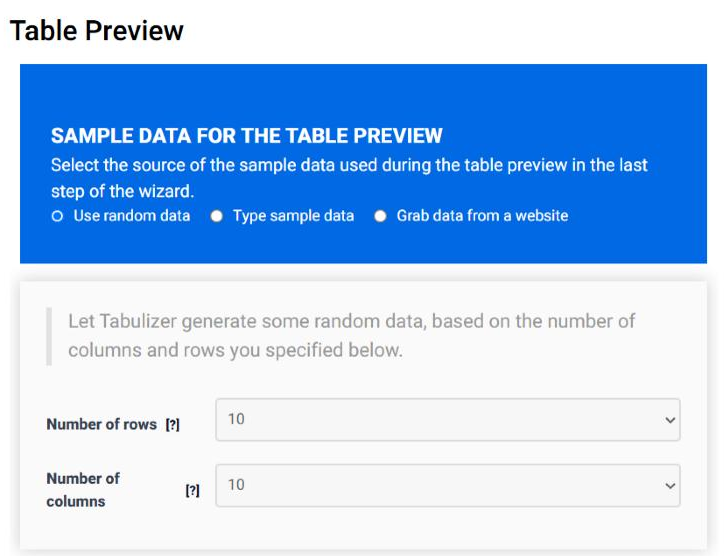
| Field | What it does | Options | Default |
|---|---|---|---|
| Number of rows | How many rows the sample table has. | 1 to 24 | 10 |
| Number of columns | How many columns it has. This is the number that follows you through the wizard - see below. | 1 to 20 | 10 |
Paste your rows as CSV: one line per row, with a separator between the values. The number of columns is then whatever your longest line contains - you do not set it directly, you set it by what you type.
| Field | What it does | Options | Default |
|---|---|---|---|
| Input Text | The data itself, one row per line. | Free text | Empty |
| Column Separator | The character between the values of a row. Choose one your data does not contain - a comma is wrong for European decimals, where a semicolon is safer. | Comma (,); Semicolon (;); Asterisk (*); Caret (^); Space; Tab | Comma |
| Text Enclosure | The quote character wrapped around values that contain the separator, so "Smith, John" stays one value. |
None; Double Quotes ("); Single Quotes (') | None |
A three-column sample, comma separated:
Product,Price,Last order
Desk lamp,24.50,2026-09-02
Office chair,189.00,2026-08-28
Bookcase,249.90,2026-09-10
Give Tabulizer the address of a page and tell it which table on that page to take. The page is fetched once, now, only to give you something to design against.
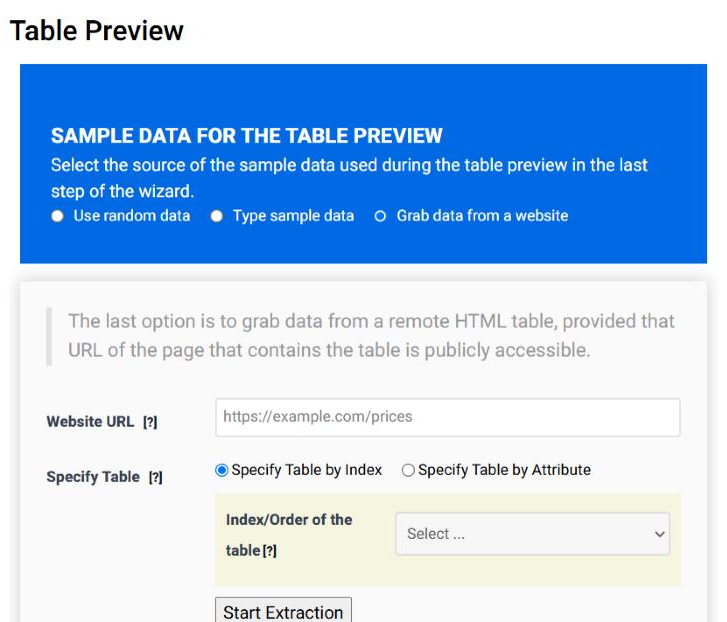
| Field | What it does | Options | Default |
|---|---|---|---|
| Website URL | The address of a page that anyone can reach. A page behind a login or an intranet will not work, because Tabulizer fetches it as an anonymous visitor. | Free text | Empty |
| Specify Table | How to find the table on that page: by its position among the tables there, or by an attribute on the table tag itself. | Specify Table by Index; Specify Table by Attribute | By Index |
| Index/Order of the table | Which table to take, counting from the first one on the page. | 1 to 20 | Select … |
| Attribute Name | Which attribute identifies the table, when you are finding it that way. | id; name; class | Select … |
| Attribute Value | The value to look for - a class of prices, say. |
Free text | Empty |
| Start Extraction | Fetches the page and pulls the table in. The rows appear as your sample data. | Button | — |
Finding the table by an attribute is steadier than by position: a page that gains a table above yours changes the index, but a class="prices" stays where it is.
This is the part people discover late. Whichever of the three methods you use, step 1 ends with a column count - set directly for random data, or worked out from what you typed or grabbed. That number is carried through the wizard, and every later control that is "one per column" is built from it.
Set it to 7 and step 4 gives you exactly seven of each:
| Where | What you get, one per column |
|---|---|
| Step 4 · Table/Sort | The tick boxes that say which columns may be sorted; the entries in Sort by Column #; and, with Let me specify their types, one Data Type menu per column. |
| Step 4 · Column Filters | The Column ID list every filter chooses from, and the per-column data types. |
| Step 4 · Table/Responsive | The grid of per-column menus - Initial Expand and Hide Selection, or the priorities for Header Selection. |
| Step 4 · Table/Split | The Group Rows By Value of Column # list. |
| Step 3 · Column widths | The column numbers you can give a width to. |
| Step 3 · Web Accessibility | The per-column ARIA titles. |
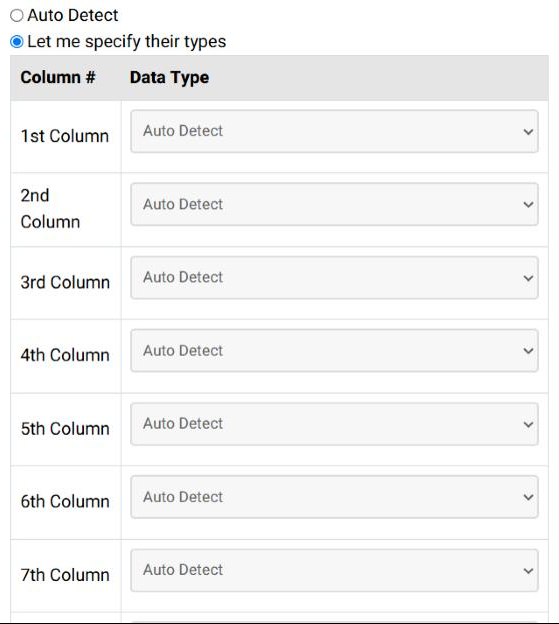
The grid above is from a ten-column table, so it has ten rows. Declare seven columns in step 1 and it has seven.
You can go back to step 1 at any point with Previous Step and change the data or the size. Adding columns gives you more controls in the later steps; removing them takes controls away, and any setting that referred to a column that no longer exists goes with it. Decide the shape of the table before spending time on step 4.
No. It is used for the preview in step 6 while you design. The ruleset is applied to your real data when you publish the table.
Type your own data if the content affects the design - long values, real dates, numbers that need aligning. Use random data if it does not. Grab a table if it already exists on a public page.
A value contains the separator. Either pick a different Column Separator or wrap such values in the Text Enclosure.
It fetches the page as an anonymous visitor, so anything behind a login, a firewall or an intranet address is out of reach. Copy the rows and use Type sample data instead.
Step 1 offers up to 20 for random data, and up to 24 rows. Typed and grabbed data set the count themselves.
Check the count in step 1 - the later steps follow it, not the sample you are looking at. The one exception is the responsive grid, which never shows fewer than five columns.
Open the Table Wizard and give step 1 a sample that looks like your real table.
Open the Table Wizard