HTML, before and after
Text and markup placed above or below the table. The usual use is a short description - what the table shows, and how to work the controls you switched on in step 4.
The last section of step 5 is for everything the wizard does not ask about: a paragraph explaining the table to your readers, a stylesheet that overrules what the wizard generated, and a piece of JavaScript of your own.
Everything else in the Table Wizard is a question with a list of answers. Append code is the open box: four of them, in step 5 (Modifications), under the heading Append code.
Text and markup placed above or below the table. The usual use is a short description - what the table shows, and how to work the controls you switched on in step 4.
Your own rules, loaded after the stylesheet the wizard generates, so they can override it.
Code that runs on the page with the table, for behaviour the features do not cover.
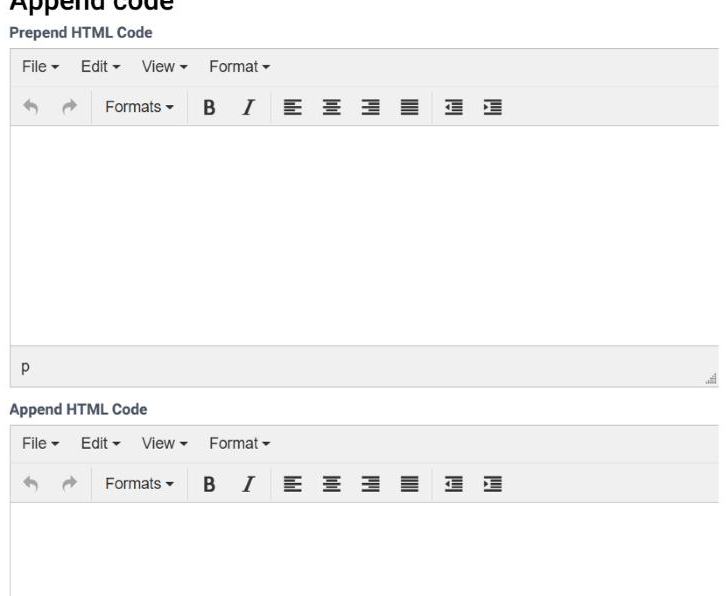
Two rich-text editors: whatever you put in the first appears immediately above the table, whatever you put in the second immediately below it. Both travel inside the ruleset, so they follow the table wherever it is published.
| Field | What it does | Editor | Default |
|---|---|---|---|
| Prepend HTML Code | Markup placed immediately before the table. | Rich text, with a formatting toolbar | Empty |
| Append HTML Code | Markup placed immediately after the table. | Rich text, with a formatting toolbar | Empty |
The most useful thing is a sentence or two telling the reader what they are looking at and what they can do with it. A table with column filters, sorting and an export button does not explain itself:
<p class="table-intro">
  Prices are per unit, excluding VAT, and were last checked in September 2026.
  Use the boxes under the headings to filter by product or price band, click a
  heading to sort, and the CSV button to take the figures away with you.
</p>
Other things that belong here: a source and a date, a legend for an abbreviation or a colour you used in a custom style, a note about which rows are totals, a link to the fuller dataset.
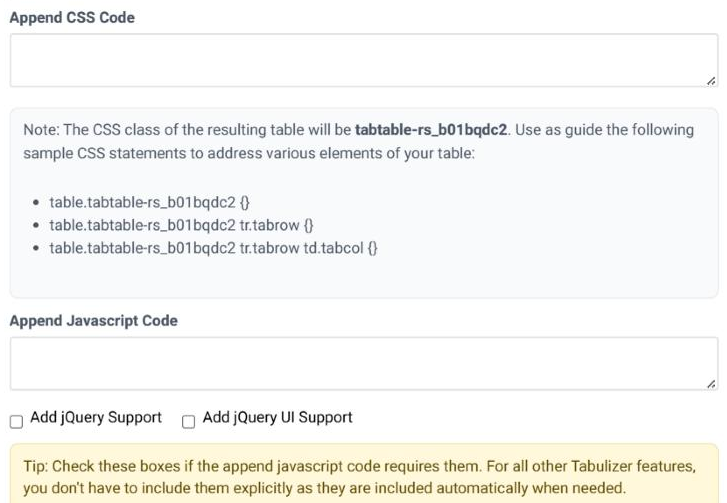
A plain box for your own CSS. The wizard tells you, right under the box, the class it has given your table and three selectors to start from.
| Selector | What it reaches |
|---|---|
table.tabtable-suffix {} |
The table itself. |
table.tabtable-suffix tr.tabrow {} |
Every row of it. |
table.tabtable-suffix tr.tabrow td.tabcol {} |
Every cell. |
The suffix is your ruleset's own name, so the note under the box shows something like tabtable-rs_b01bqdc2. Those classes are yours alone: a rule written with them touches this table and no other table on the page.
Tabulizer generates a stylesheet from your answers in steps 2 and 3 and loads it with the table. Your appended CSS is loaded after it, so where the two say different things about the same property, yours is the one that applies. You rarely need !important; matching the wizard's own specificity is usually enough, and the three selectors above do that.
/* a wider first column than the wizard's widths allow */
table.tabtable-rs_b01bqdc2 tr.tabrow td.tabcol:first-child {
  min-width: 220px;
}

/* a subtler zebra than the colour picker offers */
table.tabtable-rs_b01bqdc2 tr.tabrow:nth-child(even) td.tabcol {
  background: rgba(0, 0, 0, 0.025);
}

/* something the wizard has no field for at all */
table.tabtable-rs_b01bqdc2 td.tabcol a:hover {
  text-decoration: underline wavy;
}
!important - the winner is often a template rule you can out-specify instead.A plain box for code that runs on the page with the table, and two checkboxes for the libraries it may need.
| Field | What it does | Options | Default |
|---|---|---|---|
| Append Javascript Code | Your code, as it will appear on the page. | Free text | Empty |
| Add jQuery Support | Loads jQuery for your code. Tick it only if your code uses jQuery. | Yes / no | Not ticked |
| Add jQuery UI Support | Loads jQuery UI as well. | Yes / no | Not ticked |
Find the table by the same class the CSS box tells you about, so your code cannot wander onto another table:
document.addEventListener('DOMContentLoaded', function () {
  var table = document.querySelector('table.tabtable-rs_b01bqdc2');
  if (!table) return;

  table.querySelectorAll('tr.tabrow td.tabcol:nth-child(4)').forEach(function (cell) {
    if (parseFloat(cell.textContent) > 100) cell.style.fontWeight = 'bold';
  });
});
| Box | In the preview, step 6 | In the saved ruleset |
|---|---|---|
| Prepend / Append HTML | Drawn around the table. | Stored in the ruleset itself, as a rule on the whole table. |
| Append CSS | Put into the page directly, so you can see the effect while you work. | Written to a stylesheet of its own, named after the ruleset - suffix.append.css - and loaded with the table. |
| Append JavaScript | Put into the page directly, in the same way. | Written to suffix.append.js and loaded with the table, along with jQuery or jQuery UI if you asked for them. |
Because the CSS and JavaScript become files of the ruleset, they travel with it: export the ruleset archive and they are inside it; import it on another site and they arrive too.
Immediately before the table, inside the same block. Appended HTML goes immediately after it. Both stay outside the table, so sorting and filtering leave them alone.
Check the selector first - it has to include your table's class, as in the three samples under the box. If it still loses, something on your site is more specific or comes later; inspect the element in the browser to see which rule is winning.
You can, but you should not. The class is specific to this ruleset for a reason: a rule that reaches outside it will surprise whoever edits the other table later.
No. Those features load everything they need themselves. The boxes exist for your own code.
The table was redrawn - by a sort, a search or a page change - and rebuilt the cells your code had changed. Use CSS where you can; otherwise run your code again on each redraw.
Yes. The two HTML boxes are rich text editors, so you can write with the toolbar or switch to the source view and type markup directly.
The boxes hold code, not links. A <script src="/tabulizer7/…"> belongs in your site's template, where you can control when it loads.
Open the Table Wizard, go to step 5 and scroll to Append code. The preview in step 6 shows the result straight away.
Open the Table Wizard