How to Import a Language Pack
The Import Language Page
Tabulizer ships with English. Every other language is a small download of its own, which keeps the component light. This page is where you install one - and if your language is not among them, where to start translating it yourself.
Why languages are separate
Carrying a dozen translations inside the installation package would make every download larger for everyone, and every update would ship languages most sites never use. So the distribution holds English, and the rest are language packs: one zip per language, installed when you want it.
Install one and the Tabulizer administration - its pages, its labels, its messages - appears in that language for anybody whose Joomla interface is set to it.
Step 1: get the pack
Language packs live on the Tabulizer site, under Download › Language Packs. Download the zip for the language you want; there is one per language, per platform.
Step 2: import it
In the Joomla administrator go to Components › Tabulizer and press Import Language in the toolbar.
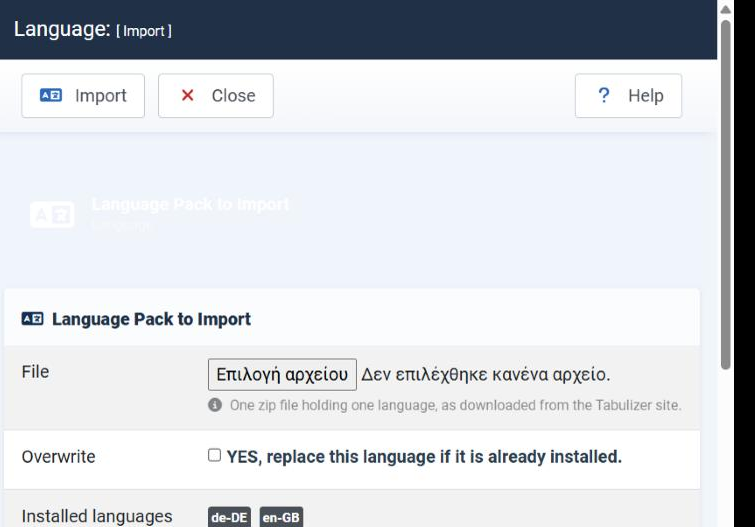
| Field | What it does |
|---|---|
| File | One zip file holding one language, as downloaded from the Tabulizer site. |
| Overwrite | YES, replace this language if it is already installed. Tick it when you are updating a translation you already have; leave it unticked for a language you are adding for the first time. |
| Installed languages | Not a field but a report: the language tags already present - en-GB, de-DE and so on - and the folder they are installed in. Check here first to see whether you already have what you are about to import. |
Choose the file and press Import. The language files are unpacked into the administrator's language folder and the new tag appears in the installed list.
Step 3: switch to it
With both in place, a user whose administrator language is German sees Tabulizer in German; a user left on English sees it in English. The choice follows the user, not the site.
If your language is not available
Only some languages have a pack. If yours does not, you can still have Tabulizer in it: the translation is a plain text file, and nothing stops you writing it.
Start from English
Take the English file as your reference - administrator/language/en-GB/en-GB.com_tabulizer.ini. Every line is KEY="text"; the key stays exactly as it is and you translate what is inside the quotes.
Save it under your own tag
Put it in {joomla root}/administrator/language/, in a folder named after your language tag, with a file name to match: fr-FR/fr-FR.com_tabulizer.ini for French, say. Save it as UTF-8.
Install the Joomla pack and switch
Install Joomla's own language pack for that language and select it, as above. Tabulizer then picks your file up.
| Rule | Why |
|---|---|
Never change the part before the = |
That key is how the code finds the text. Translate the right-hand side only. |
| Keep the placeholders | %s and %d are where a name or a number is dropped in. Remove one and the message comes out wrong; they may be reordered in your language, but all of them must still be there. |
| Keep the HTML | Some strings contain <strong> or <br/>. Leave the tags and translate the words between them. |
| Save as UTF-8 | Anything else turns accented characters into rubbish. |
| Copy the whole file | A key you leave out shows up as the raw key name on screen. Translate what you can and leave the rest in English rather than deleting the lines. |
Common questions
I imported a pack but everything is still English.
Joomla's own language pack for that language is missing or not selected. Install it in System › Languages and set it for the site or for your user.
Which languages are available?
Whatever is listed under Download › Language Packs on tabulizer.com at the time. The list grows.
Can I import several at once?
No - one zip holds one language. Import them one after another.
Will an update overwrite the pack I imported?
Language packs are installed in the administrator's language folder, which updates do not replace. Re-import after an update only if new strings have been added.
Does this translate the tables my visitors see?
No. It translates the administration. What a visitor reads comes from your data and your ruleset; the labels of an interactive table - the search box, the paging - follow the site's own language.
How do I check what is installed?
The Installed languages line on this page lists the tags present and the folder they are in.
Install a language
Download a pack from Download › Language Packs, then use Components › Tabulizer › Import Language.
Go to the language packs