Chart Wizard
What the Chart Wizard does
The Chart Wizard turns a table of numbers into a chart. You choose a chart type, supply your figures, adjust the appearance, and the wizard produces a Tabulizer ruleset that you import into your own site. From then on the chart is drawn from a table in your article, so updating the numbers means editing that table.
Charts are drawn with Chart.js, so they are crisp at any size, animate on load, and respond to hovering with tooltips.
How the pieces fit together
- You build the chart in the online wizard on the Tabulizer website.
- The wizard gives you a ruleset archive (a
.zipfile). - You import that archive into Tabulizer on your own site.
- You apply the ruleset to a table of figures in one of your articles.
This wizard has four steps rather than three, because choosing the data and styling the chart are separate jobs.

Step 1 — Choose a chart type
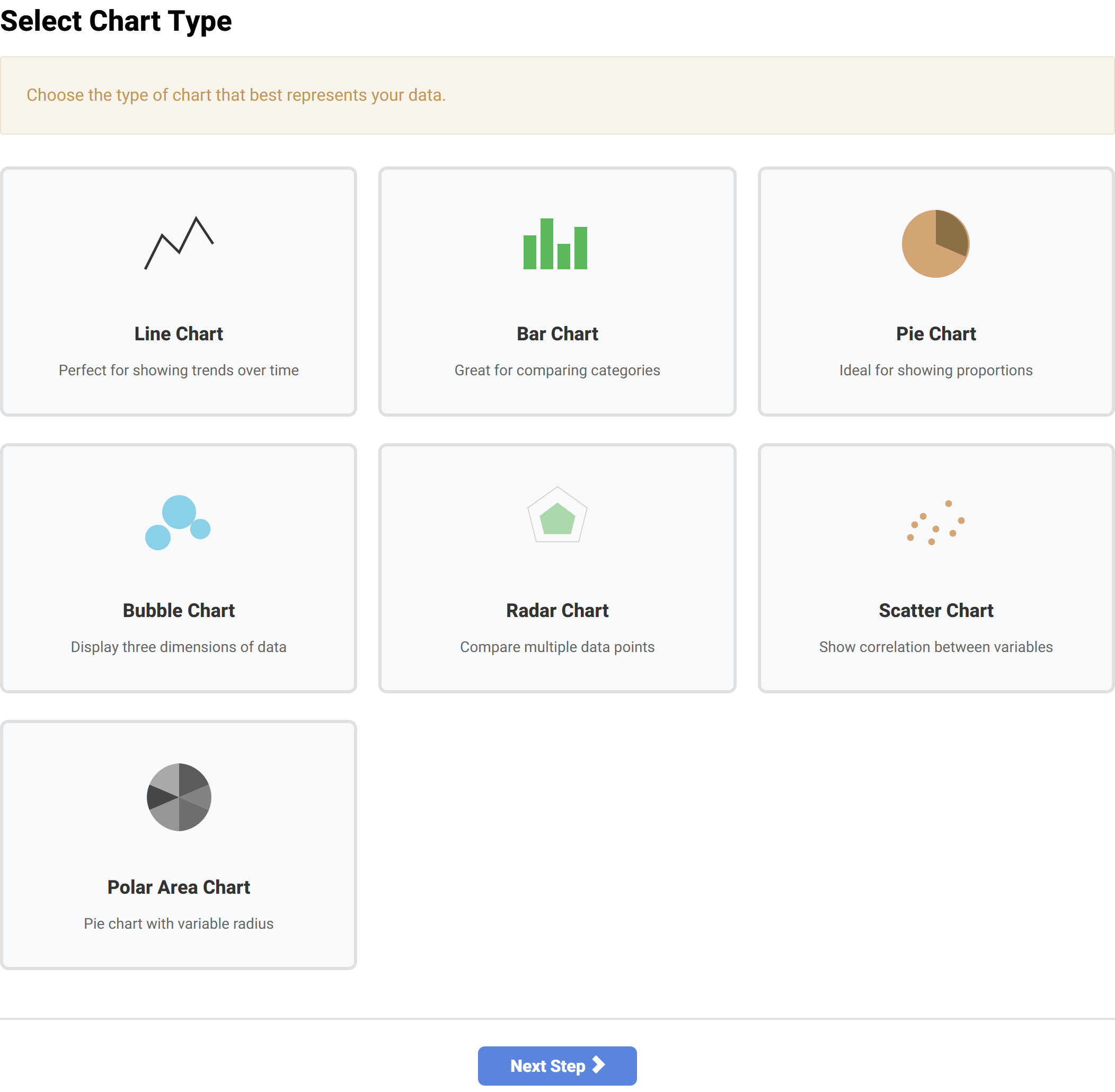
| Type | What it is good for |
|---|---|
| Line | Trends over time. The default choice for anything measured repeatedly. |
| Bar | Comparing categories. Can be turned horizontal or stacked in Step 3. |
| Pie | Proportions of a whole. Becomes a doughnut in Step 3. |
| Bubble | Three dimensions at once — position plus size. |
| Radar | Comparing several measures across a few subjects. |
| Scatter | Correlation between two variables. Can carry a trend line. |
| Polar area | A pie whose slices vary in radius as well as angle. |
Some familiar chart types are variants set in Step 3, not separate cards here:
- Doughnut — choose Pie, then set Pie Chart Style to doughnut.
- Horizontal bar — choose Bar, then set Bar Orientation to horizontal.
- Stacked bar — choose Bar, then tick Stacked.
- Area chart — choose Line, then tick Fill Area.
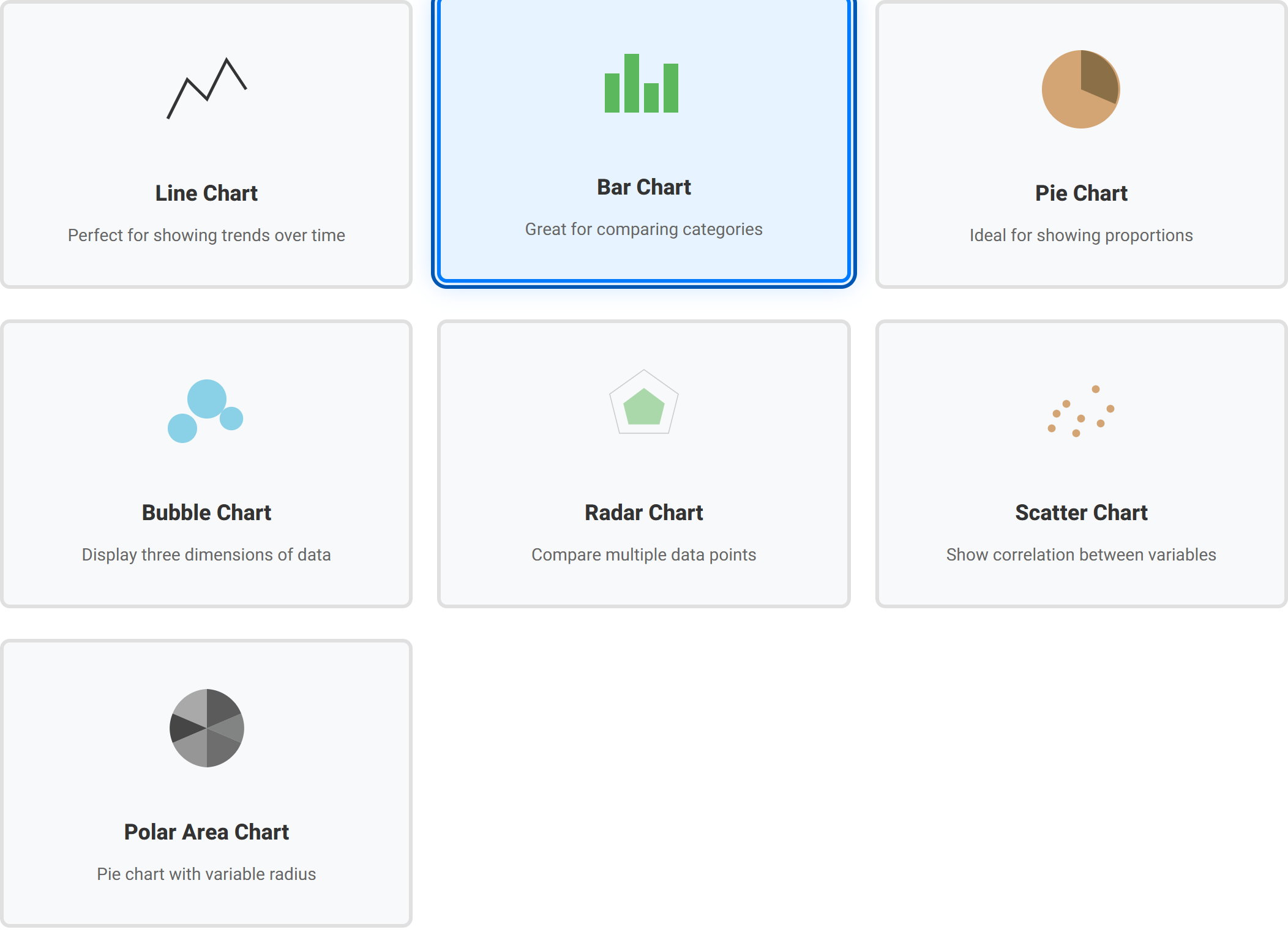
Keyboard users: the chart type cards on this step can currently only be chosen with a mouse or by tapping. If you are working without a pointing device, this is a known limitation of Step 1.
Step 2 — Supply your data
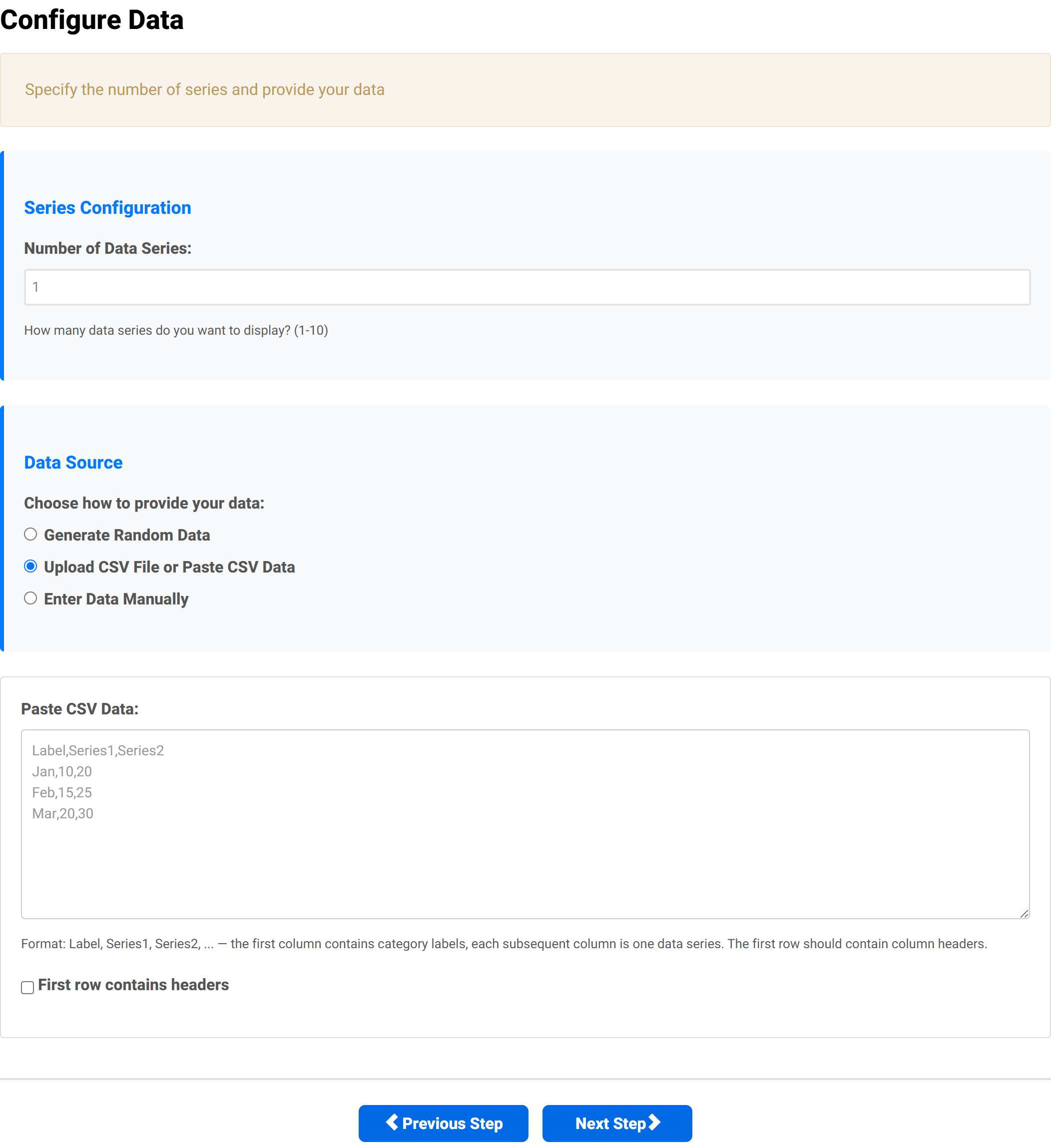
This is the step that most often catches people out, because the wizard does not start with any sample figures. If you click straight past this step, you reach the preview with an empty chart. Give it data here.
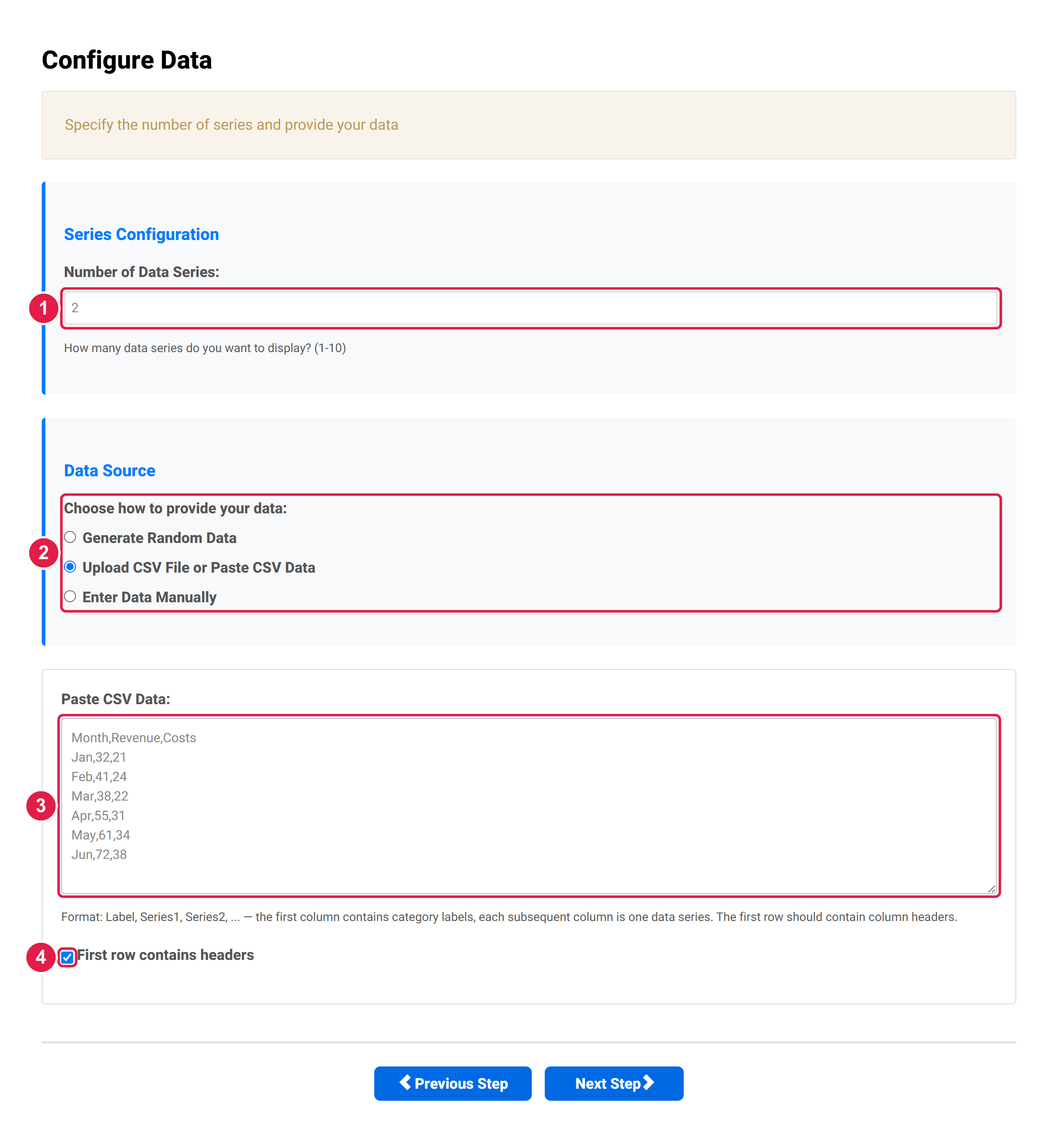
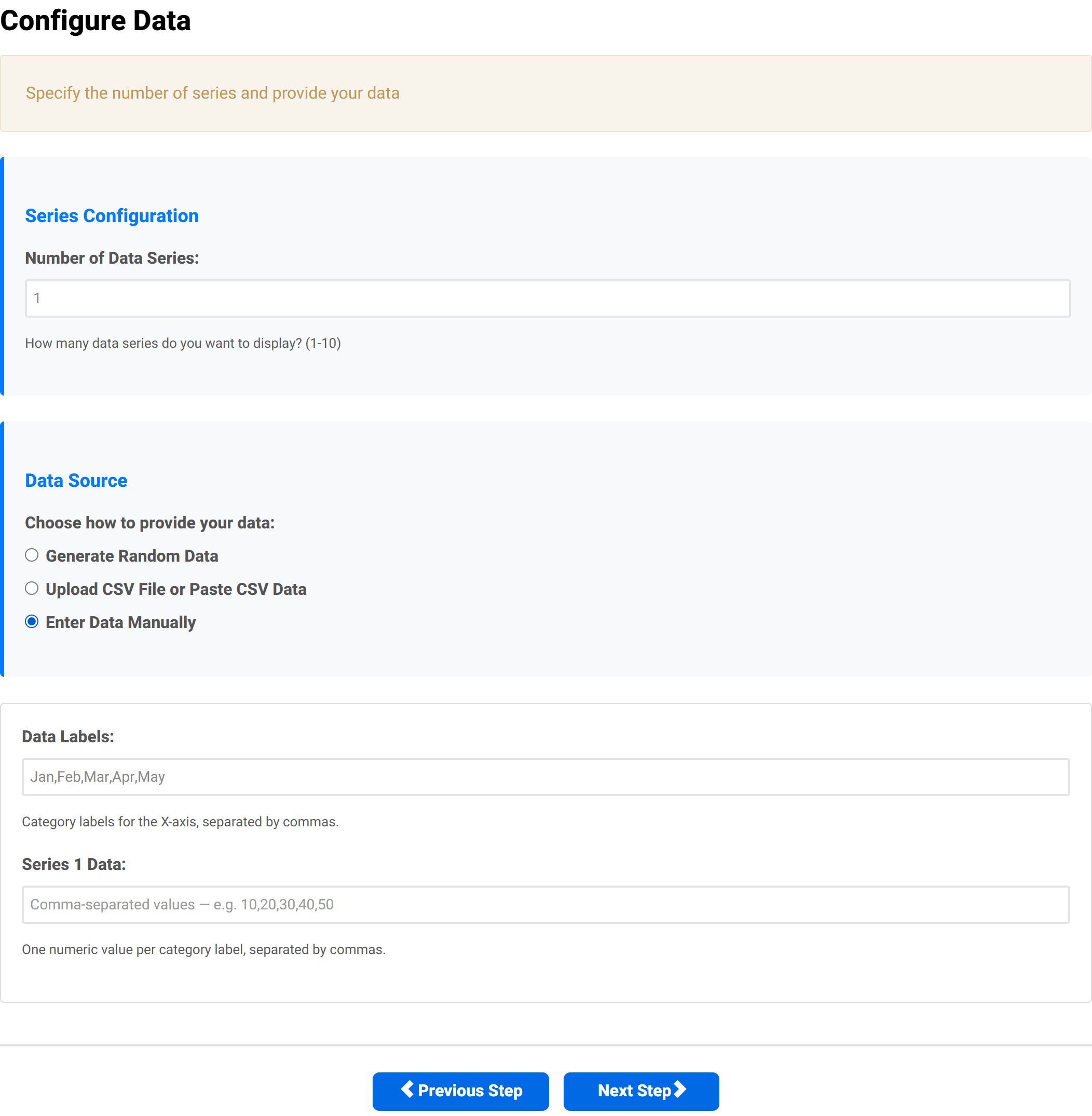
- Number of data series (1–10) — how many lines, or how many bars per category. Set this before entering your data.
- Data source — the three ways to supply figures, described below.
- The data itself — here a pasted CSV.
- First row contains headers — tick when your first line names the columns rather than being data.
Set the number of series first. The wizard reads only as many value columns as you have declared series. A CSV with two value columns and the series count left at 1 will quietly chart only the first of them.
The three data sources
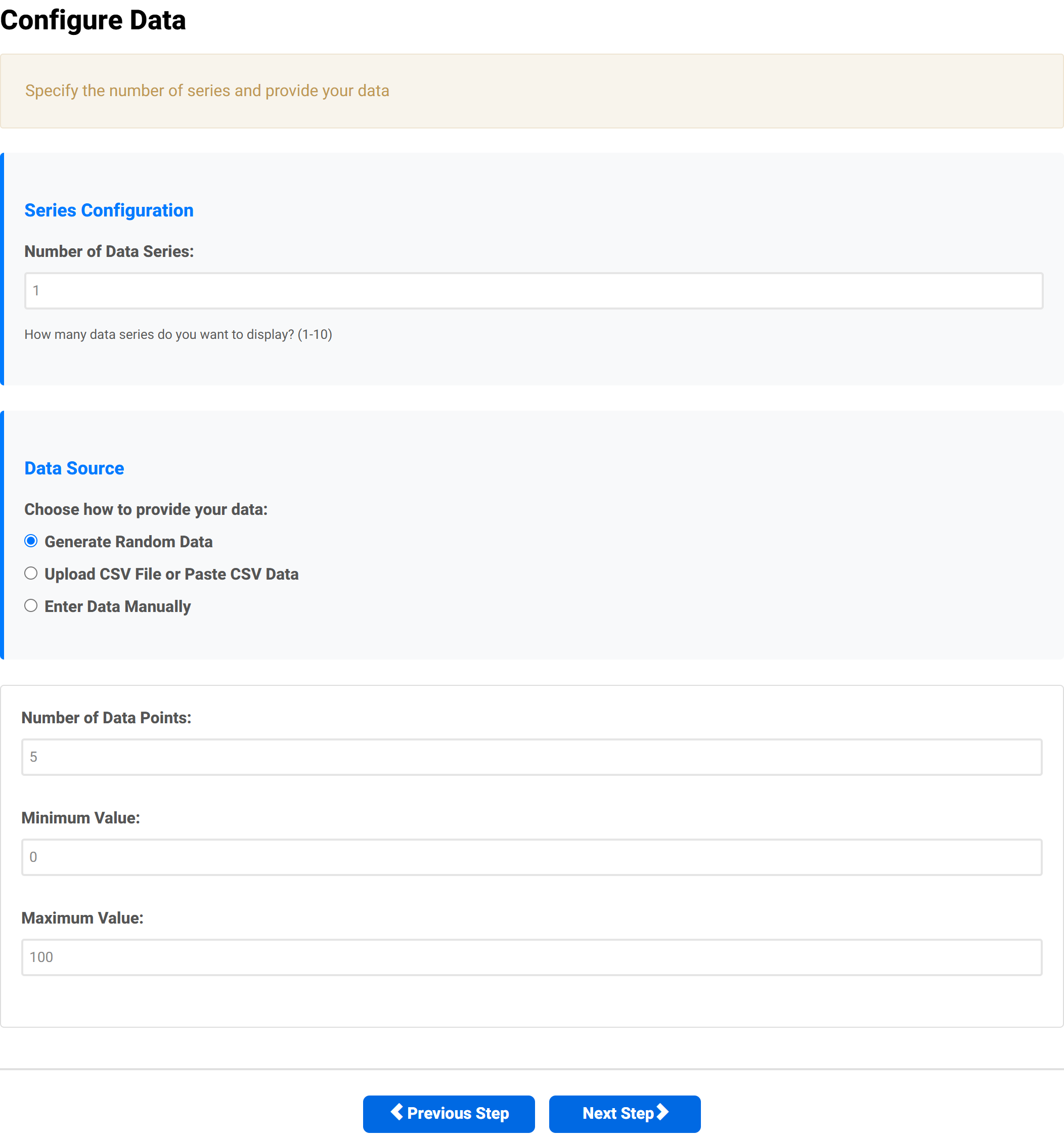
Generate random data
Fills the chart with random values so you can see the layout working. Useful for trying styles before your real figures are ready. You control how many points and the range they fall in.
Upload a CSV file or paste CSV data
The most practical route if your figures already exist in a spreadsheet. The first column holds the category labels, and each column after it is one data series.
Enter data manually
Type the labels and each series' values as comma-separated lists. Fine for a handful of figures.
The data format for each chart type
Most charts share one shape. Scatter and bubble are different, because they plot coordinates rather than values against categories.
| Chart types | CSV shape | Example row |
|---|---|---|
| Line, bar, pie, radar, polar area | Label,Series1,Series2,… |
Jan,32,21 |
| Scatter | Label,X1,Y1,X2,Y2,… — one series per row, with as many x/y pairs as you like |
Group A,10,20,15,25 |
| Bubble | Label,X,Y,R — one bubble per row; R is its radius |
Alpha,10,20,8 |
The worked example
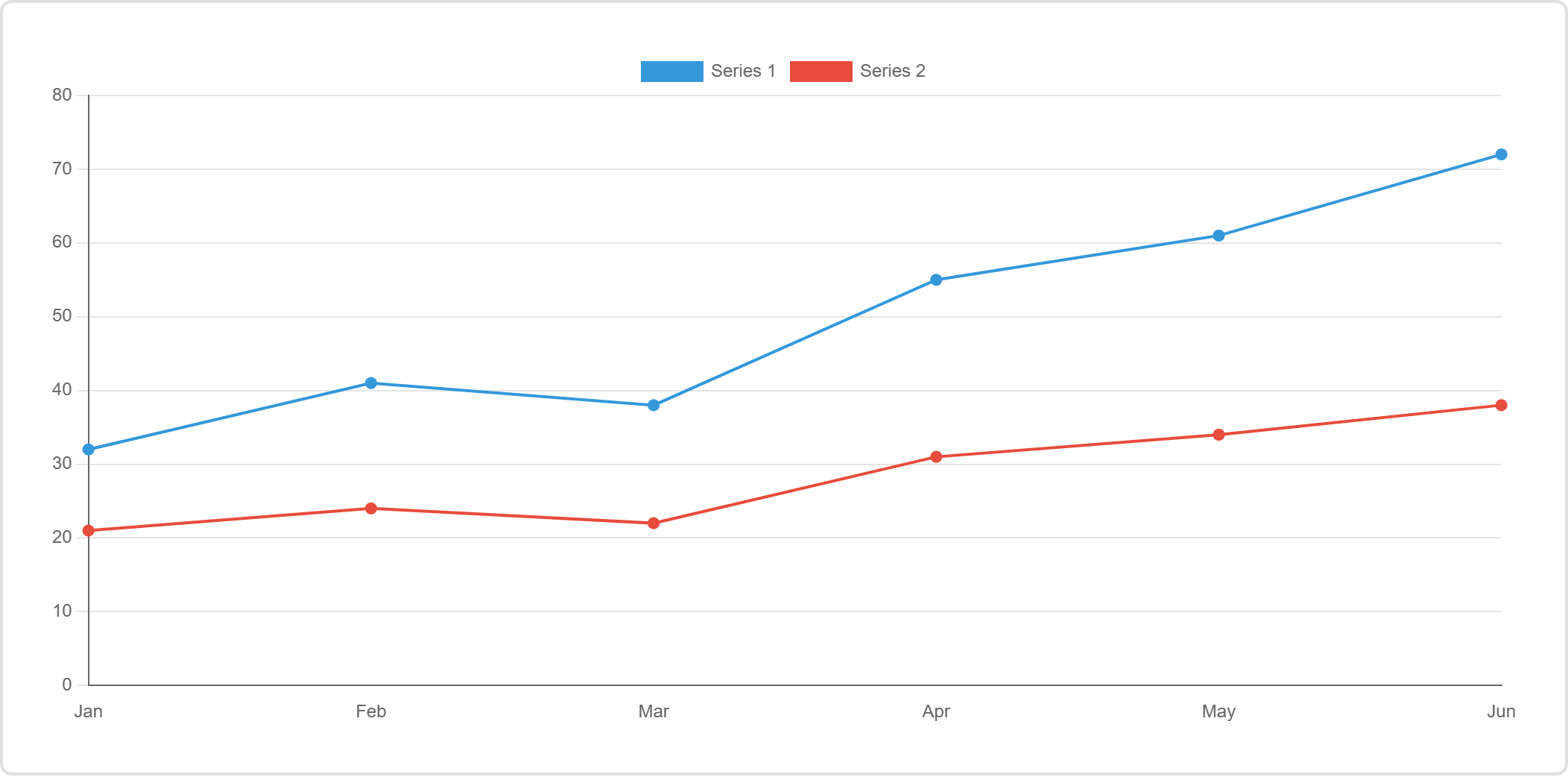
Six months of revenue and costs, used throughout this tutorial. Two value columns, so set the series count to 2:
Month,Revenue,Costs
Jan,32,21
Feb,41,24
Mar,38,22
Apr,55,31
May,61,34
Jun,72,38
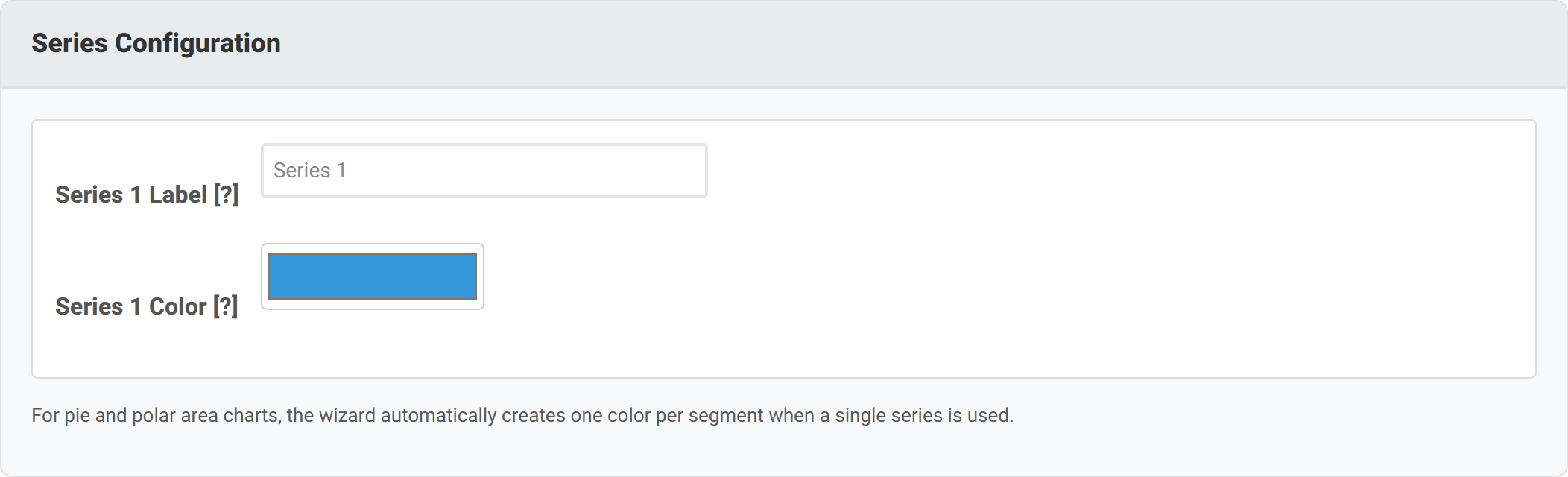
Series names come from Step 3, not from your CSV header. The header row tells the wizard where the data starts; it does not name the series. Your chart's legend will read “Series 1” and “Series 2” until you set proper names in the Series Configuration group in Step 3.
Step 3 — Chart options
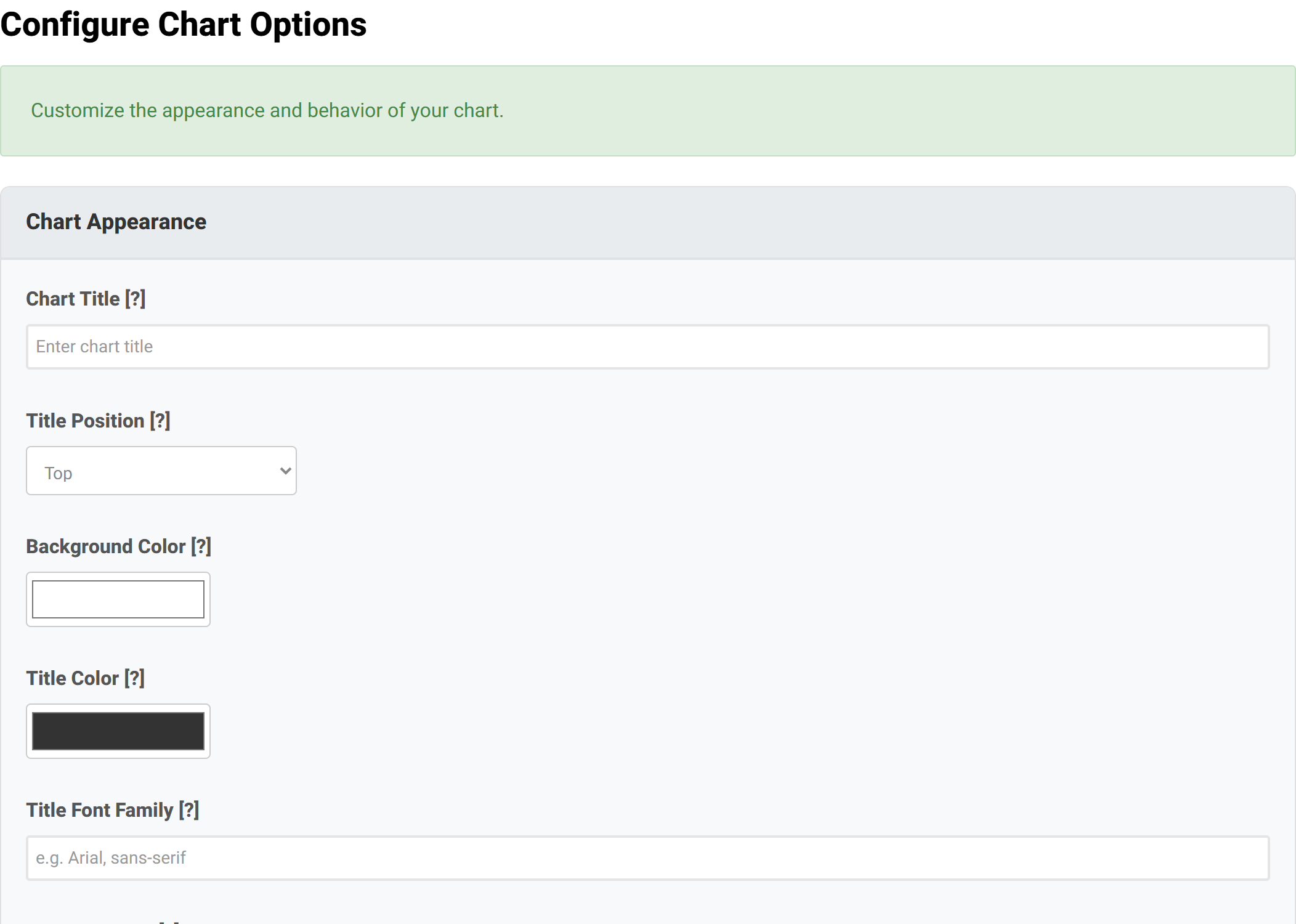
By far the largest step, and the one you can most safely skip on a first pass — every setting has a working default. It is organised into collapsible groups, and only the groups that apply to your chart type are shown.
| Group | Shown for | What it covers |
|---|---|---|
| Chart Appearance | every type | Chart title and its font, background colour, responsiveness, aspect ratio, animation. |
| Axes and Scales | types with axes | Axis titles, minimum and maximum, tick prefixes and suffixes, gridlines, label rotation. |
| Advanced Title, Subtitle and Legend | every type | Title alignment and padding, the whole subtitle block, legend title and label sizing. |
| Advanced Cartesian Scales | bar, line, scatter, bubble | Scale type, bounds, suggested minimum and maximum, tick stepping, per-axis colours. |
| Advanced Radial Scale | radar, polar area | Start angle, point label size and colour, angle lines, reversing the scale. |
| Legend, Tooltips and Labels | every type | Legend position, tooltip format and prefixes, on-chart data labels, hover behaviour. |
| Chart Type Specific Options | every type | Only the block matching your chart type — see below. |
| Series Configuration | every type | A name and a colour for each series. |
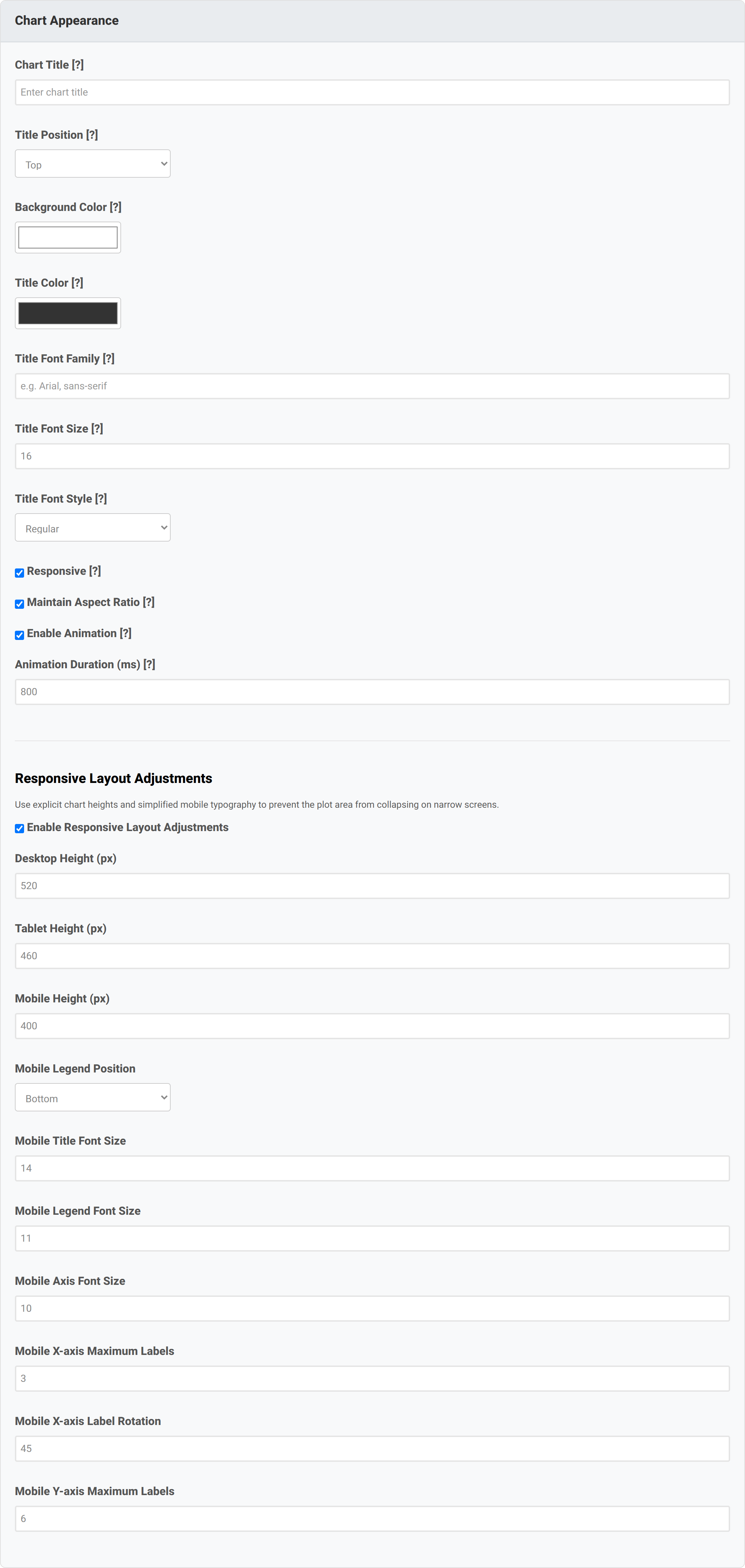
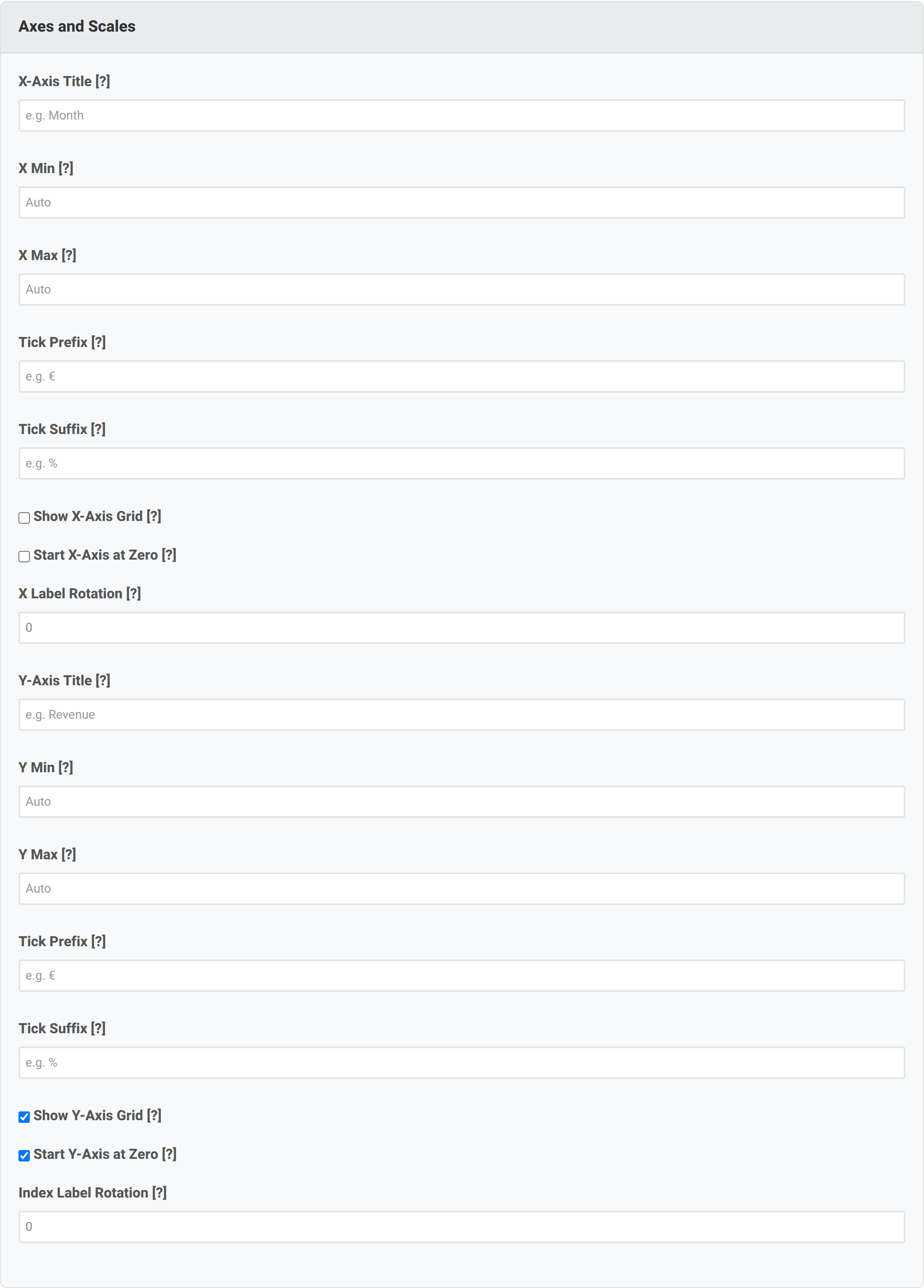
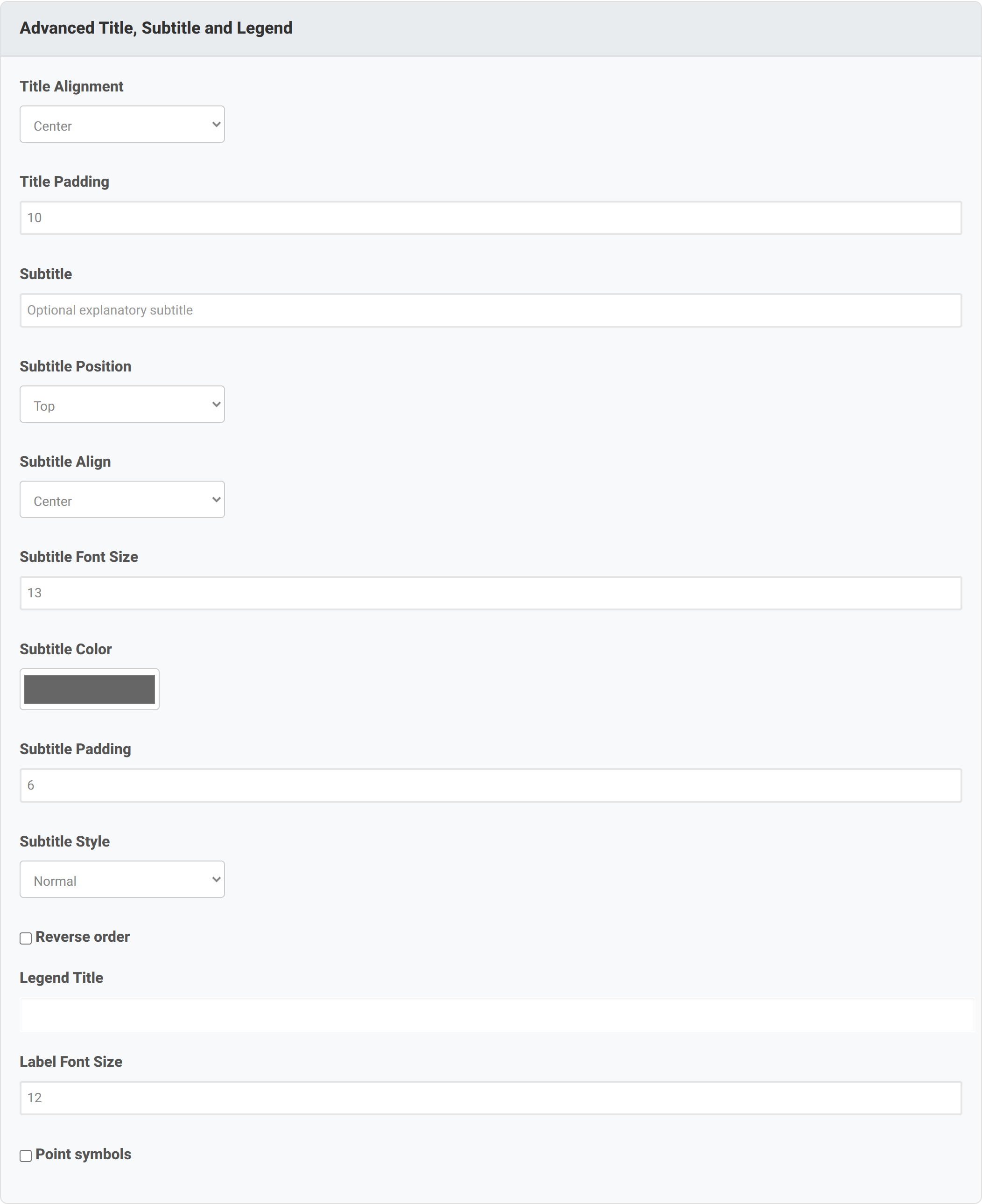
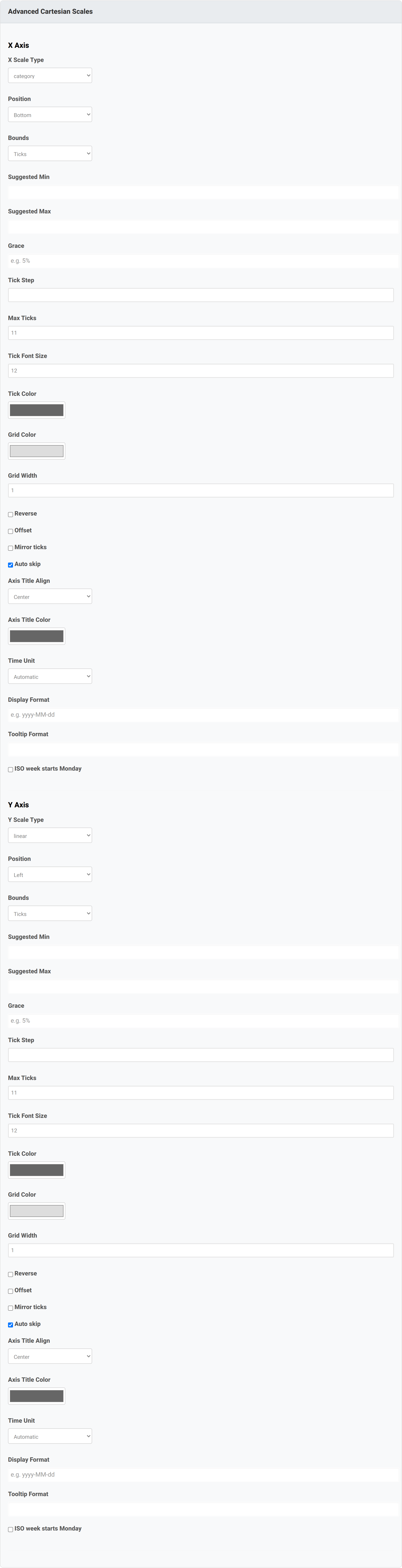
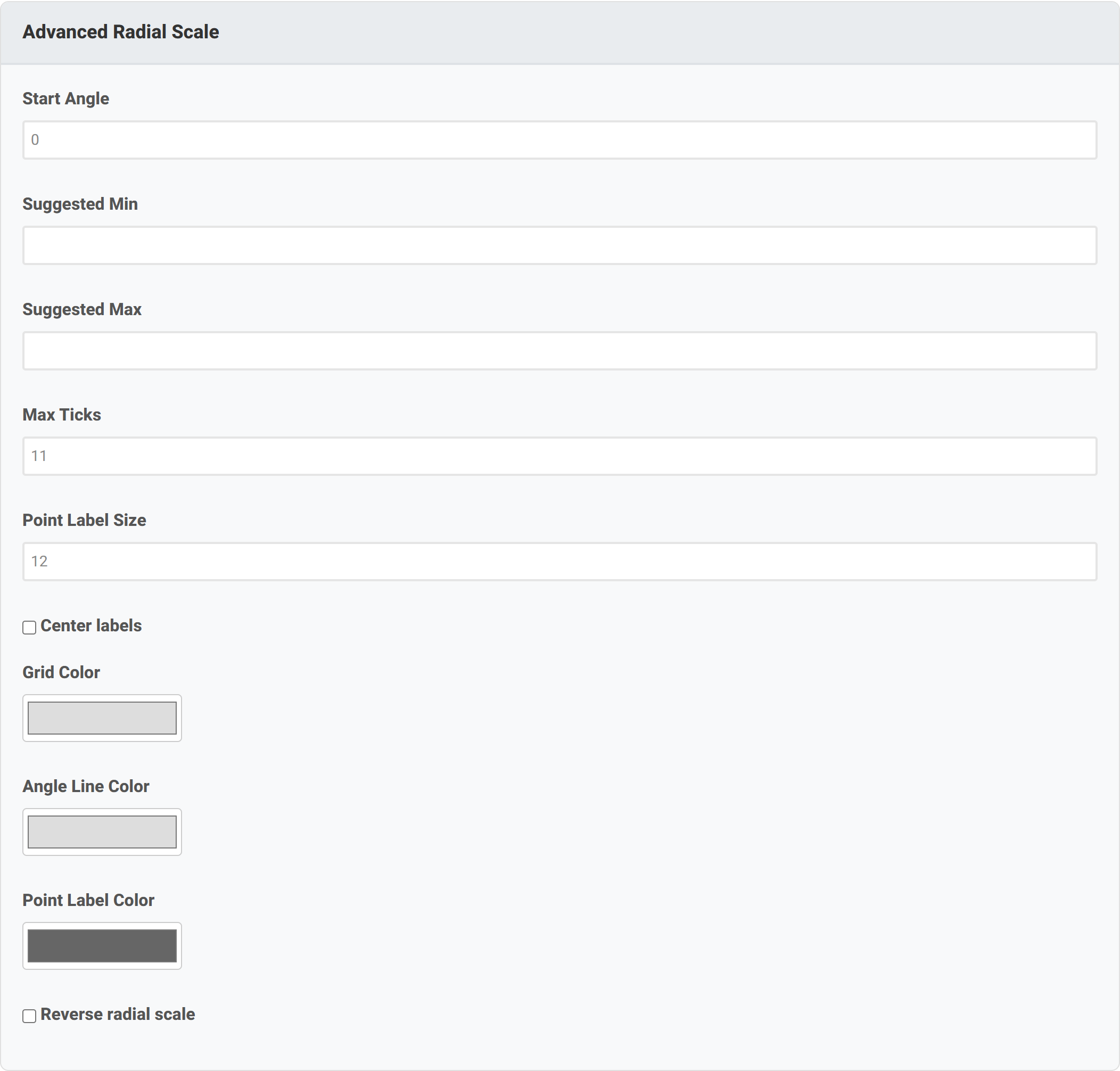
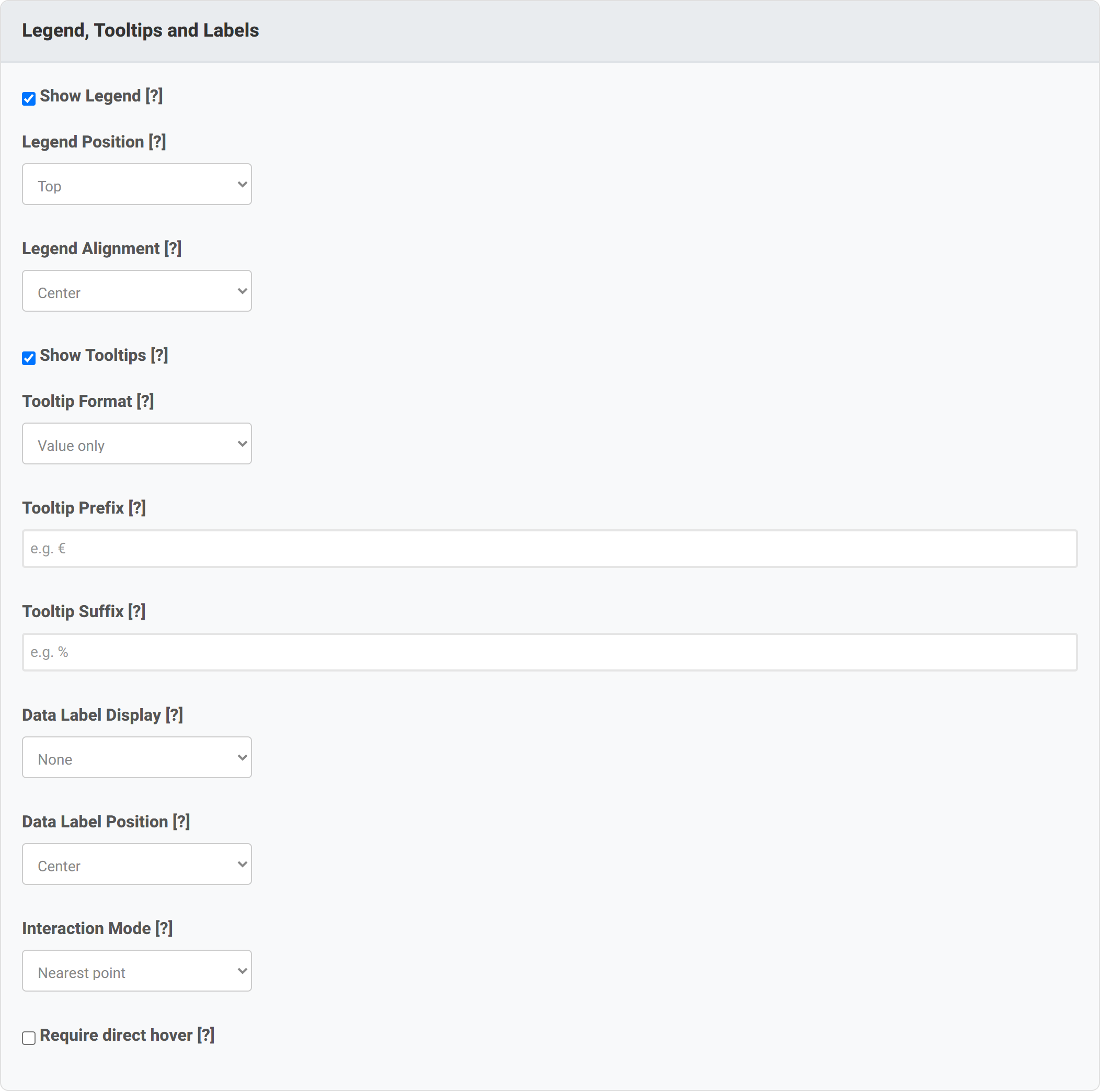
Chart Type Specific Options
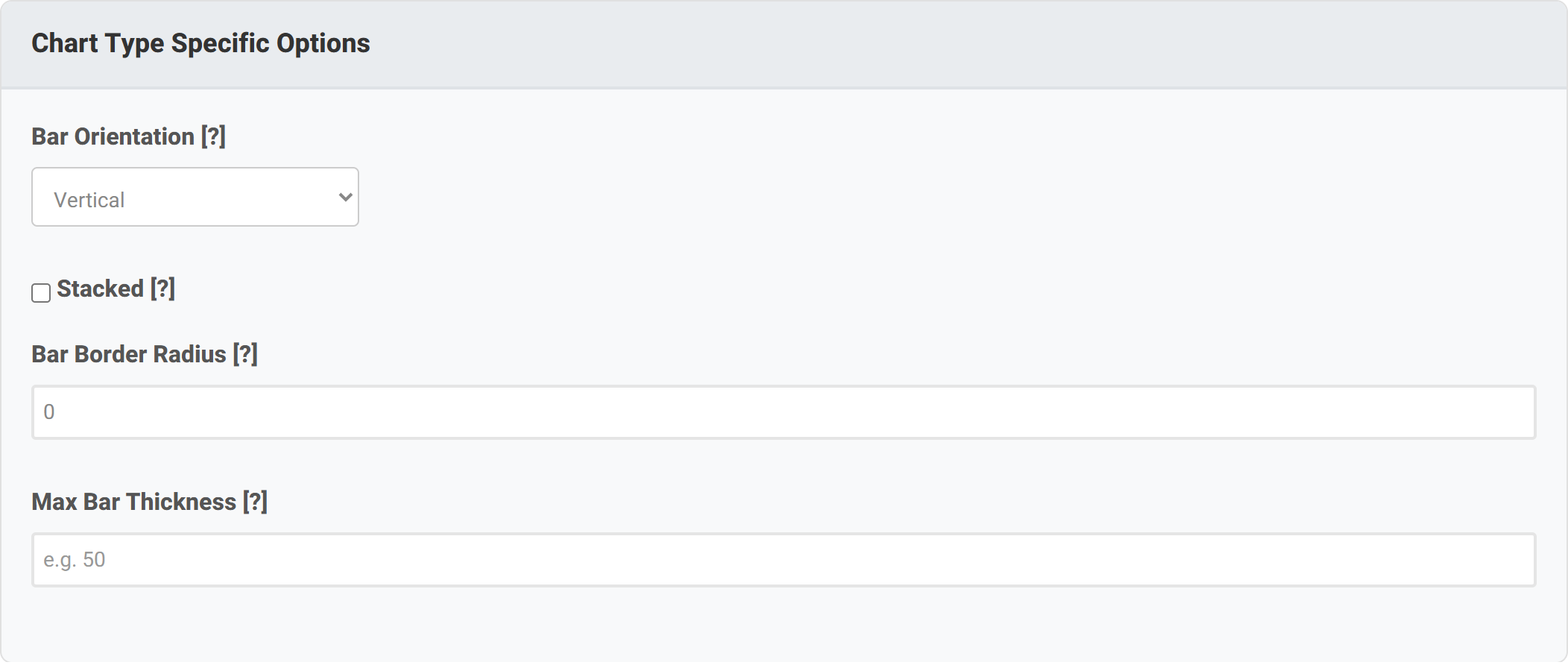
This group changes completely with your chart type. It is where the variants listed in Step 1 live.
| Chart type | Options offered |
|---|---|
| Bar | Orientation (vertical / horizontal), stacked, bar corner radius, maximum bar thickness |
| Line | Line style and tension, fill area, line width, dashed line, point radius and style, stepped line, connect missing values |
| Pie | Pie or doughnut, cutout size, slice border width, hover offset, and a full set of on-slice series labels |
| Bubble | Minimum and maximum radius, radius scaling (linear or square root), hover radius |
| Scatter | Trend line and its colour |
| Polar area | Start rotation, hover border width |
Bubble radius scaling is worth knowing about. With linear scaling a bubble twice the value is twice the radius, which makes it four times the area and overstates the difference. Square root scaling makes the area proportional to the value, which is what readers actually judge.
Series Configuration
One name and one colour per series. This is where “Series 1” becomes “Revenue”.
Step 4 — Preview and export
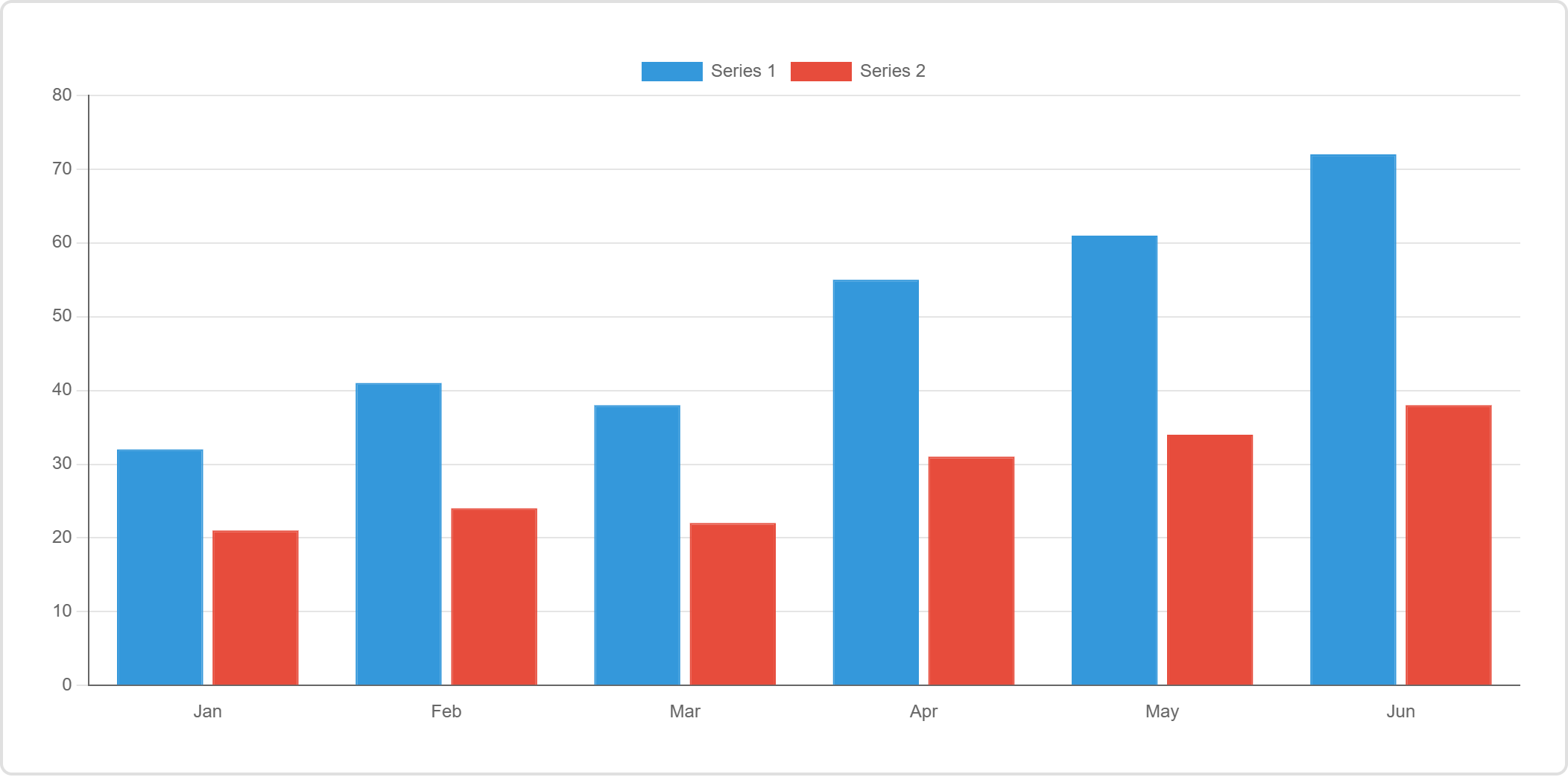
The preview is the real chart, drawn by the same engine that draws it on your site. Hovering shows tooltips and the legend can be clicked to hide a series, exactly as visitors will experience it.
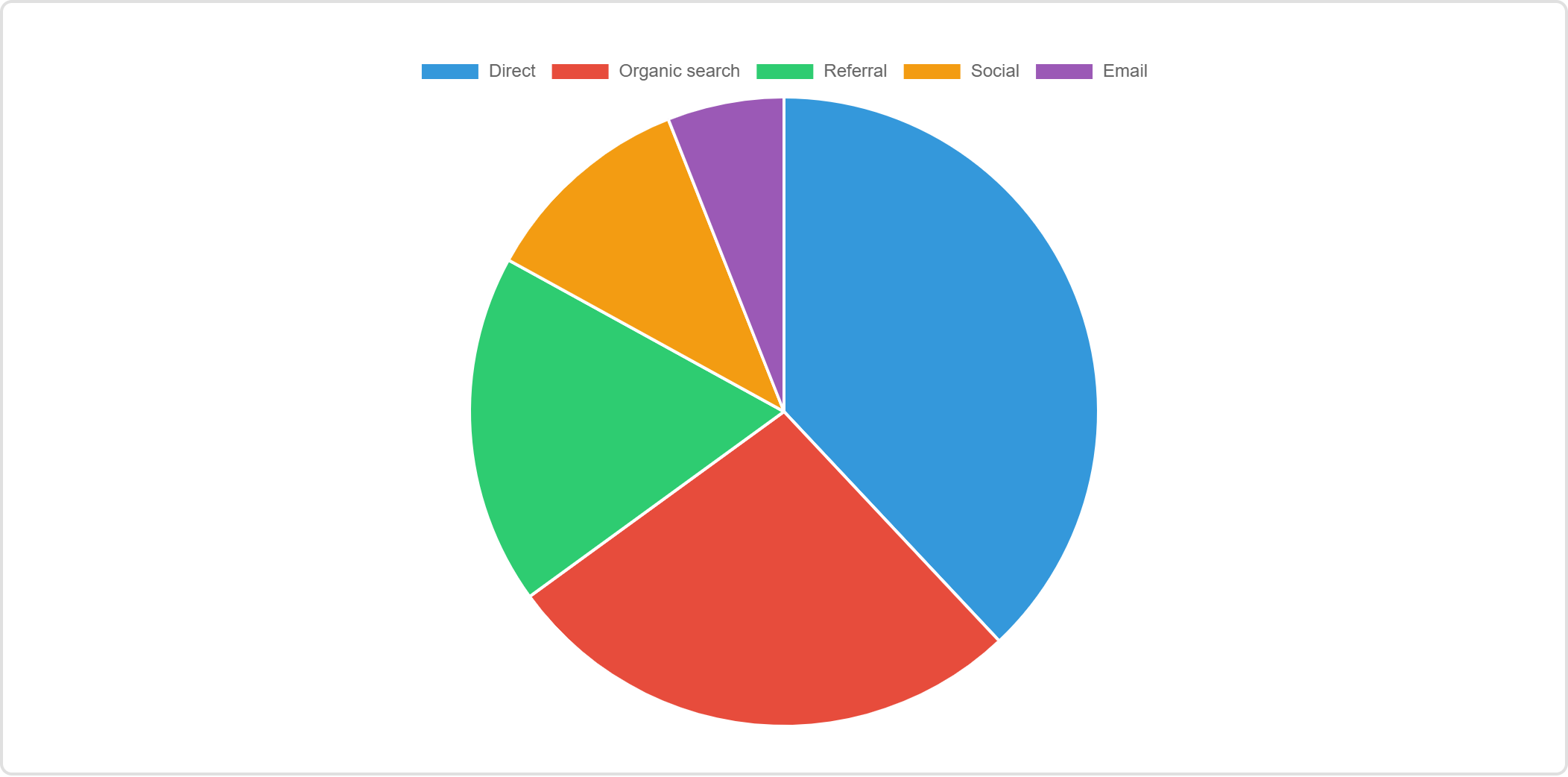
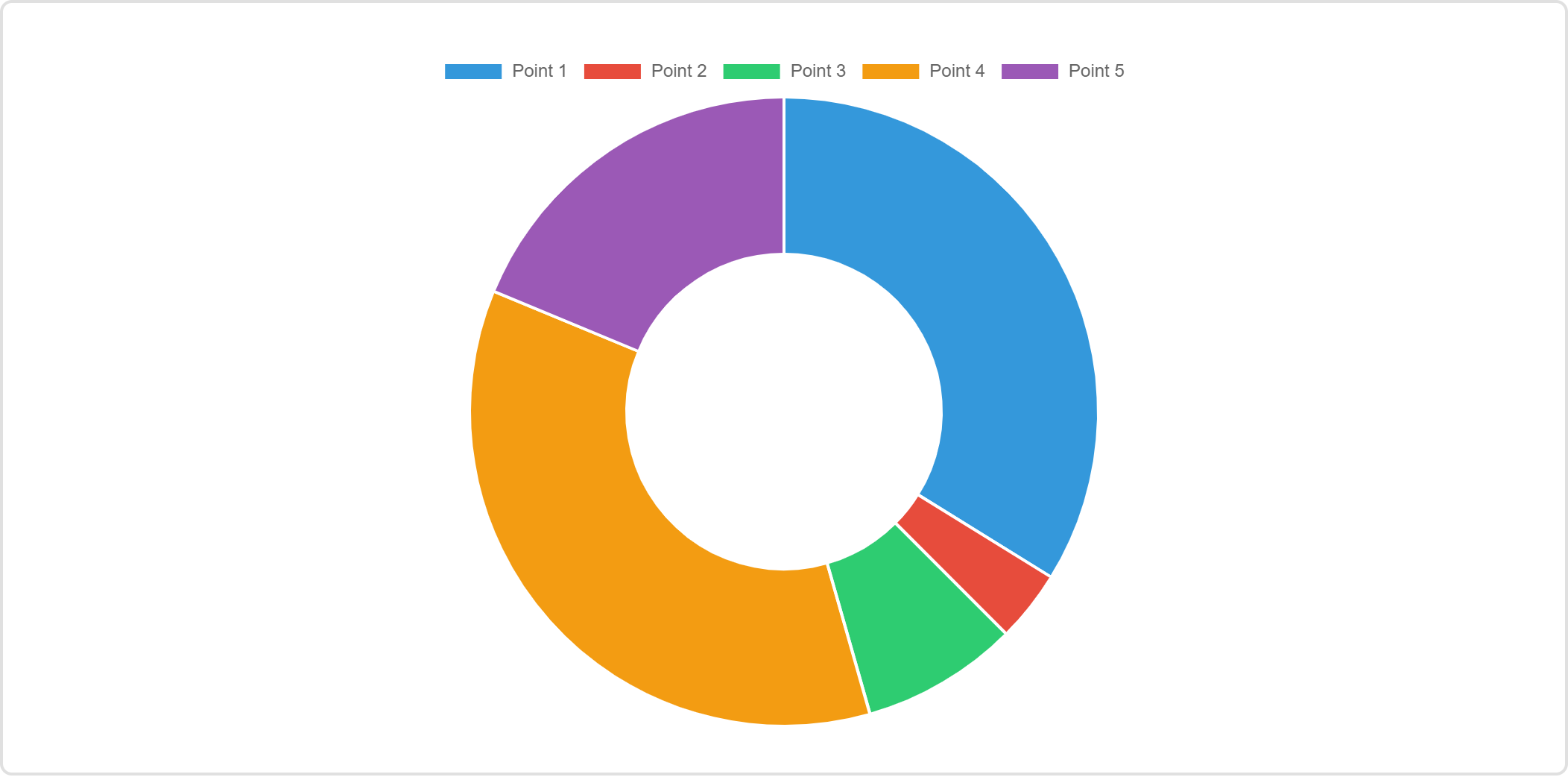
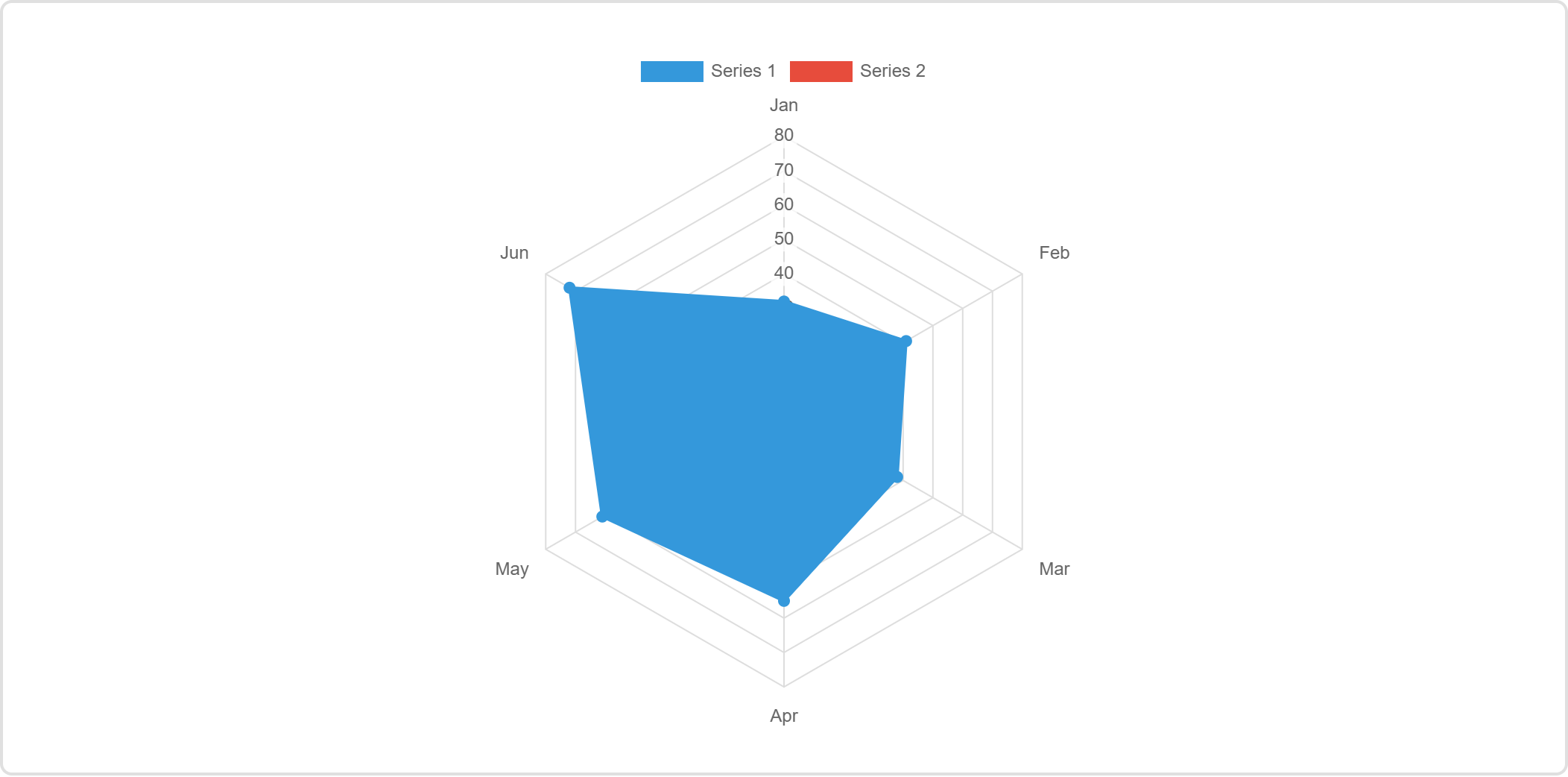
The other chart types
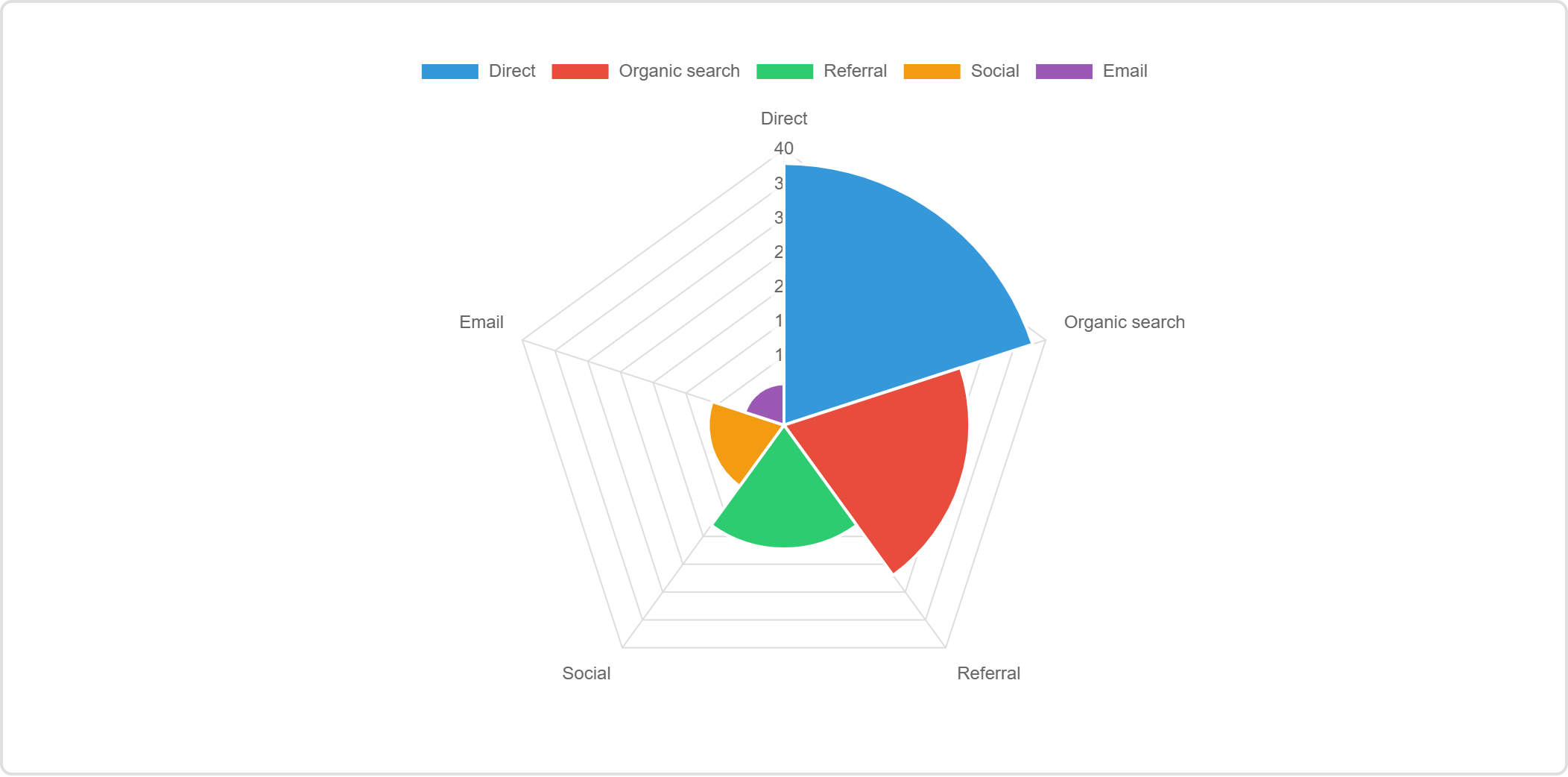
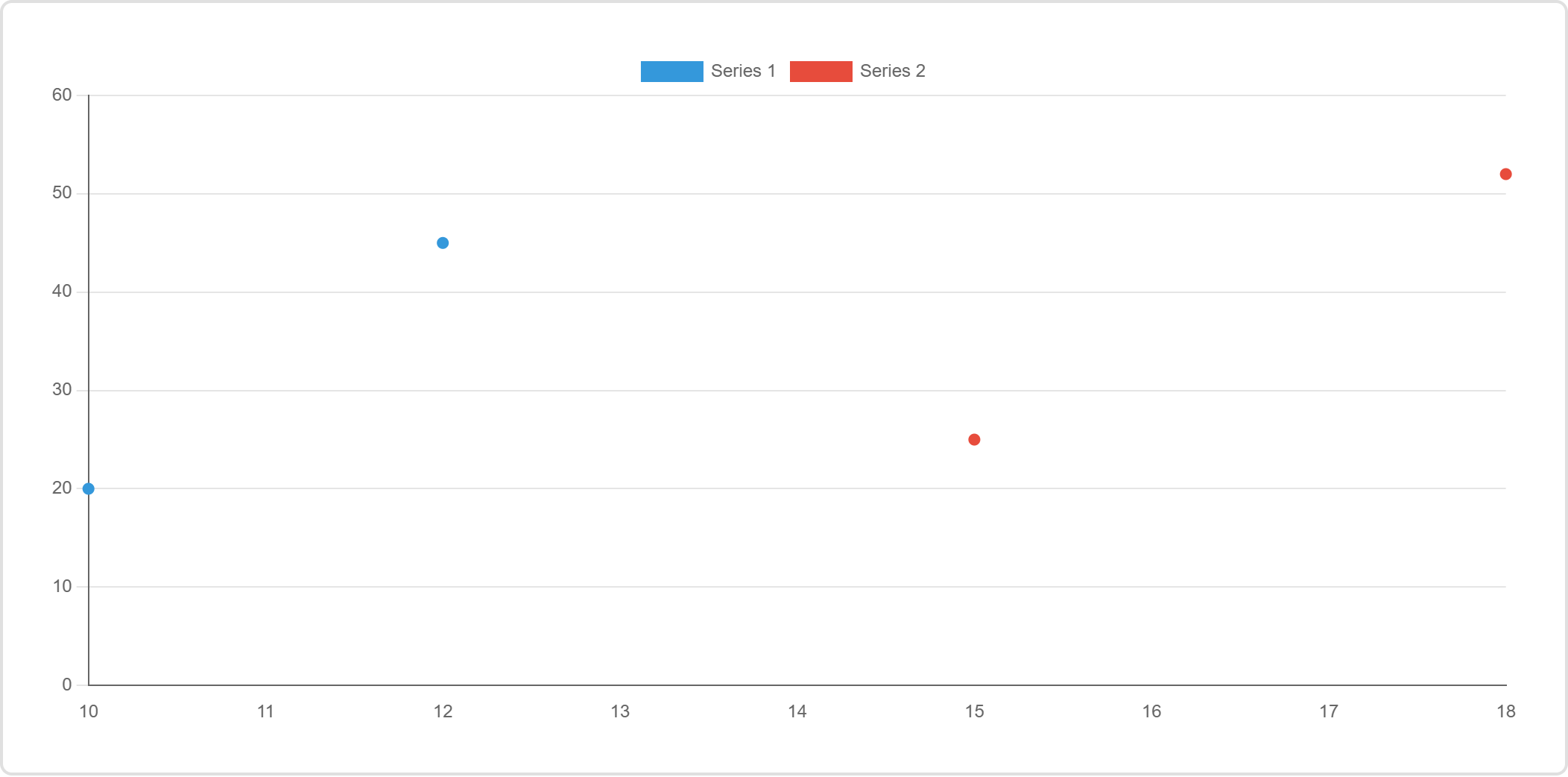
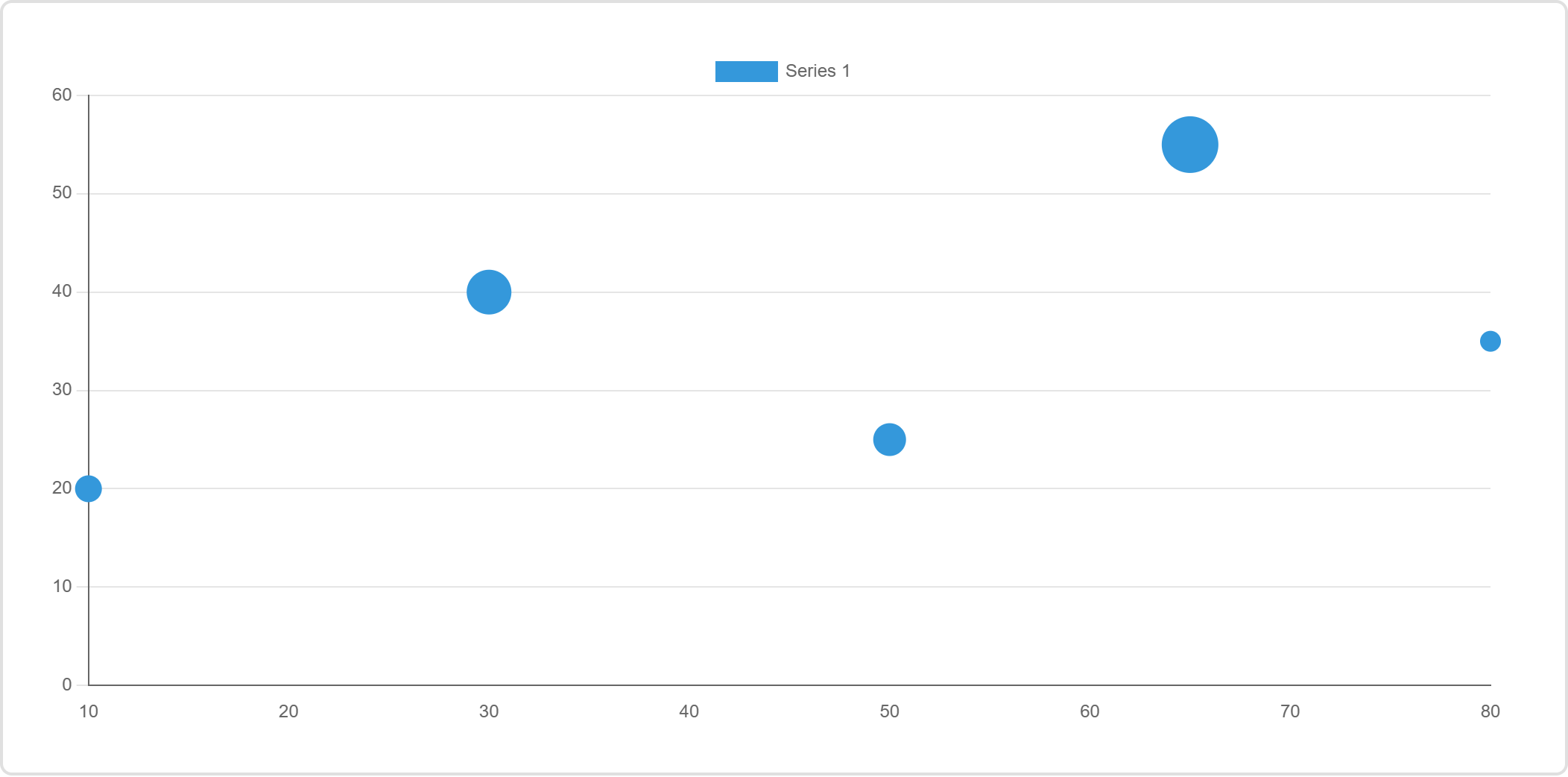
Download the chart as an image
Step 4 offers Download Chart as Image, which saves the preview as a picture. Handy for a slide deck or a report — but note that it is a snapshot, not a live chart. For your website, save the ruleset instead.
Expected input structure
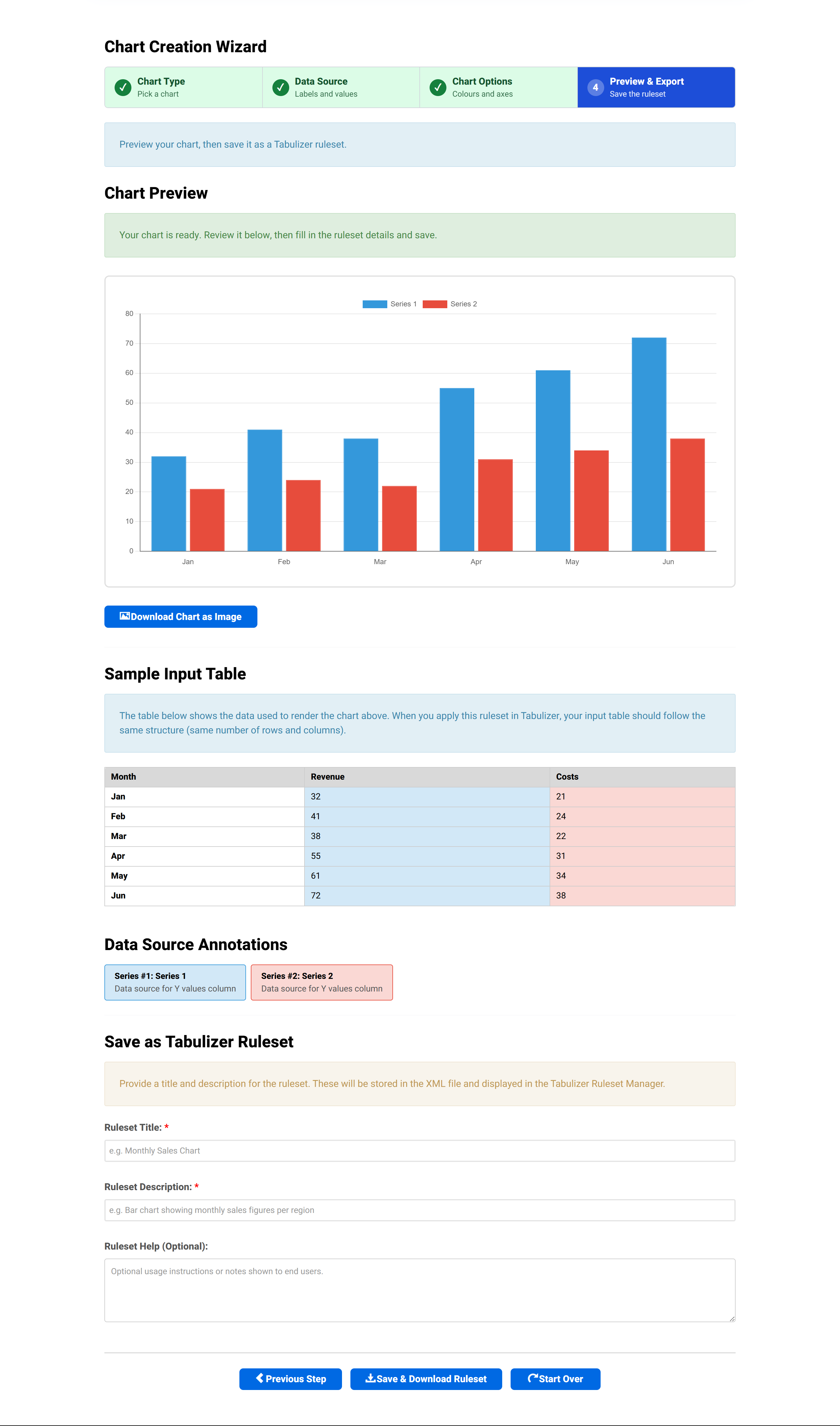
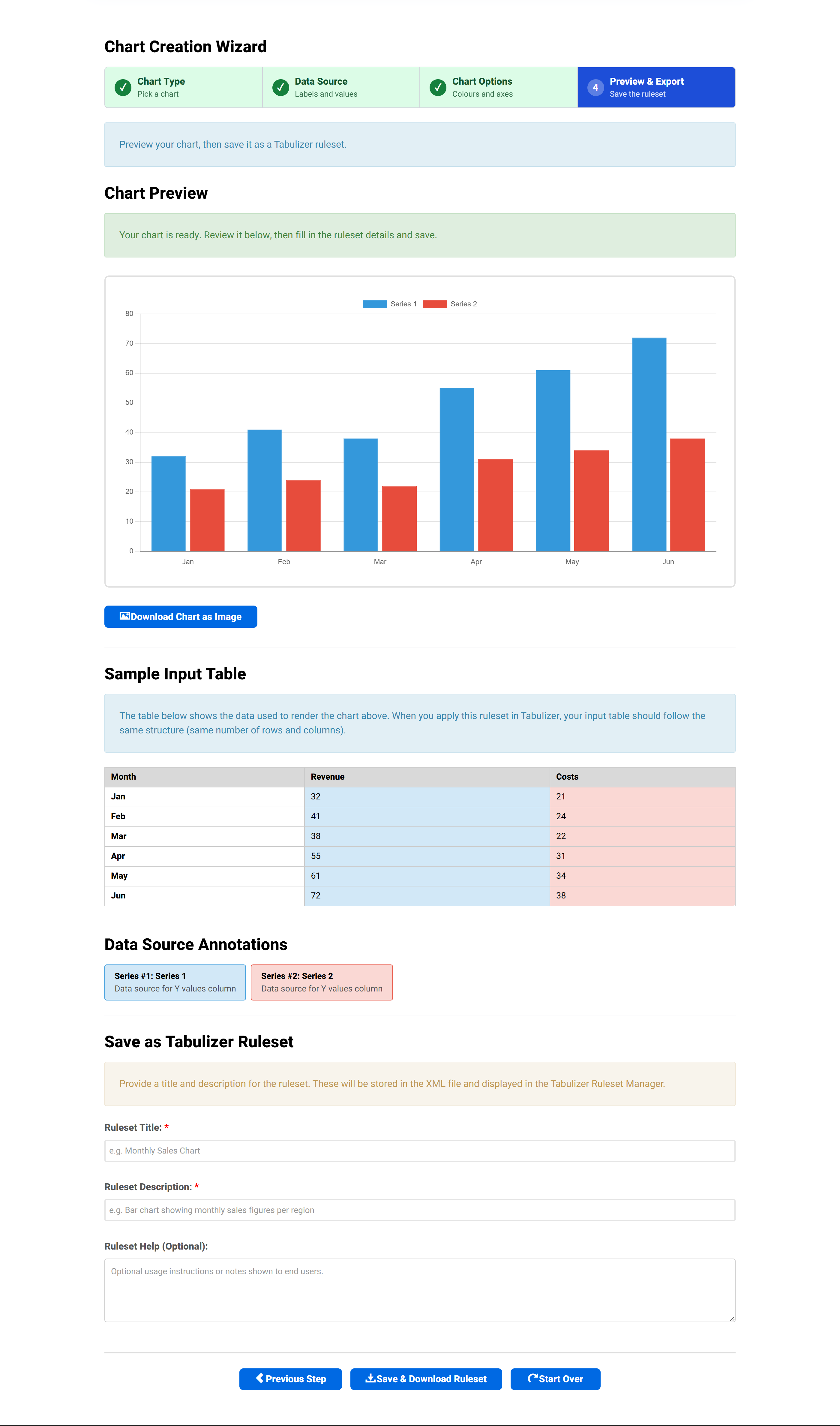
Save the ruleset
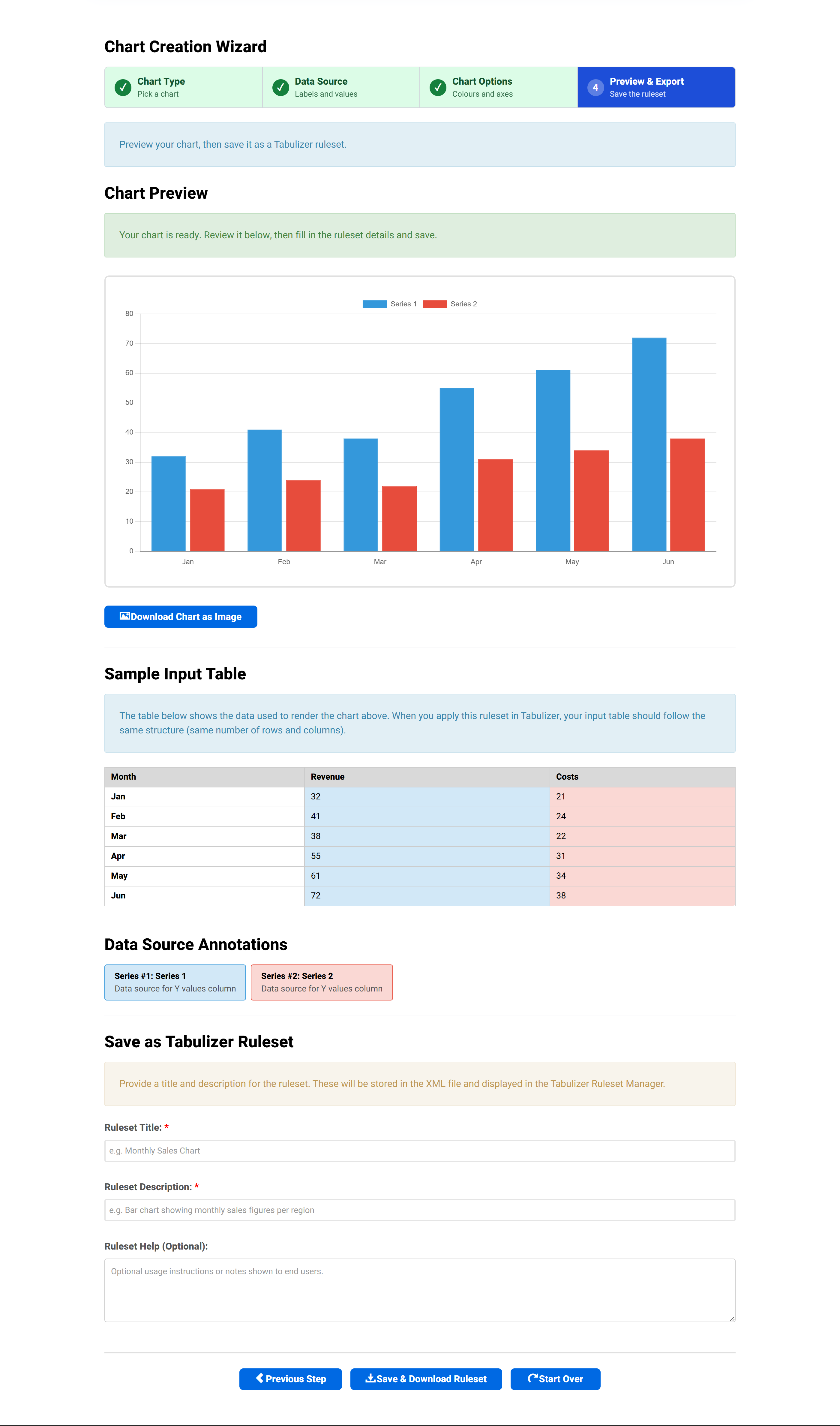
Give the ruleset a title and description, then Save & Download Ruleset. These are what you will see in the Tabulizer Ruleset Manager after importing.
Using the ruleset on your own site
- In your site's administrator, open Tabulizer → Ruleset Manager and import the
.zipyou downloaded. - Create or edit the article that will hold the chart.
- Insert a table using the structure shown in the Sample Input Table section — labels in the first column, one column per series.
- Apply the imported ruleset to that table.
To update the chart later, edit the numbers in that table.
Tips and troubleshooting
My chart is empty
Almost always Step 2. The wizard starts with no data, so if you clicked through without choosing a data source and supplying figures, there is nothing to draw. Go back to Step 2 and either paste a CSV or pick Generate Random Data to confirm the rest is working.
Only one series is showing
Number of data series in Step 2 is still 1. Raise it to match the number of value columns in your data, then re-enter the data.
The legend says “Series 1”
Series names are set in Series Configuration in Step 3, not taken from your CSV header row.
I want a doughnut, a horizontal bar or an area chart
All three are variants set in Step 3's Chart Type Specific Options: pie style, bar orientation, and fill area respectively. Choose the parent type in Step 1 first.
My pie chart ignores the second series
A pie shows one series — it divides a single total into slices. Use a bar or radar chart to compare several series.
My scatter or bubble chart has no points
Those two use a different data shape. Scatter wants x/y pairs after the label; bubble wants exactly x, y and a radius per row. See the format table above.
The bubbles look wrong next to each other
Switch Bubble Scaling to square root, so the bubble's area rather than its radius is proportional to the value.
The numbers on my axis need a unit
Use the tick prefix and suffix fields in Axes and Scales — for example a £ prefix or a % suffix. The same fields exist for tooltips.
Related articles
- D3 Visualizations Wizard
- Pricing Tables Wizard
- Gallery Wizard
- Calendars and Timelines Wizard
- Contact Form Wizard
- Calculator Wizard
- Importing a ruleset into Tabulizer