The Joomla Article Data Source
The Joomla Article Data Source
Keep the data in an article. Anybody who can edit articles can then keep the table up to date - no file to upload, no administrator access to Tabulizer, no database. They type lines of values; the site renders a styled, sortable table.
When to use it
Choose Joomla Article when the people who maintain the data are content editors rather than administrators. The article becomes the data file: they open it in the editor they already know, change a line, save - and every page that uses the data source follows.
| This source fits | Think again when |
|---|---|
| A small list that changes often and is maintained by the editorial team. | The data is long. An article of nine hundred lines is a miserable thing to edit. |
| You want one table used on several pages but edited in one place. | The data already exists in a file or a database - read it from there. |
| You want Joomla's own workflow - permissions, versions, who changed what - over your data. | You need the editors to see a grid. They will be typing delimited lines. |
The form
Components › Tabulizer › Data Sources › New Data Source, then set Source Type to Joomla Article.
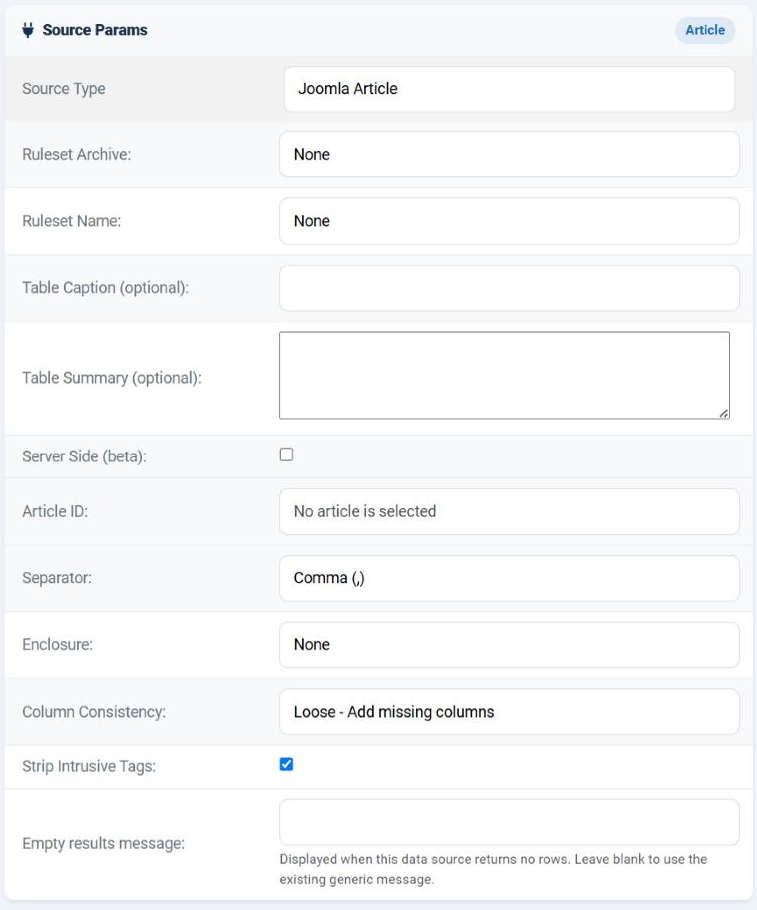
| Field | Options | What it does |
|---|---|---|
| Article ID | - | Which article holds the data. The box shows the chosen article's title, or No article is selected; beside it, Select a Joomla Article opens the article list in a window so you can pick one instead of hunting for its id. Required. |
| Separator | Comma (,); Semicolon (;); Asterisk (*); Caret (^); Space; Tab | The character between two values on a line. Choose one that will not appear inside the data itself - a caret or a semicolon is often safer than a comma for prose. |
| Enclosure | None; Double Quotes ("); Single Quotes (') | The quote character that protects a value containing the separator, so "Smith, John" stays one cell. |
| Column Consistency | Strict - Every row must have the same number of columns; Loose - Add missing columns | Strict warns when a line has the wrong number of values, which is how you catch a typo. Loose pads short lines with empty cells. |
| Strip Intrusive Tags | Tick box, on by default | Removes the markup the editor adds around the text. See below. |
| Empty results message | - | What to show when the article is empty. |
How the article is read
| Step | What happens |
|---|---|
| 1. Fetch | The article's intro text and full text are read and joined. A read-more break makes no difference: both halves are used. |
| 2. Strip | If Strip Intrusive Tags is ticked, the editor's markup is removed - but not all of it. See the table below. |
| 3. Split into rows | The text is cut at every line break, and blank lines are skipped. |
| 4. Split into cells | Each line is cut at the separator, respecting the enclosure. |
| 5. Apply the ruleset | The rows go through the chosen ruleset, which decides headers, styling and interactivity. |
In other words the article is treated as a delimited text file. One line is one row; it is not an HTML table and must not be one.
Strip Intrusive Tags
A Joomla editor does not store plain text. Type three lines and it stores three <p> elements, possibly with styles attached. Left alone, those tags would arrive in your cells.
With the box ticked, the markup is removed - except for a short list of tags that are useful inside a cell:
| Kept | So that you can |
|---|---|
<img> |
Put a picture - a flag, a logo, an icon - in a cell. |
<a> |
Make a cell link somewhere. |
<strong>, <b>, <i>, <em>, <u> |
Emphasise part of a value. |
<ol>, <ul>, <li> |
Put a short list inside a cell. |
Everything else - paragraphs, divs, spans, the editor's inline styles - is taken out. Leave this ticked unless you have a specific reason not to: unticked, you will spend your time fighting the editor's markup.
Writing the article
Create the article
Give it a name your editors will recognise - DATA: opening hours - and put it in a category that is not browsed. Leave it unpublished if nothing links to it.
Type one row per line
Values separated by the character you chose. Quote any value that contains that character, if you set an enclosure.
Point the data source at it
Use Select a Joomla Article rather than typing the id.
Preview, then write the instructions down
Leave a note at the top of the article - after a blank line, so it is skipped - telling the next editor what the columns are and which character separates them.
Common questions
The whole article arrives as one row.
The editor wrapped everything in a single element, or the line breaks were lost. Edit the article in source view and check that each row really is on its own line.
There are stray tags in my cells.
Strip Intrusive Tags is unticked, or the tags are ones that are deliberately kept - links, images, bold and the rest.
Every row lands in one cell.
The Separator does not match what was typed. Look at the article in source view and settle on one character.
Can I use an HTML table in the article?
Not with this source - it reads delimited lines. For an HTML table on a page, use the HTML file or Webpage source with the article's public URL.
The article is unpublished. Does the table still work?
Yes. The data source reads the article from the database directly, so its published state and access level do not affect it.
The first row should be headings.
Header rows are a ruleset decision. Type the headings as line 1 and choose a ruleset whose header size is 1.
An editor saved the article but the table has not changed.
The data source is caching. Clear the cache, or - better for this source - leave the cache off, since reading one article is cheap.
Build an article data source
In your Joomla administrator: Components › Tabulizer › Data Sources › New Data Source.
Back to the Knowledge Base