The Google Calendar (ICS) Data Source
The Google Calendar (ICS) Data Source
Put a calendar on the page as a table. Point this source at a public ICS address and the events become rows - filtered by date, narrowed by keyword, limited in number, and showing exactly the columns you choose.
When to use it
Choose Google Calendar (ICS) for anything already kept in a calendar: a programme of events, training dates, match fixtures, a timetable, holidays. ICS is the standard calendar format, so this works with Google Calendar and with anything else that publishes one.
basic.ics. A private address works only as long as it stays secret, so treat it as one.The form
Components › Tabulizer › Data Sources › New Data Source, then set Source Type to Google Calendar (ICS).
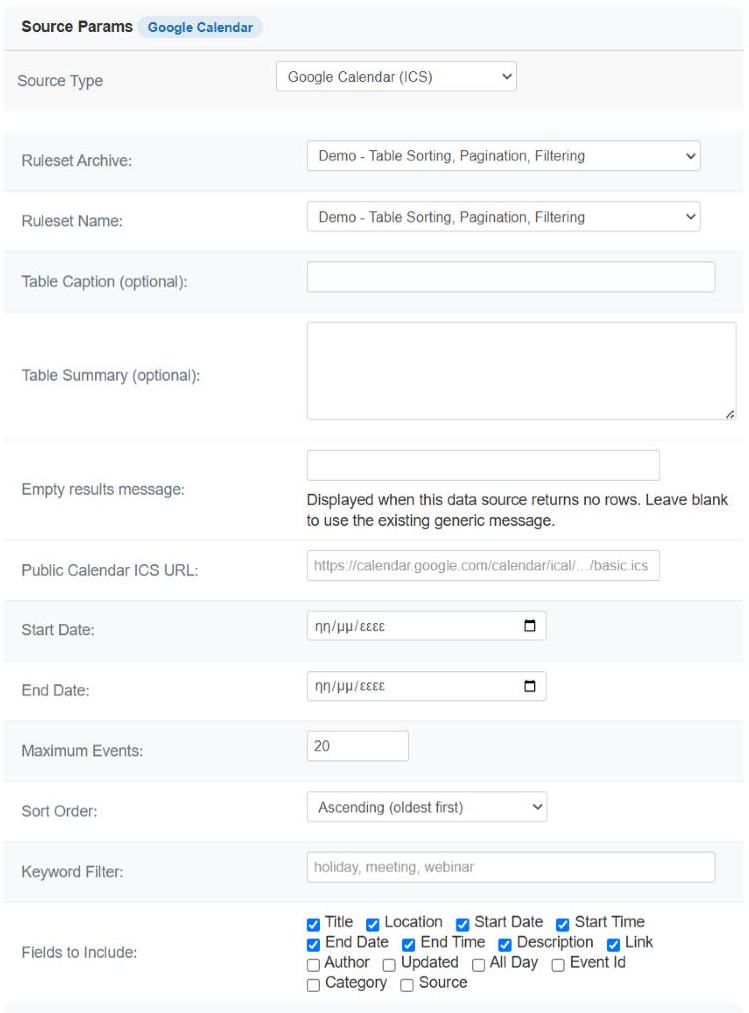
| Field | Required | What it does |
|---|---|---|
| Public Calendar ICS URL | Yes | The public iCal address of the calendar. |
| Start Date | No | Ignore everything that finishes before this date. Leave blank for no lower bound. |
| End Date | No | Ignore everything that starts after this date. Leave blank for no upper bound. |
| Maximum Events | No | How many events to show at most. Defaults to 20, and anything below 1 is treated as 20. |
| Sort Order | No | Ascending (oldest first) or Descending (newest first), by start date and time. |
| Keyword Filter | No | Comma-separated words; only matching events are kept. Blank keeps everything. |
| Fields to Include | No | Which event details become columns. Eight are ticked to begin with. |
| Empty results message | No | What to show when nothing matches - which, for "this week's events", is a normal state. |
Choosing the events
Four fields narrow a calendar of hundreds down to the handful a page should show, and they are applied in this order.
The date range
An event is kept if it overlaps the range, not only if it starts inside it - so a conference running from the 28th to the 2nd still appears in a range beginning on the 1st. Leave either end blank for an open-ended range.
The keywords
Each word is looked for in the event's title, description, location and category, ignoring case. An event is kept if it matches any of them - so webinar, workshop means "either", not "both".
The sort
What survives is ordered by start date and time, oldest or newest first.
The limit
Finally the list is cut to Maximum Events. Because this happens last, Ascending plus a limit of 5 gives the five earliest matching events - the usual "next five" list.
Fields to Include
Fourteen tick boxes decide the columns. Eight are ticked to begin with: Title, Location, Start Date, Start Time, End Date, End Time, Description, Link.
| Field | What it holds |
|---|---|
| Title | The event's name. |
| Location | Where it is, as typed in the calendar. |
| Start Date / Start Time | Separate columns, so each can be formatted and sorted on its own. |
| End Date / End Time | The same for the end. |
| Description | The event's notes. Often long - think before putting it in a narrow table. |
| Link | The address of the event. |
| Author | Who organised it. |
| Updated | When the entry was last changed. |
| All Day | Whether it is an all-day event. |
| Event Id | The calendar's own identifier - useful for matching rows against another system, meaningless to a visitor. |
| Category | The event's category, where the calendar sets one. |
| Source | Where the entry came from. |
An event that has nothing for one of the chosen fields - no location, no description - gets an empty cell, so the table stays rectangular.
What the table contains
| Behaviour | Detail |
|---|---|
| One row per event | After filtering, sorting and the limit. |
| Dates and times are separate columns | Dates as YYYY-MM-DD, times as HH:MM:SS - both sort correctly as text, which is what makes them easy to work with in a ruleset. |
| No header row | The field names are not carried into the table. Use a ruleset with a header size of 0, or one that supplies its own headings. |
| A repeating event | Appears as the calendar publishes it. Check against the calendar before promising a visitor that every occurrence is listed. |
Building one
Make the calendar public and copy the ICS address
Open it in your own browser first: you should get a download or a wall of BEGIN:VEVENT text.
Start wide
No dates, no keywords, 20 events. Save and preview - you will see what the calendar actually contains.
Narrow it
Untick the fields you do not want, add keywords if the calendar holds more than this page needs, and set the limit.
Turn the cache on
A calendar changes a few times a week, not a few times a second. An hour is generous.
Common questions
The table is empty.
In order: is the calendar public; is the address the iCal one; does the date range exclude everything; do the keywords match anything. Clear the dates and keywords and preview again - that isolates it in one step.
It will not load at all.
The server is not allowed to make outgoing requests, or the calendar is not public. Check the cURL library on the Status page, and open the address in your own browser.
Only 20 events appear.
That is the default. Raise Maximum Events.
The columns are in the wrong order.
They follow the order of the tick boxes, not the order you ticked them. Rearrange the headings in the ruleset to match.
My keyword filter removes too much.
Each term must appear somewhere in the title, description, location or category. A term with a typo matches nothing; an event matches if any term is found.
Can I show only future events?
Not automatically. Leave Start Date blank and sort ascending, or set a date and revisit it.
The times look wrong by an hour or two.
Times come from the calendar as published. Check the calendar's own time zone before changing anything here.
Can I read a private calendar?
Only through its secret address, and that address grants access to anyone who learns it. Make the calendar public instead, or keep the private detail off it.
Build a calendar data source
In your Joomla administrator: Components › Tabulizer › Data Sources › New Data Source.
Back to the Knowledge Base