The Google Spreadsheet Data Source
The Google Spreadsheet Data Source
Let people maintain the data in Google Sheets, where they already work, and let the site read it. Publish the sheet, paste the link, and every edit shows up on the page - with no export, no upload and no file on your server.
When to use it
Choose Google Spreadsheet when the data lives in a Google Sheet that several people edit: a fixture list, a price list, a rota, a set of results. It is the file-free version of the Excel source - the sheet stays where its owners keep it, and the site reads a published copy.
Publishing the sheet
Open the sheet in Google Sheets
Choose File › Share › Publish to web.
Pick the sheet and the format
Choose the single worksheet you want and Comma-separated values (.csv), then press Publish. Publishing the entire document as a web page works too - then name the worksheet in the data source instead.
Copy the address it gives you
That published link is what goes into the data source, and it already points at the worksheet you chose.
Leave automatic republishing on
Google refreshes the published copy after an edit. If republishing is switched off, the site keeps seeing the old data however often it fetches.
The form
Components › Tabulizer › Data Sources › New Data Source, then set Source Type to Google Spreadsheet.
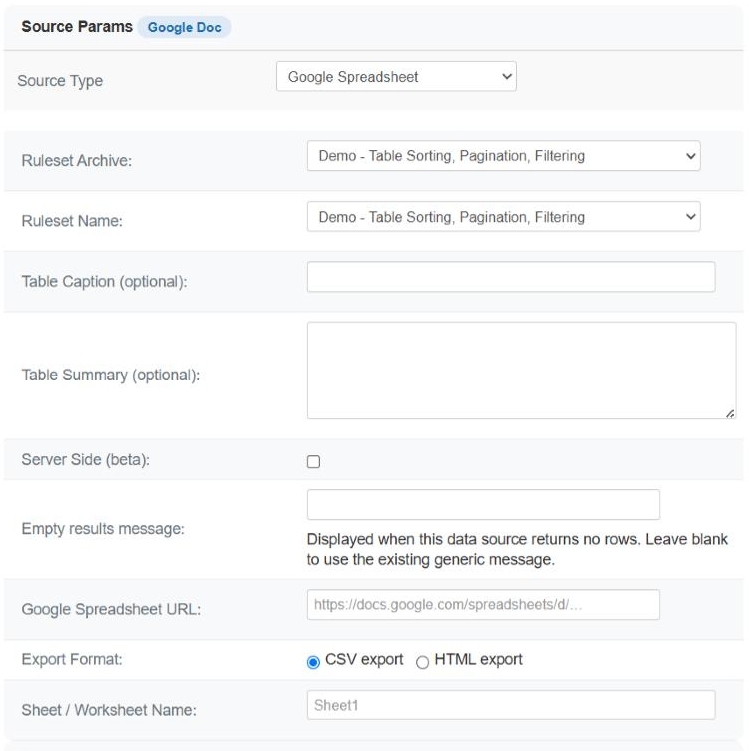
| Field | Required | What it does |
|---|---|---|
| Google Spreadsheet URL | Yes | The published address of the sheet. |
| Export Format | Yes | CSV export or HTML export - which kind of published link you pasted. See below. |
| Sheet / Worksheet Name | No | Which worksheet to read, when the link publishes the whole document. Shown for HTML export only. Blank means the first sheet. |
| Empty results message | No | What to show when the sheet is reachable but has no rows. |
Export Format
Google can publish the same worksheet in two ways, and the two are read quite differently.
| CSV export | HTML export | |
|---|---|---|
| What Google sends | Plain comma-separated text | A small web page containing the sheet as a table |
| How it is read | Line by line, commas separating values, double quotes protecting values that contain one. Blank and entirely empty lines are skipped. | The table is taken out of the page, and the spreadsheet's own column-letter row and row-number column are stripped off. Empty rows are dropped. |
| Formatting | None - values only, which is what you usually want | Google's own styling comes through in the markup |
| Use it when | Nearly always. It is smaller, faster and more predictable. | You published as a web page rather than CSV and would rather not republish. |
Which worksheet, in HTML mode
Publishing an entire document as a web page produces one address for the whole spreadsheet - and the page behind it holds no table at all. It is a shell that lists every worksheet and loads them one at a time, which is why the browser shows tabs along the bottom.
That is what Sheet / Worksheet Name is for. Type the worksheet name exactly as its tab reads - capitals do not matter, surrounding spaces are ignored - and that sheet is read. Leave it blank and you get the first sheet, which is also what the shell page opens on.
| You published | The field | What is read |
|---|---|---|
| Entire document, web page | Places |
The worksheet called Places. |
| Entire document, web page | blank | The first worksheet. |
| Entire document, web page | a name the document does not have | An error naming the sheet you asked for - not the wrong table. |
| A single sheet, CSV | hidden | That worksheet. The link already decides it. |
What the table contains
| Behaviour | Detail |
|---|---|
| The rows as the sheet has them | Including the first row. If that row holds your column names, choose a ruleset whose header size is 1 and they become headings. |
| Values, not formulas | Google publishes the results, so a cell holding a formula arrives as the number it produces. |
| Empty rows are dropped | A gap between blocks of data does not become a blank row in the table. |
| No cell formatting in CSV mode | Colours and bold stay in Google. The ruleset decides how the table looks, which is the point. |
Keeping it fast and current
| Point | What to do |
|---|---|
| Every uncached view fetches from Google | Turn the cache on. Fifteen minutes to an hour suits a sheet people edit during the day. |
| An edit should appear at once | Clear the cache from the data source list, or accept the delay you chose. |
| Google's published copy lags a little | Republishing happens on Google's schedule, not instantly. If the site is behind, check there before blaming the cache. |
| The server must be allowed out | cURL, or allow_url_fopen. The Status page shows whether cURL is present. |
Common questions
Nothing loads, and the sheet opens fine for me.
You are signed in to Google and the server is not. The sheet must be published to the web, not merely shared.
I get one column of HTML.
An HTML link is being read as CSV. Change Export Format to HTML export, or publish as CSV and use that link.
No table was found.
The opposite: a CSV link read as HTML. Change the format.
It reads the wrong worksheet.
If you published the entire document, type the worksheet name in Sheet / Worksheet Name - blank means the first sheet. If you published a single sheet, the link itself decides, so publish the one you want.
"The published spreadsheet has no worksheet named …"
The document was read but has no tab by that name. Check the spelling against the tabs along the bottom of the sheet, or clear the field to take the first one.
The Sheet / Worksheet Name field disappeared.
You switched Export Format to CSV, where it has nothing to decide. Switch back to HTML export and it returns.
My edits do not show up.
In order: the cache here, then Google's republishing, then whether you edited the worksheet that was actually published.
Can I read a private sheet?
No. There is no sign-in. Publish the worksheet, or export it to .xlsx and use the Excel File source.
The first row is styled as data.
Header rows are a ruleset decision. Choose a ruleset with a header size of 1.
Build a Google Spreadsheet data source
In your Joomla administrator: Components › Tabulizer › Data Sources › New Data Source.
Back to the Knowledge Base