Calculator Leads
Calculator Leads
Everyone who asked a calculator for an answer and left an address to get it - with the figures they typed and the result they were shown, so you know who to call first.
What the page is
A calculator built with the Calculator Wizard can be gated: the visitor fills the fields, presses Calculate, and the result is held back until they give an email address. Components › Tabulizer › Calculator Leads is where those addresses arrive.
It is worth saying what this page is not. It is not a second copy of your data - calculator leads and FormBuilder submissions live in one table, and this page is the calculator half of it. Anything you do here, you could do on Form Submissions; what this page adds is that it shows only calculator leads, and gives the calculated figure a column of its own.
The list
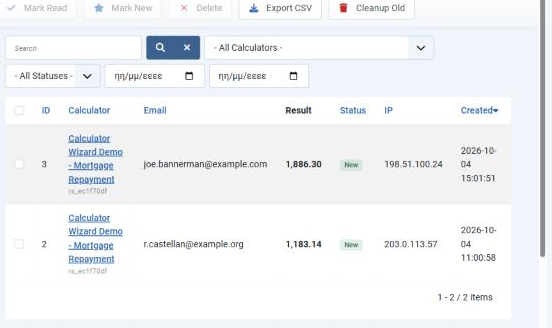
| Column | What it holds |
|---|---|
| ID | The submission's number. The same numbering as Form Submissions, because it is the same table. |
| Calculator | The ruleset the lead came from, by title, with its suffix underneath. Click it to open the lead. |
| The address the visitor gave to see the result. | |
| Result | The figure they were shown. This is the column that makes the page worth reading - an address alone tells you nothing, an address beside 1,886.30 tells you who to call first. |
| Status | New, Read or Archived. New until somebody opens it or marks it. |
| IP | The address the submission came from. |
| Created | When it arrived. The list is sorted newest first, and the heading sorts the other way. |
Narrowing it down
| Control | What it does |
|---|---|
| Search | Matches on the address and the calculator. The cross beside it clears the search and every filter at once. |
| - All Calculators - | One calculator at a time. The list holds every calculator that has ever produced a lead, so a site with a mortgage calculator and a shipping estimator keeps them apart. |
| - All Statuses - | New is the one to live in: it is your inbox of people not yet contacted. |
| The two date boxes | From and to, on the created date. Useful for "everything since the campaign started". |
The toolbar
| Button | What it does |
|---|---|
| Mark Read / Mark New | Sets the status of the ticked rows. Nothing is sent and nothing is deleted - this is a worked-through flag for you, not a signal to the visitor. Mark New puts something back in the queue when the first attempt went nowhere. |
| Delete | Removes the ticked leads permanently. There is no trash can to recover them from. |
| Export CSV | Downloads what the list is currently showing - so filter first, then export, and you get that calculator or that month rather than everything. |
| Cleanup Old | Deletes leads past the retention period, and reports how many went. |
Opening a lead
Click the calculator name on any row. The lead opens in two parts: what the visitor submitted, and the details of the submission itself.
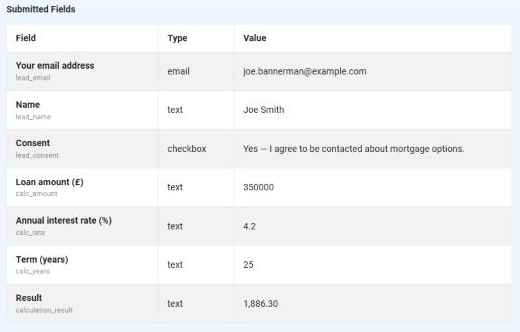
Submitted Fields holds the gate's own fields first - address, name, and the consent answer recorded as Yes or No with the wording the visitor agreed to - and then the calculator's fields, each named as the visitor saw it with its identifier underneath. The last row is Result: the figure the calculator produced.
Those calculator rows are the point of a lead. "Someone wants a mortgage" is a weak start to a conversation; "someone is looking at £350,000 over 25 years at 4.2%" is a strong one.
| Submission Details | What it tells you |
|---|---|
| Form | Which calculator, by title and suffix. |
| Status, Created, Updated | Where it stands and when it arrived. Updated changes when you mark it. |
| Visitor Email, Visitor IP, User Agent | Who sent it, from where, with what. |
| Page URL | The page the calculator was on - which campaign or article produced the lead. |
| Visitor Email Sent / Admin Email Sent | Whether each message actually went out. Worth a glance when somebody says their result never arrived: Yes here moves the question to their spam folder, No moves it to your mail settings. |
Back returns to Calculator Leads, and Delete removes this one lead and returns to the same list.
Working through them
Filter to New
Set the status filter to New and you have a queue rather than an archive.
Read the Result column first
It is the one piece of information that ranks the list. Open the ones worth opening.
Open the lead for the figures
What they entered is the context for the conversation, and it is all on one page.
Mark Read when you have acted
So the queue means something tomorrow. Mark New again if a lead needs another attempt.
Export when somebody else needs it
Filter to the calculator and the dates, then Export CSV. The file carries the submission's own columns and then one column per submitted field, labelled as the visitor saw it - so the calculator's figures and the result arrive as spreadsheet columns, ready to sort.
Common questions
The page is empty.
Either no calculator has a lead gate switched on, or none has been used yet. Check the gate in the Calculator Wizard first, then try the calculator yourself on the front end.
An older lead has an address but no figures.
Leads taken before this was fixed do not carry them - the calculator's values were not being stored with the lead, and the same fault left the placeholders unreplaced in the visitor's email. Leads taken since carry both. The older ones cannot be repaired, because the figures were never saved in the first place.
The Result column is empty for one row.
The gate was submitted without a result to hold back - usually a calculator whose formula could not be worked out from what was entered.
Can I see these in Form Submissions too?
Yes. They are the same records; Form Submissions shows everything, this page shows the calculator leads. Deleting in one place deletes everywhere.
Does marking a lead Read tell the visitor anything?
No. Status is yours alone - nothing is sent when it changes.
The visitor says the email never arrived.
Open the lead and look at Visitor Email Sent. Yes means Tabulizer handed it to the mail system and the question is delivery - spam folders first. No means it was never sent, so check the autoresponder is enabled on that calculator and that Joomla's mail settings work.
How long are leads kept?
Until you delete them, or until Cleanup Old passes over one that is older than its calculator's retention period. Nothing expires on its own.
Someone asks to be removed.
Find them with the search box, tick the row and press Delete. The record is gone, including the figures they entered.
Open your leads
In your Joomla administrator: Components › Tabulizer › Calculator Leads.
Back to the Knowledge Base