D3 Visualizations Wizard
What the D3 Visualizations Wizard does
This wizard builds five interactive graphics that a conventional chart cannot express: an animated ranking, three ways of showing a hierarchy, and a world map. You supply a table, choose a visualization, adjust its options, and the wizard produces a Tabulizer ruleset that you import into your own site.
These are drawn with D3, so they are true vector graphics — sharp at any size, and interactive: you can zoom into a branch, open and close nodes, or watch a ranking change over time.
When to reach for this rather than the Chart Wizard
| If your data is… | Use |
|---|---|
| Values measured across categories or over time | The Chart Wizard — bar, line, pie and the rest |
| A hierarchy: parts within parts, staff under managers, folders in folders | This wizard — circle packing, sunburst or tree |
| A ranking that changes over time and deserves to be animated | This wizard — bar chart race |
| Places on the Earth | This wizard — world map |
How the pieces fit together
- You build the visualization in the online wizard.
- The wizard gives you a ruleset archive (a
.zipfile). - You import it into Tabulizer on your own site.
- You apply the ruleset to a table in one of your articles.

Step 1 — Choose a visualization
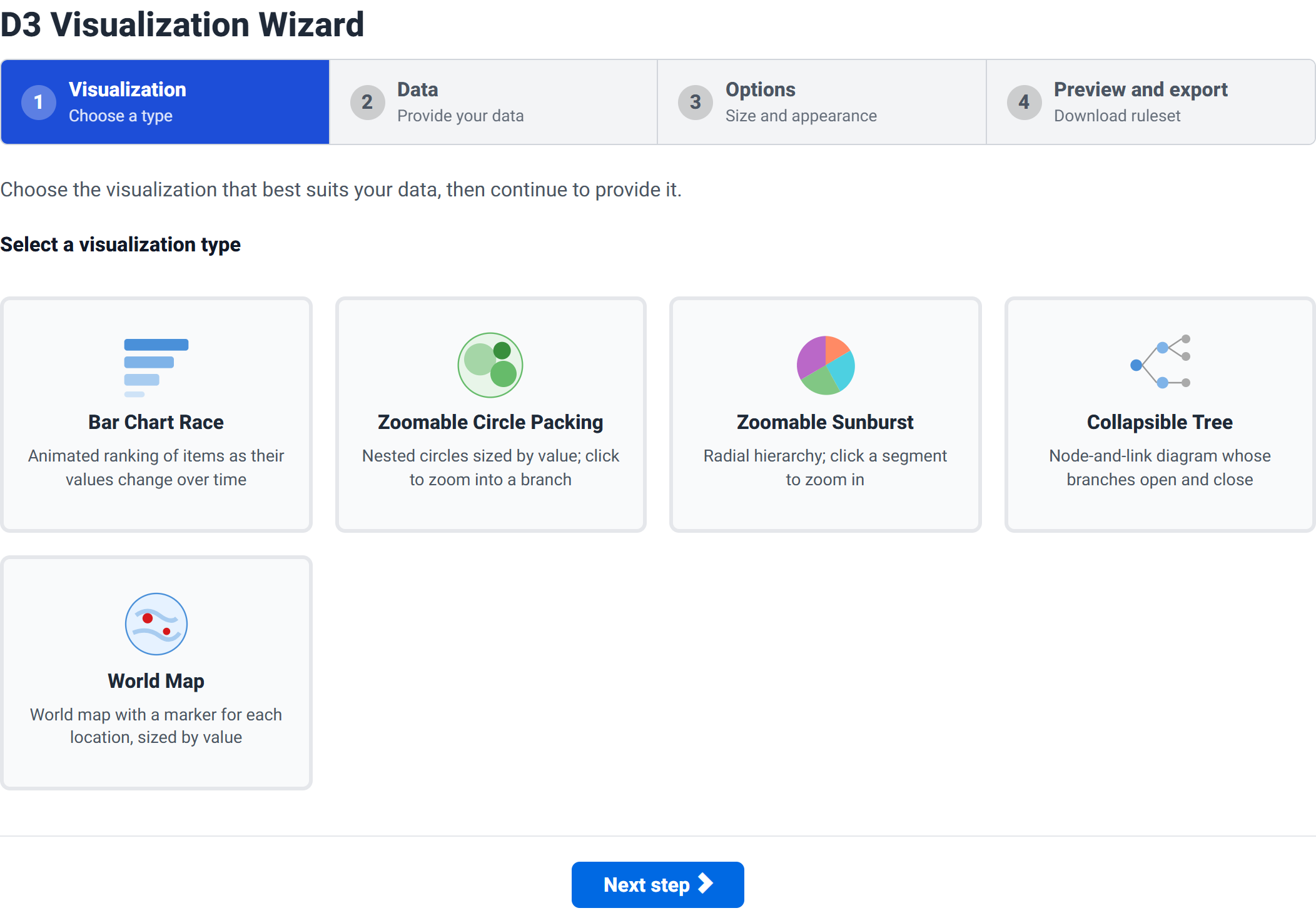
| Visualization | What it does | Best for |
|---|---|---|
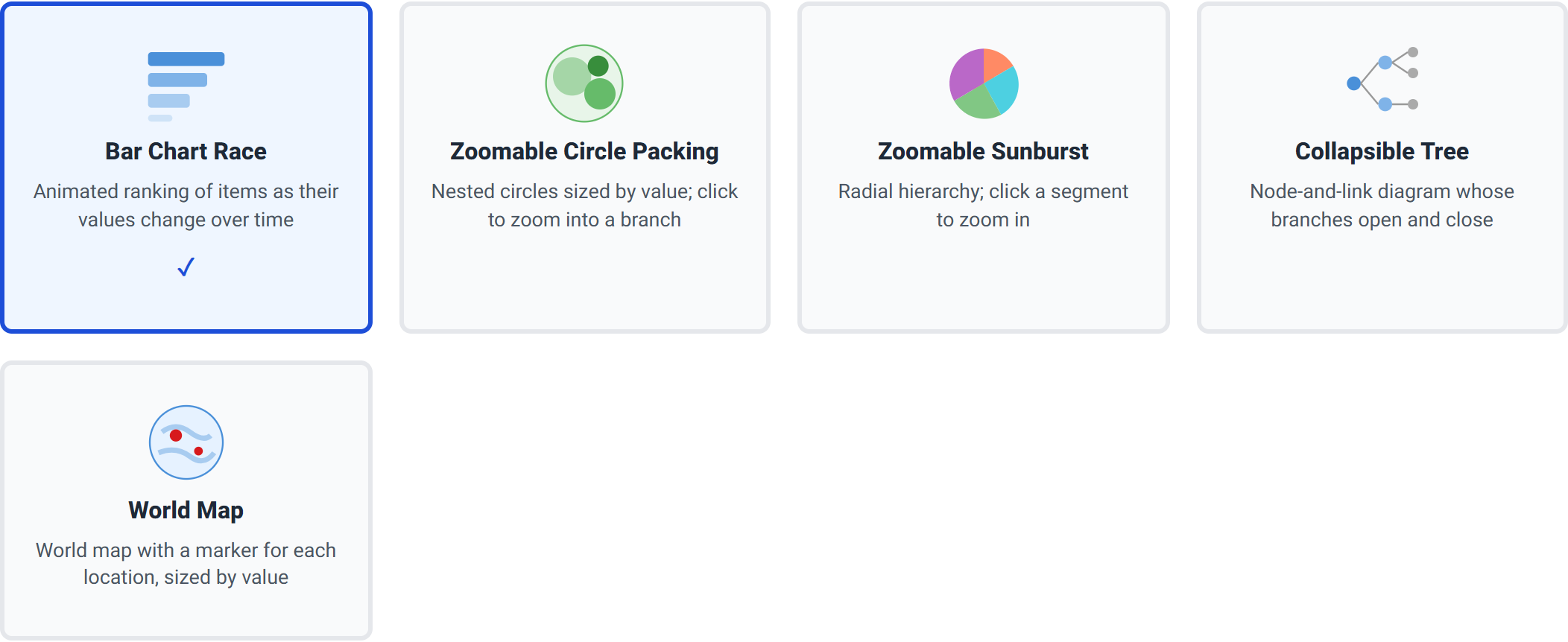
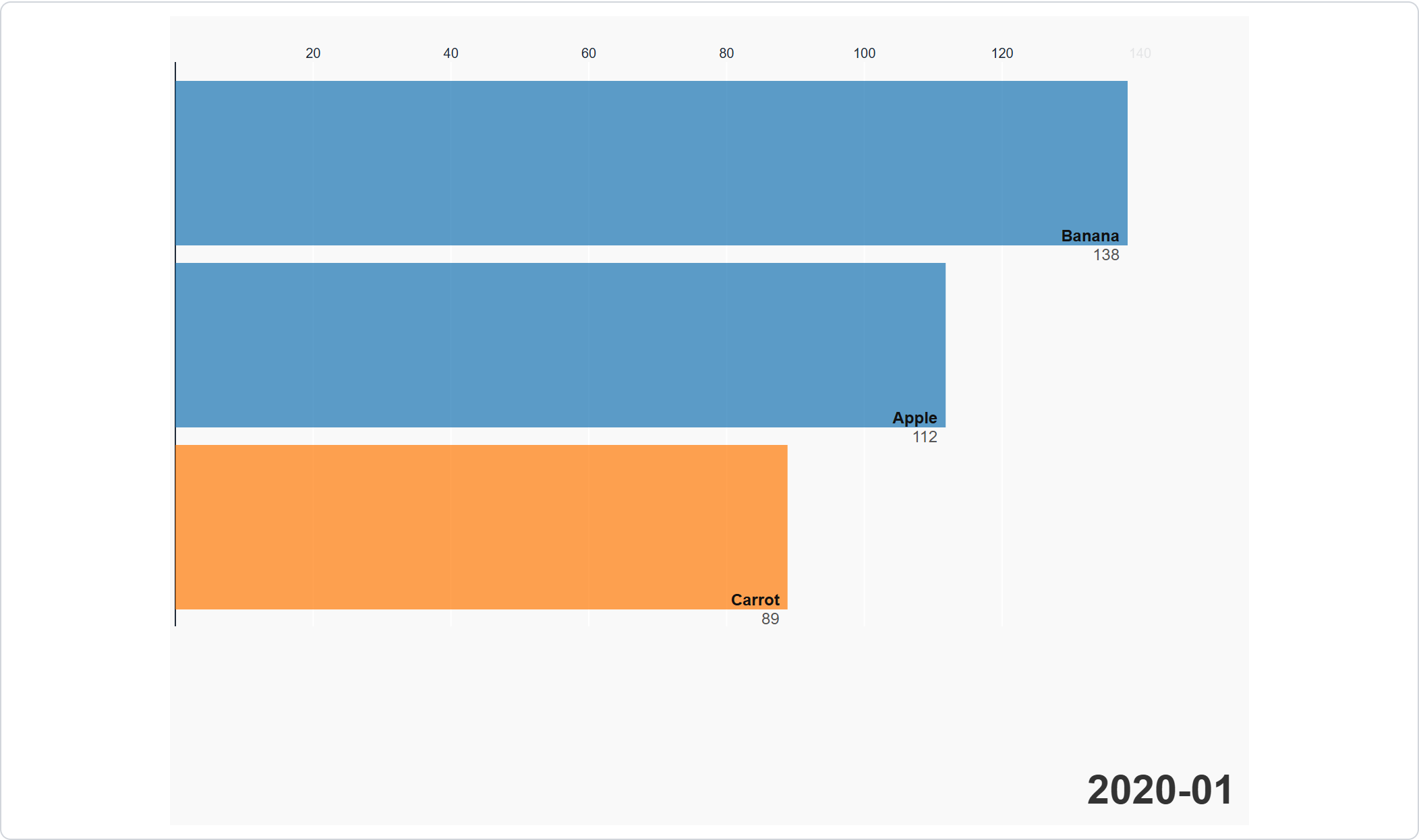
| Bar Chart Race | Animated ranking of items as their values change over time | Showing how a league table shifted over months or years. |
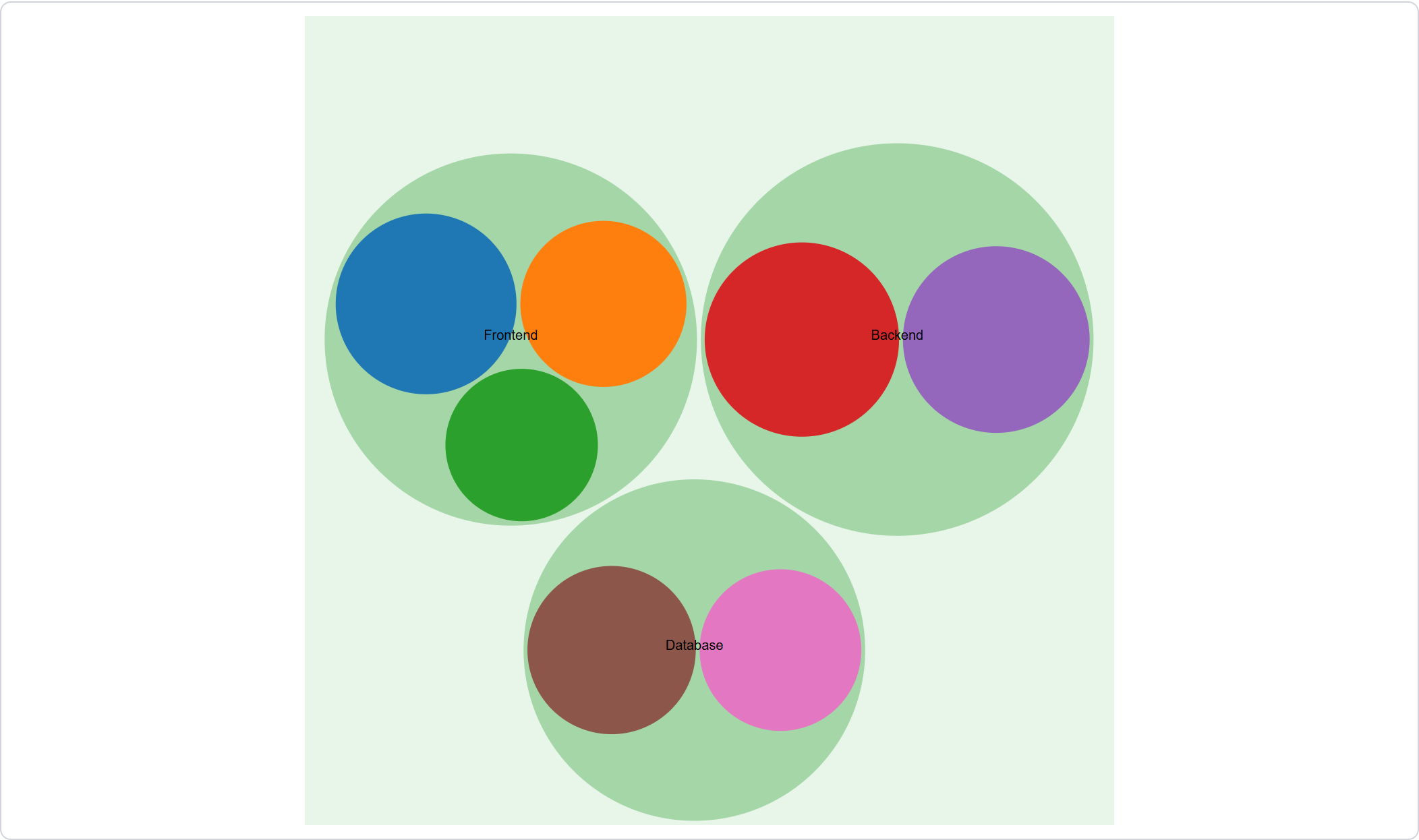
| Zoomable Circle Packing | Nested circles sized by value; click to zoom into a branch | Budgets, disk usage, anything where size matters as much as structure. |
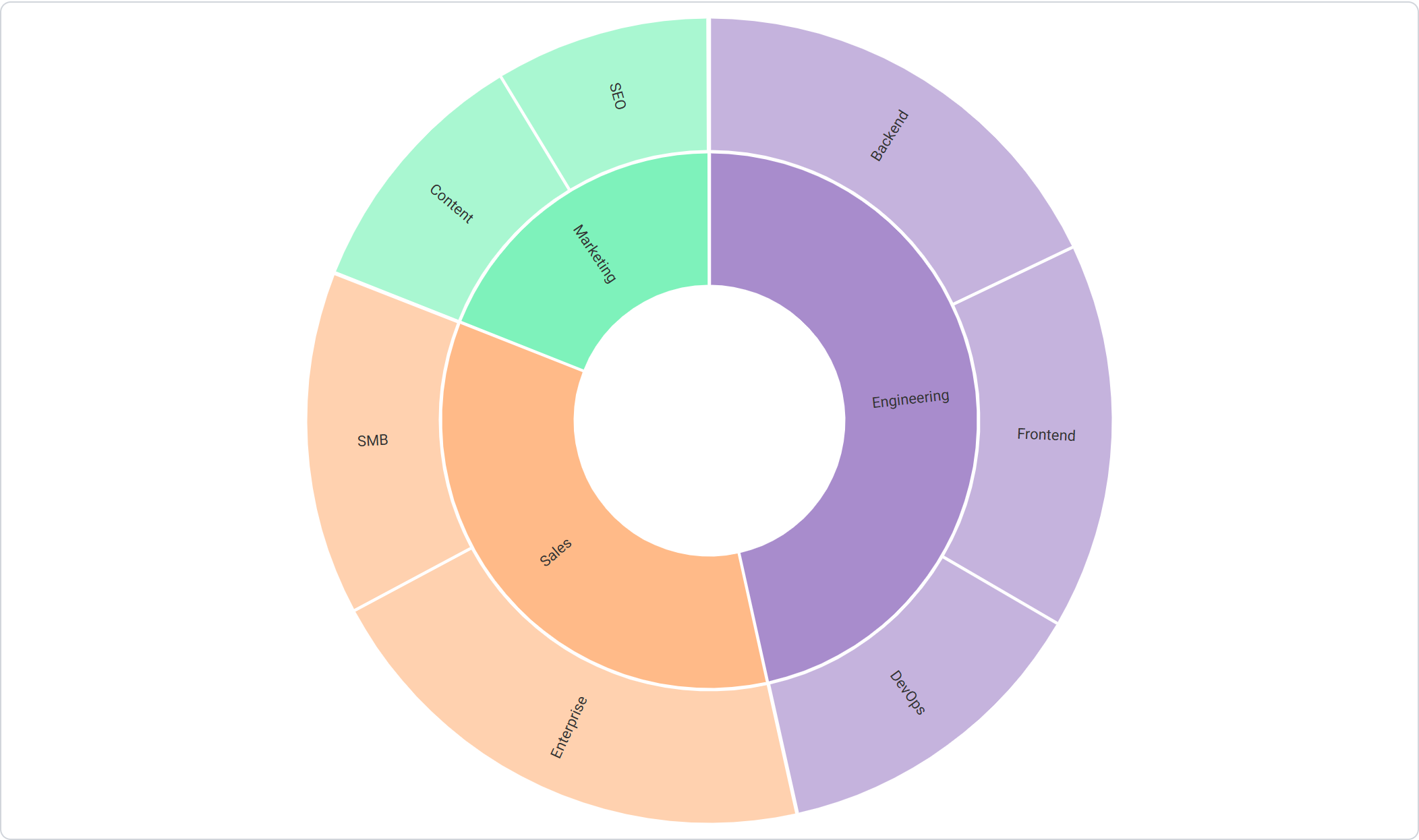
| Zoomable Sunburst | Radial hierarchy; click a segment to zoom in | The same data as circle packing, when you want to emphasise depth. |
| Collapsible Tree | Node-and-link diagram whose branches open and close | Org charts, site maps, category trees — structure without sizes. |
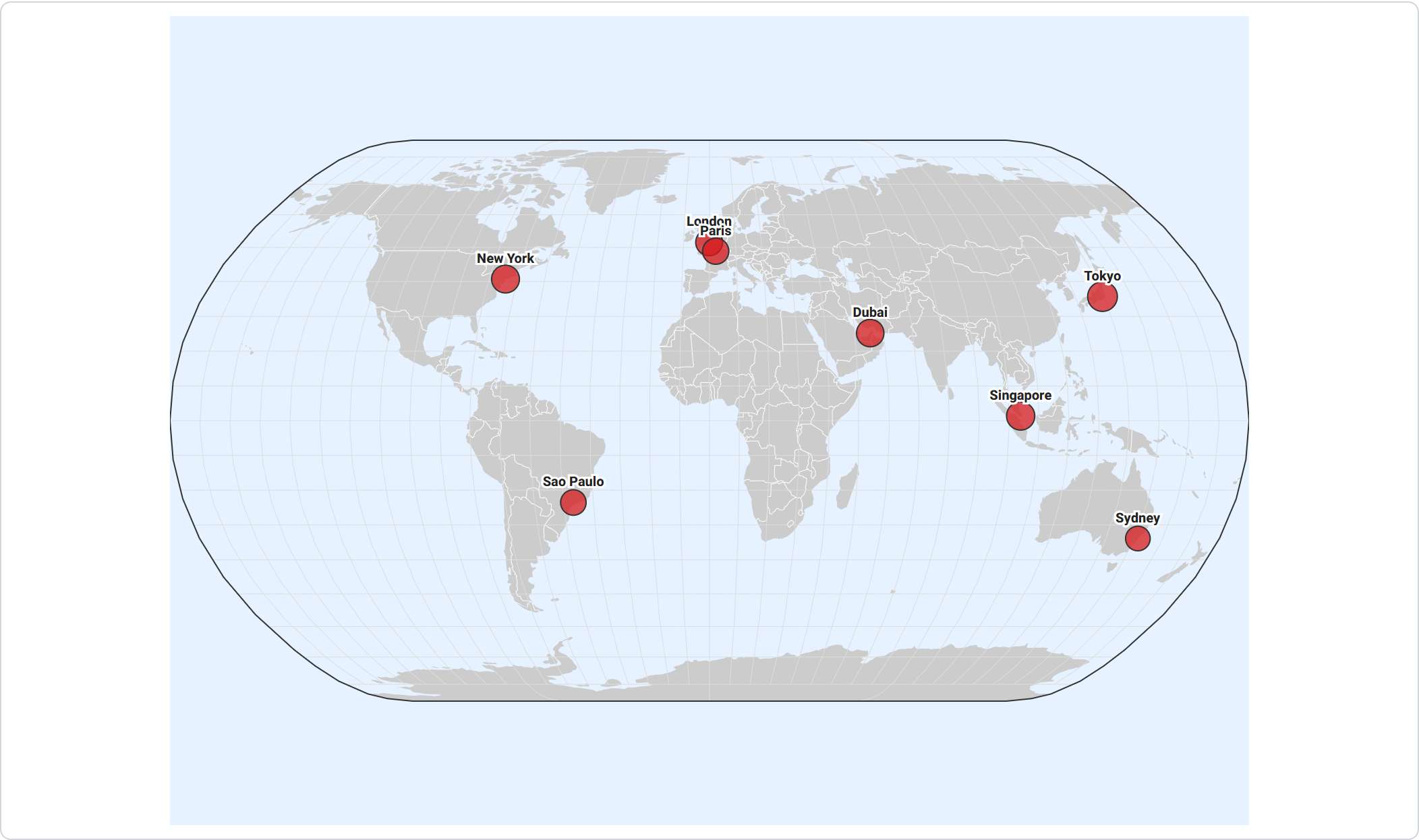
| World Map | World map with a marker for each location, sized by value | Offices, stores, event locations, anything geographic. |
Step 2 — Provide your data
Each visualization needs a different shape of table, so this step changes to match your choice. Helpfully, it tells you the shape it wants and starts pre-filled with a working example — you can preview the result before touching anything, then replace the example with your own figures.
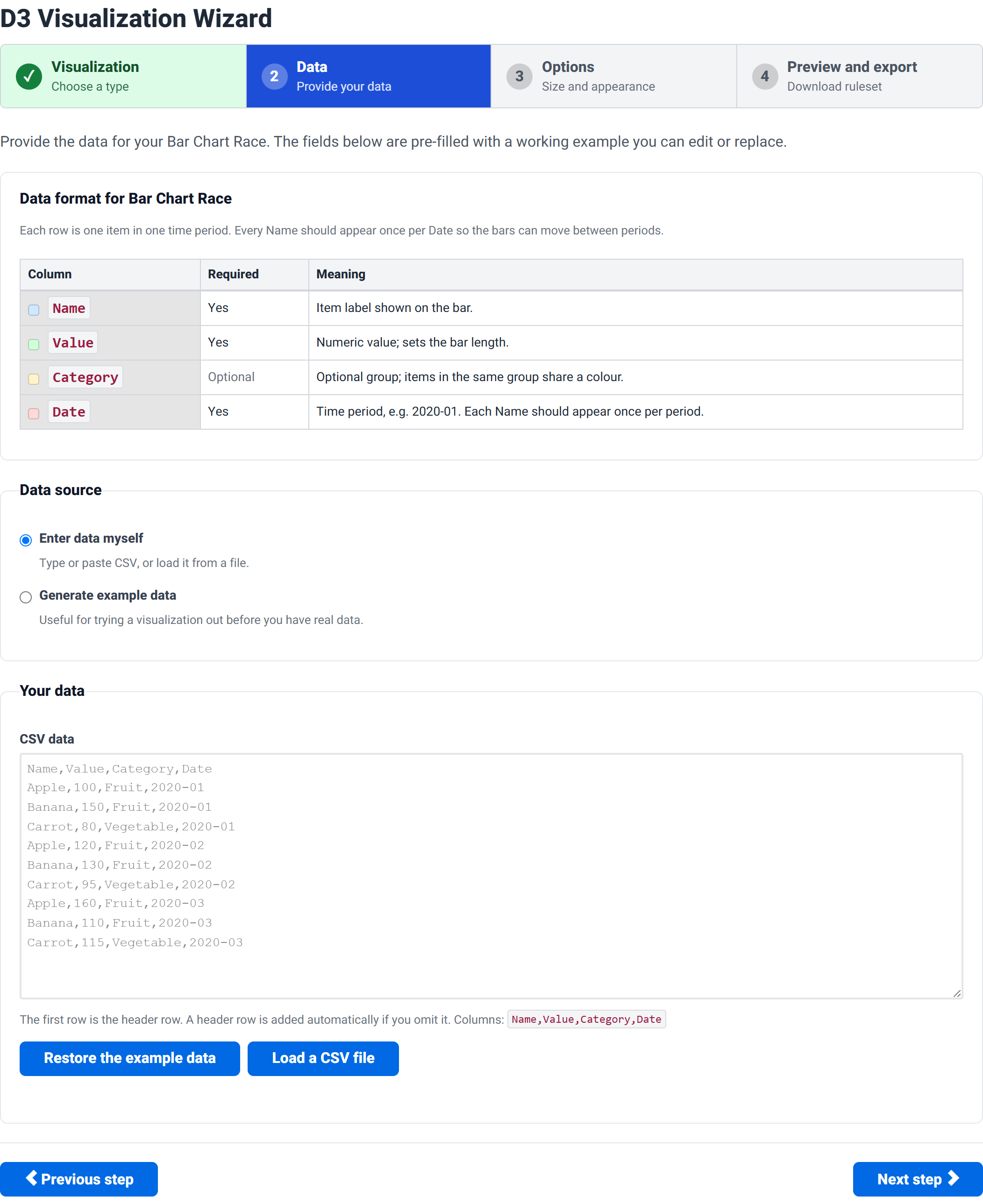
Two data sources are offered:
- Enter data myself — type or paste CSV, or load it from a file.
- Generate example data — useful for trying a visualization out before you have real data.
Restore the example data puts the supplied example back if you overwrite it and want to start again.
The three data shapes
1. A hierarchy — circle packing, sunburst, tree
These three all read the same thing: a flat table where each row names a node and its parent. The structure emerges from those links.
| Column | Required | What it does |
|---|---|---|
Name |
Yes | Node label. Must be unique. |
Parent |
Yes | The Name of this node's parent. Leave blank for the single root. |
Value |
No | Numeric size for leaf nodes. Leave blank on branches — they are sized by their children. Not used by the tree. |
Name,Parent,Value
Company,,
Engineering,Company,
Sales,Company,
Frontend,Engineering,450
Backend,Engineering,520
DevOps,Engineering,310
Exactly one row must have an empty Parent. That row is the root. Two blank parents means two roots and the visualization cannot be built; none means the rows form a loop with no starting point.
Leave Value blank on branches. A branch's size is the sum of its children. Filling in a value on a branch as well double-counts it.
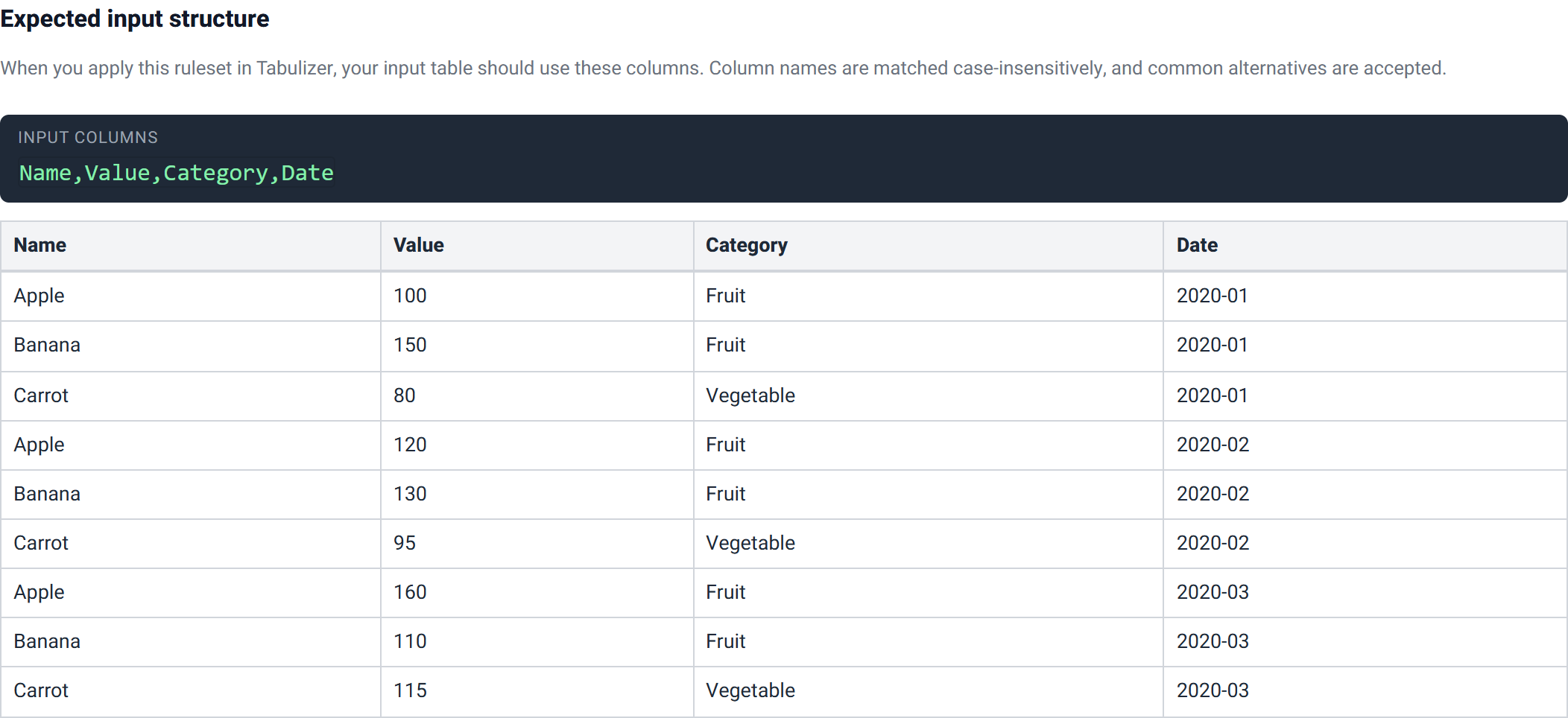
2. A ranking over time — bar chart race
| Column | Required | What it does |
|---|---|---|
Name |
Yes | Item label shown on the bar. |
Value |
Yes | Numeric value; sets the bar length. |
Category |
No | Optional group; items in the same group share a colour. |
Date |
Yes | Time period, e.g. 2020-01. |
Name,Value,Category,Date
Apple,100,Fruit,2020-01
Banana,150,Fruit,2020-01
Carrot,80,Vegetable,2020-01
Apple,120,Fruit,2020-02
Banana,130,Fruit,2020-02
Carrot,95,Vegetable,2020-02
Every name should appear once in every period. That is what lets a bar move smoothly from one position to the next. A name missing from a period will jump rather than glide.
3. Places on the Earth — world map
| Column | Required | What it does |
|---|---|---|
Location |
Yes | Place name shown next to the marker. |
Latitude |
Yes | Decimal degrees, e.g. 40.7128. Negative south of the equator. |
Longitude |
Yes | Decimal degrees, e.g. -74.0060. Negative west of Greenwich. |
Value |
No | Optional; sets the marker size. |
Location,Latitude,Longitude,Value
New York,40.7128,-74.0060,500
London,51.5074,-0.1278,450
Tokyo,35.6762,139.6503,600
Sydney,-33.8688,151.2093,350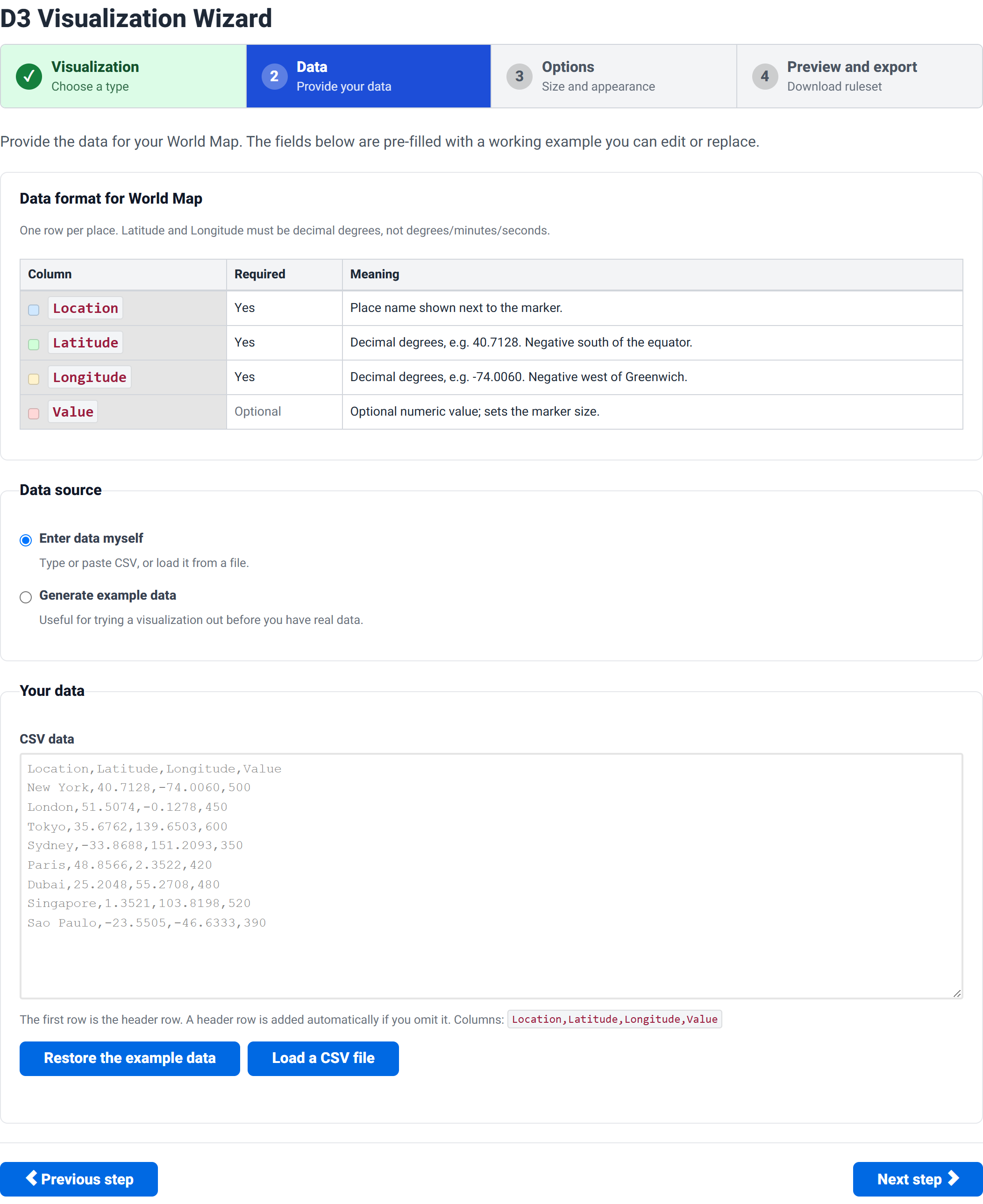
Coordinates must be decimal degrees, not degrees/minutes/seconds. 51.5074, not 51°30'27"N. Most mapping sites will give you the decimal form if you ask for “copy coordinates”.
Column names are matched case-insensitively and common alternatives are accepted — lat and lon work as well as the full words, item as well as Name, group as well as Category.
Step 3 — Options
A short step. A General group that every visualization shares, then one group of options specific to the type you chose.
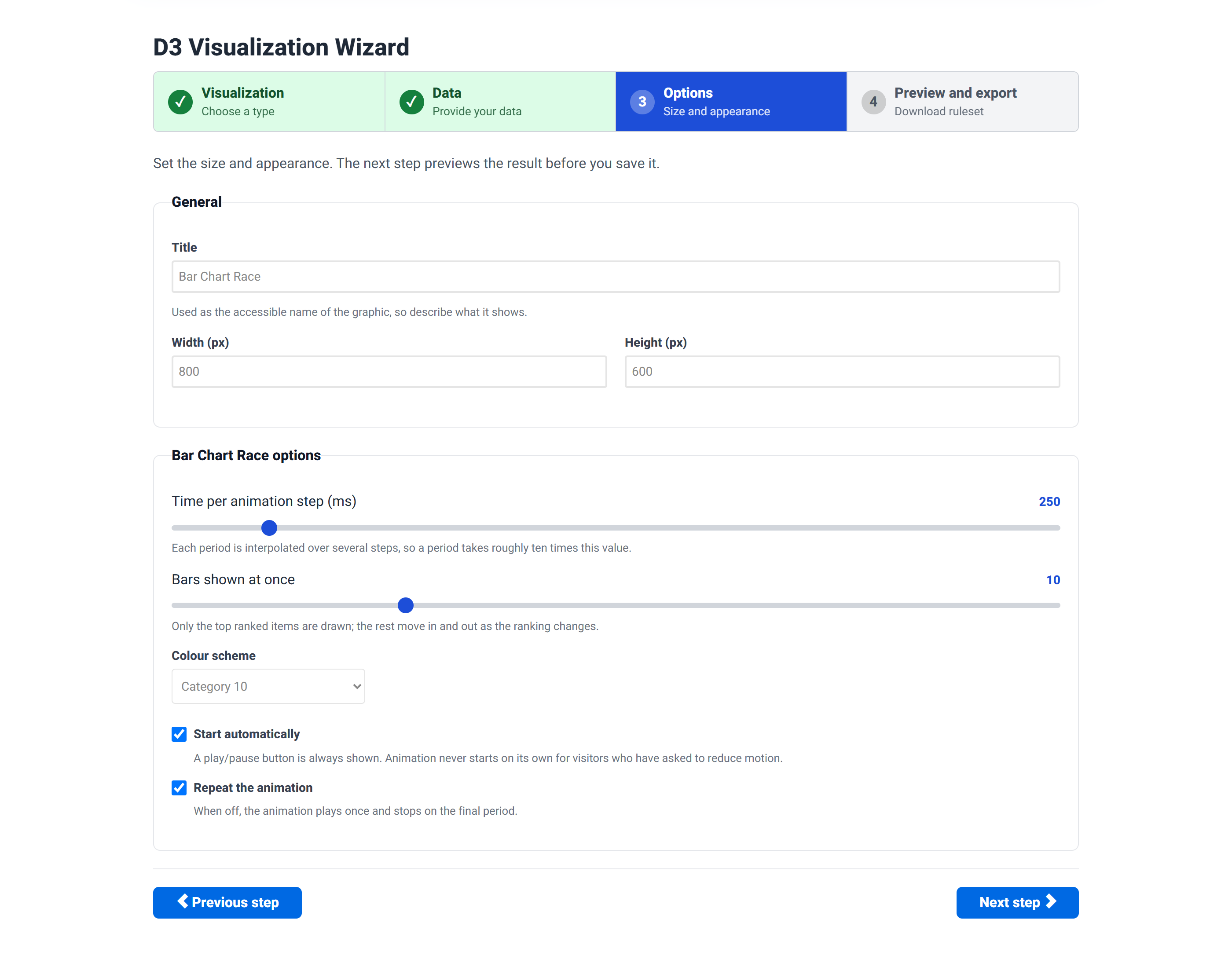
| Setting | Notes |
|---|---|
| Title | Used as the accessible name of the graphic, so describe what it shows rather than labelling it “chart”. |
| Width / Height | The drawing area in pixels. |
The title is doing real work. A visitor using a screen reader hears it as the name of the graphic, so “Headcount by department, 2026” is far more use than “Sunburst”.
Bar Chart Race options
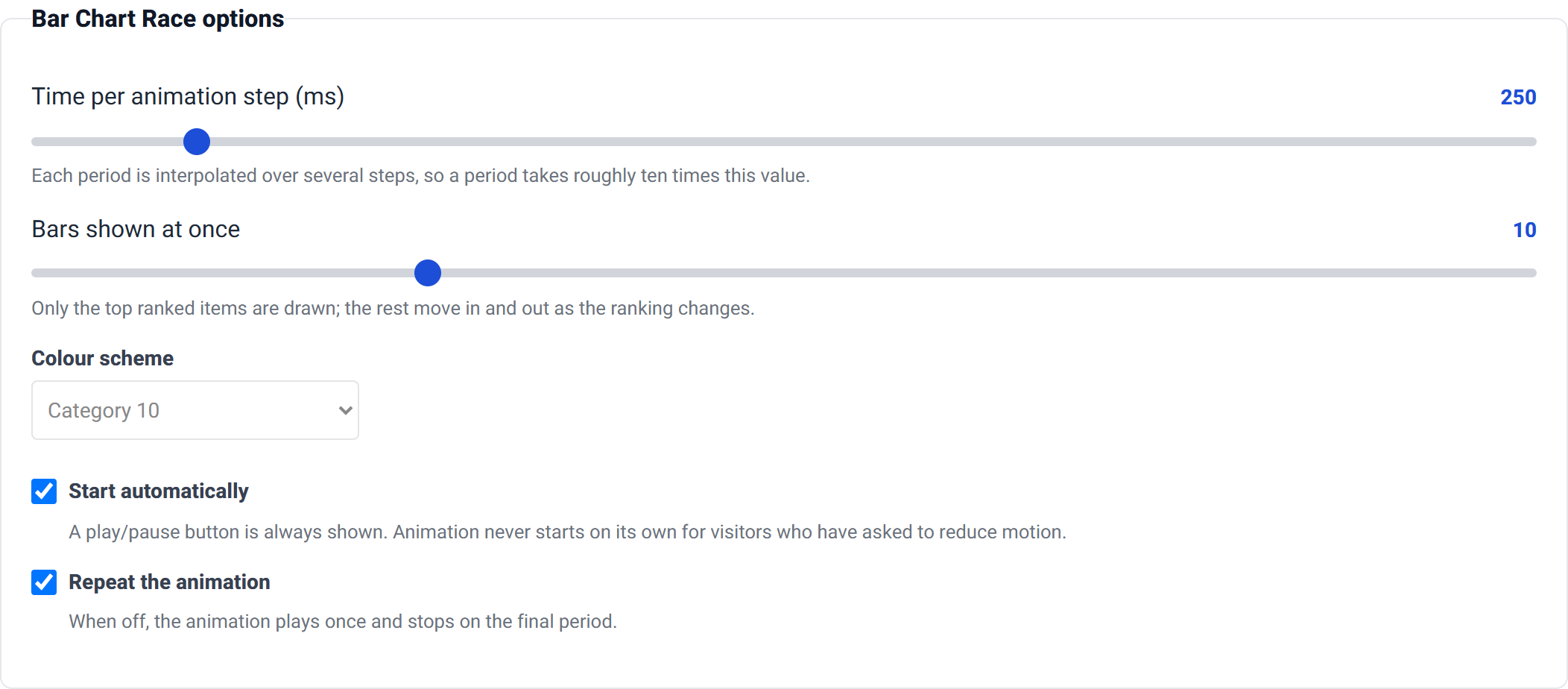
| Setting | Default | Notes |
|---|---|---|
| Time per animation step | 250ms | Each period is interpolated over several steps, so a period takes roughly ten times this. |
| Bars shown at once | 10 | Only the top ranked items are drawn; the rest move in and out as the ranking changes. |
| Colour scheme | Category 10 | Six ordinal schemes. |
| Start automatically | On | A play/pause button is always shown. |
| Repeat the animation | On | When off, it plays once and stops on the final period. |
The animation never starts on its own for visitors who have asked their system to reduce motion — they get the play button instead.
Circle Packing and Sunburst options


Collapsible Tree options
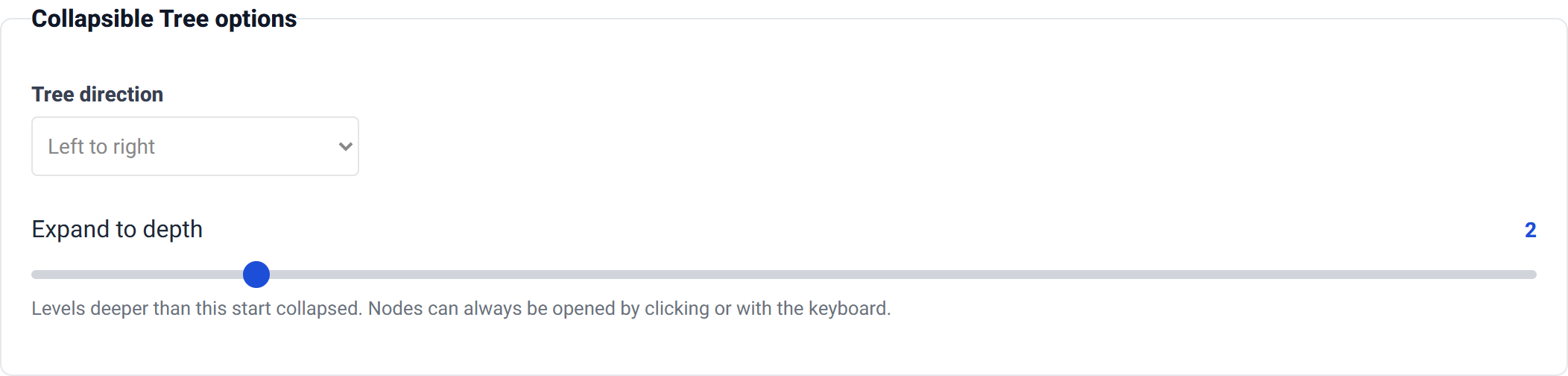
- Tree direction — left to right, or top to bottom.
- Expand to depth (default 2) — levels deeper than this start collapsed. Nodes can always be opened by clicking or from the keyboard.
World Map options
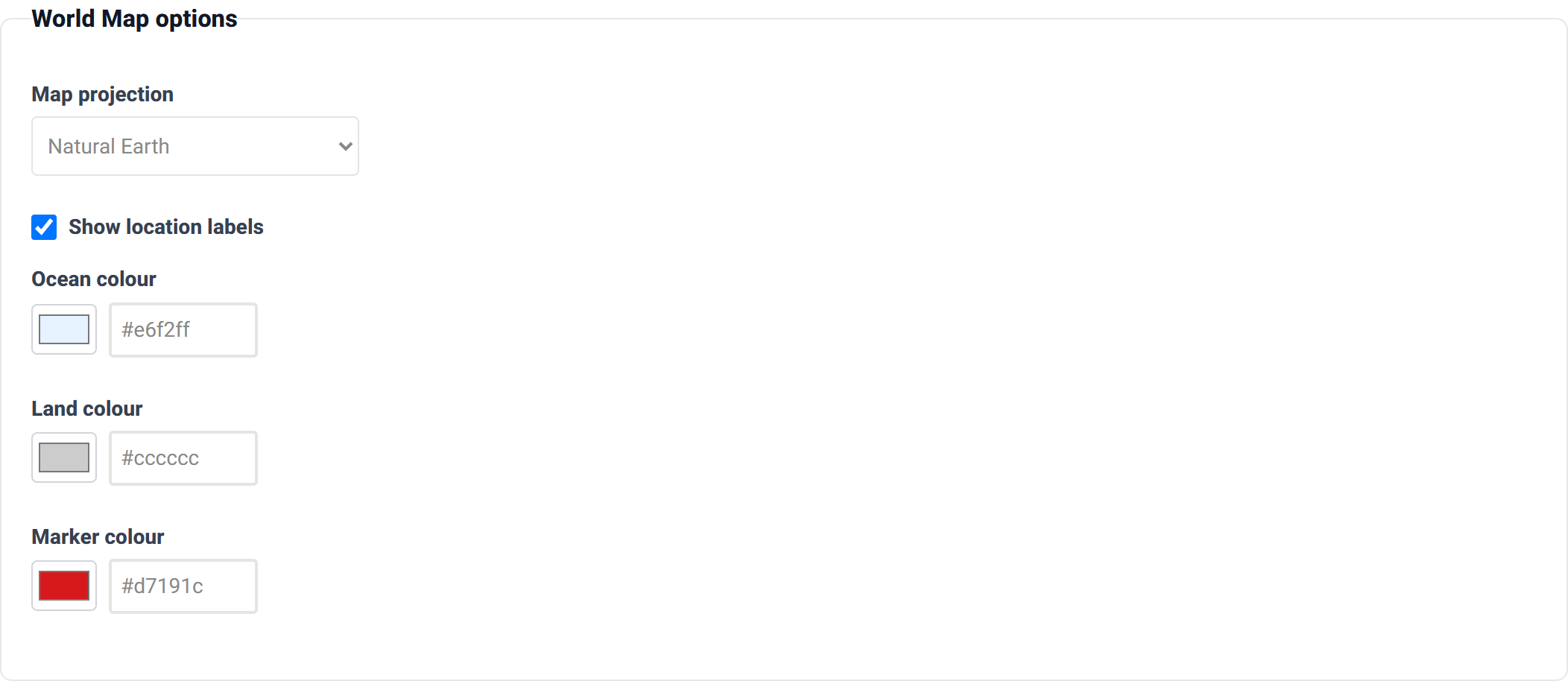
| Setting | Default | Notes |
|---|---|---|
| Map projection | Natural Earth | Also Mercator, Equirectangular and Orthographic (a globe). |
| Show location labels | On | Turn off when markers are dense enough that labels collide. |
| Ocean / Land / Marker colour | — | The three colours of the map. |
Step 4 — Preview and export
The preview is the real visualization, fully interactive. Click a circle to zoom, open a branch, or press play on the race.
The hierarchy visualizations

- The root — the one row with an empty
Parent. - A branch — a row whose
Parentis the root. - A collapsed node — it has children, but they sit below the expand to depth setting. Click it to open.
The animated ranking
The map
Expected input structure

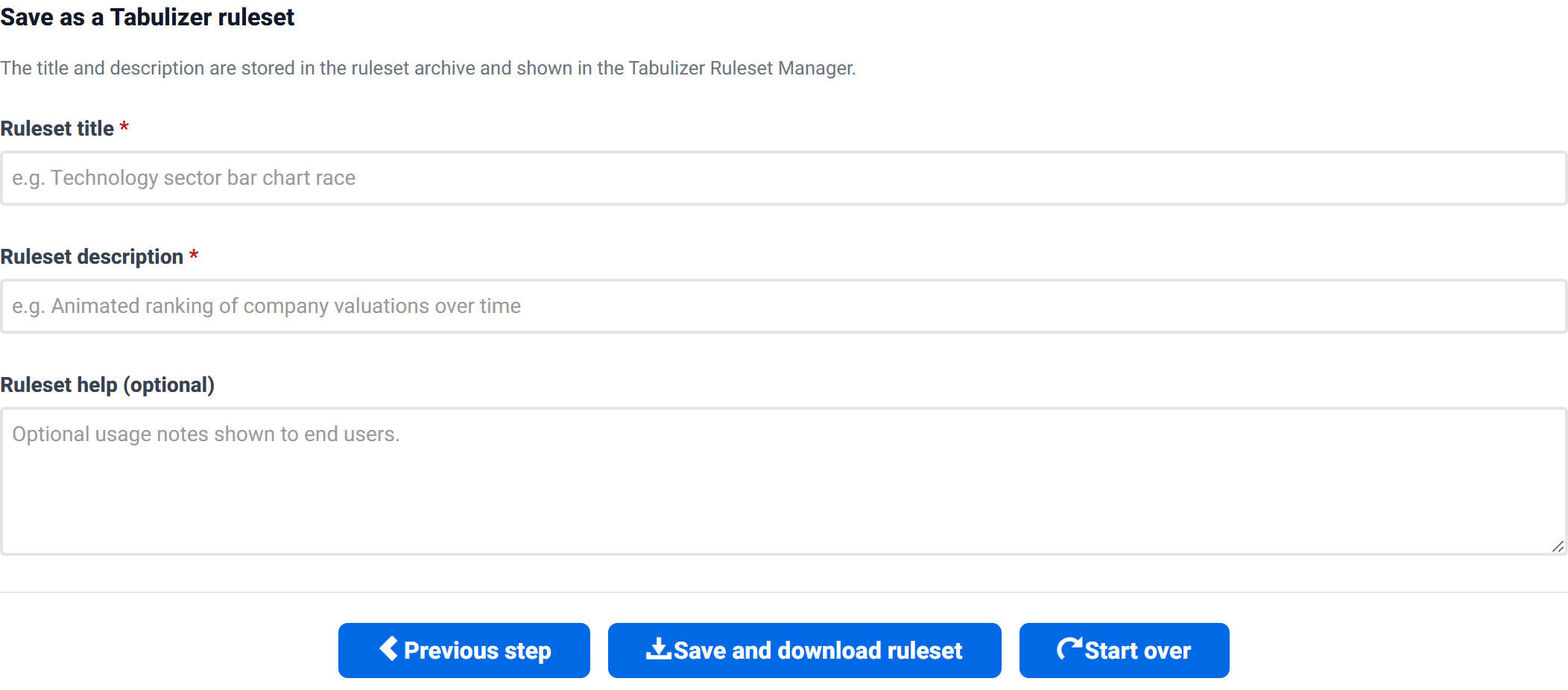
Save the ruleset
Using the ruleset on your own site
- In your site's administrator, open Tabulizer → Ruleset Manager and import the
.zipyou downloaded. - Create or edit the article that will hold the visualization.
- Insert a table using the columns from the Expected input structure section.
- Apply the imported ruleset to that table.
Everything needed to draw the visualization ships with Tabulizer, including the world map outline, so an imported ruleset keeps working regardless of what happens to the online wizard.
Tips and troubleshooting
Nothing is drawn, or I get an error about the root
For circle packing, sunburst and tree, exactly one row must have an empty Parent. Check for a stray space in that cell — a space is not empty.
A branch is the wrong size
Leave Value blank on branches. A branch is sized by the sum of its children, so giving it a value of its own double-counts.
A node is missing from my hierarchy
Its Parent has to match another row's Name exactly — same spelling, same capitalisation is safest, and no trailing spaces. A node whose parent does not exist has nowhere to attach.
Two nodes have the same name
Name must be unique, because it is what Parent points at. Two “Support” nodes need distinguishing, for example “Support (EU)” and “Support (US)”.
My bars jump instead of sliding
Each name needs a row in every period. Fill the gaps — repeating the previous value is usually right.
The race is over too quickly, or drags
Adjust time per animation step. Remember one period takes roughly ten times that value, so 250ms is about 2.5 seconds per period.
My markers are in the wrong place
Latitude and longitude are probably swapped, or in the wrong format. Latitude is the north–south one and runs −90 to 90; longitude runs −180 to 180. Both must be decimal degrees.
The map labels overlap
Turn off show location labels, or increase the width and height so there is more room between markers.
My tree is too deep to read
Lower expand to depth so more of it starts collapsed, and let visitors open the parts they care about.
Related articles
- Chart Wizard
- Pricing Tables Wizard
- Gallery Wizard
- Calendars and Timelines Wizard
- Contact Form Wizard
- Calculator Wizard
- Importing a ruleset into Tabulizer