How to create a static HTML table with Tabulizer
Creating a Static Table
Build a styled table from data you type or point at, and drop the finished HTML straight into the article - where you can carry on editing it like any other content.
What “static” means here
A static table is ordinary HTML. The wizard reads your data once, applies a ruleset to it, and writes the finished <table> into the article. From that moment the table belongs to the article: you can retype a cell, add a row, bold a word, drag a column wider - everything the editor lets you do to any other table.
That is the whole appeal, and it is also the whole limitation. The table is a snapshot. If the spreadsheet it came from changes next month, the article does not notice. For data that keeps moving you want a dynamic table instead, which is Tutorial 10.
Opening the wizard
Edit any article, put the cursor where the table should go, and open CMS Content in the editor toolbar. Tabulizer is the last entry.
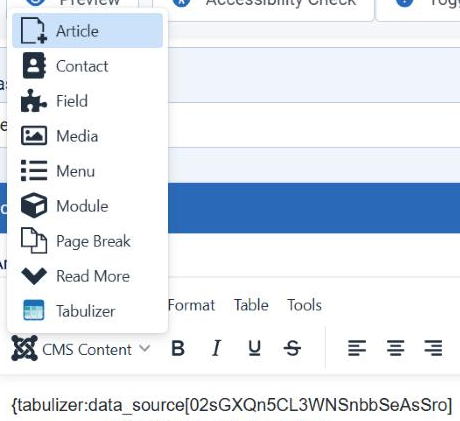
Step 1 - choose the mode
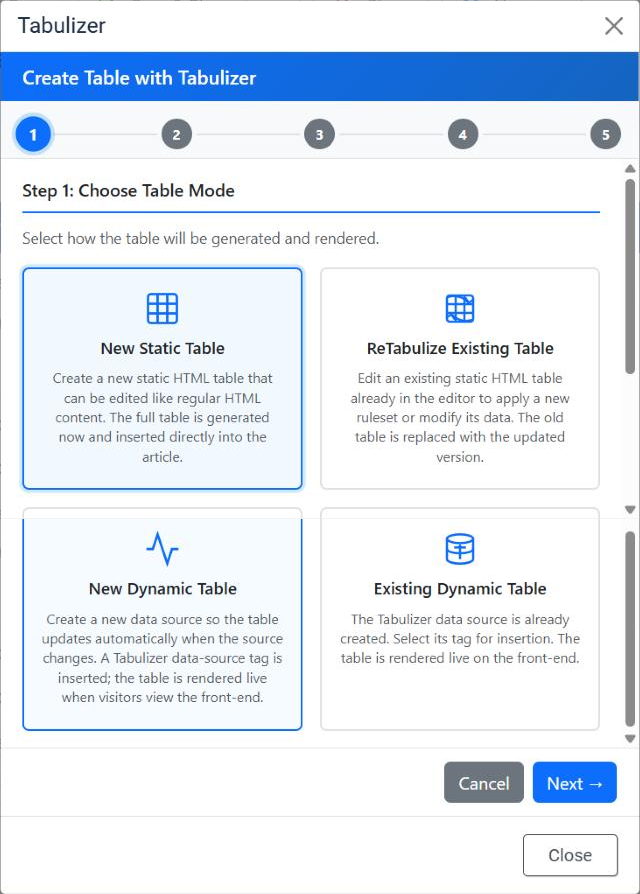
The wizard always opens on the same four cards. This tutorial is the first one.
| Mode | What it does |
|---|---|
| New Static Table | This one. Generates the full HTML table now and inserts it. |
| ReTabulize Existing Table | Takes a table already in the editor and rebuilds it - Tutorial 9. |
| New Dynamic Table | Creates a data source and inserts a tag - Tutorial 10. |
| Existing Dynamic Table | Inserts the tag of a data source you already built - Tutorial 11. |
Step 2 - where the data comes from
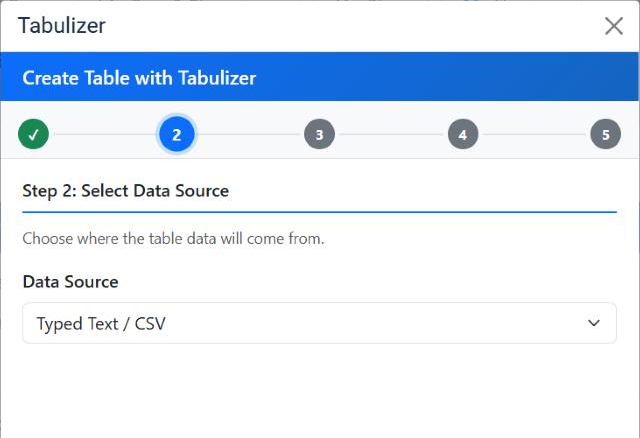
Ten sources are offered. All but one of them are also available to a dynamic table; the exception is the first, and it is the one most people want here.
| Source | Use it when |
|---|---|
| Typed Text / CSV | You have the numbers in your head or on a scrap of paper. Static only - there is nothing for a dynamic table to re-read. |
| CSV File / Excel File | The data already lives in a file on the site or at a URL. |
| Database Query | A SQL SELECT against the Joomla database or an external one. |
| Remote HTML Table | The table exists on another web page and you want a copy of it. |
| Google Doc / Spreadsheet | The data is kept in a shared Google sheet. |
| JSON File / API, XML File, RSS / Atom Feed, Google Calendar / ICS | The data comes from a feed or an endpoint rather than a file. |
Step 3 - the data itself
What this step asks for depends entirely on the source you picked. Typed Text gives you a box to paste into, and the first row becomes the header row.
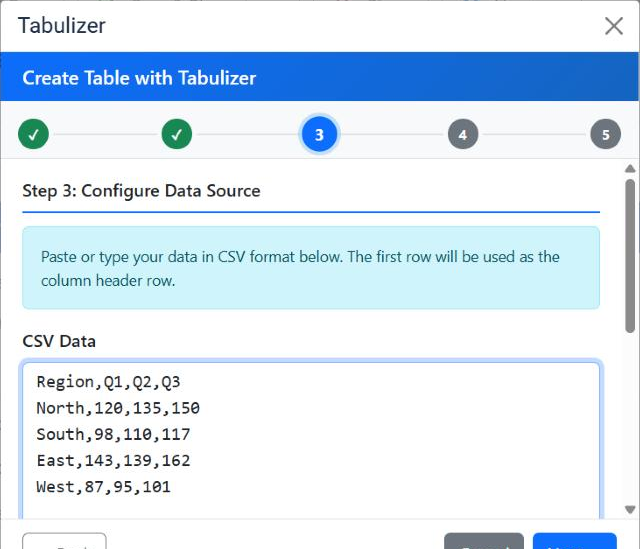
Below the box sit Separator, Enclosure and Encoding. The defaults - comma, double quote, UTF-8 - are right for anything you type by hand. Change them only when you are pasting from somewhere that disagrees: semicolons are common in spreadsheets saved on European locales, and a value containing a comma has to be wrapped in the enclosure character to survive.
North,,150 is three cells, North,150 is two.Step 4 - the ruleset
This is the step that decides what the table looks like and what it can do. Pick an Archive first; the Ruleset list then fills with the rulesets inside it.
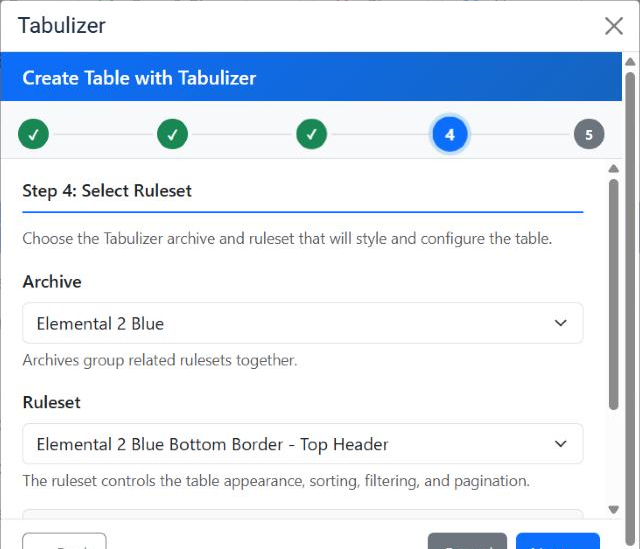
An archive is a family of rulesets that share a palette - Elemental 2 Blue, Elemental 2 Green and so on. The ruleset inside it is the specific look: where the borders go, whether the first row is a header, whether rows alternate shading.
class and id attributes intact or the behaviour stops working.Step 5 - confirm
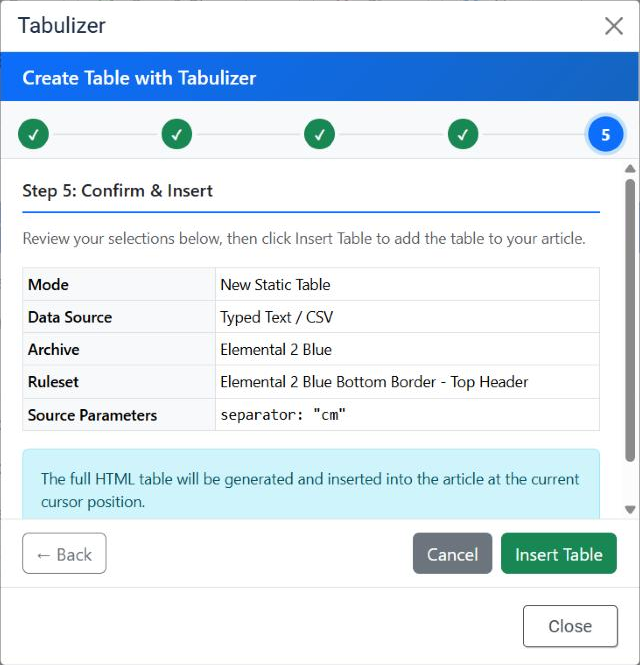
The summary is worth a glance, because the two rows people get wrong are next to each other: the archive and the ruleset. There is no Data Source Title field on this step - static mode creates nothing in the Tabulizer component, so there is nothing to name.
Click Insert Table and the dialog closes.
What lands in the article
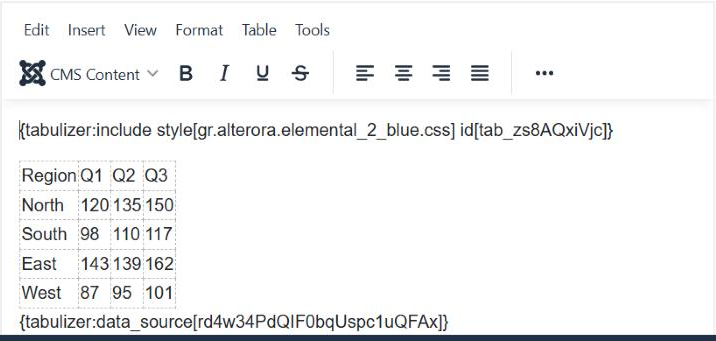
Two things, in this order:
A stylesheet marker
A line reading {tabulizer:include style[….css] id[tab_…]}. It is not decoration - it is how the ruleset's stylesheet gets loaded for this table on the front end. Delete it and the table loses its styling.
The table
A real <table> you can click into and edit. It carries an id, a class naming the ruleset, and a data-ruleset attribute recording which archive and ruleset built it.
data-ruleset attribute is what lets you come back later and restyle the table without rebuilding it from scratch. The ReTabulize mode reads it - see Tutorial 9.Common questions
Can I edit the table afterwards?
Yes - that is the point of this mode. It is ordinary HTML in your article. Add rows, change numbers, apply bold, use the editor's own Table menu.
Will my edits survive?
Until you reTabulize that table, yes. ReTabulize regenerates it, so hand edits to formatting are lost - though the cell contents are carried across and offered back to you for editing.
Did this create a data source?
No. Nothing appears under Components › Tabulizer › Data Sources. Static mode generates HTML and stops.
The table looks unstyled on the front end.
The include marker was deleted, or the table's class attribute was stripped - some editors and some paste operations do that. Reinsert, or use ReTabulize to rebuild it.
Sorting and searching do not work.
Either the ruleset does not provide them, or the table's id has been changed or duplicated. Two tables on one page must not share an id.
My data changes every week.
Then this is the wrong mode. A dynamic table re-reads its source on every page view - Tutorial 10.
Try it on an article
Open any article, place the cursor, and choose CMS Content › Tabulizer › New Static Table.
Back to the Knowledge Base