The Tabulizer Table Block
The Tabulizer Table Block
The block the wizard fills - what it holds, how it stores it, and the rules that follow from that. Read this once and the four wizard modes stop surprising you.
One block, four jobs
Tutorials 1 to 4 cover what the wizard does: build a static table, reTabulize an existing one, create a data source, insert one you already had. All four put their result in the same place - a Tabulizer Table block.
This tutorial is about the block itself. It is short, because the block is simple, but a few of its properties explain behaviour that otherwise looks arbitrary.
What the block looks like
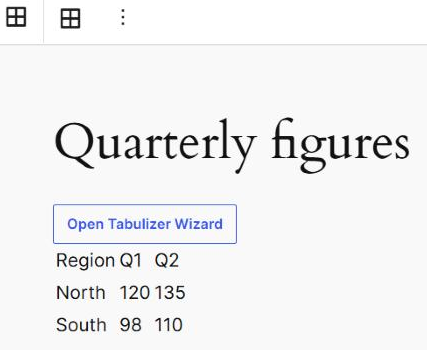
Three parts, and all three are always there:
The toolbar button
Select the block and a grid icon appears in the block toolbar, labelled Tabulizer. It opens the wizard. Same job as the button in the block.
The Open Tabulizer Wizard button
Inside the block, above its contents, for as long as the block exists. It is editing furniture - it never appears on the published page.
The contents
Whatever the wizard last produced. An empty block shows a prompt instead: Use the Tabulizer wizard to create or insert a table.

The contents are editable text
The block's contents are an editable region, not a locked preview. Click into a cell and retype it; the change is yours and it sticks.
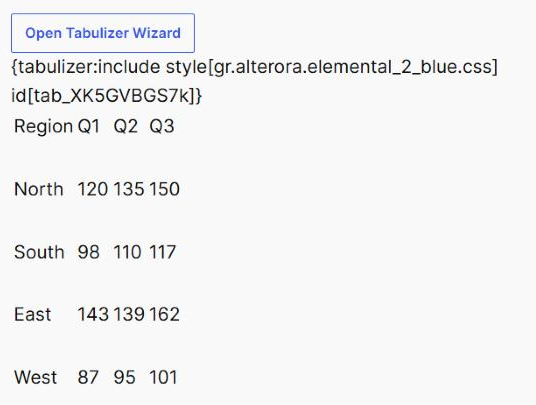
That is what makes a static table worth having - see Tutorial 1. But it cuts both ways, because everything in the block is editable, including the parts that are not the table:
{tabulizer:include style[….css] id[tab_…]} is how the ruleset's stylesheet gets loaded. It looks like stray text and it is tempting to delete. Delete it and the table loses its styling on the published page.The same applies to the table's own id and class attributes, which you cannot see in the editor but which carry the ruleset and any sorting or filtering it provides. Retyping cell text is safe; wholesale reformatting is not.
A dynamic table lives in the same block
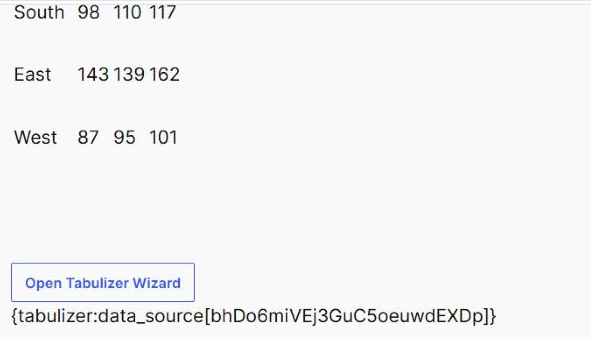
Both modes produce a Tabulizer Table block. The difference is only what is inside it: a static table puts the whole table there, a dynamic one puts a single {tabulizer:data_source[…]} tag.
So a block holding a tag has nothing to edit - the rows do not exist until a visitor loads the page. There is no error and nothing is missing; that is simply what a dynamic table looks like from the inside.
How it is stored
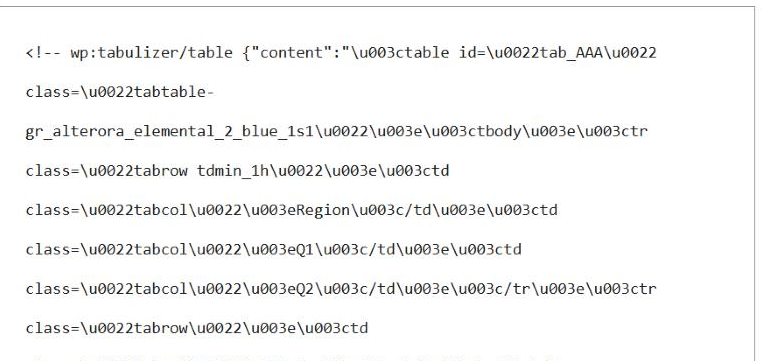
Open the code editor and you see the whole of it: one block comment, with the table tucked into a content attribute and its characters escaped. Nothing is saved as ordinary post HTML - the block renders itself when the page is served.
| Consequence | Why it matters |
|---|---|
| The escaping is normal | \u003ctable is just <table. The code editor is not showing you a corrupted table. |
| Hand-editing there is risky | It is one long JSON string. Edit the block in the visual editor instead, or re-run the wizard. |
| Copying the block copies the table | Duplicate the block, or paste it into another post, and the table travels with it - no data source needed for a static one. |
The wizard only sees its own block
This is the property worth remembering, because it explains a result that otherwise looks like a bug.
When you open the wizard, it is handed the contents of that block and nothing else. So in ReTabulize Existing Table mode, the list of tables to choose from contains only the tables in the block whose button you clicked - even if the post has five other Tabulizer Table blocks full of tables.
In practice this is helpful rather than limiting - you cannot accidentally rebuild the wrong table - but it does mean the rule is open the wizard from the block you want to change, not from whichever block is nearest.
Common questions
Where is the block's settings sidebar?
It has none - no colours, no widths, no options. Everything about the table comes from the ruleset, and everything about the content comes from the wizard. The Tabulizer Data Source block is the one with a sidebar.
Can I put two tables in one block?
You can paste a second table in by hand, and ReTabulize will then offer you both. It is tidier to use two blocks.
Can I move or duplicate it?
Yes, like any block. A static table is self-contained, so it survives the trip; a dynamic one carries its tag and keeps pointing at the same data source.
I deleted the block. What did I lose?
A static table: the table, unless the post has a revision you can restore. A dynamic one: nothing of consequence - the data source is untouched and you can insert its tag again.
The table shows in the editor but not on the page.
Check the include marker is still in the block, and that the table kept its class. Both are easy to delete by accident while editing cells.
Can I convert it to a Custom HTML block?
There is no conversion offered. If you want the raw HTML, copy it out of the rendered page rather than the code editor, where it is escaped.
Which block should I reach for?
This one to build a table. The Tabulizer Data Source block to show a data source you already built.
Open one and look
Add a Tabulizer Table block to any post - the wizard is one click away, and the block will tell you the rest.
Back to the Knowledge Base