Updating data from the front end with Tabulizer File Uploader
Updating data from the front end with Tabulizer File Uploader
Give the person who maintains your spreadsheet a place to upload it. Keep the data source, the table and the site administration in your hands.
What it is for
You have a price list, a timetable or a set of monthly figures displayed through a Tabulizer data source. Someone else prepares the file, and every update means asking you to replace it on the server.
Tabulizer File Uploader gives that person an upload form on the front end of the site. They sign in, choose their updated file and upload it. You decide who can upload, where the file goes, which formats are accepted and how large it may be.
The useful arrangement is simple: create the data source once, point it at a file, then keep replacing that file with a newer copy under the same name. The pages displaying the data source continue to use it.
Step 1 - install the plugin
- In the WordPress dashboard, open Plugins › Add New and click Upload Plugin.
- Choose the Tabulizer File Uploader ZIP, click Install Now, then Activate Plugin.
- Open File Uploader in the dashboard menu.
The plugin requires WordPress 6.0 or later and PHP 7.4 or later. On a multisite installation, activate it separately on each site where you need it.
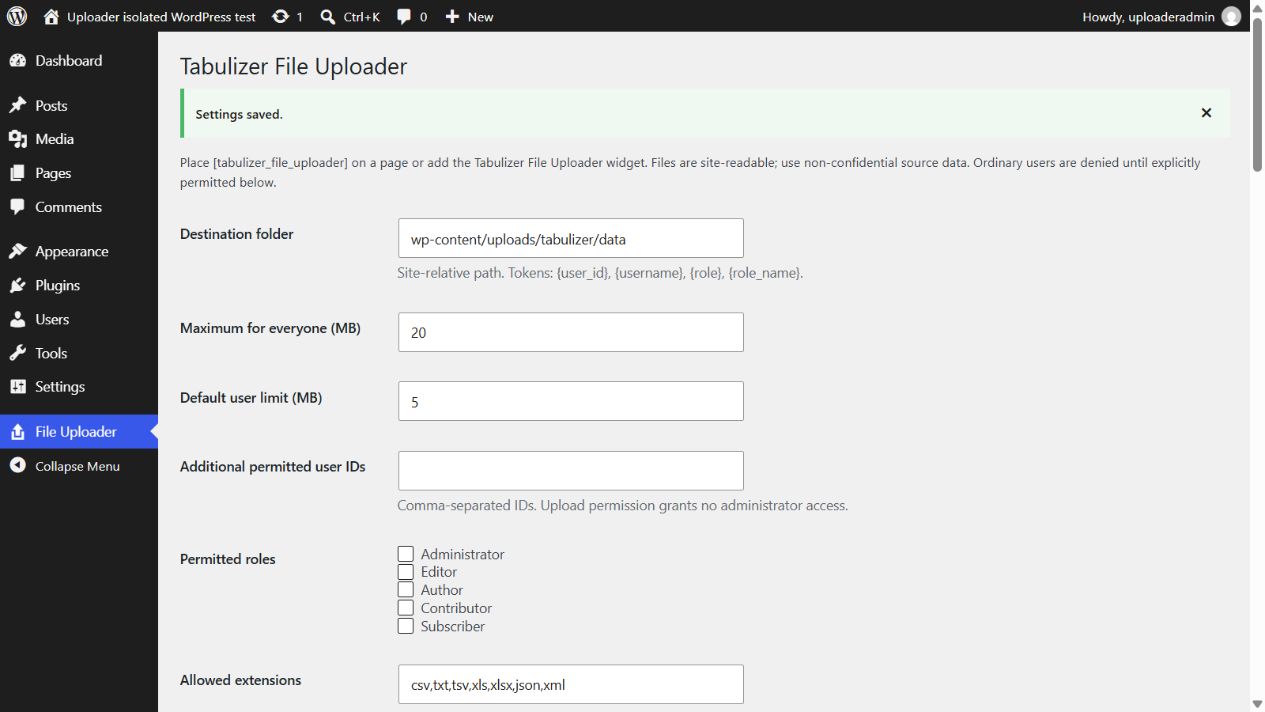
Step 2 - decide who may upload
Start with access. A signed-in account is required, and ordinary users cannot upload until you permit them. There are two ways to do it:
| Setting | When to use it |
|---|---|
| Additional permitted user IDs | For particular people. Enter their numeric WordPress user IDs, separated by commas, such as 42, 57. |
| Permitted roles | For everyone in a role. Select Subscriber, for example, only if every subscriber should be allowed to upload. |
To find an ID, open Users › All Users and edit the account. The address in the browser contains a value such as user_id=42; the number is the ID to enter.
Click Save Changes. People who already have the WordPress manage_options capability, normally administrators, can upload without an additional grant.
Step 3 - choose the destination and limits
The usual destination is:
wp-content/uploads/tabulizer/dataThat is relative to the WordPress installation root, including when WordPress lives in a subfolder. If Tabulizer has a custom storage location, the uploader uses its data folder as the default where that location is inside the WordPress root. Check the value shown on your own settings screen.
| Setting | What it does |
|---|---|
| Destination folder | The folder receiving uploads. Missing permitted folders are created during an upload if the server allows it. Enter a site-relative path, not a URL or an absolute server path. |
| Maximum for everyone (MB) | The ceiling for every uploader, including people with individual rules. The initial value is 20. |
| Default user limit (MB) | The normal limit before a matching user or role rule changes it. The initial value is 5. |
| Replace existing files | Enabled initially. Uploading the same filename into the same folder replaces the previous file. Disable it to reject files whose names already exist there. |
The form shows the uploader's effective limit. A rule cannot exceed the global ceiling, the plugin's fixed 100 MB ceiling, or the lower limits imposed by WordPress, PHP and the web server.
Step 4 - select file types
Allowed extensions initially contains csv,txt,tsv,xls,xlsx,json,xml. Remove formats you do not use; for a CSV-only workflow, enter csv.
File contents are checked as well as the extension. Renaming another kind of file to .csv does not make it acceptable. JSON and XML must be valid, and spreadsheet uploads have their own format checks.
Additional MIME restriction is optional. Leave it empty for the built-in checks, or enter a comma-separated list of detected MIME types to narrow them further. MIME detection can identify a normal CSV as text/plain, so an unnecessarily narrow list can reject valid files.
monthly-sales.csv. Letters, numbers, spaces, hyphens and underscores are supported in the filename stem. Rename sales.2026.csv to sales-2026.csv, and save CSV/text as UTF-8.Different folders or limits for different people
Under User and role rules, click Add rule. Select a person by User ID or Exact username, or leave both blank and select a role. Then set a destination, a size limit, or both.
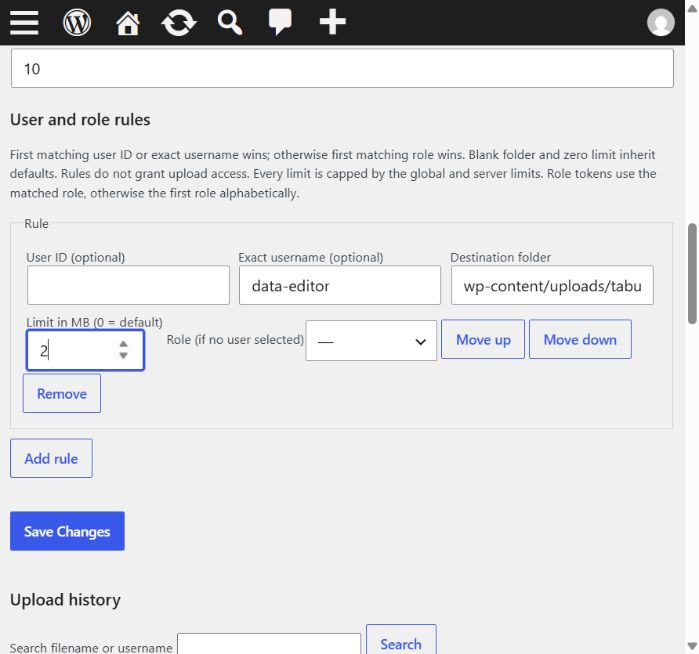
For example, give the account data-editor a 2 MB limit and this destination:
wp-content/uploads/tabulizer/data/{user_id}-{username}For user 42, that becomes wp-content/uploads/tabulizer/data/42-data-editor. The values are filled in for the person uploading, and names are converted to safe folder names.
| Token | Example value |
|---|---|
{user_id} |
42 |
{username} |
data-editor |
{role} |
subscriber, the role slug |
{role_name} |
Subscriber, the role name converted to a safe folder name |
The first matching user-ID or exact-username rule wins. If none matches, the first matching role rule wins; otherwise the defaults apply. Use Move up and Move down to change the order. A blank folder inherits the default folder, and a limit of 0 inherits the default user limit. Save your changes.
Role tokens use the role matched by the rule. Without a matching role rule, they use the account's first role alphabetically. WordPress roles have slugs rather than numeric group IDs.
Step 5 - put the form on a page
- Open Pages › Add New, or edit the page where the form belongs.
- Add a WordPress Shortcode block.
- Enter
[tabulizer_file_uploader]. - Preview the page while signed in, then publish or update it when ready.
An authorised account sees the form. Other visitors see a message asking them to sign in with an authorised account. An ordinary signed-in account still needs the upload permission you configured earlier.
On a classic theme with widget areas, you can also add the Tabulizer File Uploader widget under Appearance › Widgets. It shares the plugin's settings; there is no second destination or permission list to maintain.
Step 6 - connect the uploaded file to Tabulizer
Choose the filename you want to keep, for example monthly-sales.csv, and upload its first copy. Then open Tabulizer › Data Sources and create or edit the file-based data source that should read it.
Set its file path to the actual uploaded file. With the default folder, our example is:
wp-content/uploads/tabulizer/data/monthly-sales.csvWith the individual folder from the rule example, it is:
wp-content/uploads/tabulizer/data/42-data-editor/monthly-sales.csvKeep the data source's parsing options and ruleset appropriate for the file, then display that data source in your page as usual. Every later upload must use the same destination and filename to update that source. A different filename creates a different file; the data source will continue reading the old one.
What the person updating the data does
- Sign in to the WordPress site and open the page containing the uploader.
- Drag one file onto the drop area, use Choose a data file, or click Browse using a text link.
- Click Upload file.
- Wait for the success message, then check the page displaying the data.
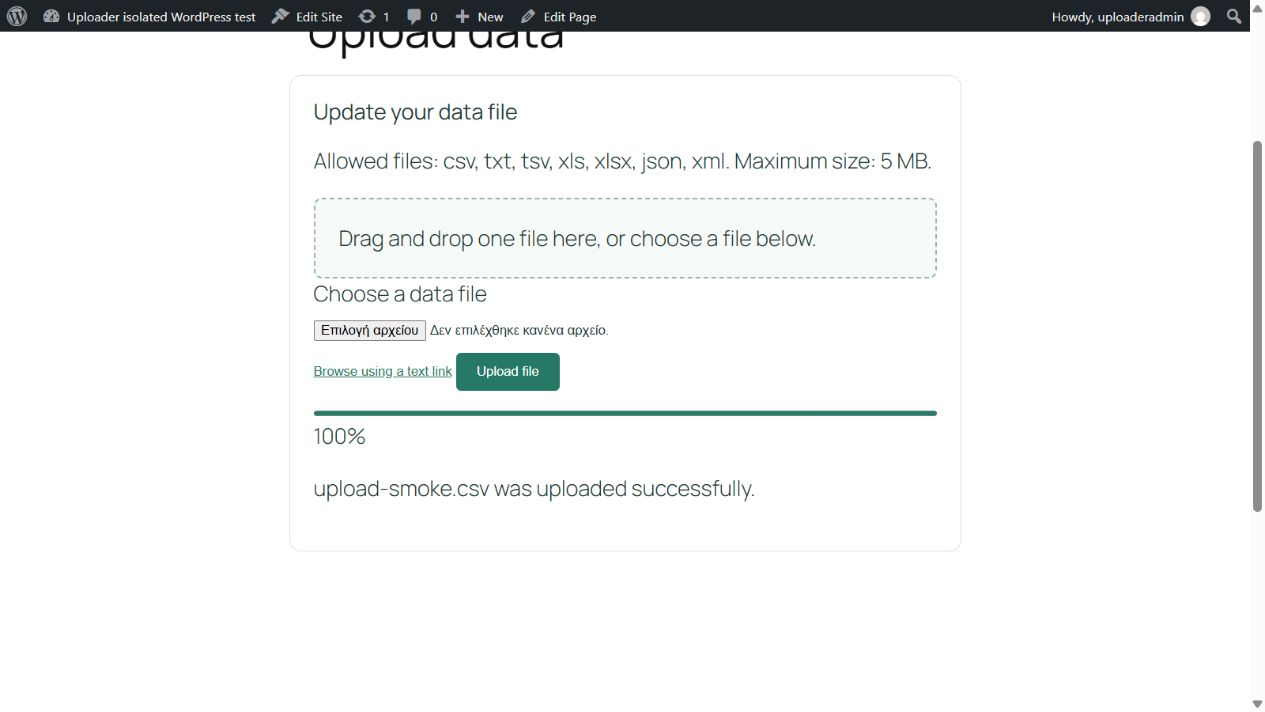
The progress bar measures the transfer. At 100%, the server may still be validating and saving the file; the success message confirms completion. Upload one file at a time.
Appearance, notifications and refresh
| Setting | What to do with it |
|---|---|
| Upload heading and Submit button text | Use wording that suits the task, such as “Update the monthly figures”. Leave them blank to use translated defaults. |
| Progress colour and Progress height | Choose a theme colour and a height between 4 and 40 pixels. The colour is also used on the upload button. |
| Notification recipients | Optionally enter email addresses separated by commas. A successful upload triggers a notification through WordPress mail. Leaving it blank sends none. |
| Refresh Tabulizer data-source caches | Leave enabled to clear Tabulizer's derived data-source caches after a successful upload when Tabulizer is active. Data-source definitions are kept. |
The plugin includes English and German language files and follows the WordPress language settings. Custom text you enter yourself remains as entered.
Checking the upload history
Return to File Uploader and look below the settings. Upload history records the UTC date, account, filename, destination, byte count, detected MIME type, replacement flag, status and notification result. Search by filename or username; longer histories have page links.
Replaced is 1 when an existing file was replaced, and 0 for a new file. Hover over the filename cell to see its SHA-256 checksum. The destination column is also a useful way to check exactly how a folder rule resolved.
A notification marked failed does not mean the file upload failed: check Status separately. WordPress accepting a notification for sending does not guarantee its delivery to the inbox. Rejected files do not appear as successful uploads; a pending row may indicate interrupted processing and needs checking.
Common questions
The user is signed in but cannot see the form.
Check their numeric ID or role in the access settings and save. A user rule alone does not grant permission. If the page is cached, exclude it from full-page caching and reload it.
The upload succeeded, but the table still shows the old data.
Compare the destination in Upload history with the data source's file path. Check the filename, the resolved user folder and the replacement flag. Then check Tabulizer's cache-refresh setting and any page or CDN cache.
Why is my CSV or Excel file rejected?
Check the filename, extension, effective size limit and any additional MIME restriction. A single-extension filename and UTF-8 text avoid common problems. Macro-enabled Excel files are not supported; JSON/XML must be valid, and renaming a file does not change its format.
The form says it has expired.
Reload the page and try again. If it keeps happening, check that your caching plugin is not serving a saved copy of the upload form.
A file with the same name is refused.
Enable Replace existing files if updates should replace that file. Otherwise choose a new name and update the data source's path if it should read the new file.
The destination cannot be used or the file cannot be saved.
Use a site-relative data folder inside the WordPress root. Core, plugin and theme code folders and paths through symlinks are refused. Ask the site administrator to check folder permissions and server upload limits.
Are the uploaded files in the Media Library?
No. They go to the destination you configured. Use Upload history to find the exact path.
What happens if I remove the plugin?
Uploaded files, settings and the audit table are retained. Removing the uploader does not remove the data files your tables may still use.
Set it up once, update it from the page
Choose the people, folder and filename, connect the file to your data source, and give the person maintaining it the upload-page link.
Back to the Knowledge Base