Show Image Paths as Pictures
Show Image Paths as Pictures
A product catalogue, a team list, a portfolio: the data says where each picture is - "images/products/desk-lamp.jpg" - and the table should show the picture itself. The img2src function turns cells that hold an image path or address into images.
What img2src does
It looks at the cells you choose. A cell whose whole content is the path or address of an image file becomes an <img> tag showing that file, with the height, width and CSS class you ask for. Every other cell is left exactly as it was.
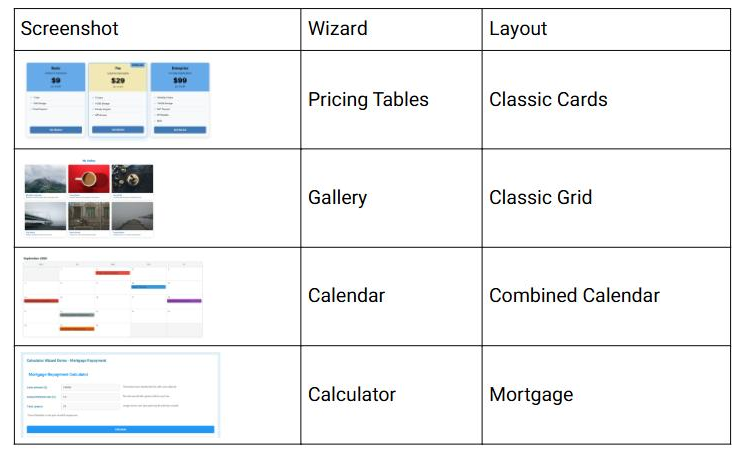
A list of wizard demos with the screenshot path in column 1, converted with columns:1;height:70;class:demo-shot:
| Screenshot (before) | Wizard | Layout |
|---|---|---|
| /images/features/pricing-classic-demo.jpg | Pricing Tables | Classic Cards |
| /images/features/gallery-classic-demo.jpg | Gallery | Classic Grid |
| /images/features/calendar-combined-demo.jpg | Calendar | Combined Calendar |
| /images/features/calculator-mortgage-demo.jpg | Calculator | Mortgage |
Each path becomes <img src="/images/features/pricing-classic-demo.jpg" height="70" class="demo-shot"/>. The header "Screenshot" is not an image path, so it stays as it is even though column 1 includes row 1.
Setting it up
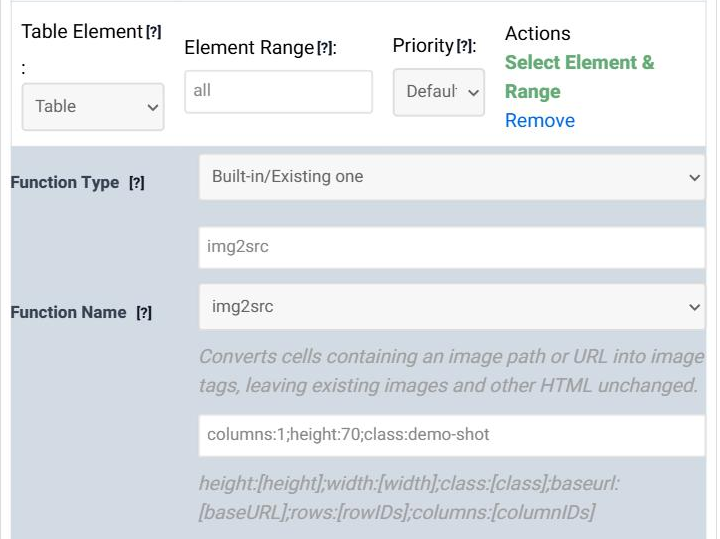
In step 5 (Modifications) of the Table Wizard, click Add new Data Modification, set Function Type to Built-in/Existing one, choose img2src as the Function Name and type the arguments in Function Args. Leave Table Element and Element Range at Table and all.
The arguments
Every argument is optional, written as name:value pairs separated by semicolons, in any order.
height:[height];width:[width];class:[class];baseurl:[baseURL];rows:[rowIDs];columns:[columnIDs]
| Argument | Meaning | Example |
|---|---|---|
| columns | Only these columns: a comma-separated list counted from 1, with L1 for the last column. Leave it out for every column. |
columns:1 |
| rows | Only these rows, written the same way. Leave it out for every row. | rows:2,3,L1 |
| height, width | Added to each image as its height and width attributes. |
height:70 |
| class | A CSS class for each image, to style them from your stylesheet. | class:demo-shot |
| baseurl | Put in front of every relative path. Addresses that already start with http://, https:// or // are left as they are. |
baseurl:https://cdn.example.com/ |
rows and columns take single numbers separated by commas, not ranges like 2-5. An argument name the function does not know, or a number outside the table, makes it leave the whole table unchanged.Making the pictures the right size
The height and width arguments become HTML attributes, and many site templates have a CSS rule along the lines of img { height: auto; max-width: 100%; }. CSS wins over attributes, so on such a site the pictures ignore height:70 and fill their cells.
The reliable way is the class argument together with a CSS rule of your own. In step 5, under Append code, put this in Append CSS Code:
img.demo-shot {
  height: 70px;
  width: auto;
}
That is how the preview above was made. The CSS travels with the ruleset, so the pictures keep their size wherever the table is published. See Appending HTML, CSS and JavaScript for more on the Append code boxes.
Paths, addresses and the base URL
| Cell | With baseurl:https://www.example.com/ |
Without a base URL |
|---|---|---|
| images/products/desk-lamp.jpg | https://www.example.com/images/products/desk-lamp.jpg | images/products/desk-lamp.jpg |
| /images/products/office-chair.png | https://www.example.com/images/products/office-chair.png | /images/products/office-chair.png |
| https://cdn.example.com/bookcase.webp | unchanged: https://cdn.example.com/bookcase.webp | https://cdn.example.com/bookcase.webp |
The base URL and the path are joined with exactly one slash, whether or not either of them already has one.
baseurl:/my-site/.Things to know
Which files count as images?
The path must end in an image extension: png, jpg, jpeg, gif, webp, svg, bmp, ico, avif, apng, tif, tiff, heic, heif or jxl, in capitals or not. A query string or a fragment after it is fine ("photo.jpg?v=2").
Can a cell hold a picture and some text?
No. The whole cell must be the path and nothing else; the function does not look for a path inside a sentence. Worse, a cell such as "Front view: /images/x.jpg" ends in an image extension, so it is taken as one long path and shows a broken image. Keep descriptions in a column of their own and limit the function to the path column with columns.
What about cells that already show an image?
Cells that already contain HTML, an existing <img> included, are left exactly as they are, so running the function twice does no harm.
Is alternative text added?
No. If your visitors rely on screen readers, give the table a column that describes each picture, or ask the AI Assistant for a custom function that takes the alt text from a neighbouring column.
Can the values contain colons or semicolons?
Colons, yes - which is why baseurl:https://... works. Semicolons, no: they separate the arguments. A base URL with a query string or a fragment ("?" or "#") is not accepted.
Try it on your own data
Open the Table Wizard, load a table with image paths in step 1 and add an img2src modification in step 5.