You are a member
Log In first, at the top of the page. The download page then shows your membership's end date and the file.
Tabulizer for WordPress is an ordinary plugin: download one zip, upload it under Plugins, activate it, and check that its menu and blocks are there. A few minutes from start to first table.
| You need | Why |
|---|---|
| An active Tabulizer membership | Downloads are for members. One membership covers every edition - WordPress and Joomla 3, 4, 5 and 6. |
| A WordPress administrator account | Uploading and activating plugins needs the Administrator role. |
| A site that allows plugin uploads | Some managed hosts switch uploads off. If Upload Plugin is missing, ask your host, or upload the unzipped folder to wp-content/plugins/ by FTP. |
| A server that runs WordPress well | Tabulizer has no unusual demands; see the System Requirements for the details. |
Tabulizer is downloaded from this site, tabulizer.com. Open Download › Tabulizer for WordPress:
Log In first, at the top of the page. The download page then shows your membership's end date and the file.
The page asks you to choose a plan. Buy a membership on the Pricing page, log in with the account you used, and come back.
The page says so and offers a renewal. Your rulesets and data sources are untouched; you only need the renewal to download new versions.
There is one WordPress edition. Press Tabulizer for WordPress and save tabulizer.zip.
In your WordPress dashboard go to Plugins › Add New Plugin and press Upload Plugin at the top.
Press Choose File (your browser may word it differently), pick tabulizer.zip and press Install Now.
WordPress unpacks the plugin and reports Plugin installed successfully. Press Activate Plugin. Unlike Joomla, WordPress does not switch a new plugin on by itself - until you activate it, nothing of Tabulizer appears.
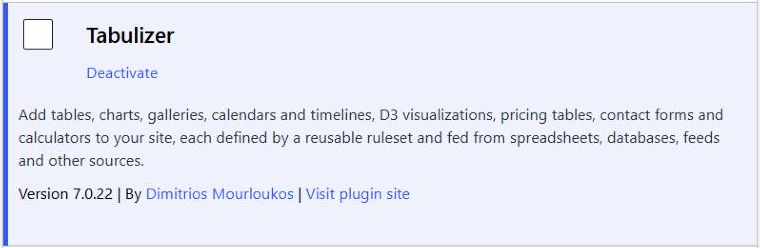
Activation creates Tabulizer's database tables and gives your user roles their Tabulizer permissions. In Plugins › Installed Plugins, Tabulizer now offers Deactivate - the sign that it is active:
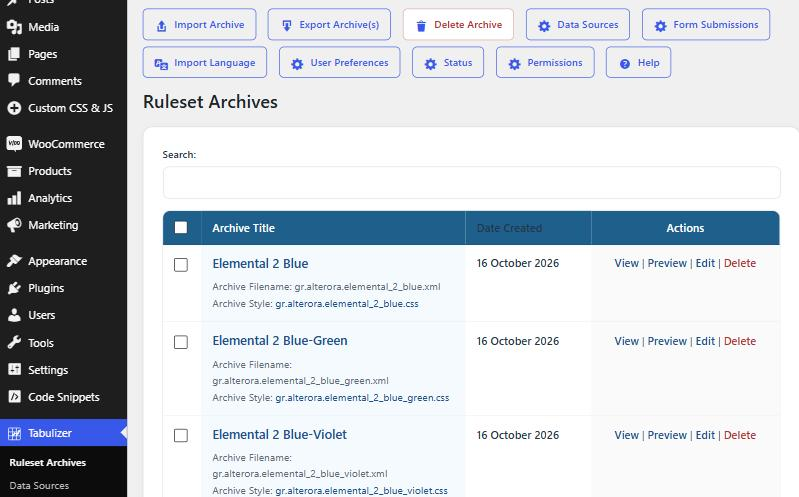
A Tabulizer entry appears in the dashboard's left menu. It opens on Ruleset Archives, with the toolbar - Import Archive, Data Sources, Import Language, User Preferences, Status, Permissions, Help - and the sample archives that come with the plugin.
Under Tabulizer › Status you see the installed version and whether it is the latest, the PHP version and libraries Tabulizer uses, and whether its folders are writable.
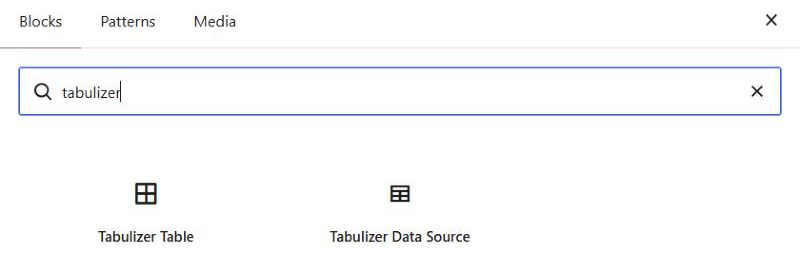
Create or edit a post or page, press the block inserter (+) and search for tabulizer. Two blocks come up:
| Block | What it does |
|---|---|
| Tabulizer Table | Opens the Tabulizer wizard, which creates a table and puts it in the post. |
| Tabulizer Data Source | Shows a data source you have already built, kept up to date automatically. |
Add a Tabulizer Table block and it shows the Open Tabulizer Wizard button:
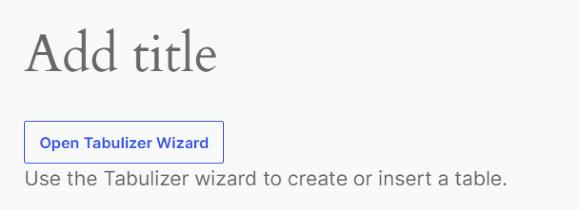
If the menu, the Status page and the blocks are all there, Tabulizer is installed and ready. You can delete the test block; the post does not need saving.
The plugin is installed but not active. Go to Plugins › Installed Plugins and press Activate under Tabulizer.
That is by design. On activation, administrators get every Tabulizer permission; editors may also view ruleset archives and data sources; authors and contributors may use rulesets in their posts, but not manage them. An administrator can change who may do what under Tabulizer › Permissions.
Check that Tabulizer is active, then reload the editor. A plugin that hides or limits blocks - some page builders and block managers do - may need Tabulizer's blocks allowed in its settings.
The server's upload limit is smaller than the plugin (about 5 MB). Ask your host to raise upload_max_filesize and post_max_size, or upload the unzipped tabulizer folder to wp-content/plugins/ by FTP and activate it.
Download the new tabulizer.zip and upload it the same way. WordPress notices the plugin is already there and shows the two versions side by side; press Replace current with uploaded.
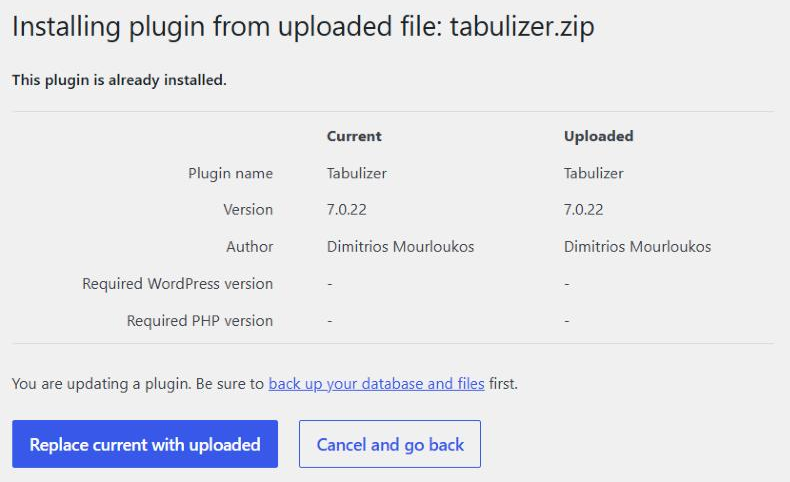
Nothing of yours is lost. WordPress deletes the old plugin folder before it unpacks the new one, so Tabulizer keeps the files you add - imported ruleset archives with their styles, uploaded data files, custom functions - outside it, in wp-content/uploads/tabulizer/. Your data sources, preferences and permissions are in the database. Tabulizer remains active, and on its first page load the new version adds its own new sample archives and built-in functions to that folder without touching yours.
wp-content/plugins/tabulizer/, your current version still keeps your files inside the plugin, and this one update would delete them. Before it, export your archives with Export Archive(s), or copy wp-content/plugins/tabulizer/templates/tabulizer/ with your host's file manager or by FTP; afterwards, import the archives again or copy your files into wp-content/uploads/tabulizer/. From then on, updates keep them by themselves.wp-content/uploads/tabulizer/ and the database tables, so a reinstall finds your archives and data sources where they were.Make your first table with the block: How to Create a Static Table in WordPress. Then see what the two blocks can do: The Tabulizer Table Block and The Tabulizer Data Source Block.
Log in, download tabulizer.zip, and upload it under Plugins › Add New Plugin › Upload Plugin.