The widths themselves
Not set, set on the wrong column, or adding up to more than the table has.
You gave each column a width in the Table Wizard, yet on the page one column is too wide and the others are squeezed. The width is almost never lost - something else in the table, or on your site, is asking for more room. Three checks find it.
A column width in Tabulizer is a CSS width on the column's cells. In an HTML table that is a request, not an order: the browser gives every column at least the room its content needs, then shares out what is left. So a column grows past its width when something inside it cannot shrink, and every other column pays for it. The three usual causes, in the order to check them:
Not set, set on the wrong column, or adding up to more than the table has.
A drop-down or text filter in the heading is wider than the column you asked for.
A stylesheet of the template overrides the width, directly or through the controls inside the table.
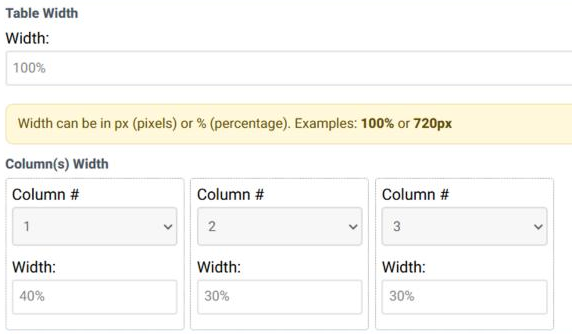
Open the ruleset in the online Table Wizard and go to step 3 (Style). Under Table Width you will find Column(s) Width, with one entry per column.
| Check | Why |
|---|---|
| Each entry's Column # is the column you mean | The entries can be pointed at any column. Two entries on the same column and none on the next is an easy slip. |
| Percentages add up to 100% or less | Above 100% the browser has to scale them all down, and none comes out as typed. |
| Pixels fit inside the table | With Table Width at 100%, five columns of 100px on a 900px page leave 400px over, and the browser spreads it across the columns. Use percentages, or give the table a pixel width that matches the sum. |
| The content can wrap | A long word, a web address or a number cannot be broken, so its column never gets narrower than it. |
Change what is wrong, go on to step 6 to see the preview, and import the ruleset into your site again.
If the table has column filters of type Select/Drop-Down or Input/Text (step 4, Column Filters), each one is a form control sitting in the column's heading - and the column grows to fit the widest of them. A drop-down is as wide as its longest option, so one long category name is enough. A text box has a default width of its own, often wider than a narrow column.
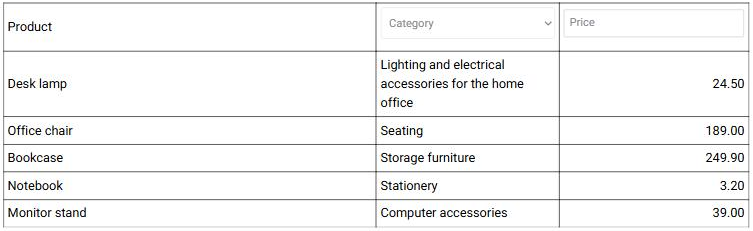
Here the three columns were set to 60%, 10% and 30%. The drop-down in the Category column is wider than 10%, so that column takes more than twice its share and Product loses the difference:
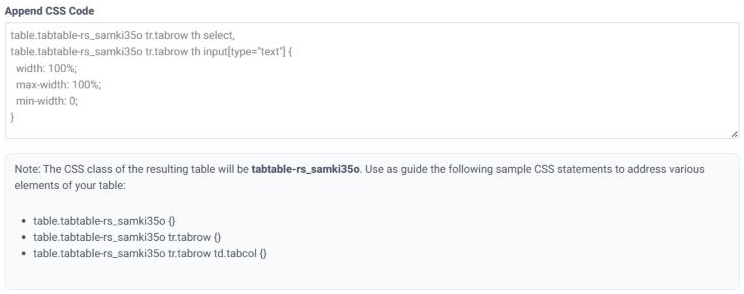
The fix is to limit the filter controls to the width of their column. Add this in step 5 of the wizard, in the Append CSS Code box, with your own table class in place of tabtable-rs_samki35o - the note under the box tells you what yours is:
table.tabtable-rs_samki35o tr.tabrow th select,
table.tabtable-rs_samki35o tr.tabrow th input[type="text"] {
  width: 100%;
  max-width: 100%;
  min-width: 0;
}
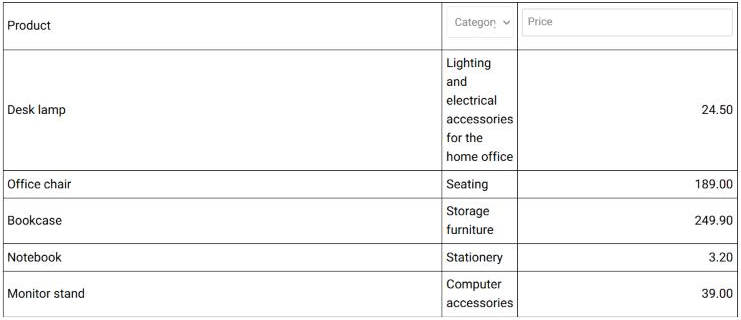
Each filter now takes exactly the width of its column, and the columns go back to the widths you set:
col_width_N class as the data cells, so you can aim at a single column - table.tabtable-rs_samki35o tr.tabrow th.col_width_2 select { max-width: 90px; } - or give a filter a fixed pixel width instead of 100%.Filters placed outside the table (above or below it, as an external filter panel) do not sit in the columns and cannot cause this.
Your site's template has its own stylesheets, and they apply to the table too. When one of their rules is more specific than Tabulizer's - or marked !important - it wins, and your width is quietly replaced. It can do so directly, with a rule on the table cells, or indirectly, through the controls inside them. The table in step 2 is a real example of the indirect kind: the 220px drop-down came from the template, whose stylesheet sets select { width: 220px; } for every drop-down on the site.
| Typical template rule | What it does to your widths |
|---|---|
td, th { width: auto !important; } |
Cancels them outright. |
table { table-layout: fixed; } |
Sizes the columns from the first row only. That row is usually the heading, which carries no width of its own, so the columns come out equal. |
select { width: 220px; }, input { min-width: 200px; } |
Makes every filter control too wide - step 2's problem, caused by the template. |
td { white-space: nowrap; } |
Stops text wrapping, so each column is as wide as its longest line. |
Open the page in your browser, right-click a cell of the column that is wrong and choose Inspect. The Styles panel lists every rule that applies to that cell, and crosses out the ones that lost. If Tabulizer's width is crossed out, the rule above it - with the template's file name beside it - is the one to beat.
Make your rule more specific than the template's, so the browser prefers it. Tabulizer's own width rule already starts from the table class, as in table.tabtable-rs_samki35o tr.tabrow.tabrow td.col_width_2. Lengthen the selector - put body or the id of your content area in front of it - and, only if that is still not enough, add !important:
body table.tabtable-rs_samki35o tr.tabrow.tabrow td.col_width_2,
body table.tabtable-rs_samki35o tr.tabrow th.col_width_2 {
  width: 10% !important;
}
There are two places to put it:
| Where | How |
|---|---|
| In the wizard (recommended) | Step 5, Append CSS Code, then import the ruleset again. The rule becomes part of the ruleset and travels with it. |
| On your site | On the Ruleset Archives page of the Tabulizer back end - Components › Tabulizer in Joomla, Tabulizer › Ruleset Archives in WordPress - click the file name after Archive Style to open the ruleset's CSS file in an editor. Quicker, but importing the archive again from the wizard replaces the file, so make the same change in the wizard as well. |
Then the ruleset is fine and the difference is your site: its template (step 3), or filter controls styled by it (step 2). The wizard's preview uses the wizard's own page, not your template.
That is where the column filters sit. See step 2.
The browser re-measures the columns whenever the rows change, and a column is as wide as its widest content on the current page. Set every column's width, so nothing is left to the browser.
!important?Usually not. A longer selector beats a shorter one; reach for !important only when the template uses it itself.
How the filters are set up: Column Filtering. Where your own CSS goes and why it can override the wizard: Appending HTML, CSS and JavaScript.
Ask the AI Assistant, or send us the page address through the Help Desk.
Back to Troubleshooting