You are a member
Log In first, at the top of the page. The download page then shows your membership's end date and the files.
Download the package for your Joomla version, upload it in the Joomla administrator, and check three things. The whole job takes a few minutes, and the same steps install Tabulizer for the first time or update an existing installation.
| You need | Why |
|---|---|
| An active Tabulizer membership | Downloads are for members. One membership covers every edition - Joomla 3, 4, 5 and 6, and WordPress. |
| A Joomla administrator account | Installing extensions needs a Super User, or an account allowed to install extensions. |
| Your Joomla version | There is one package per Joomla version and they are not interchangeable. The version is shown at the top of the administrator, and in System › System Information. |
| A server that runs Joomla well | Tabulizer has no unusual demands; see the System Requirements for the details. |
Tabulizer is downloaded from this site, tabulizer.com. Open Download › Tabulizer for Joomla:
Log In first, at the top of the page. The download page then shows your membership's end date and the files.
The page asks you to choose a plan. Buy a membership on the Pricing page, log in with the account you used, and come back.
The page says so and offers a renewal. Your rulesets and data sources are untouched; you only need the renewal to download new versions.
As a member you see one download per edition:
| Your site runs | Download | File |
|---|---|---|
| Joomla 6 | Tabulizer for Joomla 6 | com_tabulizer_joomla6.zip |
| Joomla 5 | Tabulizer for Joomla 5 | com_tabulizer_joomla5.zip |
| Joomla 4 | Tabulizer for Joomla 4 | com_tabulizer_joomla4.zip |
| Joomla 3 | Tabulizer for Joomla 3 | com_tabulizer_joomla3.zip |
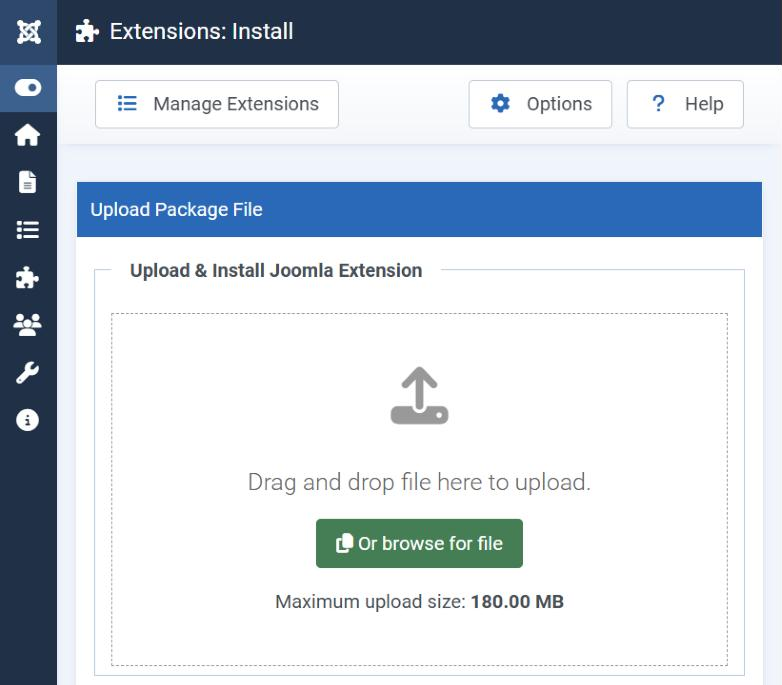
In your Joomla administrator go to System › Install › Extensions - on Joomla 3 it is Extensions › Manage › Install. On the Upload Package File tab, drag the zip onto the box or press Or browse for file and choose it. Joomla uploads and installs it straight away.
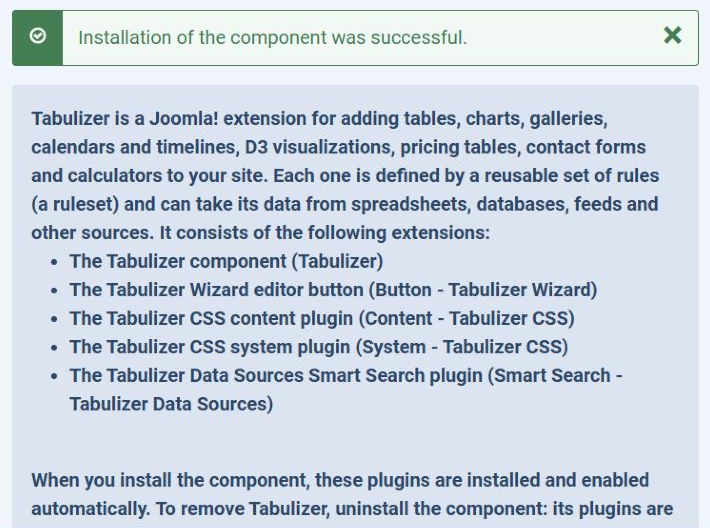
When it is done, Joomla says Installation of the component was successful and lists what Tabulizer consists of:
Below it, a status table reports each part - the component, every plugin and the sample rulesets - as installed. One package puts all of this in place:
| Part | What it does |
|---|---|
| Tabulizer (component) | The back end: ruleset archives, data sources, preferences, the Status page. |
| Button - Tabulizer Wizard (editors-xtd plugin) | The Tabulizer button in the article editor. |
| Content - Tabulizer CSS | Turns Tabulizer tags in your articles into tables, with their styles. |
| System - Tabulizer CSS | Does the same for the rest of the page - modules, other components. |
| Smart Search - Tabulizer Data Sources | Lets Smart Search find text inside data source tables. The Joomla 3 package installs Search - Tabulizer Data Sources instead, for Joomla 3's Search component. |
| Tabulizer's Data Source Module | Shows a data source in any module position. |
The plugins are enabled automatically; there is nothing to switch on by hand.
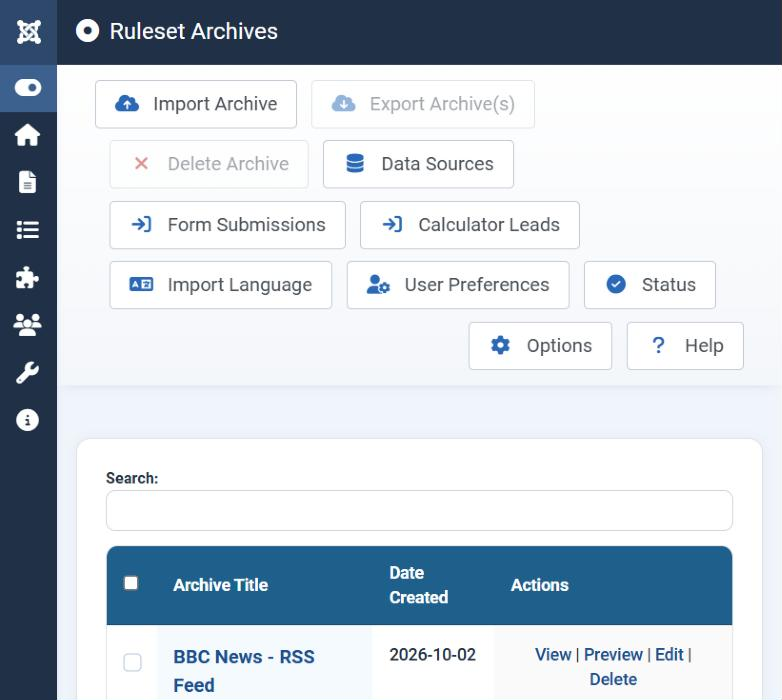
Go to Components › Tabulizer. You should land on Ruleset Archives, with its toolbar - Import Archive, Data Sources, Import Language, User Preferences, Status and the rest - and a list of archives, including the sample ones that came with the package.
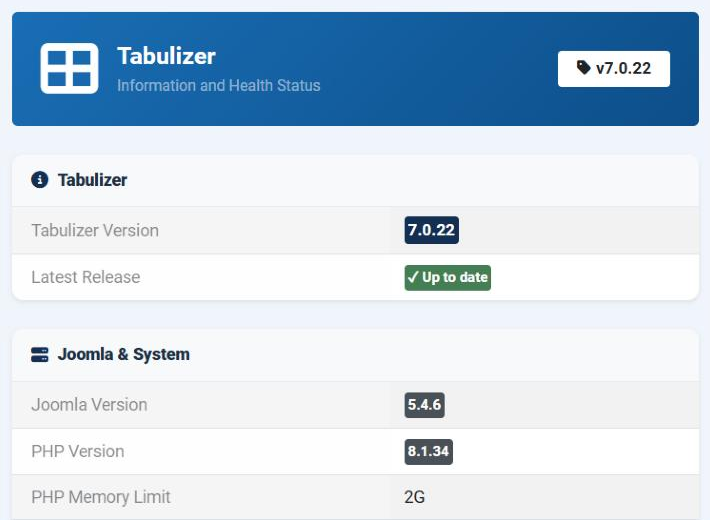
Press Status. The page shows the version you just installed, whether a newer release exists, your Joomla and PHP versions, the PHP libraries Tabulizer uses, and whether its folders are writable. Anything that needs your attention is marked.
Create or edit any article in the administrator (Content › Articles). In the editor toolbar open CMS Content: Tabulizer is the last entry (on Joomla 3 it is a Tabulizer button under the editor), and it opens the wizard that inserts tables into the article.
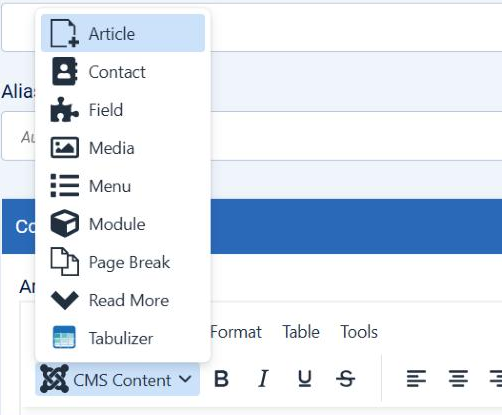
If all three checks pass, Tabulizer is installed and ready.
Work down this list:
The button is offered only when you edit in the back end. Editing an article from the front end of the site does not show it.
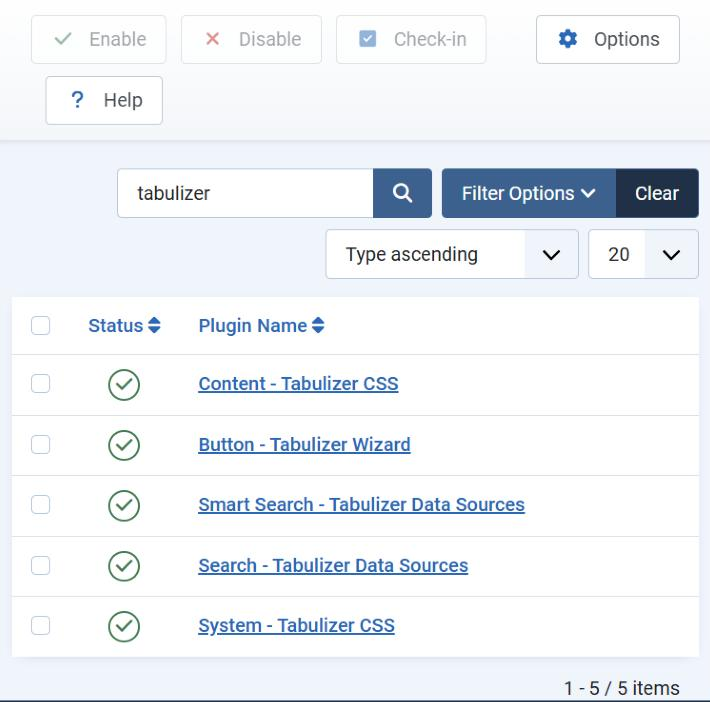
Go to System › Manage › Plugins (Extensions › Plugins on Joomla 3) and search for tabulizer. Button - Tabulizer Wizard - the plugin of type editors-xtd - must show a green tick. If it shows a grey cross, click it to enable it. While you are there, check that the two Tabulizer CSS plugins are enabled too: without them your tables do not appear on the site.
In Joomla 4 and later, TinyMCE gathers editor buttons under CMS Content; on Joomla 3, and with Editor - None or CodeMirror, they appear as buttons under the text box. If you use another editor, check its settings for an option that hides the extension buttons.
You uploaded an unpacked folder, or the package for another Joomla version. Download the zip for your version again and upload it unchanged.
The server's upload limit is smaller than the package (about 5 MB). The Maximum upload size under the upload box shows the limit; ask your host to raise upload_max_filesize and post_max_size.
Yes. After upgrading Joomla, install the Tabulizer package for the new version over the old one, as an update.
On the Status page, or under System › Manage › Extensions, searching for tabulizer.
Tabulizer ships in English. Other languages are separate packs; see How to Import a Language Pack.
A tour of the back end you have just opened: The Ruleset Manager Dashboard and The Status Page. Then make your first table with the editor button: How to Create a Static HTML Table.
Log in, download the package for your Joomla version, and upload it under System › Install › Extensions.
Download Tabulizer for Joomla