Create your first table on your WordPress site
Create Your First Table on Your WordPress Site
Tabulizer is installed - now put a real table on a page. In about fifteen minutes you design a product list in the online Table Wizard, with a search box, pages and a layout that works on a phone, bring it into your WordPress site and publish it in a post. Then you see how easy it is to change the look or the data later.
The plan
Design it online
The Table Wizard on tabulizer.com turns your sample data and your choices into a ruleset - the recipe for how the table looks and behaves.
Bring it to your site
Download the ruleset as a data source and import it into Tabulizer. The data travels with it.
Put it in a post
A Tabulizer block in the editor points to the data source. Visitors see the finished table.
Tabulizer is not installed yet? Start with How to Install Tabulizer on WordPress. Using Joomla? Follow the Joomla version of the installation instead.
Step 1: your data
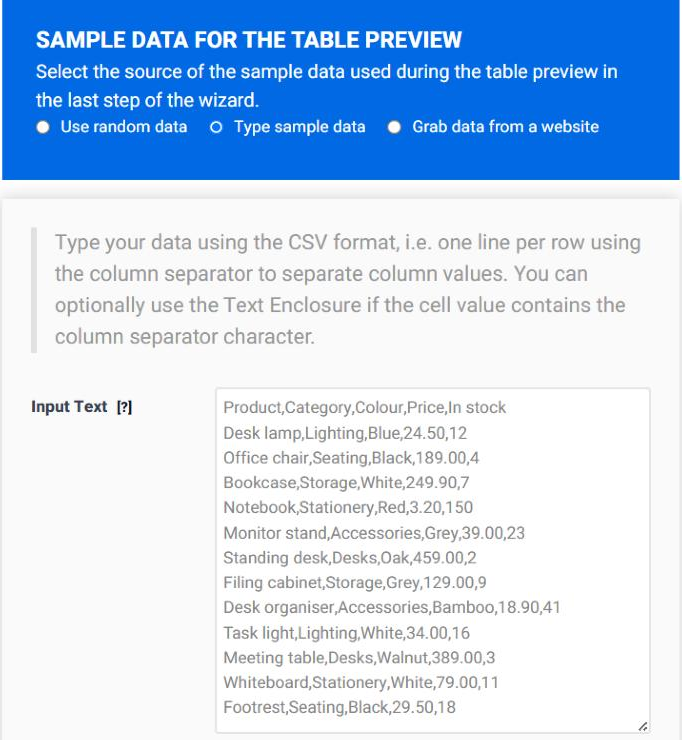
Log in to tabulizer.com and open Wizards › Table Wizard. In step 1 (Data), choose Type sample data and paste your rows in CSV form - one line per row, values separated by commas, the first line holding the column headings:
Product,Category,Colour,Price,In stock
Desk lamp,Lighting,Blue,24.50,12
Office chair,Seating,Black,189.00,4
Bookcase,Storage,White,249.90,7
...
Leave Column Separator at Comma, and set the number of rows and columns to match your data - here 13 rows and 5 columns.
Step 2: the shape
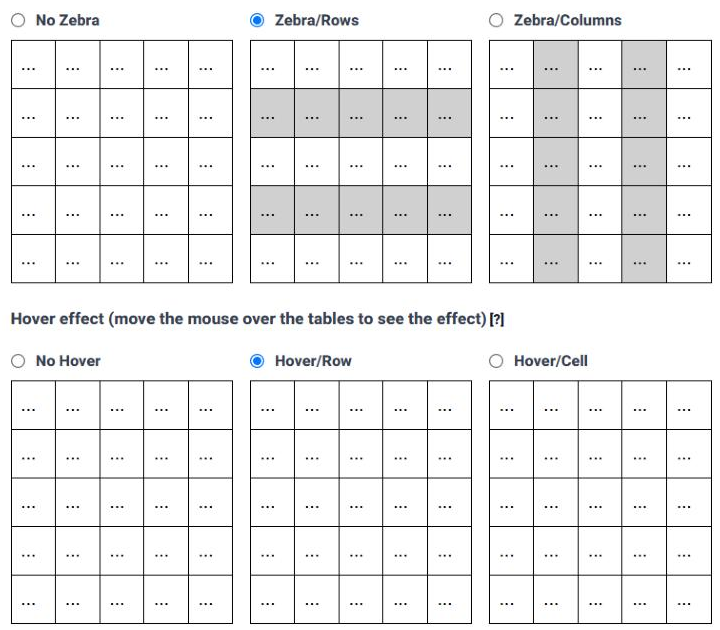
In step 2 (Format), set Top Headers to 1 header(s) so the first line becomes the heading row. Then choose Zebra/Rows for alternate row colours and Hover/Row so the row under the mouse lights up. Pick any border style you like; the example uses row borders.
Step 3: the colours
Step 3 (Style) has a section for each part of the table. Three settings give the example its look:
| Section | Setting | Value |
|---|---|---|
| Table Headers › Header #1 | Font Style, Font Color, Background Color › Solid | Bold, #ffffff (white), #1f3a68 (dark blue) |
| Zebra | Background Color › Solid | #fbeeee (a light blush) |
| Hover | Background Color › Solid | #e9ecef (a light grey) |
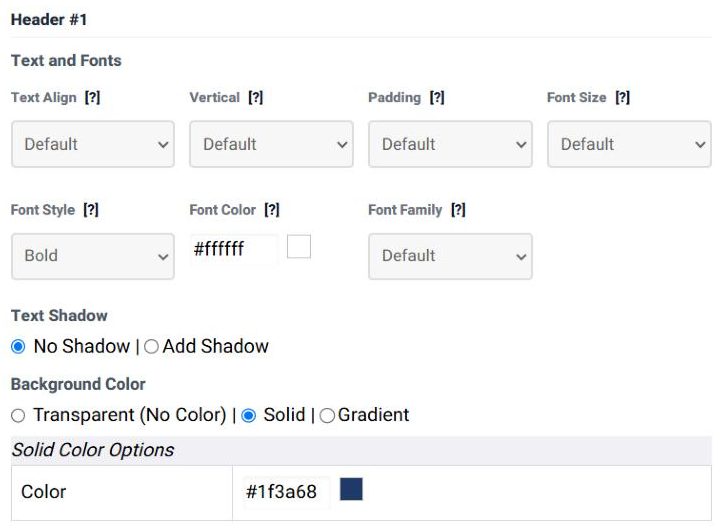
Type a colour code or click the swatch to pick one. Anything you leave at Default follows your site's theme.
Step 4: the features
Step 4 (Features) is where a plain table becomes an interactive one. Switch on three things:
| Panel | Setting | What visitors get |
|---|---|---|
| Table/Search Filter | Enable Table Filtering: Yes | A search box that narrows the rows as they type. |
| Table/Pagination | Pagination Type: Arrows with Page Numbers, 10 rows per page | Ten rows at a time, with page numbers and a "Show 10 entries" menu. |
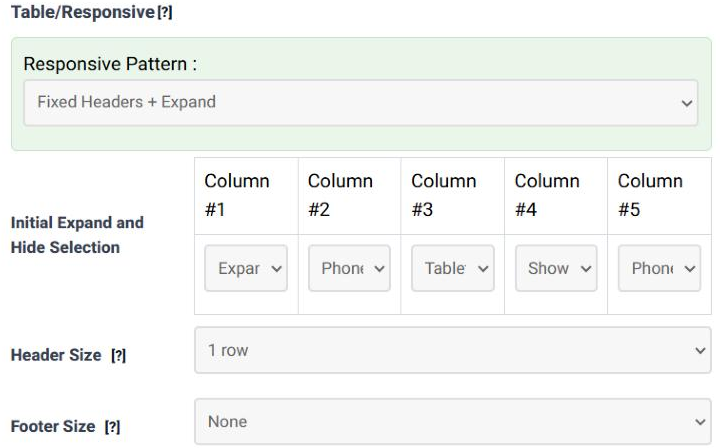
| Table/Responsive | Responsive Pattern: Fixed Headers + Expand | On a phone, the less important columns fold away behind an arrow on each row. |
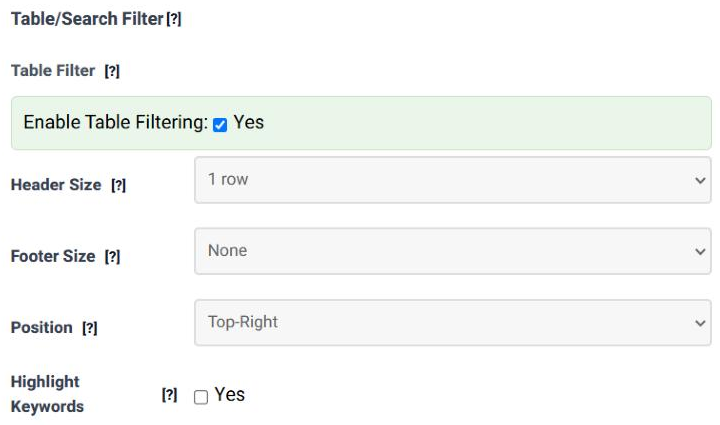
For the responsive pattern, decide per column when it may be hidden. The example keeps Product as the column with the expand arrow, always shows Price, hides Category and In stock on phones and Colour on tablets too:
Step 5 (Modifications) can change the data itself - formats, calculations, extra rows. Nothing is needed there for this table, so go on to step 6.
Step 5: preview and save
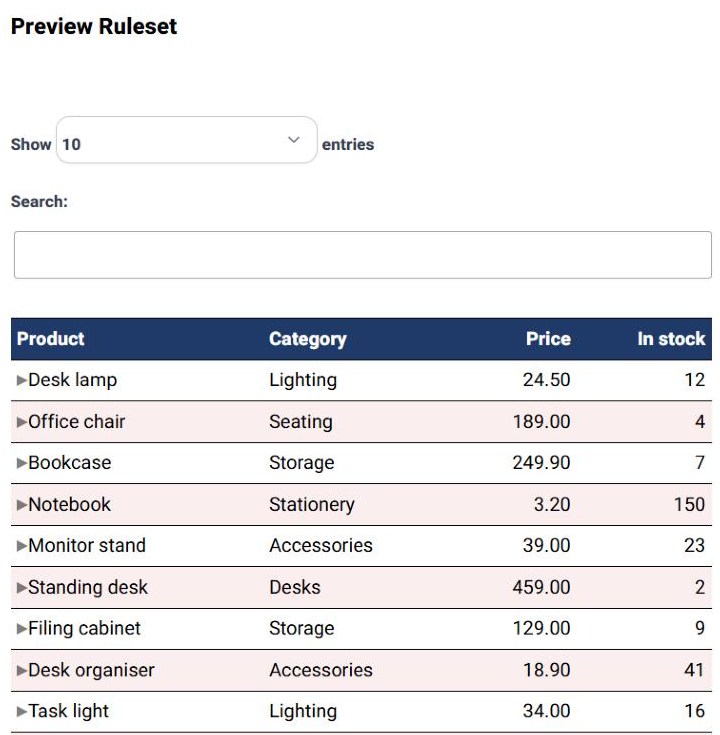
Step 6 (Preview) shows the table as your visitors will see it, with every feature working. Try the search box and the pages.
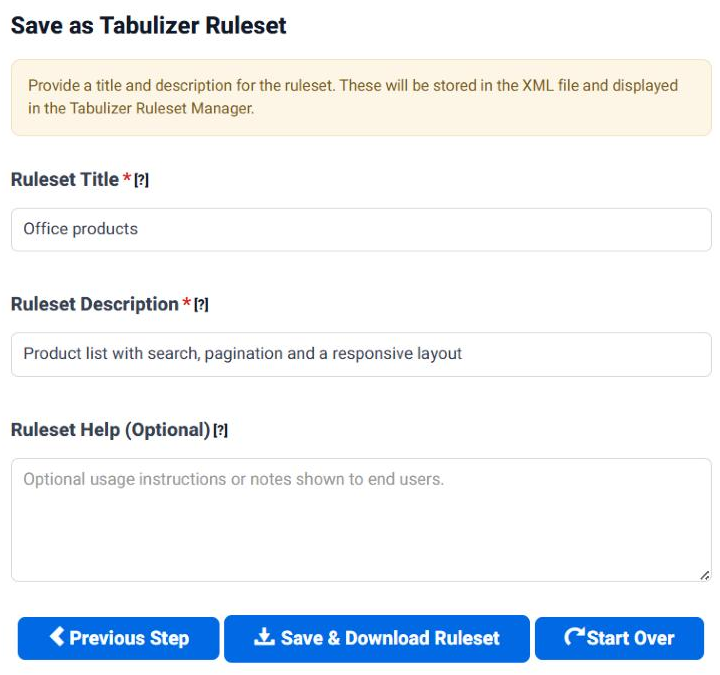
Below the preview, give the ruleset a Ruleset Title and a Ruleset Description - they are how you will recognise it later - and press Save & Download Ruleset.
You land in your Ruleset Manager, with two ways to download:
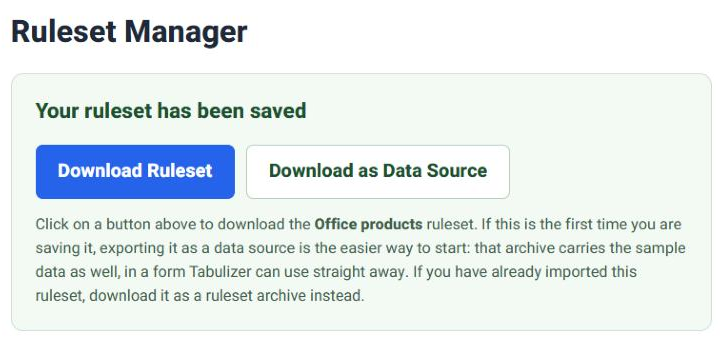
This first time, press Download as Data Source. You get one zip holding the ruleset, its styles, your sample rows as a CSV file and a ready-made data source that ties them together - everything Tabulizer needs to show the table. The same zip works on WordPress and on Joomla.
Step 6: import it into WordPress
In your WordPress dashboard go to Tabulizer › Ruleset Archives and press Import Archive. Choose the zip you downloaded.
Press Import. Tabulizer reports that the zip was uploaded:

Under Tabulizer › Data Sources you find a new data source named after your ruleset:

Press Preview if you want to see the table before it goes into a post.
Step 7: put it in a post
Create a new post or page (Posts › Add New), write an introduction if you like, and add a block where the table should go.
Add the block
Press the + block inserter, search for Tabulizer and choose Tabulizer Data Source.
Pick the data source
With the block selected, open the Block tab of the settings sidebar and choose your data source in the Data Source list.
Publish
Press Publish and open the post on your site.
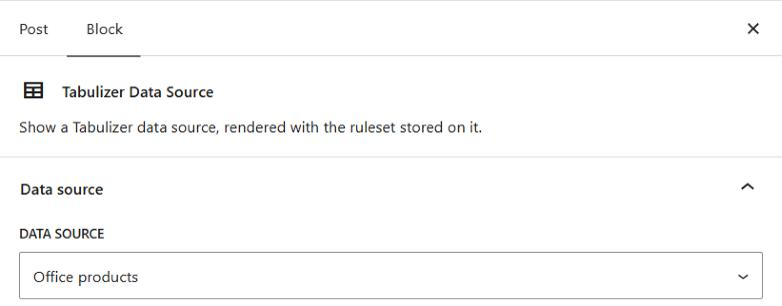
The block holds only a pointer to the data source. The table is built whenever the page is shown, so the post always displays the current data.
[data-source tag="Yh2UHLSSK0PZmbcsgrkPKpEg"] in the classic editor or a text widget, using the tag shown on the Data Sources page; or the Tabulizer widget for a sidebar.The result
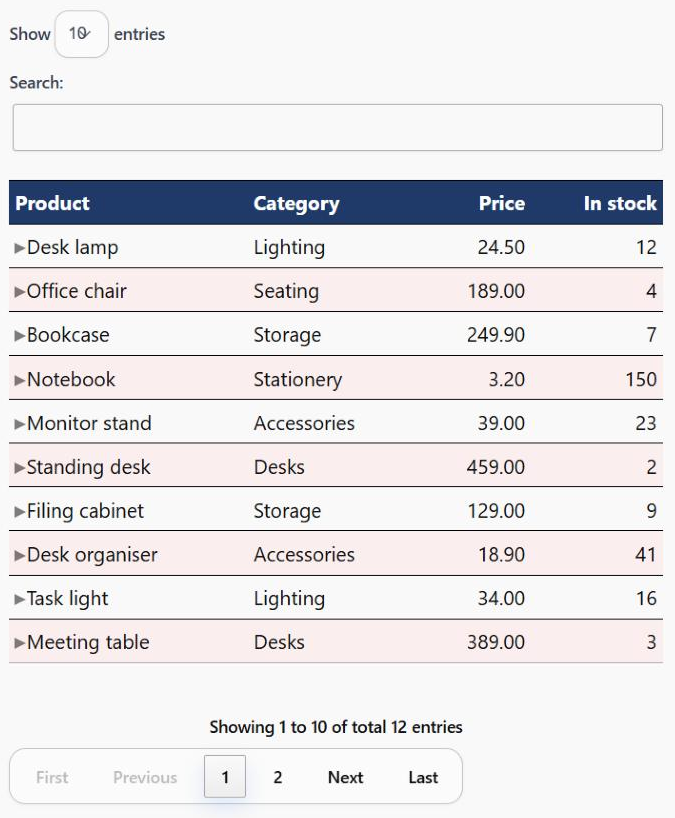
On a phone the same table keeps the product and its price, and the arrow on each row opens the rest of it - exactly as in the wizard's preview.
That is the whole journey: a ruleset designed once online, a data source on your site, a block in a post.
Changing the look later
The design lives in your ruleset on tabulizer.com, so that is where you change it.
Edit the ruleset
On tabulizer.com open My Account › My Rulesets and press Edit next to the ruleset. The Table Wizard opens with every setting as you left it. Change what you want and save again.
Download the ruleset only
This time press Download Ruleset, not Download as Data Source. Your site already has the data source and its data file; exporting them again would only bring a second copy, or a message that the data source already exists.
Import with Overwrite
In WordPress, Tabulizer › Ruleset Archives › Import Archive again and tick YES, overwrite any other existing file(s) with the same name, so the new version replaces the old one.
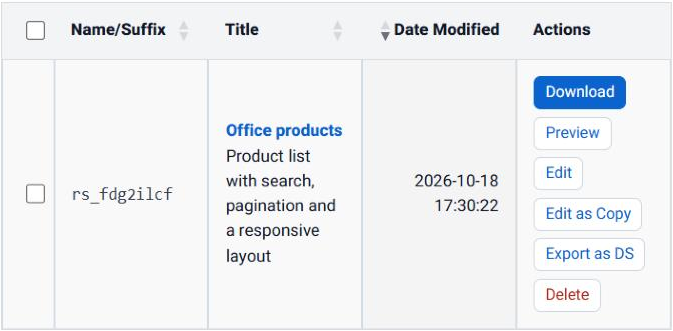
Every post that shows the table picks up the new look at once - there is nothing to change in the posts.
Changing the data later
The rows live in a CSV file on your own site, separate from the design. To change them, change the file - the table follows on the next page view.
| Way | How |
|---|---|
| Edit it in place | Open the data source (Tabulizer › Data Sources › Edit). Under the file name, Edit data file opens the CSV in an editor where you change, add or remove rows and save. |
| Upload a new version | Replace file on the same form, or Manage Data Files on the Data Sources page, with Overwrite ticked. Keep the same file name and the same columns. |
| From outside WordPress | Replace the file over FTP or with your host's file manager. Manage Data Files shows which file belongs to which data source. |
| From the front end | The optional Tabulizer File Uploader lets the people you choose upload a new version of a data file from a page on your site - no dashboard or FTP access needed. It comes with your membership; see Updating Data from the Front End with Tabulizer File Uploader. |

Or let the data come from somewhere else
A data source is not tied to a CSV file. Edit it and change its Source Type, and the same ruleset - the same look and features - shows data from another place:
| Source Type | When it suits you |
|---|---|
| Excel File | You keep the list in Excel. Upload the .xlsx and replace it whenever it changes; no need to save as CSV. |
| Google Spreadsheet | Several people keep the list up to date. Link a published Google Sheet and the table shows their changes by itself - nobody touches the website. |
| Database Table/Query | The data is already in your site's database, kept by another plugin. |
Keep the same columns in the same order and the table looks exactly as before.
Common questions
The import says Safe Mode is enabled.
Import again with YES, overwrite safemode settings ticked. Or turn Safe Mode off for good under Tabulizer › User Preferences - but the tick is the safer habit.
I cannot find the Tabulizer blocks.
The plugin is not active. Activate it under Plugins; see How to Install Tabulizer on WordPress.
The table shows, but without search or pages.
Look for a JavaScript error in your browser's console. Another plugin or the theme may load an old copy of jQuery or DataTables; try the page with other plugins switched off, then switch them back on one at a time.
I changed the CSV but the table did not change.
The data source has caching on, or a page-caching plugin keeps the old page. Wait for the cache time to pass, or press Clear Cache on the Data Sources page and clear your caching plugin's cache too.
Can I use the same table on several pages?
Yes. Add the same data source to as many posts, pages or widgets as you like; they all show the same, current data.
Can I start from my own design rather than the wizard's?
Yes - the wizard covers the common cases, and step 5 lets you add your own CSS. For ready-made designs, browse the premium and community rulesets on tabulizer.com.
Read more
Each step of the wizard in depth: the Table Wizard Guides. More about data: The CSV/Text File Data Source, The Excel File Data Source and The Google Spreadsheet Data Source.
Make yours
Open the Table Wizard, paste a few rows of your own, and follow the same seven steps.
Open the Table Wizard